
How to Fix a Corrupted USB Drive Without Losing Data
A corrupted USB drive may appear as RAW, become inaccessible, disappear from File Explorer, or show the message “You need to format the disk before you can use it.” If you are searching for how to fix corrupted USB drive problems without losing important files, the first step is to avoid formatting the drive or writing new data to it.
In many cases, USB corruption is caused by file system errors, unsafe removal, driver problems, or partition damage rather than complete hardware failure. If the drive still contains important files, you can use Magic Data Recovery to scan the corrupted USB and recover accessible data before attempting repairs.
This guide explains how to fix a corrupted USB drive in Windows 11/10 using safe methods for RAW drives, inaccessible USB devices, missing drive letters, driver errors, and USB drives that keep asking to be formatted. You can also explore more USB troubleshooting and recovery solutions in our USB Flash Drive Solutions.
Supports Windows 7/8/10/11 and Windows Server
Table of Contents
Why You Need to Know How to Fix Corrupted USB Drive
In addition to hardware wear, software glitches often cause logical corruption. For instance, removing a drive without clicking “Safely Remove Hardware” frequently leads to file system errors. Because of this, Windows might mark the drive as RAW. If you identify USB corruption early, you can prevent permanent data loss and extend the lifespan of your hardware devices significantly.
Why Does a USB Drive Become Corrupted?
USB drive corruption can occur for several reasons. Some involve only the file system and can often be repaired with software, while others indicate that the flash memory or hardware itself is beginning to fail.
Unsafe Removal
Unplugging a USB drive while Windows is still writing data can interrupt file system updates. This may damage directory information, partition data, or individual files and leave the drive inaccessible the next time it is connected.
Interrupted File Transfers or Formatting
A sudden shutdown, power loss, system crash, or accidental disconnection during a file transfer or formatting operation can leave the file system in an inconsistent state.
File System or Partition Errors
Damage to FAT32, exFAT, or NTFS structures can cause Windows to report the USB drive as RAW, inaccessible, or in need of formatting. Partition table problems can also prevent the volume from mounting correctly.
Virus or Malware Infection
Malware can hide files, change file attributes, delete data, or damage file system structures. In some cases, the USB may appear empty even though the files still physically exist on the drive.
File System Compatibility Issues
A USB drive formatted with a file system that is not fully supported by the connected operating system or device may appear unreadable. This does not always mean the drive is corrupted, so test it on a compatible system before attempting repairs.
Aging Flash Memory or Bad Blocks
USB flash memory has a limited number of write cycles. As NAND cells wear out, the drive may develop unreadable blocks, become read-only, disconnect unexpectedly, or repeatedly corrupt stored files.
Physical Damage
A bent USB connector, damaged circuit board, failed controller, or electrical damage can prevent the drive from being detected correctly. Software repair methods cannot fix this type of physical failure.
How to Choose the Right Fix for a Corrupted USB Drive
| USB symptom | Likely problem | Best first action |
|---|---|---|
| USB opens but files show errors | Minor file system corruption | Back up files, then run Error Checking/CHKDSK |
| USB shows RAW | Damaged file system | Recover data first; do not format immediately |
| “You need to format the disk” | File system/partition corruption | Cancel formatting and recover files first |
| USB appears in Disk Management but not Explorer | Missing/conflicting drive letter | Assign a new drive letter |
| USB shows “Access denied” | Permission/file system issue | Check access and file system status |
| USB is not recognized | Driver, USB port, controller, or hardware issue | Try another port/PC, then reinstall driver |
| USB shows 0 bytes/No Media | Controller/NAND failure possible | Avoid repeated software repairs |
| USB disconnects repeatedly | Connection or physical failure | Stop using it and check hardware |
Before You Repair a Corrupted USB Drive: Protect Your Data First
If the USB drive contains files you cannot afford to lose, recover or copy them before attempting repairs whenever possible.
Some Windows repair tools modify the file system while correcting errors. Formatting goes further by creating a new file system. For this reason, the safest workflow is:
Recover important files → Repair the USB drive → Reformat only if necessary
If Windows can still detect the physical USB device but the partition is RAW, inaccessible, or asking to be formatted, Magic Data Recovery can scan the drive for recoverable files without requiring you to format it first.
Save recovered files to your computer or another storage device rather than back to the damaged USB drive.
How to Recover Data from a Corrupted USB Drive Before Repair
If your corrupted USB drive contains important files, recovering them before running major repairs is usually the safest approach. This is especially important when the drive appears as RAW, asks to be formatted, becomes inaccessible, or suddenly loses files.

Magic Data Recovery can scan USB flash drives affected by file system corruption, accidental formatting, deleted files, missing partitions, and other logical data loss problems. It supports more than 5,000 file types, including documents, photos, videos, audio files, archives, and more.
Supports Windows 7/8/10/11 and Windows Server
Step 1: Connect the Corrupted USB Drive
Connect the USB drive to your Windows computer. If Windows can still detect the physical device, even if the partition is RAW or inaccessible, launch Magic Data Recovery.
Step 2: Select the USB Drive and Start Scanning
Locate the affected USB drive in the device list and start the scan. The software searches the drive for existing files as well as data that is no longer accessible through File Explorer.
Step 3: Preview the Recoverable Files
After scanning, browse the detected folders or use the file type and search filters to locate important files. Preview supported files when possible to verify that they are intact before recovery.
Step 4: Recover Files to Another Drive
Select the files you need and save them to your computer’s internal drive or another healthy storage device.
Do not save recovered files back to the corrupted USB drive because writing new data to the same device may overwrite other recoverable files.
Once your important files are safely stored elsewhere, you can continue with CHKDSK, formatting, or other repair methods without putting the original data at unnecessary risk.
How to Fix a Corrupted USB Drive: 6 Methods
Method 1: Try Another USB Port or Computer
Before changing the file system or running repair commands, rule out a simple connection problem. A faulty USB port, unstable USB hub, or temporary Windows issue can sometimes make a healthy flash drive appear corrupted or inaccessible.
Try these quick checks first:
Disconnect the USB drive and connect it to another USB port.
If you are using a USB hub, connect the drive directly to the computer.
Restart Windows and reconnect the USB drive.
Test the USB drive on another computer if possible.
If the drive works normally on another PC, the problem is more likely related to the original computer’s USB port, driver, or Windows configuration. If the same errors occur on multiple computers, continue with the methods below to check the USB drive itself.
Method 2: Run Windows Error Checking for Minor USB Errors
First and foremost, the most reliable internal tool is the CHKDSK utility. Windows provides this command-line tool specifically to scan and repair logical errors. To begin, follow these steps:
- Type “cmd” in the Windows search bar and run as Administrator.
- Input the command
chkdsk X: /f(Replace X with your USB drive letter). - Press Enter and wait for the process to complete.
As a result, this process often resolves minor corruption. Therefore, it can resolve minor file system errors and restore normal access to the drive.

Method 3: Reinstall the USB Driver When the Drive Is Not Recognized
Win + X → Device Manager → Disk drives → USB device → Uninstall device → disconnect USB → restart PC → reconnect
If the USB works on another computer, the problem is more likely related to your Windows configuration, USB controller, or driver than to the flash drive itself.
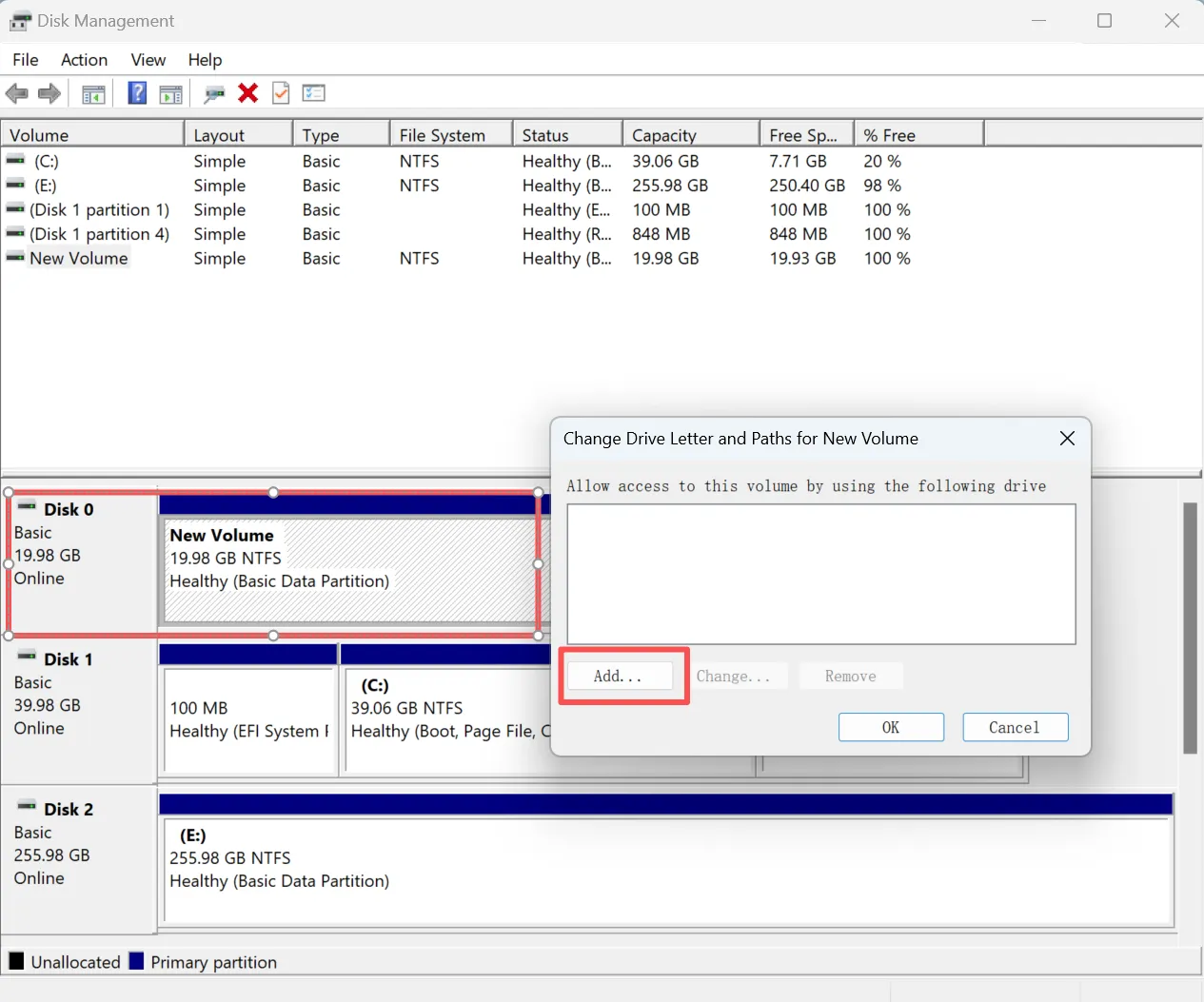
Method 4: Assign a New Drive Letter in Disk Management
Win + X → Disk Management → right-click USB partition → Change Drive Letter and Paths → Change/Add → choose an unused letter → OK
Use this method when the USB appears in Disk Management but does not appear correctly in File Explorer.
Method 5: Fix a RAW USB Drive Without Losing Data
If your USB drive appears as RAW instead of NTFS, FAT32, or exFAT, Windows can detect the device but cannot recognize its file system. You may also see an error such as “You need to format the disk before you can use it.”
Do not format the USB immediately if it contains important files.
First, check the drive in Disk Management:
- Press Win + X and select Disk Management.
- Locate your USB drive by checking its capacity and drive letter.
- Look at the File System column. If it shows RAW, the file system is damaged or unreadable.
- If important files are still on the drive, recover them before formatting or making major changes to the partition.
You can use Magic Data Recovery to scan a RAW or corrupted USB drive and save recoverable files to another storage device.
After your files are safe, right-click the RAW partition in Disk Management, select Format, and create a new NTFS, FAT32, or exFAT file system.
Important: If the USB drive shows “No Media,” reports an incorrect capacity such as 0 bytes, or repeatedly disconnects from the computer, the problem may involve hardware rather than ordinary file system corruption.
Method 6: Format the USB Drive After Recovering Your Files
If the methods above cannot restore normal access to the USB drive, formatting can rebuild the file system and resolve persistent logical corruption.
However, formatting should be your last resort when important files are still stored on the USB drive. Recover or back up your data first whenever possible.
To format the USB drive in Windows:
Open File Explorer and right-click the USB drive.
Select Format.
Choose an appropriate file system:
FAT32: Best for broad compatibility with older computers, cameras, game consoles, and other devices. Individual files cannot exceed 4 GB.
exFAT: Recommended when you need compatibility between Windows and macOS and want to store files larger than 4 GB.
NTFS: Suitable mainly for Windows environments and supports large files, permissions, and other Windows features.
Leave Quick Format selected for normal logical corruption.
Click Start and confirm the operation.
After formatting is complete, reconnect the drive and test whether you can create, copy, open, and delete files normally.
Keep in mind that formatting repairs the logical file system. It cannot repair failing NAND memory, a damaged USB controller, or a physically broken connector. If the USB continues to disconnect, becomes read-only again, or develops new errors after formatting, replacing the drive is usually safer than continuing to store important data on it.
How to Prevent USB Drive Corruption
- Eject the USB safely: Always use “Eject” or “Safely Remove Hardware” before unplugging the drive.
- Avoid interrupting file transfers: Do not remove the USB or shut down the computer while files are being copied.
- Keep backups of important files: Do not rely on a USB drive as the only storage location.
- Scan for malware regularly: Use updated antivirus software, especially if the USB is used on multiple computers.
- Replace unstable drives: If the USB frequently disconnects, becomes read-only, or repeatedly shows errors, back up the data and replace it.
These habits can reduce the risk of USB corruption and unexpected data loss.
Conclusion
Knowing how to fix corrupted USB drive problems starts with identifying the type of failure. If the issue is caused by a USB port, driver, missing drive letter, or minor file system error, Windows tools may be enough to restore access. RAW partitions and drives that repeatedly ask to be formatted require more caution, especially when important files are still stored on the device.
If data matters, recover it before formatting or making major changes to the file system. Magic Data Recovery can scan corrupted, RAW, formatted, or inaccessible USB drives and recover files to another safe location.
After your files are protected, you can repair or reformat the USB drive as needed. If the device continues to disconnect, reports incorrect capacity, or is not detected by Disk Management, consider the possibility of physical hardware failure.
For more troubleshooting, repair, and recovery guides, visit our USB Flash Drive Solutions.
Supports Windows 7/8/10/11 and Windows Server
FAQs
Can a corrupted USB drive be fixed without losing data?
How do I fix a corrupted USB drive without formatting?
How do I fix a RAW USB drive?
Why does Windows say my USB drive needs to be formatted?
Does CHKDSK fix a corrupted USB drive?
Can I recover files before repairing a corrupted USB drive?
Can software repair a physically damaged USB drive?
Can I reuse a corrupted USB drive after repairing it?

Jason has over 15 years of hands-on experience in the computer data security industry. He specializes in data recovery, backup and restoration, and file repair technologies, and has helped millions of users worldwide resolve complex data loss and security issues.