
Auto Recovery Word Document: Fix Unsaved Files
Losing a Word document after hours of work can be frustrating. This situation often happens when Microsoft Word crashes, the system shuts down, or the program closes before saving. Fortunately, Word includes a built-in feature called auto recovery Word document, which helps restore unsaved changes.
However, this feature does not always work perfectly. Sometimes the recovery file disappears, the document becomes corrupted, or the file gets deleted from the drive. Therefore, users may need several document recovery methods.
In this guide, you will learn how to restore an auto recovery document using Word’s built-in tools. In addition, you will discover what to do when those methods fail and how Magic Data Recovery can help recover important files.
Supports Windows 7/8/10/11 and Windows Server
Table of Contents
What Is an Auto Recovery Document
An auto recovery document is a temporary backup file created automatically while you edit a document. Word saves these recovery versions periodically so users can restore work after a crash.
Two similar features often cause confusion.
AutoRecover
AutoRecover periodically saves temporary versions of a document. When Word restarts after a crash, it may display the auto recovery document in the Document Recovery pane.
AutoSave
AutoSave works with files stored in OneDrive or SharePoint. Instead of saving periodically, it saves changes continuously.
Because many local files rely on AutoRecover, the auto recovery document feature plays an important role in preventing data loss.
Situations That Require an Auto Recovery Word Document
Several situations may cause a Word file to disappear.
Word crashes unexpectedly
Software conflicts or system errors may close Word suddenly. After restarting, Word often shows the auto recovery document.
Word closes before saving
Sometimes users close the program without saving changes. If AutoRecover ran recently, the auto recovery document may still exist.
System shutdown
Unexpected power loss may interrupt editing. Fortunately, Word may store an auto recovery document for recovery.
File overwritten
If a user saves a new version over an older one, earlier content may disappear.
Document deleted
If the file is permanently deleted, Word may not locate the auto recovery document anymore.
Recover an Auto Recovery Document from the Document Recovery Pane
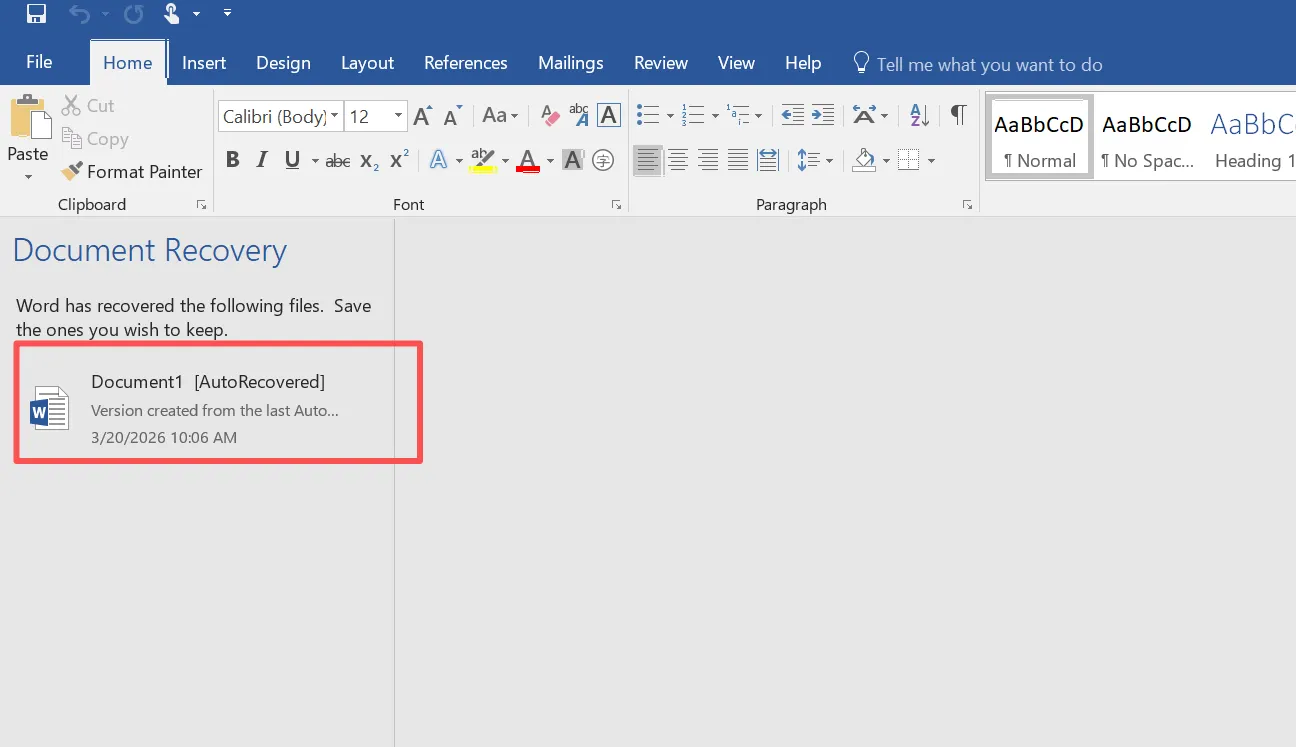
The Document Recovery pane is usually the fastest way to restore an auto recovery document.
Follow these steps:
- Restart Microsoft Word.
- Check the Document Recovery panel.
- Select the available recovery file.
- Click Save As to store the document.
In many cases, this process restores the auto recovery document within seconds. However, if the pane does not appear, the recovery file may still exist in the AutoRecover folder.
Find an Auto Recovery Document in the AutoRecover Folder
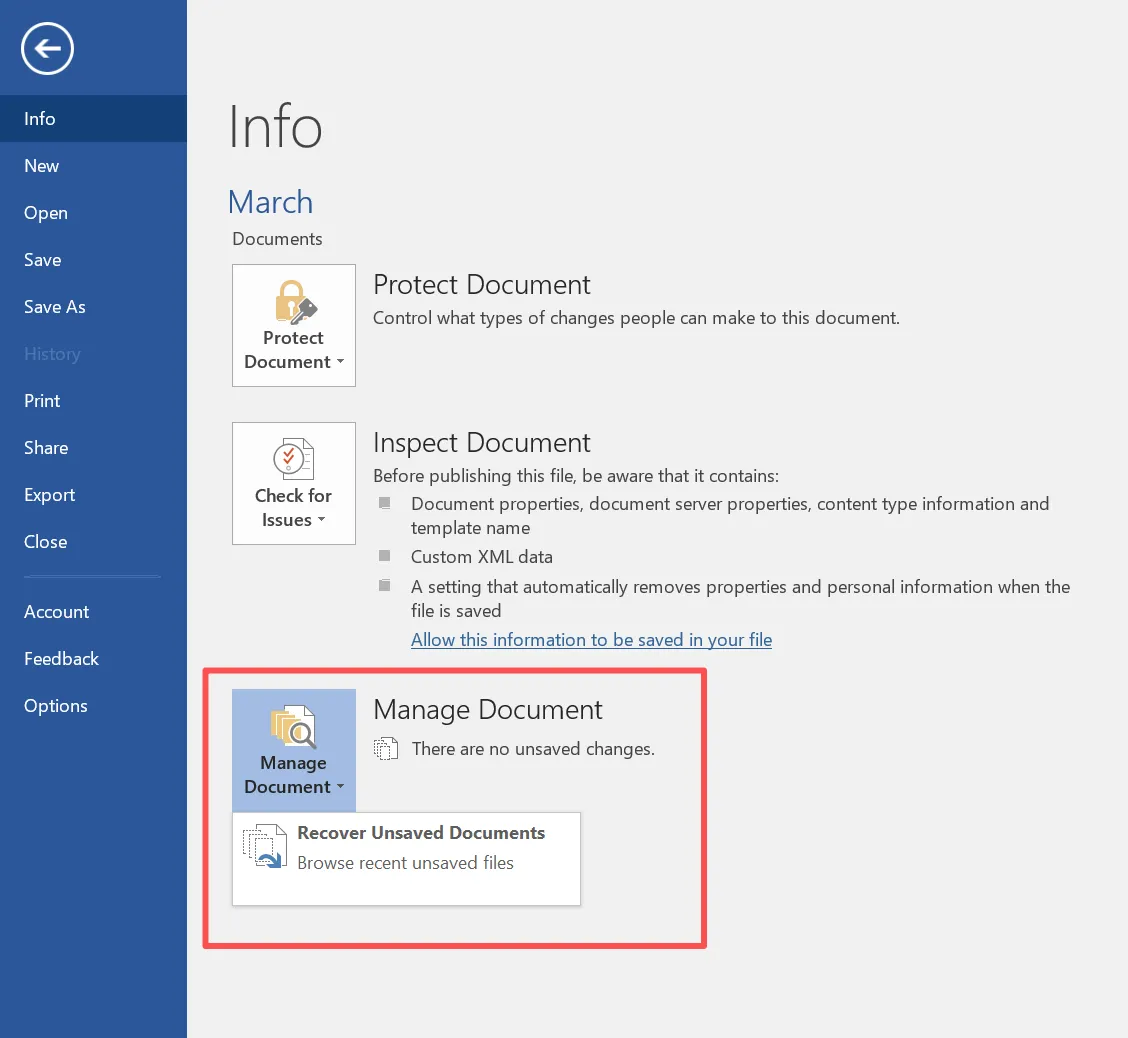
Word stores recovery files in a specific folder. Therefore, you can search for an auto recovery document manually.
Steps:
- Open Word.
- Go to File → Info.
- Click Manage Document.
- Select Recover Unsaved Documents.
Typical folder path:
C:\Users\Username\AppData\Local\Microsoft\Office\UnsavedFiles
Files in this folder often use the .asd extension. Opening one of these files may restore the auto recovery document.
Recover an Auto Recovery Document from Temporary Files
Sometimes Word stores temporary files instead of recovery files. These files often use the .tmp extension.
To search for them:
- Open Windows search.
- Search for .tmp files.
- Sort results by modification date.
- Try opening recent files.
Occasionally, this method reveals an auto recovery document that Word does not display automatically.
Recover Files When the Auto Recovery Word Document Is Missing
Built-in recovery methods do not always work. For example, the auto recovery document may be missing if:
- the recovery file was deleted
- the disk became corrupted
- the document was permanently removed
- the drive was formatted
In these situations, Word cannot locate the auto recovery document, so a different recovery approach becomes necessary.
Recover Word Files Magic Data Recovery When Auto Recovery Document Fails
When Word recovery fails, data recovery software may provide a better solution. Magic Data Recovery helps restore files directly from storage devices.
Unlike Word tools, the software scans the disk itself. As a result, it can locate Word documents even when the auto recovery document no longer exists.
Advantages of Magic Data Recovery
Magic Data Recovery includes several helpful features:
- deep disk scanning for lost files
- preview before recovery
- recovery from damaged or RAW partitions
- support for DOC and DOCX files
Because the program analyzes disk structures directly, it may recover documents even after deletion or formatting.
Example recovery scenario
Imagine a user editing an important report when the computer crashes. Word restarts, yet the auto recovery Word document does not appear. After scanning the disk with Magic Data Recovery, the lost DOCX file appears in the results. The user can preview the file and restore it safely.
If standard recovery methods fail, Magic Data Recovery can provide a practical solution.
Step-by-Step Word Document Recovery Using Magic Data Recovery
Step 1: Download and install the software
Download Magic Data Recovery and install it.
Supports Windows 7/8/10/11 and Windows Server
Step 2: Select the disk
Launch the program and choose the disk where the document was stored.

Step 3: Scan the drive
Start the scan to search for lost files. It will run Advanced Scan automatically and list all the files when the scan completes.

Step 4: Preview the document
Preview the file to confirm its content. You can just select the data you need for recovery.

Step 5: Recover the file
Select the document and save it to a safe location.

Why Auto Recovery Document Sometimes Fails
Although AutoRecover helps prevent data loss, it has limitations.
AutoRecover disabled
If AutoRecover is turned off, Word cannot create recovery files.
Long save interval
A long interval may cause recent edits to disappear.
Temporary files deleted
System cleanup tools may remove recovery files.
Disk errors
Disk corruption may damage the recovery folder.
Because of these limitations, the auto recovery document feature may not always protect important files.
Tips to Avoid Losing an Auto Recovery Document
Preventing data loss is always easier than recovery.
Reduce the AutoRecover interval
Set Word to save every five minutes.
Use cloud storage
Saving files in OneDrive allows version history recovery.
Create backups
Regular backups provide additional protection.
Maintain system stability
Stable systems reduce the risk of file corruption.
Conclusion
Recovering a Word auto recovery document is often possible using built-in Word features such as the Document Recovery pane, AutoRecover folder, and temporary file search. Therefore, these methods should always be the first step when a document disappears.
However, recovery becomes more difficult when the file is permanently deleted or the disk becomes corrupted. In these cases, Word cannot locate the auto recovery document, and built-in tools may fail.
Magic Data Recovery provides a reliable solution by scanning the storage device and restoring lost Word documents. Because it works beyond standard Word recovery features, it can help recover files even when the auto recovery Word document is no longer available.
If standard methods do not work, trying Magic Data Recovery may help restore your important documents quickly and safely.
Supports Windows 7/8/10/11 and Windows Server
FAQ
How do I recover a document from Word auto recovery?
Restart Word and check the Document Recovery pane. If it does not appear, open File → Info → Manage Document → Recover Unsaved Documents.
Where is the Word auto recovery stored?
Word usually stores recovery files in the UnsavedFiles folder inside the Microsoft Office directory.
Can I recover a Word document that was never saved?
Yes. Word may create an auto recovery document while you edit the file.
Why did my Word auto recovery document disappear?
The recovery file may have been deleted or AutoRecover may have been disabled.
Can AutoRecover restore overwritten files?
Usually no. Version History or data recovery software may help instead.
How often does Word save AutoRecover files?
Word normally saves an auto recovery document every 10 minutes.

Vasilii is a data recovery specialist with around 10 years of hands-on experience in the field. Throughout his career, he has successfully solved thousands of complex cases involving deleted files, formatted drives, lost partitions, and RAW file systems. His expertise covers both manual recovery methods using professional tools like hex editors and advanced automated solutions with recovery software. Vasilii's mission is to make reliable data recovery knowledge accessible to both IT professionals and everyday users, helping them safeguard their valuable digital assets.