
Word Document Recovery Pane Guide
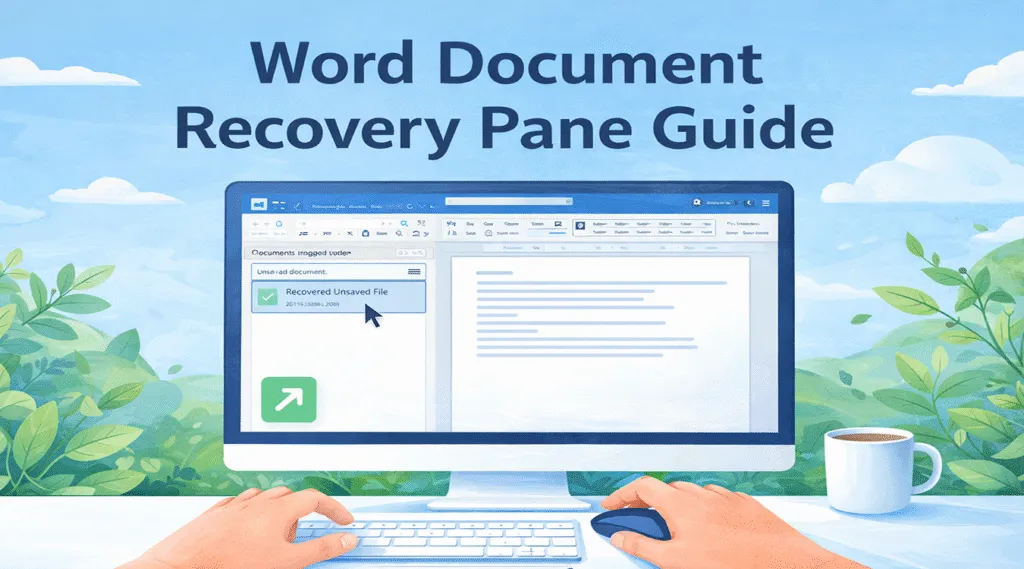
Losing a document after a crash can be frustrating, especially when important work disappears without warning. Microsoft Word tries to solve this problem through the word document recovery pane, a feature that automatically lists files recovered after an unexpected shutdown.
However, the Word recovery pane does not always appear. Sometimes the panel opens but shows no usable files. In those situations, users need additional document recovery methods. This guide explains how the Word recovery pane feature works, how to reopen it manually, and what to do if Word cannot restore the document. When built-in tools fail, professional recovery software such as Magic Data Recovery can help retrieve lost Word files.
Supports Windows 7/8/10/11 and Windows Server
Table of Contents
What Is the Word Document Recovery Pane
The Word recovery pane is a built-in recovery interface that appears when Microsoft Word restarts after an unexpected shutdown.
For example, it may appear after:
- A system crash
- A sudden power failure
- A forced restart
- A program freeze
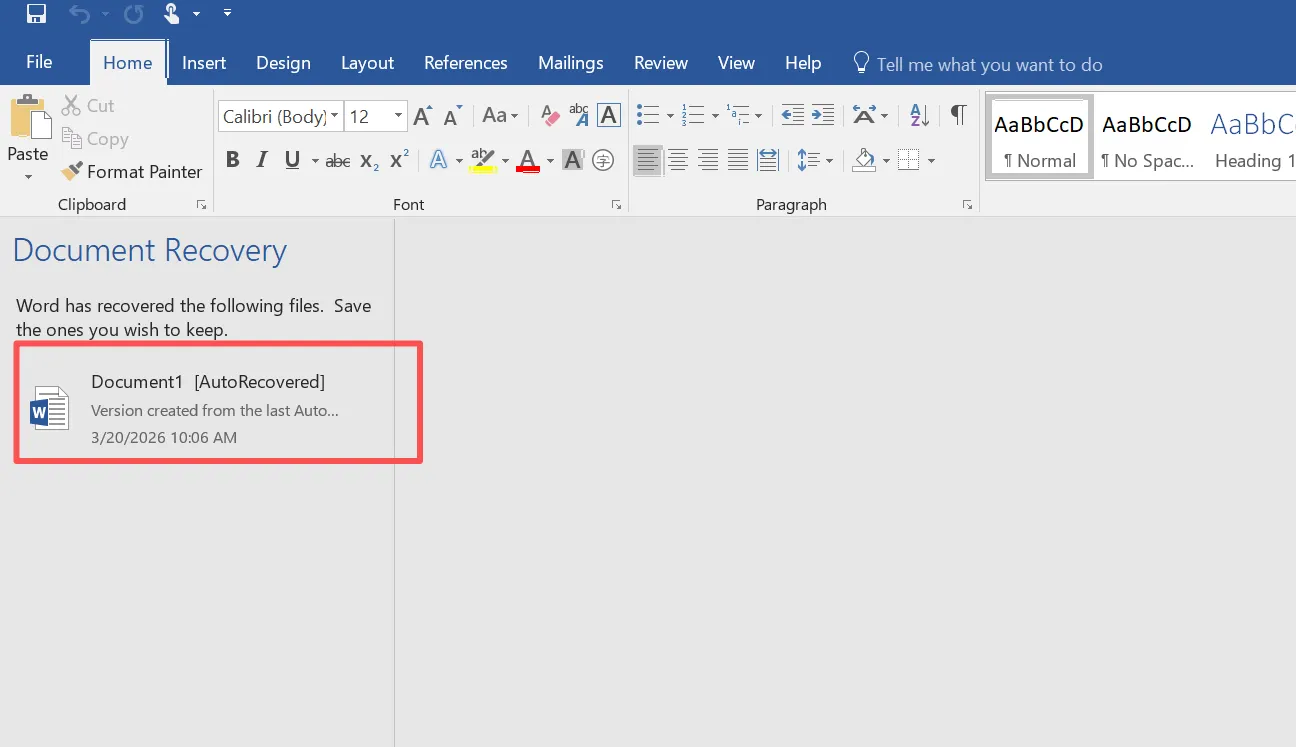
When Word launches again, it searches for AutoRecover files created during the previous editing session. Then it displays those files inside the document recovery pane.
Typically, the panel appears on the left side of the Word window and lists available document versions. Each entry may include timestamps and recovery information.
Consequently, users can quickly reopen the most recent version of a document directly from the Word recovery pane interface.
Because of this mechanism, many unsaved documents remain recoverable after unexpected interruptions.
Where the Document Recovery Pane Appears in Word
In most situations, the Word recovery pane appears automatically after Word restarts following a crash.
Usually, the panel appears on the left side of the application window. It lists documents that Word recovered during startup.
The panel may include several versions, such as:
- Original version
- AutoRecovered version
- Last saved version
Users can open any listed version by clicking it.
However, the Word recovery pane feature only appears when Word detects recovery files. If the program closes normally, the pane usually does not appear.
Therefore, some users may need to use alternative recovery methods.
How to Use the Word Document Recovery Pane to Restore Files
When the document recovery pane appears, restoring files becomes simple.
First, reopen Microsoft Word after the crash. Immediately afterward, Word should display the document recovery pane.
Next, review the available document versions carefully.
Then follow these steps:
- Identify the most recent document version
- Click the file listed in the document recovery pane panel
- Open the recovered document
- Save the file immediately
Saving the document right away prevents Word from removing the temporary recovery version.
As a result, your work becomes permanently stored again.
How to Open the Document Recovery Pane Word Feature Manually
Sometimes the word document recovery pane does not appear automatically. Nevertheless, you can still attempt manual recovery.
Follow these steps:
- Open Microsoft Word
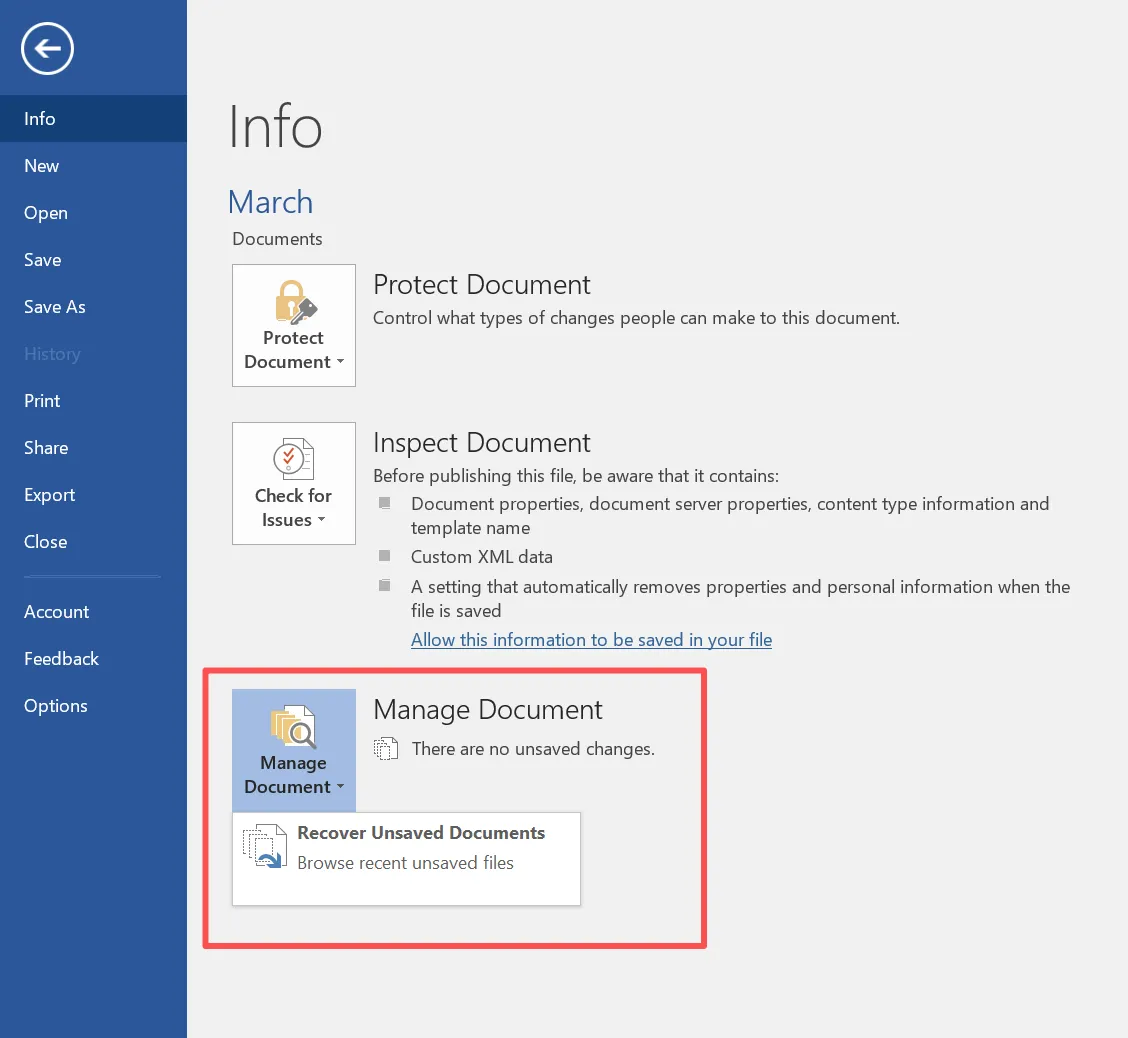
- Click File
- Select Info
- Choose Manage Document
- Click Recover Unsaved Documents
Afterward, Word opens the AutoRecover folder that stores temporary document files.
Although this method does not technically reopen the recovery pane, it often restores unsaved documents that the recovery pane feature did not show.
Therefore, it remains a useful troubleshooting step.
Why the Word Document Recovery Pane Is Not Showing
Many users notice that the recovery pane sometimes fails to appear. Several factors may cause this behavior.
AutoRecover Is Disabled
If AutoRecover is disabled, Word cannot create recovery files. Consequently, the document recovery pane feature cannot display recoverable documents.
Temporary Files Were Removed
System cleanup tools may delete temporary files. In that case, the Word recovery pane may appear empty.
Word Closed Normally
The recovery pane activates only after unexpected shutdowns. Therefore, it does not appear if Word closes normally.
The File Was Permanently Deleted
If a document was deleted or a disk error occurred, Word cannot restore the file through the Word recovery pane interface.
At this point, more advanced recovery methods become necessary.
Recover Word Files When the Document Recovery Pane Cannot Help
Word recovery features work well after simple crashes. However, they cannot restore files in every situation.
For example, problems occur when:
- The Word recovery pane shows no files
- AutoRecover data is missing
- The document was permanently deleted
- The storage device was formatted
- Disk errors removed file records
In these situations, recovery software can scan the storage device and locate lost files directly.
One effective solution is Magic Data Recovery.
Recover Word Files Using Magic Data Recovery
If the Word recovery pane feature cannot restore your document, Magic Data Recovery provides a more powerful solution.
Instead of relying on temporary Word files, the software scans the storage device and searches for recoverable documents. Consequently, it can locate Word files even when the word document recovery pane shows no results.
Step 1: Download and Install Magic Data Recovery
First, download Magic Data Recovery and install it on a different drive from the location where your files were lost. Installing the program on another drive reduces the risk of overwriting recoverable data.
Supports Windows 7/8/10/11 and Windows Server
Step 2: Select the Drive to Scan
Next, open the program and review the list of available storage devices. Then select the drive where the Word document was originally stored and begin the scan.

Step 3: Scan the Drive for Lost Word Files
After that, the software automatically performs an Advanced Scan. During the scanning process, Magic Data Recovery identifies recoverable files and lists them in real time.

Step 4: Preview Documents Before Recovery
Next, preview the detected files to verify their content. This step allows you to confirm that the document is the correct version before recovering it.

Step 5: Recover Files to a Safe Location
Finally, select the files you want to restore and save them to a different storage location. Avoid recovering files to the same drive, because doing so may overwrite other recoverable data.

Tips to Prevent Word Document Loss
Although the word document recovery pane helps restore documents after crashes, prevention remains the best strategy.
Consider the following tips:
- Enable AutoRecover in Word settings
- Save documents regularly while editing
- Store files in cloud storage with version history
- Maintain regular system backups
These precautions significantly reduce the risk of relying entirely on the Word recovery pane feature.
Conclusion
The word document recovery pane is a helpful feature that restores unsaved documents after Microsoft Word crashes. It automatically lists recoverable files and allows users to reopen them quickly.
However, the document recovery pane does not always appear, and sometimes it fails to display the document you need. When this happens, manual recovery methods and AutoRecover files may still help.
Nevertheless, if those options fail, Magic Data Recovery provides a reliable alternative. By scanning storage devices directly, it can recover Word documents even when the Word recovery pane feature cannot locate them.
For users who need a dependable solution to restore lost files, Magic Data Recovery offers a practical and efficient recovery approach.
Supports Windows 7/8/10/11 and Windows Server
FAQs About Word Document Recovery Pane
What is the document recovery pane?
The word document recovery pane is a Word interface that appears after a crash and displays documents that Word automatically recovered.
Why does the document recovery pane not appear?
It may not appear if AutoRecover is disabled, temporary files were deleted, or Word closed normally.
Can I reopen the document recovery pane manually?
Not exactly. However, you can access unsaved files through File → Info → Recover Unsaved Documents if the recovery pane does not appear.
Where are Word AutoRecover files stored?
AutoRecover files usually appear in this folder:
C:\Users\Username\AppData\Roaming\Microsoft\Word
Can I recover a deleted Word document?
Yes. When the word document recovery pane cannot restore the file, recovery software such as Magic Data Recovery can scan the disk and recover deleted documents.
How long does Word keep AutoRecover files?
Word normally keeps AutoRecover files until the document is saved or the temporary files are removed.
What should I do if the document recovery pane is empty?
If the document recovery pane shows no results, search the AutoRecover folder or use professional recovery software to locate lost documents.

Vasilii is a data recovery specialist with around 10 years of hands-on experience in the field. Throughout his career, he has successfully solved thousands of complex cases involving deleted files, formatted drives, lost partitions, and RAW file systems. His expertise covers both manual recovery methods using professional tools like hex editors and advanced automated solutions with recovery software. Vasilii's mission is to make reliable data recovery knowledge accessible to both IT professionals and everyday users, helping them safeguard their valuable digital assets.