
PDF Document Password Recovery: 5 Safe Ways to Regain Access
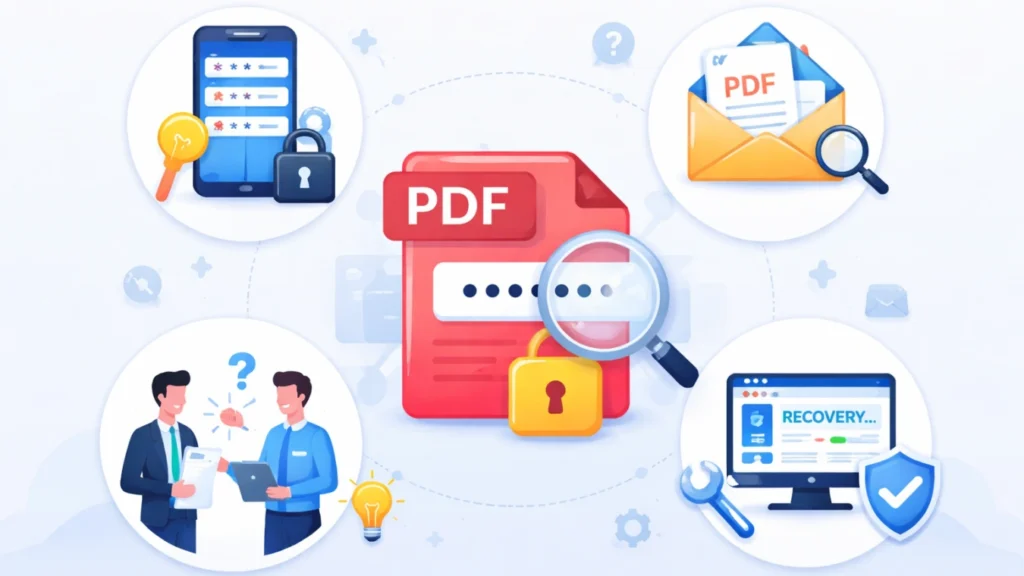
If you forgot the password to a PDF document, the correct recovery method depends on what the password controls. A document open password prevents you from viewing the file, while an owner or permissions password may only block printing, copying, or editing. This guide explains five safe PDF document password recovery methods for Windows and Mac. You’ll learn what to try when you remember part of the password, when a PDF can be unlocked using Adobe Acrobat or another PDF tool, and when password recovery software may be necessary.
If the PDF itself has been deleted, formatted, or lost, password recovery will not help. In that situation, follow our document recovery guide to restore the file before dealing with its password.
Table of Contents
What Is PDF Document Password Recovery?
PDF document password recovery refers to the process of regaining access to a password-protected PDF file. However, not all PDF passwords are the same.
There are two main types:
1. Open Password (User Password)
- You cannot open the PDF without entering the correct password.
- The file remains completely inaccessible.
2. Permissions Password (Owner Password)
- You can open the PDF.
- However, editing, copying, or printing is restricted.
Understanding the difference is critical. Many users attempt the wrong solution because they don’t identify the password type first.
Quick Answer: Which PDF Password Recovery Method Should You Use?
| Your PDF problem | What it means | Best first step |
|---|---|---|
| You know the password and want to remove it | Password removal, not recovery | Remove security in Adobe Acrobat |
| You can open the PDF but cannot print, copy, or edit | Permissions/owner password | Check Security Properties or use an authorized unlock tool |
| You cannot open the PDF but remember part of the password | Forgotten document open password | Try likely variations or a mask-based recovery tool |
| You cannot open the PDF and remember nothing | Stronger password recovery may be required | Try a dictionary or brute-force recovery tool |
| The PDF has disappeared or been deleted | File loss, not a password problem | Recover the PDF file before addressing its password |
If you can open the file but cannot edit it, you are dealing with a permissions password. If you cannot open it at all, you are dealing with an open password.
This distinction determines your next steps.
How to Remove a PDF Password When You Know It
If you still know the password, removing it is simple and safe.
Method: Using a Professional PDF Editor
Steps:
- Open the PDF in Adobe Acrobat Pro or another professional editor.
- Enter the password.
- Go to “Protect” or “Security Settings.”
- Remove password protection.
- Save the file.
Why This Is the Best Practice
- It keeps file quality intact.
- It maintains document integrity.
- It avoids unnecessary third-party tools.
If you already know the password, you do not need password recovery. You only need to remove the existing PDF security settings.
How to Remove PDF Printing, Editing, or Copying Restrictions
This is a permissions password issue.
Method 1: Print to PDF (If Printing Is Allowed)
If printing is not restricted:
- Open the file in your browser or PDF reader.
- Select “Print.”
- Choose “Save as PDF.”
- Save the new file.
This creates a new version without restrictions.
Limitations:
- It only works if printing is enabled.
- It may not preserve advanced features like form fields.
Method 2: Use a Desktop PDF Unlock Tool
When printing is blocked, an authorized desktop PDF unlock tool may help remove permissions restrictions. Only use this method on a document you own or have permission to modify.
Look for tools that:
- Work offline
- Do not upload your file to servers
- Clearly explain encryption compatibility
For sensitive corporate files, offline solutions are always safer than online services.
How to Recover a Forgotten PDF Open Password
Adobe Acrobat cannot reset or recover a forgotten document open password. If you cannot locate the password in your password manager, email, notes, or backups, a specialized password recovery tool may be required. Recovery is not guaranteed because the time needed depends on the PDF encryption level and password complexity.
Without the password, you generally have three options:
1. Check Password Managers
Many users forget they saved passwords in:
- Browser password manager
- Third-party password manager
- Email communication
- Cloud notes
In real-world experience, this solves more cases than expected.
2. Ask the Original Sender
In business environments, this is often the fastest solution. Requesting the password saves time and avoids risky recovery attempts.
3. Use Password Recovery Software
If no password copy exists, specialized tools may attempt recovery using:
- Dictionary attack (common words)
- Mask attack (partial password knowledge)
- Brute-force attack (tries combinations)
Important Reality Check
Strong encryption significantly increases recovery time. There is no universal instant solution. Recovery success depends on:
- Password length
- Character complexity
- Encryption level
Be cautious of exaggerated claims.
Are Online PDF Unlock Tools Safe?
Online tools offer convenience, but they come with risks.
When They Make Sense
- The file is not confidential.
- You know the password.
- You need a quick restriction removal.
When to Avoid Them
- Legal contracts
- Financial documents
- ID scans
- Internal corporate reports
Uploading sensitive files to unknown servers increases risk. Always review privacy policies before proceeding.
Best Practices for Secure PDF Document Password Recovery
To improve success and protect your data:
- Always confirm legal permission to unlock.
- Prefer offline solutions for sensitive files.
- Avoid suspicious “guaranteed unlock” services.
- Keep backup copies before modifying files.
- Use strong but memorable passwords going forward.
Prevention remains better than recovery.
What If Your PDF File Is Lost Instead of Locked?
Sometimes the issue isn’t password recovery. The file may be deleted, formatted, or lost after a system crash.
In this case, you need file recovery, not PDF document password recovery.
Recover the PDF File First with Magic Data Recovery
Magic Data Recovery does not recover or remove PDF passwords. It is designed to restore PDF files that have been deleted, formatted, or lost because of drive errors, system crashes, or partition problems.
If your password-protected PDF is missing, recover the original file first. Magic Data Recovery can scan hard drives, SSDs, USB drives, and memory cards for lost PDF documents while preserving the recovered file in its original format.

Core Problem It Solves
- Recover deleted PDF files
- Restore files after accidental formatting
- Retrieve documents from crashed drives
- Recover data from USB drives and memory cards
Typical Use Scenario
Imagine you deleted a password-protected contract by mistake. Instead of trying password tools, you first need to restore the file itself. Magic Data Recovery scans your drive and allows you to recover the original PDF intact.
Why It’s More Reliable Than Basic Methods
Manual recovery attempts often fail. System restore rarely brings back specific documents. Magic Data Recovery focuses on file-level restoration with controlled recovery steps.
How to Use It:
- Install the software.
- Select the drive where the PDF was stored.
- Run a deep scan.
- Preview and recover the file to a different drive.
If you are looking for a practical solution to recover lost PDFs, this tool provides a focused and structured approach.
Supports Windows 7/8/10/11 and Windows Server
How to Prevent Future PDF Password Issues
To avoid repeating PDF document password recovery situations:
- Use a password manager.
- Store passwords securely.
- Maintain encrypted backups.
- Keep unprotected working copies when appropriate.
- Label password-protected files clearly.
A simple system prevents long recovery sessions later.
Conclusion
PDF document password recovery requires understanding the type of password first. If you know the password, remove it properly using professional software. If restrictions limit editing, try safe removal methods. If you cannot open the file at all, recovery software may help—but only under realistic expectations.
However, if your PDF file is missing entirely, password recovery won’t help. If the PDF itself has been deleted or lost, use Magic Data Recovery to restore the file first. You can also visit our document recovery guide for additional methods to recover lost PDF, Word, Excel, and other document files.
Choose the method that fits your situation. Work safely. Protect your data.
Supports Windows 7/8/10/11 and Windows Server
FAQs About PDF Document Password Recovery
Can I open a PDF if I forgot the password?
What is the difference between open and permissions passwords?
Is it legal to unlock a PDF?
How long does PDF password recovery take?
Are online PDF unlock tools secure?
Will removing a PDF password reduce quality?
Can I recover a deleted password-protected PDF?
Can Adobe Acrobat recover a forgotten PDF password?

Jason is a data recovery and technical support specialist with over 15 years of hands-on experience. He has worked extensively with frontline users, troubleshooting difficult data loss cases and providing practical recovery solutions for accidental deletion, formatted drives, damaged file systems, lost partitions, system failures, and other recovery emergencies. His expertise also includes backup and restoration, file repair, and disaster recovery, with a strong emphasis on safe, reliable, and technically accurate guidance.