
4DDiG Data Recovery Review: Safety, Features, Pricing & Alternatives
Losing an important file is one thing. Paying for recovery software without knowing whether it can actually retrieve that file is another. If you’re considering Tenorshare 4DDiG, you probably want answers to a few practical questions: Is it safe? Can the free version recover anything? Does it work after formatting? And is the paid license worth buying?
This 4DDiG Data Recovery review examines the software’s Windows recovery features, supported devices, scanning workflow, safety considerations, and recovery limitations. It also covers pricing and how 4DDiG compares with another Windows option, Magic Data Recovery.
The review draws on official documentation for features and purchasing terms, alongside a controlled comparison of file recovery and integrity.
If you’ve already lost files, stop writing new data to the affected drive. Our deleted file recovery guide explains the precautions to take before installing recovery software.
Table of Contents
Quick Verdict: Is 4DDiG Data Recovery Worth Trying?
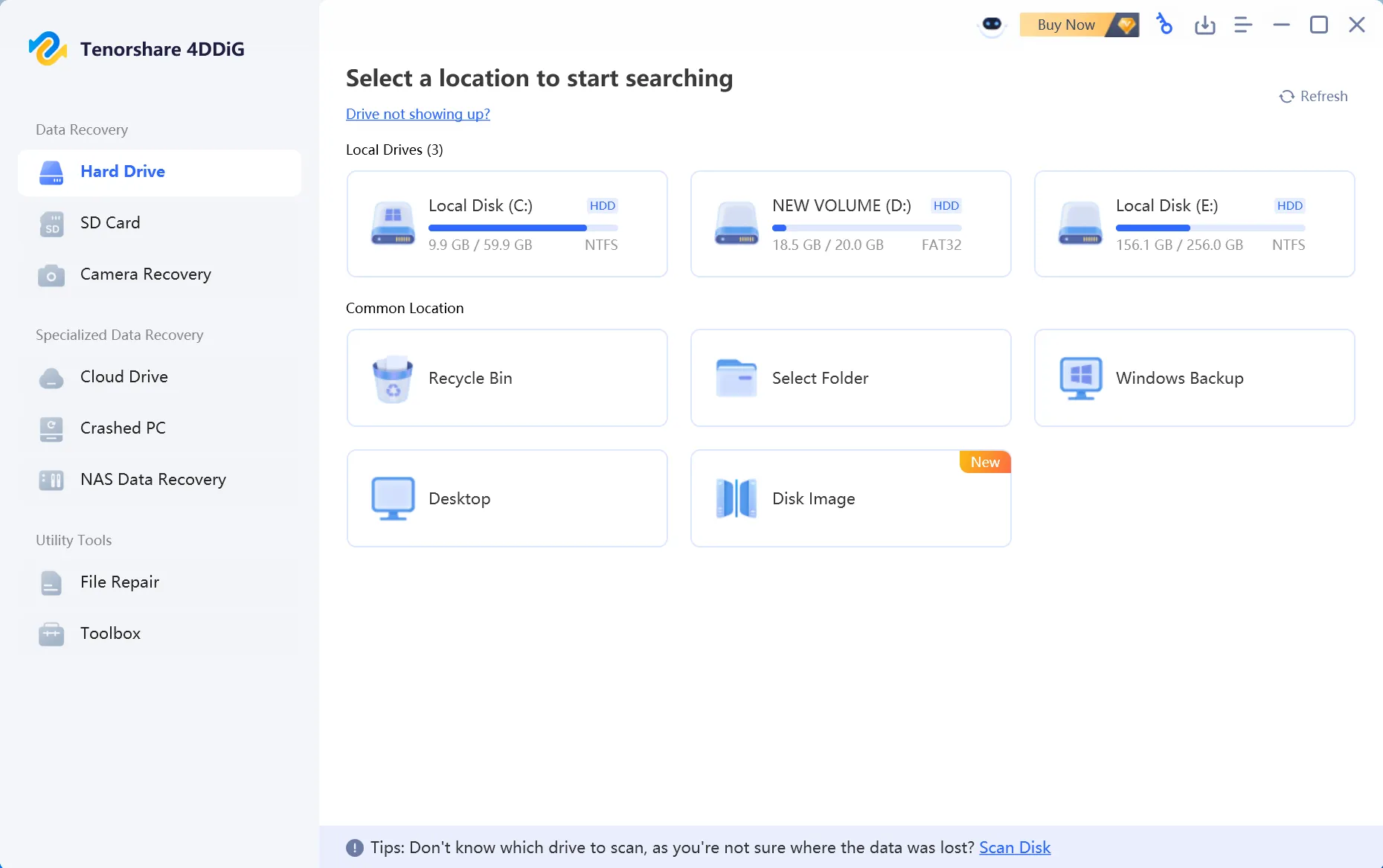
Tenorshare 4DDiG Data Recovery is a commercial recovery application with a guided interface, file preview, support for multiple storage devices, and recovery options for common data loss scenarios. Its Windows free edition lets users evaluate scan results and recover a limited amount of data under the current free-edition conditions.
The most useful purchasing check is whether the scan identifies your specific files and whether those files can be restored intact—not simply how many entries appear in the results. A successful scan does not guarantee complete recovery, particularly after overwriting or SSD TRIM.
Quick Picks: Which Recovery Option Fits Your Situation?
Your situation | What to check first |
A few deleted documents or photos | Check 4DDiG Free’s actual allowance and preview supported files before paying. |
A large formatted USB drive or external HDD | Scan without writing to the affected drive; verify a few representative files before purchasing. |
Another Windows recovery option | Compare 4DDiG and Magic Data Recovery using equivalent conditions. |
Permanently deleted SSD files | Check the SSD recovery limitations, especially TRIM. |
A clicking or repeatedly disconnecting drive | Stop repeated software scans and seek professional evaluation. |
4DDiG at a Glance
Category | Details |
Developer | Tenorshare |
Product | 4DDiG Data Recovery |
Platforms | Separate Windows and macOS editions |
Main purpose | Recover deleted, formatted, and otherwise lost files |
Supported media | HDDs, SSDs, USB drives, memory cards, and other supported devices |
File formats | Over 2,000 formats advertised by the developer |
Preview | Available for supported file formats |
Free recovery | Limited free recovery; conditions apply |
Paid licensing | Monthly, annual, and lifetime options |
Main limitation | Recovery depends on the remaining condition of the original data |
Product information: official Windows product page and free-edition FAQ. For physically damaged drives, software recovery may not be the appropriate starting point.
What Is Tenorshare 4DDiG Data Recovery?
Tenorshare 4DDiG Data Recovery is a desktop application designed to retrieve lost files from supported storage devices.
Tenorshare is the developer, while 4DDiG is the product brand. Searches for Tenorshare Recovery, Tenorshare Data Recovery, and 4DDiG Data Recovery commonly refer to this software.
The Windows edition is designed to address situations such as accidental deletion, emptied Recycle Bin folders, formatted partitions, inaccessible storage, and certain operating system failures.
Rather than relying solely on the file locations displayed by Windows Explorer, recovery software examines available file system information and storage data to identify missing files.
The software then presents the discovered items for review, allowing users to select which files to restore.
Is Tenorshare Data Recovery the Same as 4DDiG?
For users researching the current Tenorshare recovery product, the two names generally refer to the same product family.
The distinction matters because older reviews and search results may use different names for the software.
The official Windows application is marketed as 4DDiG Windows Data Recovery.
Its Mac edition is a separate platform version. Features, supported file systems, licensing, and recovery options should be checked against the edition you intend to install rather than assuming that Windows and Mac capabilities are identical.
4DDiG Windows Data Recovery: Key Features
The main appeal of 4DDiG Windows Data Recovery is that it combines several recovery scenarios within one guided application.
Instead of requiring users to work directly with file system structures or command-line utilities, it provides a graphical workflow for selecting a drive, scanning for missing files, previewing results, and saving recovered data.
The following features are particularly relevant when evaluating the software.
Deleted File and Recycle Bin Recovery
Accidental deletion is one of the most common reasons users look for recovery software.
4DDiG supports scanning for files removed through ordinary deletion, Shift + Delete, or an emptied Recycle Bin.
On a traditional hard drive, deletion may remove or modify file system references while leaving some underlying file content available. Recovery software attempts to locate this information before new data replaces it.
That distinction matters: a file disappearing from Windows does not necessarily mean every byte has been physically erased.
However, the longer the affected drive remains in use, the greater the risk that subsequent activity will overwrite recoverable data.
The safest approach is to stop using the affected volume and avoid installing recovery software on it.
Formatted Drive Recovery
Formatting can remove access to an existing file system, making previously stored files disappear from File Explorer.
4DDiG supports scanning formatted storage devices, including compatible internal disks and removable media.
Recovery after a quick format may be possible when the original file content remains available. The software can examine remaining metadata and recognizable file signatures to locate lost items.
However, the results are influenced by how the drive was formatted.
For example, a quick format and a full format do not necessarily leave the same amount of recoverable information.
A full format performed by modern Windows versions can overwrite data across the formatted volume, substantially reducing recovery opportunities.
Recovery software cannot reconstruct original content that has already been overwritten.
For a detailed explanation of formatting-related data loss, see our formatted drive recovery guide.
Quick Scan and Deeper Recovery Scanning
The scanning process is one of the most important parts of any data recovery application.
4DDiG provides a guided scanning workflow that begins examining the selected location for lost files.
According to its official user guide, users can browse discovered files by path or file type, search for specific items, and filter the results.
This is particularly helpful when a scan identifies thousands of files but only a few documents or photos are needed.
For straightforward deletion, recoverable file system records may help identify original filenames and directory information.
More extensive scanning may also locate content through recognizable file signatures.
However, signature-based recovery has limitations. It may not preserve the original filename, directory structure, or fragmented file content.
Finding a file signature is not the same as recovering a complete, usable file.
Preview Before Recovery
One of 4DDiG’s more useful features is the ability to inspect supported files before saving them.
The developer documents preview support for common formats, including photographs, videos, and Office documents.
Preview can help users determine whether the scanning results contain the files they actually need.
It also reduces the likelihood of paying for a recovery license based solely on a long list of filenames.
For example, if a scan finds a deleted family photograph, opening the preview may help confirm that the image is recognizable.
However, preview should be treated as an initial verification step rather than proof that every recovered file will be intact.
A partially damaged video, archive, or large document may still require further verification after recovery.
Recovery from Multiple Storage Devices
Tenorshare advertises support for numerous storage devices, including:
Internal hard drives and SSDs.
External HDDs and portable SSDs.
USB flash drives.
SD cards and other memory cards.
Supported camera storage media.
The software also supports several common file systems used by Windows and removable storage devices.
According to the manufacturer’s technical specifications, supported Windows file systems include NTFS, FAT16, FAT32, and exFAT.
File system compatibility should not be confused with guaranteed recovery. A damaged storage device may still be unreadable even when its original file system is supported.
In particular, a drive that repeatedly disconnects, makes abnormal noises, or is not detected consistently may require professional diagnosis rather than repeated software scans.
Crashed Computer Recovery
Sometimes the files are still present, but Windows no longer starts.
4DDiG includes a crashed-computer recovery feature intended for situations where users cannot access their files through the normal Windows desktop.
The developer describes the ability to recover data from an unbootable computer as part of its Windows recovery offering.
This can be relevant before reinstalling Windows or performing other operations that may alter the original system partition.
However, a software-level boot failure is different from a physically damaged drive.
If the storage device itself is failing, bootable recovery software cannot guarantee safe access or successful extraction.
Additional Recovery and Repair Features
The official product page also describes additional capabilities, including disk image recovery, supported NAS recovery scenarios, and corrupted media repair features.
These options extend beyond ordinary deleted-file recovery.
Disk image recovery, for example, allows recovery work to be performed against a suitable image rather than repeatedly accessing the original storage device.
That can be valuable when preservation of the original data is important.
Nevertheless, users should verify the functionality available in their specific product version and license. Features advertised across the wider 4DDiG product family should not automatically be assumed to exist in every edition.
The distinction between recovering a missing file and repairing a corrupted file is also important. These are different technical tasks, and neither guarantees that all original content can be reconstructed.
How We Evaluated 4DDiG Data Recovery
We reviewed Tenorshare’s official product documentation, technical specifications, and licensing terms, then compared recovery results under two common Windows data-loss scenarios. Both applications were evaluated against the same original files and equivalent starting conditions.
Test Environment and Results
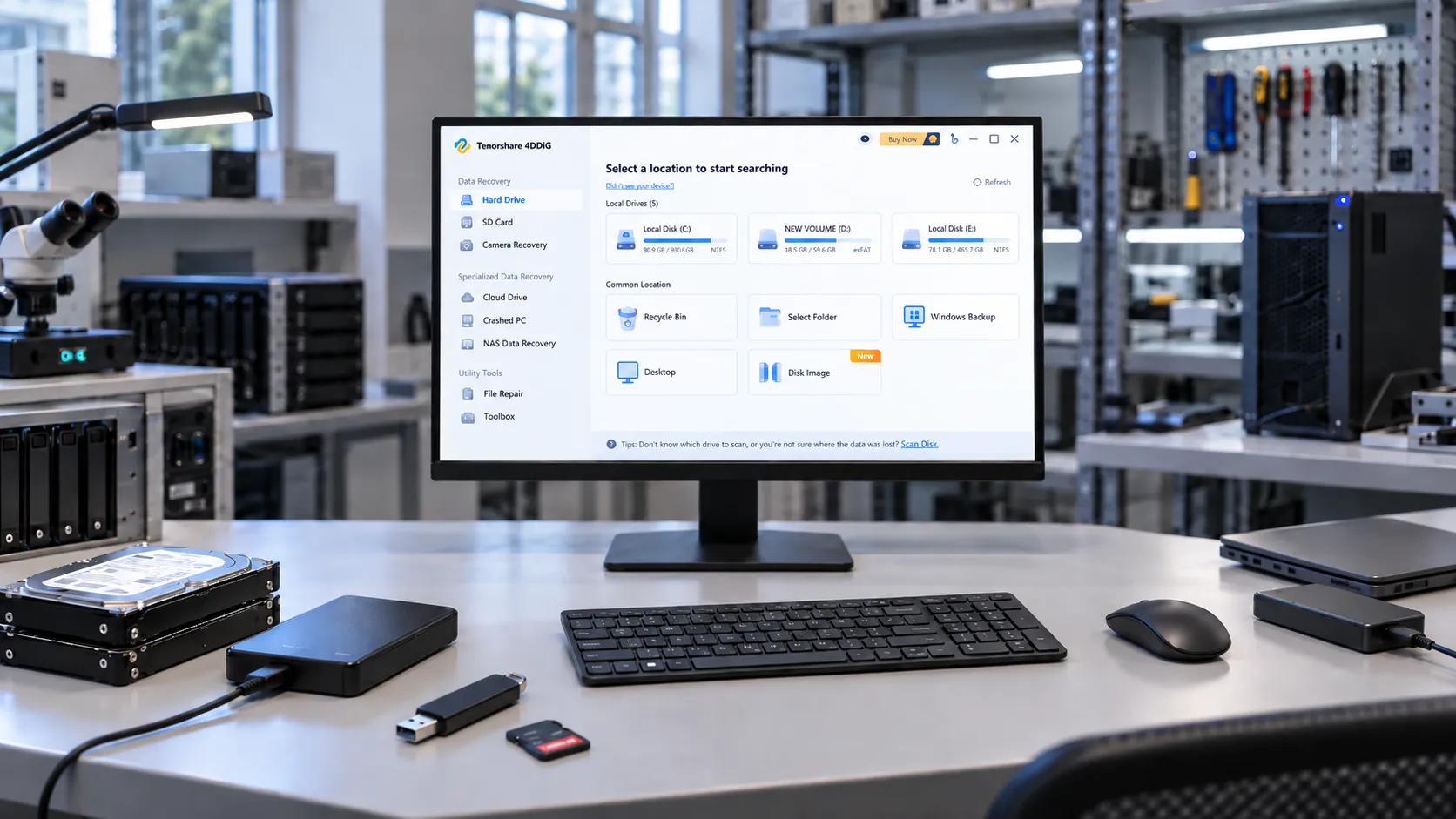
The test system used Windows 11 Pro 25H2, OS Build 26200.9550, with a WD BLUE 500GB external HDD for NTFS deletion and a Kingston 64GB USB drive for exFAT quick-format recovery. The dataset contained 200 files totaling approximately 4.7GB, including documents, photos, videos, and ZIP archives. We tested 4DDiG (version 10.9.5.9) and Magic Data Recovery (version 3.10.801), both downloaded from their respective official websites. Recovered files were saved to a separate drive and verified against the original files using SHA-256 hashes.
Testing was conducted on September 23, 2026. Both applications were evaluated under equivalent initial storage conditions, with the original test dataset restored before each application’s test run.
Scenario | 4DDiG: found / intact | Magic Data Recovery: found / intact | Scan time: 4DDiG / Magic |
NTFS deleted files (200 targets) | 200/194 | 200/197 | 8m12s / 8m5s |
exFAT quick format (200 targets) | 200/197 | 200/197 | 5m4s/ 6m1s |
Found means the target file appeared in the scan results; intact means the recovered file matched its original SHA-256 hash. The figures refer to the specified dataset and conditions, rather than a universal recovery success rate.
For each test, the original dataset was restored to an equivalent baseline state before running either application. The NTFS test involved deleted files, while the exFAT test used quick formatting. Recovery results were evaluated against the original file inventory, and exact file integrity was verified using SHA-256 hashes.
4DDiG Data Recovery Performance and Limitations
The useful question is not only whether 4DDiG can scan a device, but what kind of loss it is designed to address and what may prevent complete recovery. The following summarizes the technical constraints that affect real-world recovery.
Recovery scenario | What software may locate | Important limitation |
Deleted files on an HDD | Remaining file system records or identifiable content | Later writes may overwrite the original data. |
Quick-formatted drive | Surviving metadata and file signatures | Original filenames and directory paths may be lost. |
RAW or corrupted partition | Files no longer accessible through Windows | Severe metadata damage may prevent path reconstruction. |
Deleted data on an SSD | Content that remains accessible to the host | TRIM and controller behavior can make deleted blocks inaccessible. |
Crashed Windows installation | Files on an otherwise readable storage device | Boot failure is different from physical drive failure. |
Deleted Files, Formatting, and RAW Partitions
4DDiG advertises recovery options for deletion, formatting, and certain file system errors. A recent deletion on an HDD may leave content available until overwritten; a quick format may leave recognizable content but not necessarily the original folder structure. A RAW volume may reflect damaged metadata rather than the absence of data. For more detail, consult our formatted drive recovery guide and partition recovery guide.
SSD Recovery and TRIM Limitations
SSD recovery has an additional constraint: once TRIM-related operations make deleted blocks inaccessible, another application cannot reconstruct data that the device no longer exposes. This applies to 4DDiG and competing utilities. Our SSD recovery resources explain the relevant precautions.
A recovered document, photo, or video should always be opened and checked after it is saved to another device. The original scan entry alone does not prove that its content is complete.
Is Tenorshare 4DDiG Safe to Use?
Safety is a legitimate consideration when installing any utility that accesses storage devices at a low level.
Tenorshare 4DDiG is an established commercial data recovery product distributed through an official website. However, that fact alone should not be treated as a guarantee that every installer or downloaded copy is safe.
There are also two separate aspects of safety to consider: whether the installer can be trusted and whether the recovery procedure protects the original data.
Is 4DDiG Malware?
Questions such as “Is 4DDiG malware?” and “Is Tenorshare 4DDiG safe?” often arise because data recovery utilities request elevated permissions or access storage devices directly.
Such permissions can be legitimate for recovery operations.
However, elevated permissions alone do not establish that an application is safe or unsafe.
For the safest installation process, download the software directly from the official Tenorshare 4DDiG website.
Avoid modified installers, unofficial activation tools, and third-party downloads that cannot be verified against the publisher’s official release.
You can also inspect the installer’s digital signature and review any security warnings before proceeding.
This review does not include a forensic audit of the current executable, so it does not make an absolute malware-free certification.
Does 4DDiG Overwrite Original Data?
Tenorshare describes its recovery scanning as read-only.
That is an important design characteristic because recovery software should avoid modifying the original information it is attempting to retrieve.
However, a read-only scanning engine does not eliminate every risk associated with the recovery process.
Installing software onto the affected drive, saving recovered files back to the source partition, or continuing to use Windows may overwrite data that has not yet been recovered.
The safest general workflow is to install recovery software on another suitable storage location and save recovered files to a separate drive.
The manufacturer’s official recovery guide also advises against saving restored data to the original partition.
Can Recovery Software Damage a Failing Hard Drive?
A logical data loss problem and a physical hardware failure require different approaches.
If a hard drive makes clicking or grinding noises, repeatedly disconnects, or becomes increasingly difficult to detect, extensive scanning may place additional demands on already unstable hardware.
In that situation, stop repeated recovery attempts.
Professional data recovery services may be more appropriate, especially when the missing files are valuable or irreplaceable.
For a healthy, accessible device affected by ordinary deletion or formatting, software recovery is a reasonable option to evaluate.
For a failing physical drive, preserving the remaining readable data takes priority over trying multiple applications.
4DDiG Free vs. Pro: What Are the Limitations?
Some recovery applications offer free scanning but require payment to save any files. 4DDiG advertises an actual free recovery allowance, although the headline maximum is subject to conditions.
What Can You Do with 4DDiG Free?
The official 4DDiG Free page allows users to scan supported devices, preview files, and recover data within the available free allowance. Its FAQ describes an additional social-sharing requirement for accessing the full advertised recovery quota. Check the allowance shown in your installed version before starting a larger recovery task.
Feature | 4DDiG Free | 4DDiG Pro |
Scan supported locations | Yes | Yes |
Preview supported files | Yes | Yes |
Recover deleted files | Yes, within available free quota | Yes |
Recovery allowance | Up to 2GB; social sharing required for the full allowance | Unlimited under license |
Formatted-drive scanning | Advertised | Advertised |
License duration | Not applicable | Monthly, annual, or lifetime options |
A free quota is a licensing allowance, not a guarantee that the corresponding amount of data remains recoverable.
Is 4DDiG Free Data Recovery Enough?
For a handful of small documents or photographs, the current free allowance may be sufficient. For an external drive, a large video project, or a substantial photo collection, the recovery amount may exceed that quota.
Before purchasing, preview the files that matter most. Check recognizable text in documents and visible corruption in images. A video preview does not always establish that the entire restored file will play. If the required files are not found during the scan, buying a license does not automatically make them recoverable.
4DDiG Data Recovery Pricing and Licensing
Tenorshare sells monthly, annual, and lifetime licenses for its Windows recovery software. The main differences are license duration, device coverage, upgrade entitlement, and renewal conditions.
Current 4DDiG Windows Pricing
The following are the displayed individual-license prices, checked on September 23, 2026, on the official 4DDiG purchase page. The page also shows crossed-out comparison prices. Promotions and regional taxes may change the final checkout amount; these displayed amounts should not be represented as unchanging regular list prices.
License | Displayed price (USD) | Device coverage | Upgrade entitlement |
1 Month | $45.95 | 1 PC | During the licensed month |
1 Year | $59.95 | 1 PC | During the licensed year |
Lifetime | $79.95 | 1 PC | Lifetime upgrades for the purchased product |
Does 4DDiG Automatically Renew?
According to Tenorshare’s published licensing information, monthly and annual subscriptions renew automatically by default. The lifetime license is a one-time purchase. Review the renewal options and cancellation terms in the official support center before checkout.
Does 4DDiG Offer a Refund?
Tenorshare advertises a 30-day money-back guarantee, but it is not an unconditional change-of-mind refund. Eligibility depends on the circumstances in the official refund policy. Consider this before buying, especially when the scan has not confirmed that the files you need are present and usable.
Pros and Cons of Tenorshare 4DDiG Data Recovery
A useful recovery application should make it easier to locate and retrieve files while keeping the limitations understandable.
Based on its documented features and licensing model, 4DDiG offers several practical advantages, alongside restrictions that may affect whether it suits a particular recovery situation.
Advantages
- Guided recovery workflow
The graphical interface allows users to select a location, scan for missing files, examine the results, and restore selected items without working directly with file system structures.
- Broad storage-device coverage
The software supports common storage media, including HDDs, SSDs, USB flash drives, and memory cards.
- File preview before purchase
Supported files can be inspected before recovery, helping users evaluate whether the scan has located relevant content.
- Limited free recovery
The dedicated free edition advertises an actual recovery allowance rather than offering only a downloadable scanner.
- Additional recovery features
The product family includes options for crashed-computer recovery and certain damaged-media scenarios, subject to edition and license availability.
Limitations
- Recovery is not guaranteed
Finding a file does not prove that its original content is intact. Overwriting, fragmentation, SSD TRIM, and storage damage can prevent successful recovery.
- The free allowance is limited
Users recovering large collections of files will generally need a paid license.
- Subscription renewal requires attention
Monthly and annual plans renew automatically by default. Users need to manage their subscription if they do not want continued billing.
- Windows and Mac licenses are separate
A Windows license cannot automatically be used to activate the Mac edition. Tenorshare confirms this limitation in its licensing FAQ.
- Physical drive failure is outside normal software recovery
A clicking, mechanically damaged, or unstable hard drive may require professional recovery rather than additional scanning.
Overall, these limitations are not unique to 4DDiG. Several arise from the underlying storage technology rather than from a particular recovery application.
4DDiG vs. Magic Data Recovery: Which Fits Your Needs?
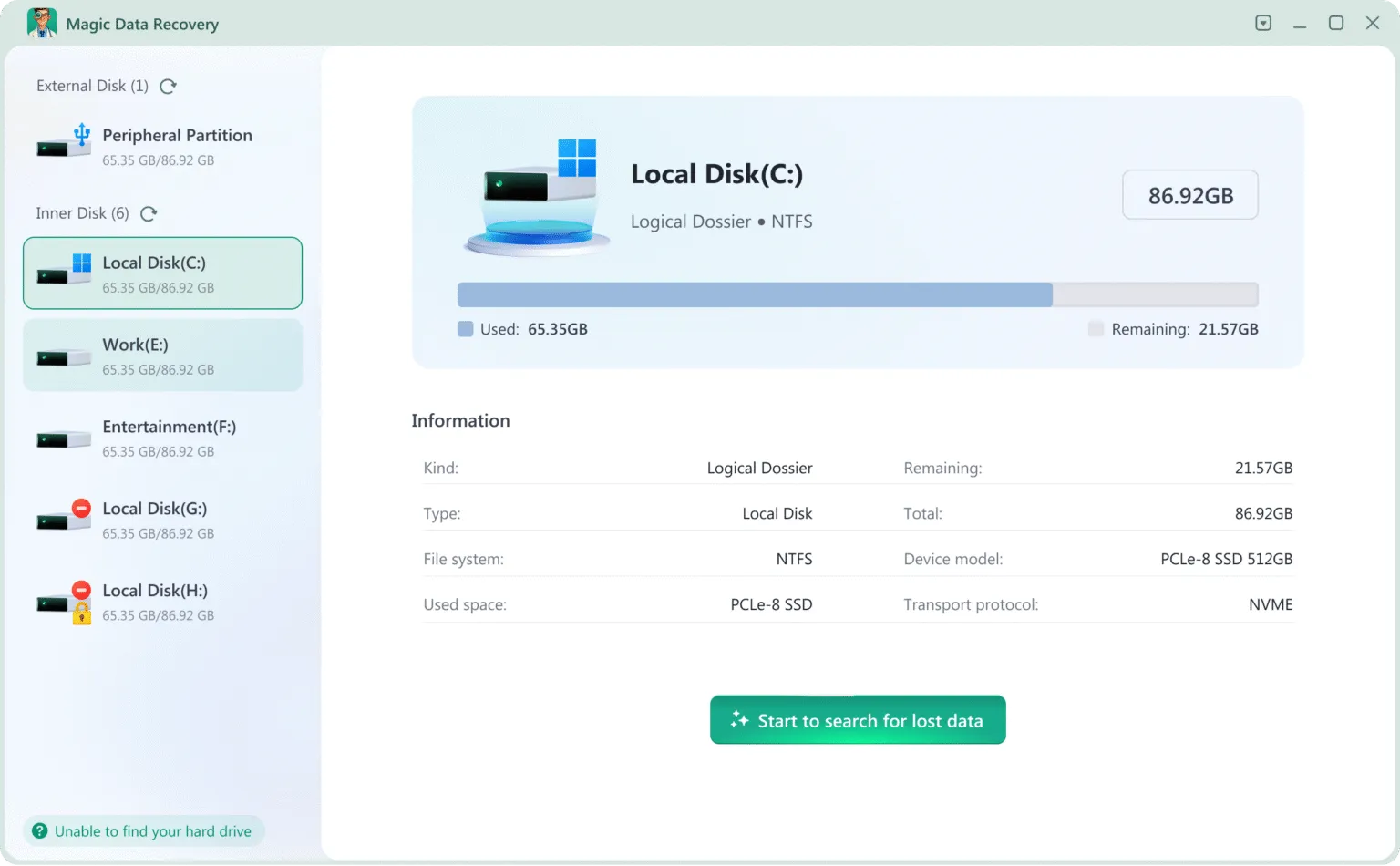
If 4DDiG does not match your preferred licensing model or recovery workflow, Magic Data Recovery, developed by Amagicsoft, is another Windows application to evaluate. Both address common file-loss scenarios, although their published platform coverage, free allowance, and licensing options differ.
Why These Two Applications Were Compared
This is primarily a review of Tenorshare 4DDiG, not an all-software ranking. Magic Data Recovery is included because it addresses overlapping Windows use cases such as deletion, formatting, and inaccessible storage. The comparison covers the same published criteria for both products; it does not infer recovery superiority from a manufacturer’s file-format count, a price difference, or an unverified recovery-rate claim.
Editorial disclosure: Amagicsoft publishes this article and develops Magic Data Recovery. Both applications are compared using the same stated criteria.
Feature Comparison
Feature | Tenorshare 4DDiG | Magic Data Recovery |
Main platform | Windows; separate Mac edition available | Windows |
Deleted-file recovery | Yes | Yes |
Formatted-drive recovery | Yes | Yes |
RAW / file system error recovery | Yes | Yes |
HDD, USB, and SD card recovery | Yes | Yes |
SSD recovery | Subject to storage device and TRIM limitations | Subject to the same storage limitations |
File preview | Available for supported formats | Available for supported formats |
Free recovery | Up to 2GB (conditions apply) | 500MB |
Paid recovery | Unlimited under license | Unlimited under license |
Monthly plan | Available | Not listed on the individual purchasing page |
Annual license | Available | Available |
Lifetime license | Available | Available |
Crashed-computer recovery | Advertised | Check the current edition and supported scenario |
Tested version | 10.9.5.9 | 3.10.801 |
NTFS deletion: found / intact | 200 / 194 (97% intact) | 200 / 197 (98.5% intact) |
NTFS deletion: scan time | 8m 12s | 8m 5s |
exFAT quick format: found / intact | 200 / 197 (98.5% intact) | 200 / 197 (98.5% intact) |
exFAT quick format: scan time | 5m 4s | 6m 1s |
Sources: 4DDiG Windows Data Recovery, 4DDiG Free, and Magic Data Recovery.
The laboratory results show that both applications located all 200 target files in the NTFS deletion and exFAT quick-format tests. Magic Data Recovery restored 197 intact files in the NTFS test, compared with 194 for 4DDiG. In the exFAT test, both applications restored 197 intact files.
Scan times also varied by scenario. Magic Data Recovery completed the NTFS scan seven seconds faster, while 4DDiG completed the exFAT scan 57 seconds faster.
These results reflect the specified test environment and dataset. Recovery performance may vary depending on the storage device, file system, data loss scenario, and condition of the original data.
Supports Windows 7/8/10/11 and Windows Server
Where Magic Data Recovery Fits
Magic Data Recovery is a Windows-focused application designed for deletion, formatting, file system errors, and lost partitions. Its published capabilities include quick and deep scans, preview, and support for more than 5,000 file formats. It also supports EXT2, EXT3, and EXT4 on supported storage devices. These are product specifications, not independent recovery-performance results.
Users can review the Magic Data Recovery product page and assess the scan results against the particular files they need.
Pricing Comparison
Individual license | 4DDiG Data Recovery | Magic Data Recovery |
Annual | $59.95 | $49.95 |
Lifetime | $79.95 | $69.95 |
Licensed computers | 1 PC | 1 PC |
Displayed USD prices checked September 23, 2026. Promotional prices, tax, and checkout terms can change. Check 4DDiG pricing and Magic Data Recovery pricing before ordering.
How to Compare 4DDiG and Magic Data Recovery Yourself
Use the same criteria for both applications:
- Recovery scenario: Confirm that the edition supports your Windows version, device, and type of loss.
- Scan findings: Examine target files and surviving paths rather than only counting every listed item.
- Preview: Inspect representative documents, images, and videos where supported.
- File integrity: Restore selected files to a different disk, open them, and compare with originals when a reference is available.
- Licensing: Compare the usable free quota, final price, renewal terms, supported PCs, and refund conditions.
The results in the test section use equivalent initial media and the same file-integrity criteria. A smaller set of intact target files may be more useful than a longer scan list containing unrelated or damaged entries.
When Should You Avoid Using Recovery Software?
Neither 4DDiG nor Magic Data Recovery is suitable for every type of data loss.
In some situations, purchasing another recovery application will not address the underlying problem.
When a Reliable Backup Already Exists
Check whether the missing files are available through File History, cloud storage, or another backup system.
Restoring a known-good copy may be simpler and more predictable than scanning the original drive.
Microsoft provides a Windows File Recovery guide for users who need additional recovery options.
When the Drive Shows Physical Failure Symptoms
If an HDD makes abnormal noises, repeatedly disconnects, or cannot maintain a stable connection, avoid prolonged scanning.
Continued access can create additional stress on failing hardware.
A professional data recovery service may be more appropriate.
When Deleted Data Has Been Overwritten
Recovery software cannot recreate original file content that no longer exists on the storage medium.
This is particularly important after extensive drive reuse, secure erasure, or certain SSD TRIM operations.
Buying another application will not reverse physical overwriting.
When Files Are Hidden Rather Than Deleted
A missing folder does not always indicate data loss.
Check whether the files were moved, hidden, synchronized to another location, or made inaccessible by an incorrect user profile.
Resolving the underlying visibility problem may restore access without requiring data recovery software.
When the Files Are Extremely Valuable
For irreplaceable business records, legal documents, or other critical data, consider preserving the original storage device before experimenting with multiple tools.
A verified disk image or professional evaluation can provide a safer starting point when the storage condition is uncertain.
Conclusion: Is 4DDiG Data Recovery Worth It?
This 4DDiG Data Recovery review finds that Tenorshare’s published Windows offering covers deleted-file and formatted-drive recovery, file preview, and limited free recovery. Its graphical workflow is aimed at users who prefer not to work directly with file system structures or command-line tools.
The result for any particular file still depends on the original data. Overwriting, destructive formatting, and certain SSD TRIM operations can rule out ordinary software recovery. The full advertised free allowance also carries a social-sharing condition, while paid options require attention to renewal and refund terms.
For Windows users comparing alternatives, Magic Data Recovery offers deletion, formatting, and file system recovery with annual and lifetime licensing. The side-by-side test results above provide another reference point alongside features and pricing.
Preview important files, compare the applicable license terms, and purchase only when the available evidence justifies it. For next steps and precautions, use our deleted file recovery guide.
Supports Windows 7/8/10/11 and Windows Server
FAQs
Is Tenorshare 4DDiG Data Recovery free?
Is Tenorshare Data Recovery the same as 4DDiG?
Is 4DDiG safe to install on Windows?
Can 4DDiG recover files from a formatted hard drive?
Does 4DDiG work on SSDs with TRIM enabled?
Why does 4DDiG find files that cannot be opened?
Does a 4DDiG lifetime license include free upgrades?
What should I do if 4DDiG cannot find my lost files?

Vasilii is a data recovery specialist with around 10 years of hands-on experience in the field. Throughout his career, he has successfully solved thousands of complex cases involving deleted files, formatted drives, lost partitions, and RAW file systems. His expertise covers both manual recovery methods using professional tools like hex editors and advanced automated solutions with recovery software. Vasilii's mission is to make reliable data recovery knowledge accessible to both IT professionals and everyday users, helping them safeguard their valuable digital assets.