
Azure Backup File Level Restore Guide
For modern cloud administrators, data loss represents a high-stakes emergency that requires immediate action. Whether a user accidentally deletes a configuration file or a database suffers corruption, the ability to perform an Azure backup file level restore is absolutely critical. While Azure provides a native way to mount recovery points as local drives, the process does not always run smoothly. Consequently, many professionals encounter script errors or network blocks that stall their recovery efforts.
In this comprehensive guide, we will walk you through the standard process of file level restore azure backup. Furthermore, we will identify why these methods sometimes fail and provide a reliable local recovery solution like Magic Data Recovery to recover lost files from your local hard drives when cloud-native tools fall short.
Supports Windows 7/8/10/11 and Windows Server
Table of Contents
Understanding Azure Backup File Level Restore (FLR)
An Azure backup FLR is a specialized recovery process that allows you to retrieve specific items from a Virtual Machine (VM) backup. Therefore, you do not need to restore the entire VM just to get one document. This “item-level” approach saves significant time because it minimizes bandwidth usage.
To facilitate this, Azure generates a temporary executable script for Windows or a Python script for Linux systems. This script creates a secure connection between your local machine and the recovery point. Because it uses iSCSI technology, the backup appears as a local disk, although it resides in the cloud.
Step-by-Step: How to Perform File Level Restore Azure Backup
To successfully execute a file level restore, you must follow a specific sequence of actions within the Azure portal.
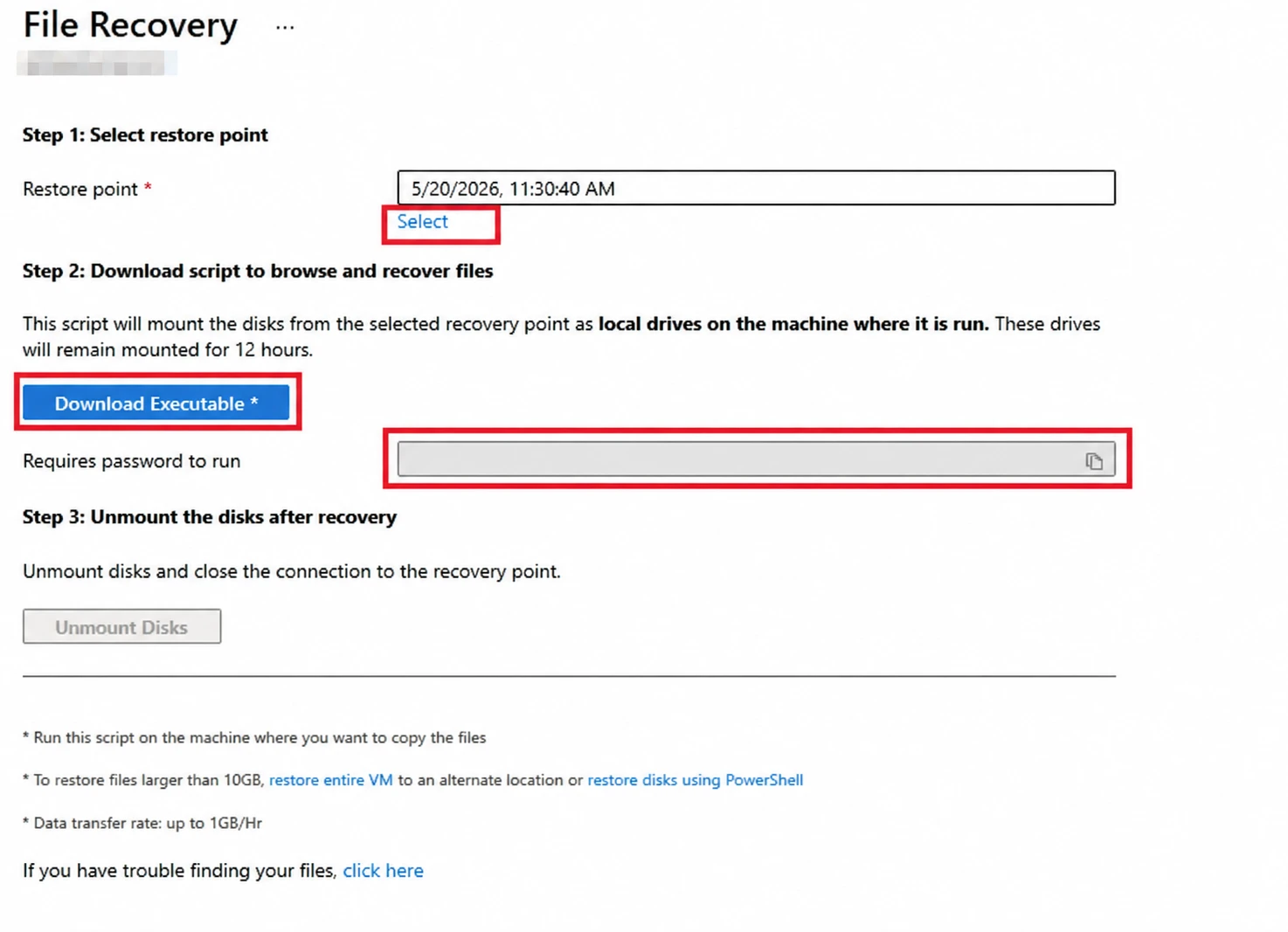
Step1: Selecting the Recovery Point
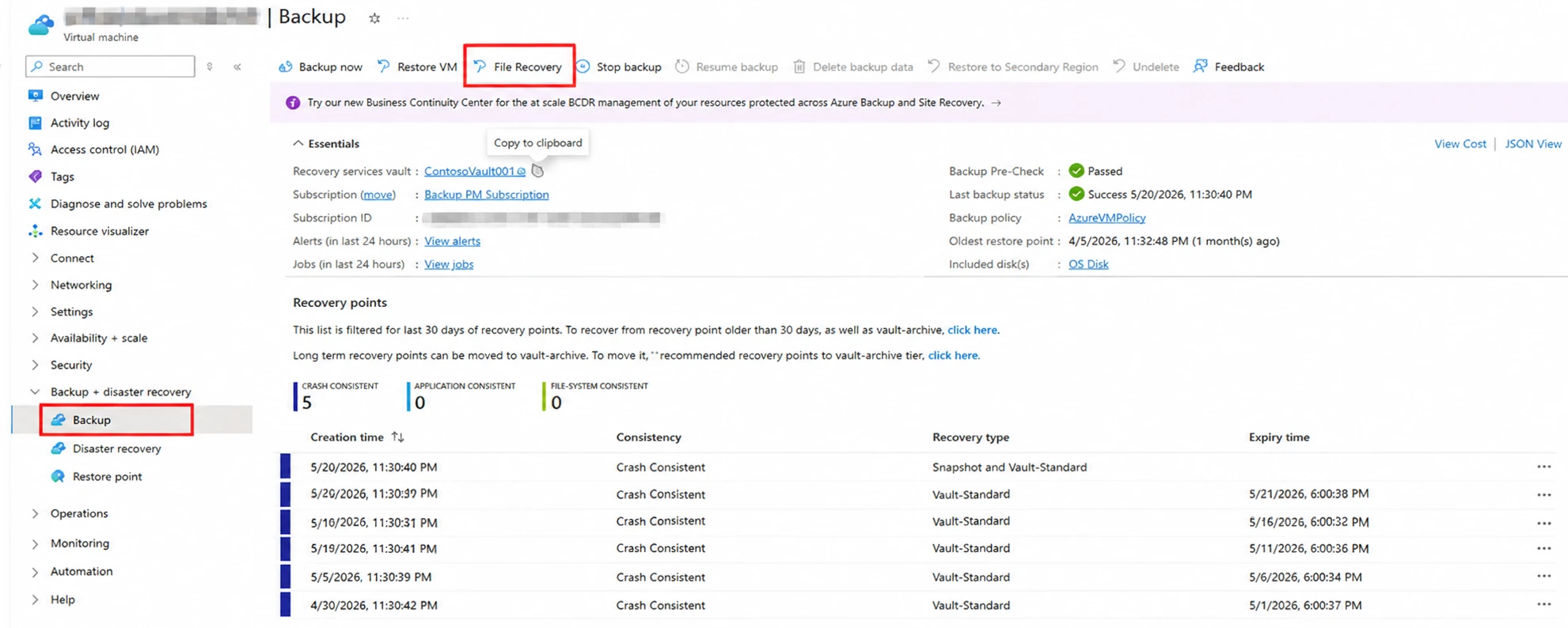
First, log in to the Azure Portal and navigate to your “Recovery Services Vault.” After you locate your VM under “Protected Items,” simply click on “File Recovery.” At this stage, you must choose a specific recovery point from the available backup history.
Step2: Generating the Recovery Script
Once you select the point, Azure prompts you to download an executable file. It is important to note that Azure backup file level restore scripts are password-protected. Therefore, you should copy the password provided on the screen before you close the browser tab.
Step3: Mounting the Volume Locally
Next, run the downloaded script on a machine that meets the specific OS requirements. After you enter the password, the script will mount the backup as a new drive letter. However, ensure your local firewall allows the connection, or the process will fail.
Why Your Azure Backup File Level Restore Might Fail
Although the native Azure backup restore is powerful, it has several technical constraints. These limitations often frustrate users during an urgent data crisis.
- Disk Type Constraints: Azure does not support file-level recovery for dynamic disks or volumes configured with Windows Storage Spaces.
- Performance Bottlenecks: Because the iSCSI mount has speed limits, Microsoft suggests this method only for data under 10 GB.
- Network Barriers: The recovery script requires outbound access to port 3260. If your corporate firewall blocks this port, the file level restore will time out.
- OS Compatibility: You must use a compatible OS version. For instance, mounting a Server 2022 backup on a Windows 10 client often results in “Access Denied” errors.
Troubleshooting File Level Restore Azure Backup Failures
If your file level restore Azure backup script fails to run, you are likely facing a permissions issue. First, always right-click the executable and select “Run as Administrator” to bypass basic restrictions.
Another frequent issue involves the iSCSI Initiator service. If this service remains disabled, the Azure backup file level restore cannot complete the mount. Furthermore, check your antivirus logs to ensure the script is not being blocked as a false positive. If these steps do not work, you may need to consider a local recovery alternative.
Magic Data Recovery: The Best Alternative for Azure Data
Sometimes, cloud-native tools are simply too restrictive for a time-sensitive project. If the Azure backup file level restore continues to fail, you need a professional-grade tool to extract your data. This is where Magic Data Recovery becomes an essential part of your toolkit if you have ever saved the files on your local drives. You can also donload the VHDX disk image and mount it on your local machine for recovery.
Why Professionals Choose Magic Data Recovery
If you are looking for a more efficient solution, you might find that Magic Data Recovery handles the heavy lifting that Azure scripts cannot. This software excels in the following areas:
- Superior Compatibility: It supports NTFS, FAT32, and exFAT, which covers almost all Azure VM disk configurations.
- Offline Capability: Unlike the file level restore azure backup, this tool works directly after you download nad mount the VHDX disk images on your local computer.
- Deep Partition Analysis: If your backup volume appears “RAW” after a failed mount, Magic Data Recovery can reconstruct the file structure easily.
- Simplified Workflow: You do not need to manage complex PowerShell commands or scripts.
If you are currently struggling with a stubborn backup, you should try a more versatile recovery path. For this reason, we highly recommend trying Magic Data Recovery to ensure your files are retrieved safely and quickly.

Conclusion
Mastering the Azure backup file level restore process is a vital skill for any IT professional. While Microsoft provides the necessary tools for basic tasks, technical limitations often necessitate a more robust approach. Whether you are dealing with incompatible disk types or slow transfer speeds, having a backup plan is essential. We recommend using the native portal for simple tasks, but for complex failures, Magic Data Recovery provides the professional depth needed for local hard drive recovery.
Supports Windows 7/8/10/11 and Windows Server
FAQ
How long does an Azure backup FLR typically take?
The duration depends heavily on your network speed and the amount of data. Typically, the mounting process takes about two to five minutes. However, the data transfer speed is often limited to roughly 1 GB per hour. Therefore, if you need to recover large folders, you should expect a longer wait time.
Why is my Azure file level restore script failing with "Access Denied"?
This error usually occurs because the user lacks local administrative privileges on the machine running the script. To fix this, ensure you run the command prompt or executable as an administrator. Additionally, check if your disk is a dynamic disk, as Azure does not support file-level mounting for that specific disk type.
Can I perform a file level restore azure backup for a Linux VM on Windows?
No, you generally cannot mount a Linux file system directly on a Windows machine using the native script. Azure requires you to run the recovery script on a compatible Linux distribution to recognize the file system.
What ports are required for Azure backup file level restore to work?
The native recovery script requires outbound communication over port 443 and port 3260. Port 443 handles the secure HTTPS connection to Azure services, while port 3260 is necessary for the iSCSI traffic. If your corporate firewall restricts these ports, the script will fail to connect to the recovery point in the cloud.
Is there a size limit for the files I can recover via Azure FLR?
Technically, there is no hard limit on individual file sizes. However, Microsoft recommends using this method only for recoveries involving less than 10 GB of data. For larger datasets, the connection may become unstable. In such cases, restoring the entire disk or using a local recovery tool like Magic Data Recovery is much faster.
Do I need to shut down the VM during a file level restore azure backup?
Fortunately, you do not need to shut down or restart your production VM during this process. The Azure backup file level restore works entirely with the recovery point stored in your vault. This ensures that your live environment remains operational while you recover lost or corrupted files on a separate, local workstation or server.

Vasilii is a data recovery specialist with around 10 years of hands-on experience in the field. Throughout his career, he has successfully solved thousands of complex cases involving deleted files, formatted drives, lost partitions, and RAW file systems. His expertise covers both manual recovery methods using professional tools like hex editors and advanced automated solutions with recovery software. Vasilii's mission is to make reliable data recovery knowledge accessible to both IT professionals and everyday users, helping them safeguard their valuable digital assets.