
データを失うことなく破損したSDカードを修復する方法

A 破損したSDカード 写真、動画、ドキュメント、またはカメラのファイルに突然アクセスできなくなることがあります。「カードをフォーマットする必要があります」というエラーメッセージが表示されたり、SDカードがパソコンに認識されなくなったり、あるいは何の予告もなく一部のファイルが消えてしまったりすることがあります。このような状況になった場合、最も重要なルールは単純です: SDカードのフォーマットはすぐに行わないでください. フォーマットを行うと、カードが再び使用可能になる場合もありますが、その一方で、 SDカードから消えたファイルを復元する. 破損したSDカードに重要なデータが含まれている場合は、まずファイルを復元またはバックアップしてから、安全な修復方法を試してください。.
このガイドでは、破損したSDカードの修復方法や、次のような専用のデータ復元ソフトウェアを使用して破損したSDカードからデータを復元する方法について説明します。 Magic Data Recovery.
Windows 7/8/10/11およびWindows Serverをサポート
ページの内容
【手短な回答】まず何をするべきか?
SDカードが破損している場合は、以下の手順に従って操作してください:
- すぐにSDカードの使用を中止してください。.
- 新しいファイルをカードに保存しないでください。.
- 重要なデータを復元するまでは、カードのフォーマットを行わないでください。.
- 別のカードリーダー、USBポート、またはデバイスを試してみてください。.
- データ復元ソフトを使って、破損したSDカードからファイルを復元します。.
- 復旧後、以下の手順でカードを修復してください。 チェックディスク, 、Windowsのエラーチェック、ディスクユーティリティの「ファーストエイド」、ドライバーの修復、またはフォーマット。.
SDカードに物理的な損傷(ひび割れ、曲がり、焼け跡、水濡れなど)がある場合、またはどのデバイスでも認識されない場合は、ご自身での修理を中止し、専門のデータ復旧サービスのご利用をご検討ください。.
SDカードが破損した際の一般的な兆候
以下の症状のうち1つ以上が見られる場合は、SDカードが破損している可能性があります。
症状 | その意味 | おすすめの第一歩 |
SDカードをフォーマットするよう求められます | ファイルシステムが破損している可能性があります | 最初にデータを復元する |
SDカードが認識されません | 接続、ドライバー、またはカードの問題 | 別のリーダーや端末をお試しください |
ファイルが消える | ファイルシステムのエラー、または隠しファイル | カードをスキャンして、隠しファイルを表示する |
SDカードがRAW形式になってしまう | ファイルシステムが読み取れません | フォーマットする前にデータを復元する |
写真や動画が開けません | ファイルの破損または不良セクタ | ファイルの復元と整合性の確認 |
SDカードの容量が正しく表示されない | パーティションまたはコントローラの問題 | カードの使用を停止する |
読み取り/書き込みエラーが発生します | カードがロックされている、故障している、または破損している可能性があります | ロックスイッチを確認し、不具合を修理する |
カメラに「カードエラー」と表示される“ | ファイルシステムの非互換性または破損 | ファイルを復元してから、カメラでフォーマットする |
これらの症状が出ても、必ずしもカードが完全に壊れているとは限りません。多くの場合、破損したSDカードは修復可能です。特に、問題が以下の原因によるものである場合はなおさらです。 ファイルシステムエラー, 、不適切な削除、転送の中断、ドライバーの問題、またはマルウェア。.
SDカードが破損する原因は何ですか?
原因を把握することで、適切な修理方法を選ぶのに役立ちます。一般的な原因としては、次のようなものがあります:
1. SDカードの取り外し方法を誤った場合
ファイルのコピー、削除、保存中にSDカードを取り外すと、ファイルシステムが不完全になったり破損したりする可能性があります。これは、カメラ、スマートフォン、ドローン、ドライブレコーダー、またはコンピュータから、安全に取り出しを行わずにカードを取り外した際に、よく発生します。.
2. ファイル転送の中断
ファイル転送中に突然の停電、カメラのバッテリー残量の低下、アプリのクラッシュ、またはシステムのフリーズが発生すると、SDカードが不安定な状態になる可能性があります。.
3.ファイルシステムのエラー
SDカードでは、FAT32やexFATなどのファイルシステムを使用してファイルが管理されています。ファイルシステムが破損すると、デバイスでファイルを正しく読み込めなくなる可能性があります。.
4. ウイルスやマルウェアへの感染
SDカードが感染したコンピュータに接続されると、マルウェアによってファイルが隠されたり、削除されたり、暗号化されたり、破損したりする可能性があります。.
5.バッドセクター
長期間使用すると、SDカード上のストレージブロックの一部が不安定になる場合があります。これにより、ファイルへのアクセスエラー、読み込みの遅延、またはファイルの破損が繰り返し発生する可能性があります。.
6. 物的損害
SDカードは、曲がり、ひび割れ、水濡れ、高温、ほこり、または金属接点の損傷により、正常に動作しなくなることがあります。.
7. 複数のデバイスで同じカードを使用する
同じSDカードをカメラ、スマートフォン、ドローン、ドライブレコーダー、パソコンの間で使い回すと、特に各デバイスで異なるファイルシステムの規則が採用されている場合、互換性の問題が発生するリスクが高まる可能性があります。.
破損したSDカードを修復する前に:重要な安全上の注意事項
どのような修復方法を試す前に、データの永久的な損失を防ぐため、以下の安全上の注意事項に従ってください。.
SDカードを先にフォーマットしないでください
多くのデバイスでは、次のようなメッセージが表示されます:
- “「使用する前にディスクをフォーマットする必要があります。”
- “「SDカードが破損しています。再フォーマットしてみてください。」”
- “「カードエラー。」”
- “「ボリュームには認識されたファイルシステムが含まれていません。”
カードに重要なデータが含まれている場合は、「フォーマット」をクリックしないでください。フォーマットを行うと、ファイルシステムの記録が消去され、復元が成功する可能性が低くなる恐れがあります。.
SDカードの使用を中止してください
カードに対して、新しい写真の撮影、新しい動画の録画、新しいファイルのダウンロード、あるいは繰り返し修復を試みないでください。新しいデータが、削除されたファイルやアクセスできないファイルの上書きをしてしまう可能性があります。.
信頼できるカードリーダーを使う
SDカードが実際には破損していない場合もあります。問題は、カードリーダー、USBポート、アダプター、またはケーブルの不具合に起因している可能性があります。カードが破損していると決めつける前に、必ず別のリーダーでカードをテストしてください。.
重要なファイルを最初に復元する
重要なファイルがある場合は、修復コマンドを実行したりフォーマットを行ったりする前に、それらを復元してください。修復操作によってはファイルシステムが変更される場合があり、その場合は復元が難しくなる可能性があります。.
破損したSDカードからデータを復元する方法
破損したSDカードがWindowsでまだ認識されている場合は、以下の方法でファイルの復元を試みることができます。 Magic Data Recovery カードを修理またはフォーマットする前に。.
Magic Data Recoveryは、SDカード、microSDカード、メモリーカード、USBメモリ、外付けドライブ、その他のストレージデバイスからファイルを復元するのに役立ちます。特に、ファイルが削除されたり、紛失したり、アクセスできなくなったり、破損、フォーマット、ファイルシステムのエラーによって失われた場合に有効です。.
重要:破損したSDカードに復元ソフトウェアをインストールしないでください。復元したファイルを同じSDカードに保存しないでください。復元したファイルは、必ず別のドライブに保存してください。.
手順 1:破損した SD カードをパソコンに接続する
SDカードをカードリーダーに挿入し、Windows搭載のパソコンに接続してください。microSDカードを使用する場合は、信頼性の高いmicroSDアダプターまたはカードリーダーを使用してください。.
Windows がそのカードを認識できることを確認してください。ファイル エクスプローラーではカードにアクセスできない場合でも、「ディスクの管理」には表示されることがあります。.
ステップ2:Magic Data Recoveryのダウンロードとインストール
Magic Data Recoveryをダウンロードして、お使いのコンピュータにインストールしてください。インストール先は、破損したSDカードではなく、コンピュータの内蔵ドライブにしてください。.
Windows 7/8/10/11およびWindows Serverをサポート
ステップ 3:破損した SD カードを選択する
Magic Data Recoveryを起動します。メイン画面で、破損したSDカードまたはメモリーカードをターゲットドライブとして選択します。.

ステップ4:SDカードをスキャンする
破損したSDカードのスキャンを開始します。スキャンにかかる時間は、カードの容量、接続速度、カードの状態、およびファイルの数によって異なります。.
たとえば、32GBのSDカードは256GBのSDカードよりもスキャンが速い場合があります。カードに不良セクタが多いと、スキャンに時間がかかることがあります。.

ステップ 5:プレビューとファイルの選択
スキャンが完了したら、復元可能なファイルがある場合はプレビューを表示します。復元したい写真、動画、ドキュメント、音声ファイル、その他のデータを選択してください。.

ステップ6:ファイルを別のドライブに復元する
[復元] をクリックし、別のドライブ上の安全な保存先を選択してください。復元したファイルは、破損したSDカードには保存しないでください。.

フォーマットせずに破損したSDカードを修復する方法
方法 1:別のカードリーダー、USB ポート、またはデバイスを試してみてください
修復コマンドを実行する前に、接続上の問題がないことを確認してください。.
この方法を使うべき場合
次のような場合は、この方法を使用してください:
- SDカードが表示されません。.
- コンピュータがカードを認識しません。.
- SDカードが不定期に外れてしまいます。.
- このカードは、ある端末では動作するが、別の端末では動作しない。.
やり方
- 現在使用中のデバイスからSDカードを取り出してください。.
- 別のカードリーダーに差し込んでください。.
- 別のUSBポートを試してみてください。.
- 別のコンピューターで試してみてください。.
- カメラや携帯電話のSDカードの場合は、元の機器に差し直して、認識されるかどうかを確認してください。.
そのカードが別のリーダーで正常に動作する場合は、元のカードリーダーまたはアダプターに不具合がある可能性があります。.
方法 2:SDカードのロックスイッチを確認する
フルサイズのSDカードには、通常、側面に小さなロックスイッチが付いています。このスイッチがロック位置にある場合、カードが書き込み禁止状態になることがあります。.
この方法を使うべき場合
次のような場合は、この方法を使用してください:
- SDカードにファイルをコピーすることはできません。.
- SDカードからファイルを削除することはできません。.
- Windows によると、このディスクは書き込み保護されています。.
- カードがロックされているため、フォーマットに失敗しました。.
やり方
- SDカードを取り外してください。.
- 側面の小さなスイッチを確認してください。.
- ロック解除の位置までスライドさせてください。.
- カードをコンピュータに再度挿入してください。.
- もう一度ファイルにアクセスしてみてください。.
ロックスイッチが緩んでいるか、壊れている場合は、別のmicroSDカード用アダプターを使ってみてください。.
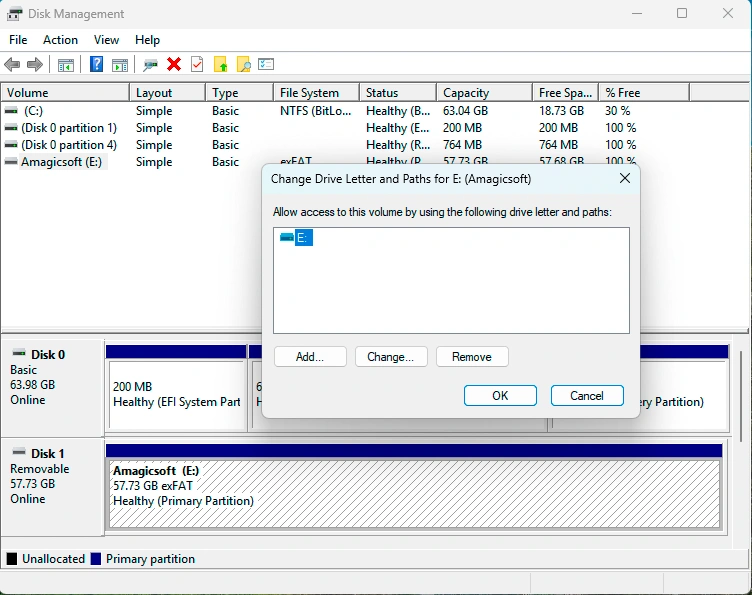
方法 3:Windows で新しいドライブ文字を割り当てる
Windows によって SD カードが検出されていても、ドライブ文字が割り当てられていないか、または競合するドライブ文字が割り当てられているために、ファイル エクスプローラーに表示されない場合があります。.
この方法を使うべき場合
次のような場合は、この方法を使用してください:
- SDカードが「ディスクの管理」に表示されます。.
- SDカードがファイルエクスプローラーに表示されません。.
- ドライブレターがない。.
- 別のデバイスが同じドライブ文字を使用しています。.
新しいドライブ文字を割り当てる方法
- 「スタート」を右クリックします。.
- 「ディスクの管理」を選択します。.
- SDカードを探してください。.
- SDカードのパーティションを右クリックします。.
- [ドライブ文字とパスの変更] を選択します。.
- [追加または変更] をクリックします。.
- 新しいドライブ文字を選択してください。.
- OKをクリックする。.
新しいドライブ文字を割り当てた後、ファイルエクスプローラーを開き、SDカードにアクセスできるかどうかを確認してください。.
方法 4: Windows のエラーチェック機能を使用する
Windows には、ファイルシステムのエラーをスキャンして修復できる組み込みのエラーチェックツールが搭載されています。.
この方法を使うべき場合
次のような場合は、この方法を使用してください:
- SDカードはファイルエクスプローラーに表示されています。.
- カードを右クリックすることができます。.
- Windows では、ドライブのプロパティにアクセスできます。.
- このカードには、ファイルシステムに軽微なエラーがあります。.
Windowsのエラーチェック機能の使い方
- SDカードをパソコンに接続してください。.
- 「このPC」を開きます。.
- SDカードを右クリックします。.
- プロパティを選択する。.
- [ツール] タブに移動します。.
- 「エラーチェック」で、「チェック」をクリックします。.
- 画面の指示に従って、カードをスキャンし、修復してください。.
Windows がエラーを検出した場合は、修復を実行してください。処理が完了したら、SD カードを再度開き、ファイルを確認してください。.
方法 5:CHKDSK を使って破損した SD カードを修復する
CHKDSK は、ドライブのファイルシステムエラーをチェックし、その修復を試みる Windows のコマンドラインツールです。.
警告:CHKDSK を実行すると、ファイルシステムが変更される可能性があります。SD カードに重要なファイルが含まれている場合は、まずデータをバックアップしてください。.
この方法を使うべき場合
次のような場合は、CHKDSK を使用してください:
- SDカードにファイルシステムのエラーがあります。.
- Windows から、ドライブのスキャンと修復を行うよう求められます。.
- ファイルまたはフォルダにアクセスできません。.
- カードは認識されていますが、正常に動作していません。.
CHKDSKの実行方法
- SDカードをパソコンに接続してください。.
- SDカードのドライブ文字(E: や F: など)をメモしておいてください。.
- Windowsの検索バーに「cmd」と入力します。.
- 「コマンドプロンプト」を右クリックします。.
- 「管理者として実行」を選択してください。.
- 次のコマンドを入力します:
chkdsk G: /f
「G:」を、お使いのSDカードのドライブ文字に置き換えてください。.
- エンターキーを押す。.
- 処理が完了するまでお待ちください。.
- SDカードを再度取り出して、正常に動作するか確認してください。.
以下の方法も利用できます: chkdsk E: /f /r
について /f このパラメータは、ファイルシステムのエラーを修正します。この /r このパラメータは不良セクタを特定し、読み取り可能な情報の復旧を試みます。この /r スキャンに時間がかかる場合があります。.

方法 6:SD カードドライバの再インストールまたは更新
破損している、古くなっている、または不安定なドライバーが原因で、Windows が SD カードを正しく読み込めない場合があります。.
この方法を使うべき場合
次のような場合は、この方法を使用してください:
- SDカードが認識されません。.
- 「デバイスマネージャー」にエラーが表示されています。.
- システムのアップデート後に、カードリーダーが動作しなくなりました。.
- 他のUSBストレージデバイスは動作しますが、SDカードは動作しません。.
SDカードドライバの再インストール方法
- 「スタート」を右クリックします。.
- 「デバイスマネージャー」を選択します。.
- 「ディスクドライブ」または「USBコントローラ」を展開します。.
- SDカードまたはカードリーダーを用意してください。.
- その項目を右クリックし、「デバイスのアンインストール」を選択します。.
- SDカードを取り外してください。.
- コンピュータを再起動してください。.
- SDカードを再度接続してください。.
Windows が自動的にドライバーを再インストールします。その後、ファイル エクスプローラーまたはディスクの管理にそのカードが表示されているか確認してください。.
方法 7: DiskPart を使用して書き込み保護を解除する
SDカードが書き込み保護されている場合、フォーマットやファイルの削除、修復ができないことがあります。.
この方法を使うべき場合
次のような場合は、この方法を使用してください:
- Windows によると、このディスクは書き込み保護されています。.
- SDカードにファイルを保存することはできません。.
- カードからファイルを削除することはできません。.
- 物理ロックスイッチはすでにロックが解除されています。.
書き込み保護を解除する方法
- SDカードをパソコンに接続してください。.
- コマンドプロンプトを管理者として開く。.
- タイプ
ディスクパーツ - タイプ
リストディスク - SDカードの容量を確認してください。.
- タイプ
ディスクXを選択
X を、お使いの SD カードのディスク番号に置き換えてください。.
- タイプ
属性 ディスククリア 読み取り専用 - タイプ
出口
読み取り専用状態を解除した後、SDカードへのアクセスまたは修復を再度試みてください。.
DiskPart を使用する際は注意してください。間違ったディスクを選択すると、別のドライブに影響が出る可能性があります。.
方法 8:SD カード上の隠しファイルを表示する
ファイルが失われたわけではなく、システム設定やマルウェア、あるいはファイル属性の変更によって非表示になっている場合もあります。.
この方法を使うべき場合
次のような場合は、この方法を使用してください:
- SDカードは開くのですが、ファイルがありません。.
- 使用済み領域は、ファイルがまだ存在していることを示しています。.
- フォルダが空のように表示されます。.
- 別のコンピューターに接続したところ、ファイルが消えてしまいました。.
Windowsで隠しファイルを表示する方法
- ファイルエクスプローラを開く。.
- SanDiskドライブを選択します。.
- 「表示」を選択します。.
- 「表示」をクリックします。.
- SDカードをもう一度開いてください。.
コマンドプロンプトを使用することもできます: attrib -h -r -s /s /d E:\*.*
「E:」を、お使いのSDカードのドライブ文字に置き換えてください。.
このコマンドは、SDカード上のファイルやフォルダから、隠し属性、読み取り専用属性、およびシステム属性を解除します。.
フォーマットして破損したSDカードを修復する方法
上記の方法のいずれも効果がない場合は、書式設定が最後の手段となるかもしれません。. フォーマット ファイルシステムを再構築して、カードを再び使用可能にすることができます。.
ただし、フォーマットを行うとデータが消去されます。フォーマットを行う前に、重要なファイルを復元してください。.
Windowsで破損したSDカードをフォーマットする
- SDカードをパソコンに接続してください。.
- 「このPC」を開きます。.
- SDカードを右クリックします。.
- 「フォーマット」を選択してください。.
- ファイルシステムを選択してください:
- 容量の小さいカードや幅広い互換性を求める場合はFAT32
- 大容量のSDカードや大容量ファイル向けのexFAT
- より徹底的なフォーマットを行いたい場合は、「クイックフォーマット」のチェックを外してください。.
- [スタート] をクリックします。.
フォーマットが完了したら、SDカードにファイルをコピーして読み戻すことで、動作確認を行ってください。.
Macで破損したSDカードをフォーマットする
- SDカードをMacに挿入してください。.
- ディスクユーティリティを開く。.
- SDカードを選択してください。.
- [消去]をクリックします。.
- 形式を選択してください:
- FAT32用のMS-DOS (FAT)
- 大容量のカード用exFAT
- [消去]をクリックします。.
処理が完了したら、カードを取り外して、再度差し込んでください。.
カメラで破損したSDカードをフォーマットする
SDカードを主にカメラで使用している場合は、データを復元した後、カメラ内でフォーマットしたほうがよい場合が多いです。.
- SDカードをカメラに挿入してください。.
- カメラメニューを開いてください。.
- 「フォーマットカード」または「メモリカードのフォーマット」を探してください。.
- 操作を確認してください。.
- 試しに何枚か写真を撮ってみてください。.
- それらをパソコンに転送して、カードが正常に動作するか確認してください。.
カメラ内でフォーマットを行うと、そのカメラに適したファイルシステム構造をカードで利用できるようになります。.
FAT32とexFAT、どちらのファイルシステムを選ぶべきか?
SDカードに物理的な損傷があった場合はどうすればよいでしょうか?
SDカードに物理的な損傷がある場合、ソフトウェアによる修復では解決できない可能性があります。. 以下の点に気づいた場合は、カードの使用を中止してください:
- ひび割れ
- 曲がったカード本体
- 焼け跡
- 水害
- 接点の断線
- 深刻な過熱
- どのデバイスでもカードが認識されません
- カードを挿入するたびに、デバイスがフリーズしてしまう
金属の接点は、乾いた糸くずの出ない布で優しく拭いてください。ただし、SDカードをこすったり、曲げたり、加熱したり、分解したりしないでください。データが重要な場合は、専門のデータ復旧サービスにご連絡ください。ご自身で修理を試みると、物理的な損傷を悪化させる恐れがあります。.
まとめ
SDカードが破損しても、必ずしもファイルが永久に失われるわけではありません。多くの場合、データは依然として復元可能です。特に、直ちにカードの使用を中止し、早すぎるフォーマットを避ければ、復元できる可能性が高まります。最も安全な手順は次の通りです:破損したSDカードの使用を中止する — 重要なファイルを復元する — データが安全に確保されてから、SDカードの修復またはフォーマットを試みる。.
必要な場合 破損したSDカードからファイルを復元する, Magic Data Recovery カードをスキャンして、修理やフォーマットを行う前に、失われた写真、動画、文書、その他のファイルを復元するのに役立ちます。.
Windows 7/8/10/11およびWindows Serverをサポート
よくある質問
フォーマットせずに、破損したSDカードを修復するにはどうすればよいですか?
破損したSDカードからファイルを復元するにはどうすればよいですか?
なぜSDカードが「フォーマットが必要です」と表示されるのですか?
CHKDSK では、破損した SD カードを修復できますか?
CHKDSKを実行すると、SDカード内のファイルが削除されてしまいますか?
破損したmicroSDカードを修復するにはどうすればよいですか?
SDカードのファイルが消えているのに、ストレージの使用量は減っていないのはなぜですか?
破損したSDカードは、修復した後に再利用できますか?
SDカードの修理を自分で試みるのを、いつやめるべきでしょうか?

エリン・スミスは、Amagicsoftで最もプロフェッショナルなライターの一人として認められています。過去10年にわたりライティングスキルを磨き続け、何百万人もの読者の技術的な問題解決に貢献してきました。.