
Google ドライブから削除したファイルを復元する方法
Google ドライブのファイルを誤って削除してしまうと、ほんの数秒で作業が中断してしまうことがあります。レポート、スプレッドシート、PDF、写真、動画、共有プロジェクトファイルなどが失われてしまう可能性があります。幸いなことに、そのファイルは「ごみ箱」、共有場所、同期されたフォルダ、またはローカルのバックアップに残っている場合があります。. このガイドでは Google ドライブから削除したファイルを復元する方法 明確な手順に従って進めていきます。まず、Googleの復元オプションを試してみてください。次に、Workspaceの管理画面での復元を確認します。その後、そのファイルがWindowsパソコン、USBメモリ、SDカード、またはその他のローカルストレージに一度でも同期またはダウンロードされていた場合は、以下の方法でファイルをスキャンして探すことができます。 Magic Data Recovery.
Googleがファイルを完全に削除した後、サードパーティ製のツールではGoogleのクラウドから直接そのファイルを取り出すことはできません。ただし、 削除ファイル復元 かつてローカルコピーが存在していた場合、このツールが役立ちます。したがって、, Google ドライブから削除したファイルを復元する方法 クラウドの状態とローカルストレージの履歴の両方に依存します。.
Windows 7/8/10/11およびWindows Serverをサポート
目次
【クイック回答】Google ドライブから削除したファイルを復元する方法
必要な場合 Google ドライブから削除したファイルを復元する方法 さっそく、ここから始めてください。.
状況 | ベスト・ソリューション |
ファイルはまだゴミ箱に入っています | Google ドライブのごみ箱から復元する |
「ゴミ箱」にそのファイルが表示されなくなりました | Googleの復旧サポート機能をお試しください |
仕事用または学校用のアカウント | Google Workspace 管理者に問い合わせる |
Windows にファイルが同期されました | Magic Data Recoveryを使って同期フォルダをスキャンする |
USBメモリまたはSDカードに保存されたファイル | Magic Data Recoveryを使ってそのデバイスをスキャンしてください |
クラウド上にもローカルにもコピーは存在しません | 復旧は不可能な場合があります |
したがって、まずは最も簡単な方法から試してみてください。ゴミ箱での復元が失敗した場合は、アカウントの復旧、管理者サポート、ローカルでの復旧へと進んでください。.
方法 1:Google ドライブのごみ箱から削除されたファイルを復元する方法
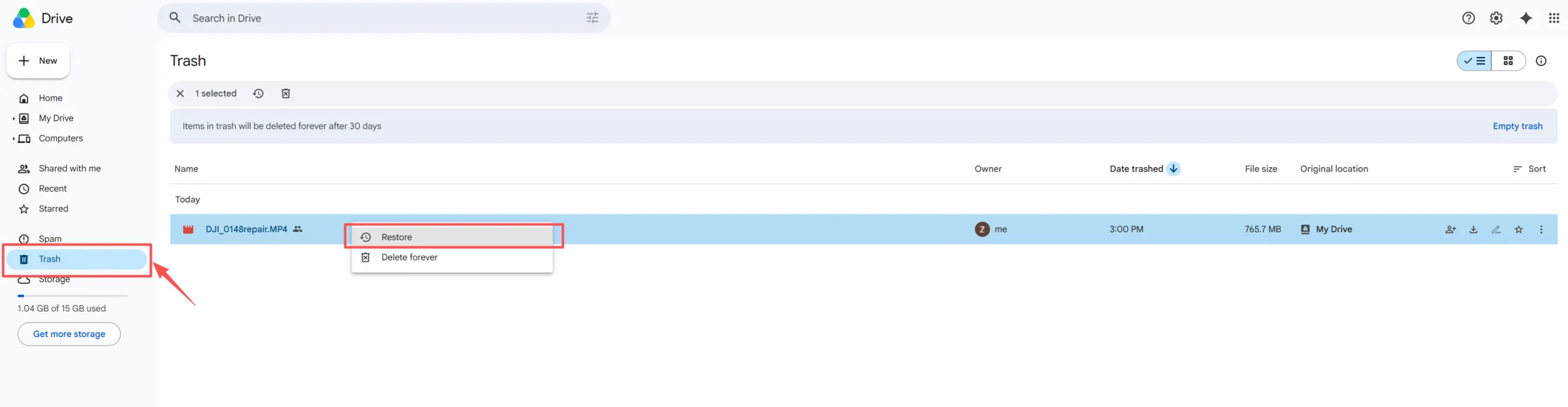
削除したGoogleドライブのファイルを復元する最も簡単な方法は、 Google ドライブのごみ箱から削除したファイルを復元する. この方法は、ファイルがまだゴミ箱に残っている場合に有効です。.
- オープン グーグルドライブ.
- 左側のメニューにある「ゴミ箱」をクリックしてください。.
- ファイルを検索するか、ゴミ箱に入れた日付順に並べ替えてください。.
- ファイルを右クリックする。.
- 「復元」をクリックしてください。“
その後、通常「ドライブ」ではファイルが元のフォルダに戻されます。ファイルが見つからない場合は、「マイドライブ」でファイル名で検索してください。.
この方法は、次の質問に答えます Google ドライブから削除したファイルを復元する方法 「最近削除した項目」の場合。ただし、ゴミ箱を空にしてしまった場合は、次の解決策に進んでください。.
方法 2:Google ドライブから完全に削除されたファイルを復元する方法
方法 3:Workspace 管理者のサポートを受けて Google ドライブから削除されたファイルを復元する方法
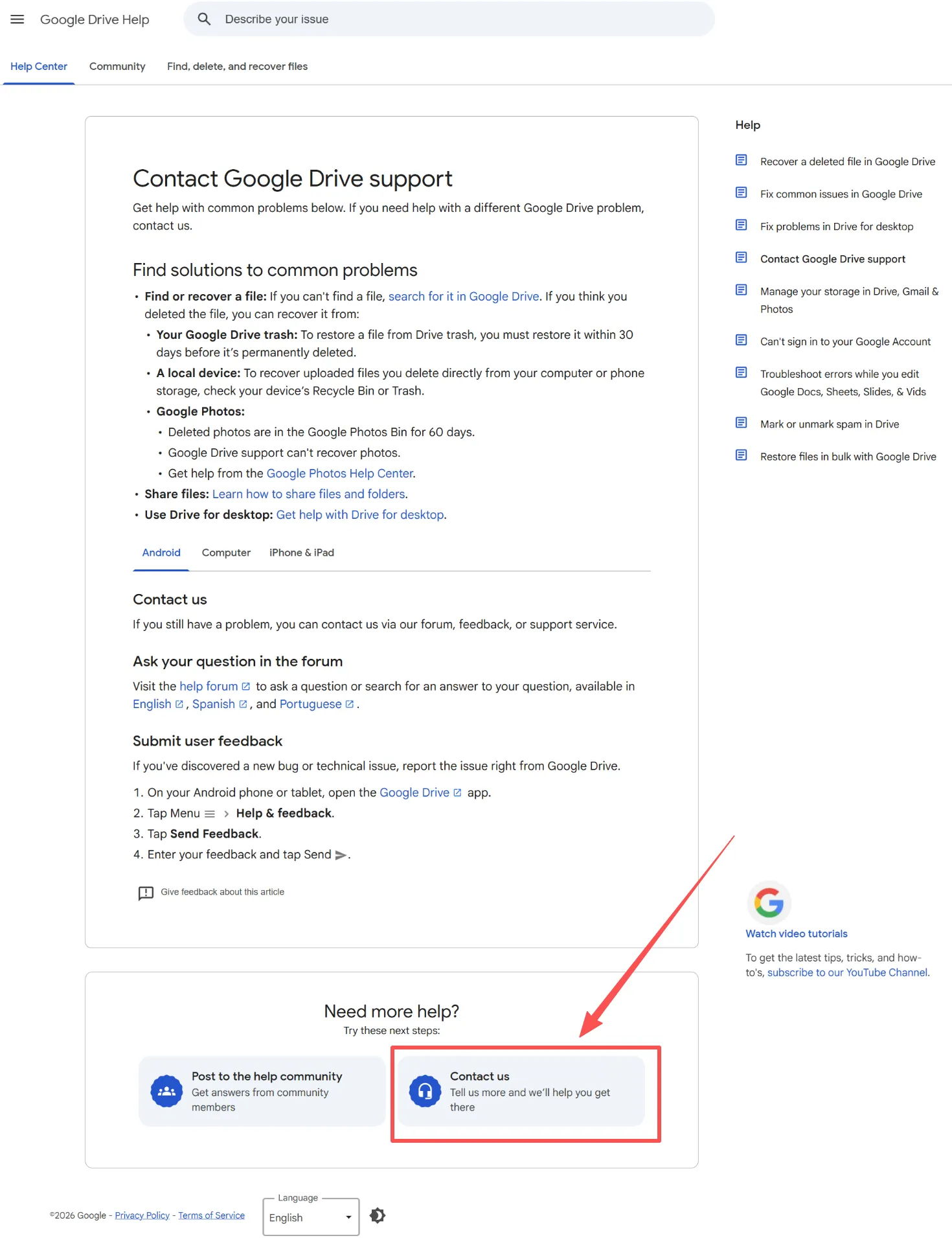
お使いのドライブが企業、学校、または組織に所属している場合は、Google Workspace の管理者にお問い合わせください。ゴミ箱にファイルが表示されなくなった場合、管理者による復元が役立つ場合があります。.
Google Workspace のドキュメントによると、管理者は、ユーザーがゴミ箱を空にしてから 25 日以内であれば、ドライブのアイテムを復元できるとのことです。管理者がより迅速に対応できるよう、ファイル名、所有者、フォルダパス、削除日時を伝えてください。これが最善の方法です。 Google Workspace 管理者が Drive のファイルを復元する 検索。そのため、紛失に気づいたらすぐに助けを求めてください。.
方法 4:Magic Data Recovery を使って Google ドライブから削除されたファイルを復元する方法
Googleのクラウド復旧オプションが機能しない場合でも、ローカルでの復旧は可能かもしれません。. Magic Data Recovery この方法は、失われたファイルがかつてWindowsパソコン、同期されたGoogleドライブのフォルダ、USBメモリ、SDカード、またはその他のローカルストレージに存在していた場合に役立ちます。.
この方法は、Google ドライブの復元機能に代わるものではありません。むしろ、その補完的な役割を果たすものです。Google はクラウド側の復元に重点を置いているのに対し、Magic Data Recovery はローカルストレージをスキャンします。によると アマジックソフト, このツールは5000種類以上のファイル形式に対応しており、HDD、SSD、USBメモリ、SDカードなどで利用可能です。.
デスクトップ版Googleドライブを使用していた際、ファイルをWindowsに同期した、削除前にダウンロードした、Windowsのごみ箱を空にした、あるいはGoogleドライブのごみ箱から復元できなかった場合などに、Magic Data Recoveryをご利用ください。たとえば、クラウド上のファイルとダウンロードしたPDFの両方を削除してしまった場合、このツールは最後に保存されていたローカルストレージの場所をスキャンすることができます。.
Magic Data Recoveryの使い方
ステップ1: Magic Data Recoveryのダウンロードとインストール
Magic Data Recoveryをダウンロードし、Googleドライブの失われたファイルを最後に保存した場所とは別のドライブにインストールしてください。この手順により、誤って上書きしてしまうのを防ぎ、失われたデータを保護することができます。.
Windows 7/8/10/11およびWindows Serverをサポート
ステップ 2:スキャンするドライブまたは同期された Google ドライブのフォルダを選択します
プログラムを起動します。次に、メイン画面から、削除されたファイルが以前保存されていたディスク、パーティション、または同期されたGoogleドライブのフォルダを選択します。その後、スキャンを開始します。.

ステップ3:Google ドライブから削除されたファイルをスキャンする
このソフトウェアは、選択した場所をスキャンします。その間、スキャンの進行に合わせて復元可能なファイルが一覧表示されます。スキャンが完了するまで待ってもよいですし、スキャン中に結果を確認することもできます。.

ステップ4:復元前に削除されたファイルをプレビューする
次に、プレビュー機能を使用してファイルの内容を確認します。この手順により、実際に必要なドキュメント、写真、動画、PDF、その他のファイルのみを復元することができます。.

ステップ5:ファイルを安全な場所に復元する
最後に、対象のファイルを選択し、別の安全な場所に保存してください。ファイルを元の場所と同じ場所に復元しないでください。そうすると、削除されたデータが上書きされたり、他の失われたファイルを復元できる可能性が低くなったりする恐れがあります。.

クラウド復旧とオンプレミス復旧の比較
理解するために Google ドライブから削除したファイルを復元する方法, 、クラウド復旧とオンプレミス復旧を比較してください。.
リカバリー・タイプ | 最適 |
Google ドライブのごみ箱 | 最近削除されたファイル |
Googleの復旧サポート | 最近削除された個人用ファイル |
ワークスペース管理者の復元 | 仕事や学校関連のファイル |
Magic Data Recovery | 同期された、ダウンロードされた、またはコピーされたファイル |
Googleがまだクラウド上のファイルを保持している場合は、まずGoogleのツールを利用してください。ただし、クラウド上のコピーが消えてしまい、かつてローカルコピーが存在していた場合は、Magic Data Recoveryがもう一つの実用的な解決策を提供します。.
Google ドライブから削除されてから 30 日が経過したファイルを復元する方法
多くのユーザーが検索しています 30日経過後のGoogleドライブのファイルを復元する Trashではもう解決できないからです。まず、Google Workspaceを利用しているかどうかを確認してください。利用している場合は、すぐに管理者に連絡してください。次に、ドライブ、共有フォルダ、メールの添付ファイル、ダウンロードしたファイル、USBメモリ、SDカード、古いパソコンなどを探してみてください。.
目に見えるコピーが見つからない場合は、Magic Data Recoveryを使ってローカルの保存場所をスキャンしてください。スキャンは早ければ早いほど、成功の可能性が高まります。ただし、そのファイルがGoogleのクラウド上にしか存在しなかった場合は、 Googleはこれを永久に削除しました, 復元ツールでは、Googleのサーバーからそのデータを復元することはできません。.
まとめ
これでお分かりだろう。 Google ドライブから削除したファイルを復元する方法 「ゴミ箱」、Googleサポート、Workspace管理者向けヘルプ、およびローカルでの復元を試してみてください。まずは「ゴミ箱」から確認してください。もしファイルが「ゴミ箱」にも表示されない場合は、Googleの復元サポートまたは管理者向けヘルプを試してみてください。.
最後に、ローカルフォルダ、ダウンロードフォルダ、USBメモリ、SDカード、およびバックアップを確認してください。. Magic Data Recovery 実用的な問題を解決してくれるため、このガイドに掲載する価値がある 削除ファイル復元 注意点:クラウドからの復元が失敗した場合でも、ローカルにコピーが残っている可能性があります。より効率的な次の手順が必要な場合は、「Magic Data Recovery」を試して、失われたファイルが最後に存在していた場所をスキャンしてみてください。.
Windows 7/8/10/11およびWindows Serverをサポート
Google ドライブから削除したファイルを復元する方法に関するよくある質問
30日が経過した後でも、Google ドライブのファイルを復元することはできますか?
はい、ただし30日を経過すると選択肢が限られてきます。まず、Google Workspaceアカウントを使用しているかどうかを確認してください。Googleの復旧期間内であれば、管理者が対応してくれる可能性があります。次に、ダウンロードフォルダ、バックアップ、USBメモリ、SDカードなどを検索してみてください。かつてローカルコピーが存在していた場合は、Magic Data Recoveryが役立つかもしれません。.
Magic Data Recoveryでは、Google ドライブから完全に削除されたファイルを復元できますか?
Magic Data Recoveryでは、Googleのクラウドサーバーから直接ファイルを復元することはできません。ただし、Googleドライブから完全に削除されたファイルであっても、そのファイルがかつて同期、ダウンロード、またはローカルストレージに保存されていた場合は、復元を支援することができます。そのため、Googleドライブのごみ箱、Googleの復元サポート、およびWorkspaceの管理オプションを確認した上で、本ツールをご利用ください。.
復元されたGoogleドライブのファイルはどこに保存されるのですか?
Google ドライブでは通常、復元されたファイルは元のフォルダに戻されます。ただし、元のフォルダがもう存在しない場合やアクセスできなくなった場合は、「マイドライブ」でファイル名を検索してください。また、そのファイルが他のユーザーのものであった場合は、「最近使ったもの」、「自分と共有されているもの」、およびファイル所有者のドライブも確認してください。.
Driveのファイルを削除した後、すぐに何をすべきですか?
まず、関連する場所でのファイルの削除、同期、または新規ファイルの保存を中止してください。次に、Google ドライブのごみ箱、Windows のごみ箱、同期されたフォルダ、およびダウンロードフォルダを確認してください。これらの確認でも見つからない場合は、Google サポートまたは Workspace 管理者に連絡してください。最後に、そのファイルがかつてデバイス上に存在していた場合は、Magic Data Recovery を使用してローカルストレージをスキャンしてください。.
Google ドライブの共有フォルダからファイルを復元することはできますか?
はい、場合によっては可能です。まず、ファイルの所有者を確認してください。他のユーザーが所有している場合は、その所有者に「ゴミ箱」を確認してもらうか、共有アクセス権を復元するよう依頼してください。Workspace アカウント内の共有ドライブについては、速やかに管理者に連絡してください。復元できるかどうかは、権限、削除された時期、およびアカウントの種類によって異なります。.
Google ドライブの「ゴミ箱」は、Windows の「ごみ箱」と同じものですか?
いいえ。Google ドライブの「ゴミ箱」はクラウドアカウントに属していますが、Windows の「ごみ箱」はコンピュータ本体に属しています。そのため、デスクトップ版 Google ドライブをご利用の場合は、両方の場所を確認してください。ファイルがドライブから消えても、Windows の「ごみ箱」や同期されたフォルダ、あるいはその他のローカルな場所にまだ残っている可能性があります。.

バシリイは、この分野で約10年の実務経験を持つデータ復元のスペシャリストです。そのキャリアを通じて、彼は削除されたファイル、フォーマットされたドライブ、失われたパーティション、RAWファイルシステムを含む何千もの複雑なケースの解決に成功してきました。彼の専門知識は、16進エディタなどの専門ツールを使用した手動復元方法と、復元ソフトウェアを使用した高度な自動化ソリューションの両方をカバーしています。バシリの使命は、信頼できるデータ復元知識をITプロフェッショナルと一般ユーザーの双方が利用できるようにし、貴重なデジタル資産を保護できるようにすることです。.