
Windows 7のデスクトップからファイルが消えてしまった
もし Windows 7のデスクトップからファイルが消えてしまった, 、それらが永久に失われたとは決めつけないでください。Windows 7 では、デスクトップのアイコンが非表示になったり、別のユーザープロファイルが読み込まれたり、ファイルが移動されたり、削除されたアイテムがごみ箱に送られたりする場合があります。また、実際にはファイルが削除されている場合もあります。そのため、このガイドでは、原因を特定し、まず Windows の安全な修復方法を試してから、専用の 削除ファイル復元 のようなツールです。 Magic Data Recovery 組み込みのオプションでは失われたデータを復元できない場合に限ります。.
重要 実際にデータが失われた可能性がある場合は、問題のドライブへの新規ファイルの保存を中止してください。新たにデータを書き込むと、削除されたデータが上書きされ、復旧の可能性が低くなる恐れがあります。.
Windows 7/8/10/11およびWindows Serverをサポート
目次
Windows 7のデスクトップからファイルが消えてしまったのはなぜですか?
いつ Windows 7のデスクトップからファイルが消えてしまった, 、削除は考えられる原因の一つにすぎません。まずは、ご自身の症状と、考えられる原因を照らし合わせてみてください。.
目に見えるもの | 考えられる原因 | 最初のベストアクション |
デスクトップ上のすべての項目が消えてしまう | デスクトップのアイコンが表示されていない | デスクトップのアイコンを表示する |
一部のファイルが見つかりません | 非表示の属性または削除 | 隠しファイルを表示する |
壁紙または設定が変更されました | 異なるプロフィールまたは一時的なプロフィール | C:\Users を確認してください |
検索では依然としてそのファイルが見つかります | ファイルが移動されました | その場所を表示する |
ファイルがごみ箱に表示される | 事故による削除 | それらを復元する |
バックアップが存在します | 以前のバージョンまたはWindowsのバックアップ | バックアップを復元する |
ファイルがどこにも見当たらない | 削除の可能性 | 以下の方法でスキャンしてください Magic Data Recovery |
したがって、まずは最も負担の少ない対処法から試してみてください。ディスプレイやプロファイルの問題であればWindowsのトラブルシューティングで対応できますが、実際にデータが削除されてしまった場合は、復元ソリューションが必要となります。.
方法 1:Windows 7 でデスクトップのアイコンを表示する
もし Windows 7のデスクトップからファイルが消えてしまった ショートカットやフォルダを含め、Windows はデスクトップ上のすべてのアイコンを非表示にしてしまうことがあります。.
- デスクトップの何もない場所を右クリックします。.
- [ポイント] 表示.
- 確認する デスクトップのアイコンを表示する チェックマークが付いています。.
ファイルが戻ってきた場合、データはデスクトップから消えたことはありません。ただし、一部のアイテムだけがまだ見つからない場合は、次の方法に進んでください。.
この確認作業は、デスクトップの表示のみを変更し、保存されているファイルには影響を与えないため、最初に実施すべきです。.
方法 2:Windows 7 で隠しファイルと隠しフォルダを表示する
Windows 7 では、「隠しファイル」属性を使用して個々のファイルを非表示にすることができます。そのため、通常は表示されない場合でも、デスクトップフォルダ内にファイルが残っていることがあります。.
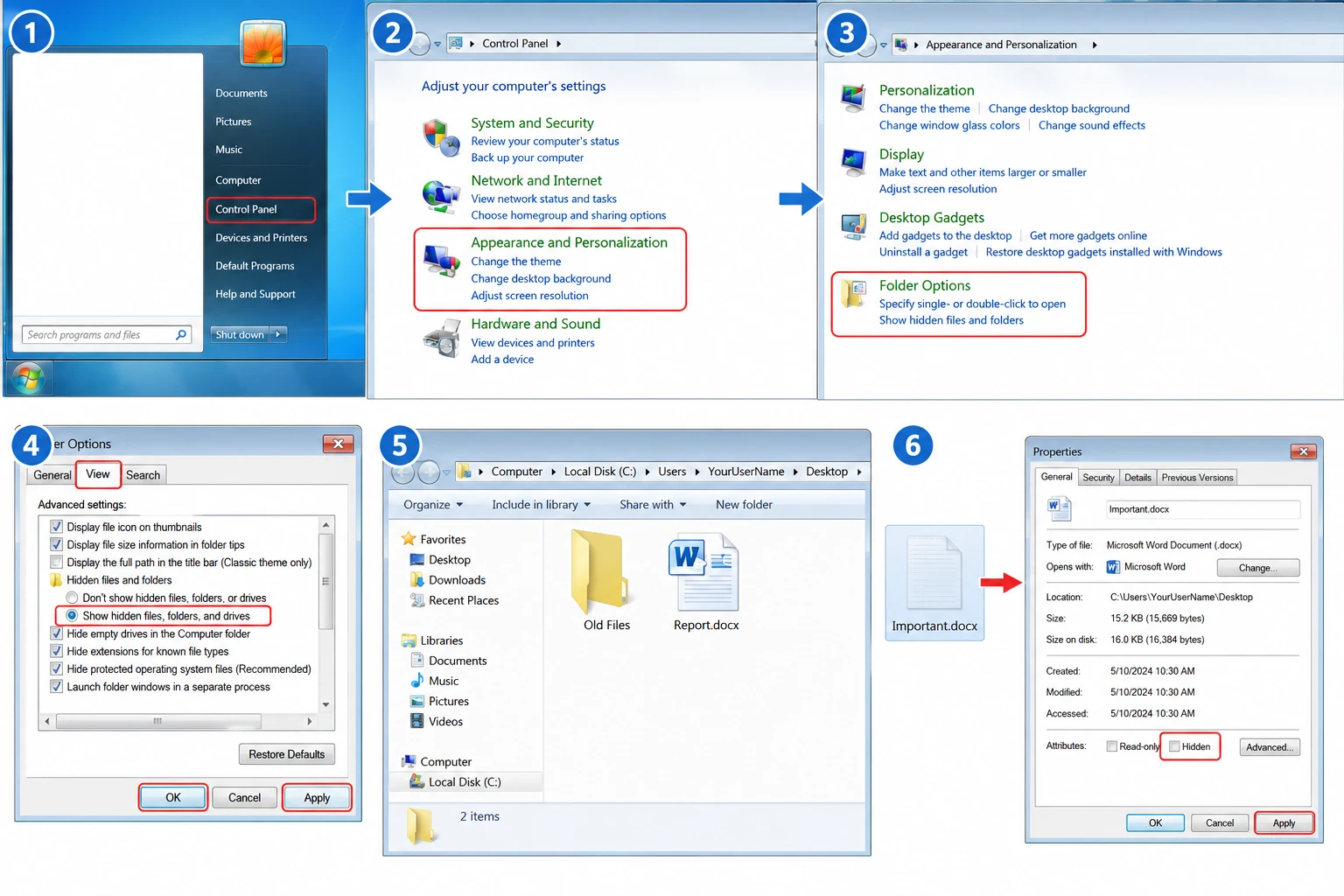
へ Windows 7 で隠しファイルを表示する:
- クリック スタート そして開く コントロールパネル.
- 選ぶ 「表示とカスタマイズ」 > 「フォルダのオプション」.
- を開く。 表示 タブ.
- 選択 隠しファイル、隠しフォルダ、および隠しドライブを表示する.
- クリック 応募する そして OK.
- オープン
C:\Users\YourUserName\Desktop.
ファイルの色あせているように見える場合は、そのファイルを右クリックして、 プロパティ, クリア ヒドゥン, そして変更を適用します。.
この方法により、多くの場合、問題が解決されます Windows 7のデスクトップからファイルが消えてしまった ファイルの属性が変更されたものの、実際のデータはそのまま残っていた場合。.
方法 3:別のユーザープロファイルまたは一時的なユーザープロファイルを確認する
もし Windows 7のデスクトップからファイルが消えてしまった 再起動やサインインの後、Windows が別のプロファイルを読み込んだ可能性があります。一時的なプロファイルや別のプロファイルが読み込まれると、デスクトップが空の状態になることがありますが、元のデータは通常のアカウントにそのまま残っています。.
まず、以下を開いてください:
コンピュータ > ローカルディスク (C:) > ユーザー
次に、以下の場所にある通常のアカウントフォルダを探してください:
C:\Users
次に、その デスクトップ フォルダを開き、欠落しているファイルを探してください。.
また、壁紙が変更されていないか、個人設定が消えていないか、あるいは見慣れないデスクトップのレイアウトになっていないかを確認してください。こうした兆候は、データが完全に削除されたというよりも、プロファイルの問題である可能性を強く示唆しています。.
元のファイルが見つかった場合は、プロファイルを変更する前に、重要なデータを安全な保存先にコピーしてください。この状況では、ファイルがまだ存在しているため、復元ソフトウェアは必要ありません。.
方法 4:Windows 7 で表示されないデスクトップ上のファイルを検索する
時々 Windows 7のデスクトップ上のファイルが見つかりません 誰かがうっかり移動してしまったためです。したがって、それらを削除されたものとみなす前に、パソコン内を検索してみてください。.
を開く。 スタート メニューを開き、ファイル名の一部を入力します。拡張子で検索することもできます:
*.docxWord文書用*.xlsxExcelファイル用*.jpg写真用*.pdfPDF文書の場合
Windowsがそのファイルを見つけたら、その場所を開き、ファイルをコピーするか、デスクトップに戻してください。.
たとえば、誤ってドラッグしてしまった場合、ファイルを削除することなく、複数のファイルを別のフォルダに移動してしまうことがあります。Windows 検索を使えば、多くの場合、それらのファイルの新しい保存場所をすぐに特定できます。.
方法 5:ごみ箱からデスクトップのファイルを復元する
もし Windows 7のデスクトップからファイルが消えてしまった 通常の手順で削除した後、次に「ごみ箱」を確認してください。.
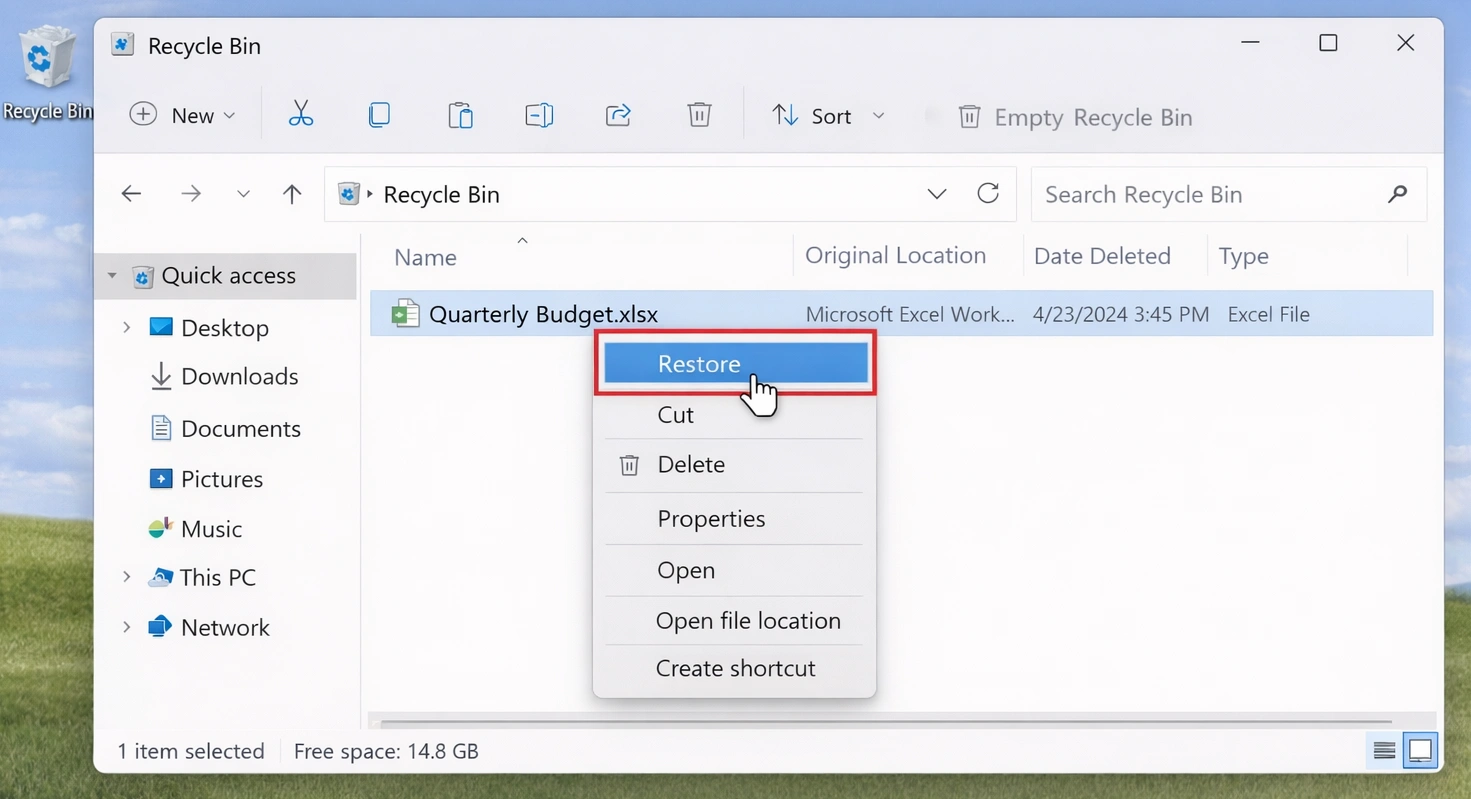
- オープン ごみ箱.
- 失われたファイルまたはフォルダを見つけてください。.
- 右クリックしてください。.
- 選択 リストア.
Windows はその項目を元の場所に戻します。.
しかしだ、, Shift + Delete 通常の「ごみ箱」の処理をバイパスします。同様に、「ごみ箱」を空にすると、その内容は通常のアクセス対象から外れます。失われたデータがそこにない場合は、復元スキャンを開始する前に、Windowsのバックアップオプションを確認してください。.
方法 6: 以前のバージョンまたは Windows 7 のバックアップを復元する
もし Windows 7のデスクトップからファイルが消えてしまった また、以前にバックアップを作成していた場合は、Windows 7 にすでに使用可能なコピーが保存されている可能性があります。.
旧バージョンの復元
ユーザーフォルダを開き、右クリックします デスクトップ, を選択する。 旧バージョンの復元.
Windows に以前のバージョンが表示されている場合は、まずそのバージョンを開き、必要なファイルが含まれていることを確認してください。この追加の確認を行うことで、間違ったバージョンを復元してしまうのを防ぐことができます。.
「バックアップと復元」を使用する
に行く:
コントロールパネル > システムとセキュリティ > バックアップと復元
次に、復元オプションを使用して、既存のバックアップの中から失われたファイルを探し出してください。.
これらの組み込みメソッドは、復元用のデータがすでに存在する場合に有効です。しかし、Windows に適切な以前のバージョンやバックアップがない場合は、これらのメソッドでは対応できません。.
方法 7:Windows 7 のデスクトップから消えてしまったファイルを復元する方法
もし Windows 7のデスクトップからファイルが消えてしまった 上記の確認方法を試しても見つからない場合は、ドライブから削除されてしまった可能性があります。その場合は、, Magic Data Recovery 影響を受けたストレージから復元可能なファイルをスキャンするための実用的な方法を提供します。.
Magic Data Recovery Windows 7に対応しており、文書、写真、動画、アーカイブファイルなど、さまざまな種類のファイルを検索できます。さらに、プレビュー機能やフィルタリングツールにより、復元前にスキャン結果を確認することができます。.
したがって、このアプローチは、次のような状況に適しています。 ごみ箱は空です, Windows はそのファイルを見つけられず、使用可能なバックアップも存在しません。.
ステップ1: Magic Data Recoveryのダウンロードとインストール
まず、Magic Data Recoveryをダウンロードしてください。可能であれば、欠落しているファイルが含まれていないドライブにインストールしてください。.
この予防措置により、影響を受ける記憶領域への不要な書き込みが軽減されます。その結果、まだ復元可能なデータが上書きされてしまうリスクが低減されます。.
Windows 7/8/10/11およびWindows Serverをサポート
手順 2:デスクトップのファイルが消失したドライブを選択する
次に、Magic Data Recoveryを起動します。メイン画面で、以前Windows 7のデスクトップファイルが保存されていたドライブを選択します。ほとんどのWindows 7のインストール環境では、デスクトップフォルダはシステムドライブ上にあります。対象のドライブを選択し、スキャンを開始してください。.

ステップ 3:デスクトップ上のファイルの欠落や削除を確認する
その後、ソフトウェアは選択したドライブをスキャンして、紛失したファイルや削除されたファイルを探します。その間、スキャンの進行に合わせて検出された項目が表示されます。.
スキャン中に結果を確認することができます。ただし、処理を最後まで完了させることで、ソフトウェアがさらに復元可能なデータを見つけやすくなる場合があります。.

ステップ4:リカバリーの前にファイルをプレビューする
スキャンによって候補が見つかったら、次の手順を実行してください。 プレビュー その内容を確認するために。.
さらに、ファイル名、ファイルの種類、または利用可能なフィルターを使って検索結果を絞り込むことができます。この手順により、復元を行う前に、適切なドキュメント、写真、動画、その他のデスクトップ上のファイルを選択することができます。.

ステップ5:ファイルを安全な場所に復元する
最後に、必要なファイルを選択して復元を開始します。復元されたデータは、問題のドライブではなく、別のドライブやストレージデバイスに保存してください。こうすることで、まだ復元可能な他の削除済みファイルが上書きされてしまうリスクを軽減できます。.

その後、復元されたファイルをいくつか開いて、正常に動作することを確認してから、Windows 7のデスクトップにコピーし直してください。.
Windows 7のデスクトップファイルが欠落している場合に、なぜMagic Data Recoveryを使うべきなのか?
Magic Data Recovery デスクトップの設定、ごみ箱、およびWindowsのバックアップツールでは解決できない問題、すなわち、利用可能なバックアップが存在しない場合に削除されたファイルに対処します。.
たとえば、プロジェクトフォルダを ウィンドウズ7 デスクトップおよびそれ以降のバージョン ごみ箱を空にする. 隠しファイルを表示しても、削除されたフォルダを復元することはできません。同様に、バックアップを作成していなければ、「バックアップと復元」機能でも復元することはできません。.
そのような状況では、問題のあるストレージを直接スキャンすることで、問題を直接解決できます。.
さらに、Magic Data Recoveryは、スキャン、プレビュー、復元というシンプルなワークフローを提供します。また、Windows 7に対応しているため、次のようなニーズを持つユーザーにも適しています。 Windows 7データ復元ソフトウェア 新しいバージョンのWindowsに限定された解決策ではなく、.
とはいえ、復元ツールであっても成功を保証できるものではありません。削除されたデータは、新しい情報によって上書きされてしまうと、復元できなくなる可能性があります。そのため、データの損失に気づいたら、直ちに問題のドライブでの不必要な操作を中止してください。.
方法 8:マルウェアやファイルシステムの問題がないか確認する
もし Windows 7のデスクトップからファイルが消えてしまった 重要なデータの保護が完了したら、その基盤となるシステムを複数回にわたり調査してください。.
まず、信頼できるセキュリティスキャンを実行してください。次に、次のような警告の兆候に注意してください:
- 読み取りエラーが繰り返し発生する
- 予期せぬドライブの切断
- 深刻な速度低下
- 異常な機械音
- 繰り返し発生するファイル欠落の問題
ドライブの動作が不安定な場合は、繰り返し修復を試みないようにしてください。.
ファイルシステムの修復ツールは、ディスクの構造を変更する可能性があります。そのため、可能な限り、まず重要なファイルを復元してください。その後、Windows または問題が発生しているドライブのトラブルシューティングを行ってください。.
Windows 7でデスクトップからファイルが消えてしまった場合、どの対処法が最も効果的でしょうか?
について Windows 7のデスクトップからファイルが消えてしまった, 次の順序に従ってください:
- デスクトップのアイコンを表示する。.
- 隠しファイルとフォルダを表示します。.
- C:\Users フォルダに別のユーザープロファイルがないか確認してください。.
- Windows上で移動されたファイルを検索します。.
- ごみ箱を確認する。.
- 「以前のバージョンを試す」または「バックアップと復元」をお試しください。.
- 証拠から欠失が示唆される場合は、Magic Data Recoveryを使用してください。.
- 重要なデータを保護した後、マルウェアやディスクの問題を調査してください。.
この手順では、まず迅速かつリスクの低い確認作業から始めます。その後、より単純な説明では説明がつかなくなった場合にのみ、ファイルの復旧作業に進みます。.
その結果、Windowsが単にファイルを非表示にしたり移動させたりしただけの場合、復元スキャンに時間を無駄にすることがなくなります。.
Windows 7でデスクトップからファイルが消えてしまう問題を防ぐ方法
解いた後 Windows 7のデスクトップからファイルが消えてしまった, 、再発のリスクを減らすために、いくつかの対策を講じてください。.
まず、少なくとも1つのバックアップを別のストレージに保存しておきましょう。また、重要な文書、写真、仕事用のファイルなどを、デスクトップだけに保存することは避けてください。.
また、大容量のフォルダを移動または削除する前に、使用している Windows アカウントを確認してください。Windows が突然見慣れないデスクトップを表示した場合は、新しいファイルを作成する前にユーザープロファイルを確認してください。.
最後に、ディスクのエラー、異常な音、繰り返し発生するプロファイルの問題などに注意を払ってください。簡単なバックアップ作業を行うだけで、復旧作業にかかる時間よりもはるかに多くの時間を節約できることがよくあります。.
まとめ:Windows 7のデスクトップから消えたファイルを復元する
いつ Windows 7のデスクトップからファイルが消えてしまった, 、まずは最も単純な原因から確認しましょう。データが永久に失われたと決めつける前に、デスクトップ上のアイコンの表示状態、隠しファイルの設定、ユーザープロファイル、Windows 検索、ごみ箱、および利用可能なバックアップを確認してください。.
ただし、ファイルが実際に削除されており、Windows で復元できない場合は、, Magic Data Recovery が、理にかなった次のステップとなります。このツールは Windows 7 に対応しており、直接スキャン、プレビュー、復元というワークフローを提供します。さらに重要なのは、使用可能なコピーが残っていないために Windows の標準機能では対応できないような状況にも、的確に対処できる点です。.
したがって、慎重な診断と安全な復旧を両立させましょう。問題のあるドライブへの書き込みを控え、 削除ファイル復元方法 実際の原因に合致する解決策を見つけ、重要なファイルを安全な場所に復元します。このプロセスにより、制御された方法で問題を解決することができます。 Windows 7のデスクトップからファイルが消えてしまった 当て推量に頼ることなく。.
Windows 7/8/10/11およびWindows Serverをサポート
デスクトップからファイルが消えてしまった場合のよくある質問
Windows 7で、デスクトップ上のファイルがすべて消えてしまったのはなぜですか?
Windows 7 でデスクトップからファイルが消えてしまった場合は、まず Windows がデスクトップのアイコンを非表示にしているか、あるいは別のユーザープロファイルが読み込まれていないかを確認してください。また、C:\Users\YourUserName\Desktop を確認し、隠しファイルを表示して、失われたファイルの名前を探してみてください。これらの確認で解決しない場合は、データ復旧スキャンを検討する前に、ごみ箱や利用可能なバックアップを確認してください。.
Windows 7 で、デスクトップから消えてしまったファイルを復元するにはどうすればよいですか?
まずは最も安全な方法から試してみましょう。デスクトップのアイコンを表示し、隠しファイルを表示し、通常ユーザーのプロファイルを確認し、Windows内で移動された項目を検索してください。次に、ごみ箱や既存のバックアップからファイルを復元します。Windows 7のデスクトップからファイルが永久削除されたために消えてしまった場合は、新しいデータによって上書きされる前に、復元ソフトウェアを使用してください。.
Windows 7を再起動したら、デスクトップ上のファイルが消えてしまったのはなぜですか?
再起動を行うと、ユーザープロファイルの問題が判明する場合があります。たとえば、Windows が一時的なプロファイルや別のプロファイルを読み込み、見慣れないデスクトップやほとんど空のデスクトップが表示されることがあります。C:\Users フォルダ内で通常のアカウントフォルダを確認し、その中の「Desktop」ディレクトリを開いてください。元のファイルがそこに残っている場合は、まずそれらを保護してから、プロファイルの問題のトラブルシューティングを行ってください。.
一時プロファイルが原因で、Windows 7のデスクトップ上のファイルが表示されなくなることはありますか?
はい。一時プロファイルでは、デスクトップや設定、個人用フォルダが通常とは異なる表示になるため、普段使っているファイルが消えてしまったように見えることがあります。ただし、そのデータは C:\Users 内の元のフォルダにまだ残っている可能性があります。復元ソフトウェアを使用する前に、元のデスクトップディレクトリを確認し、重要なファイルが見つかった場合は安全な保存先にコピーしてください。.
Windows 7 で、デスクトップ上の非表示ファイルを表示するにはどうすればよいですか?
「コントロールパネル」を開き、「外観とパーソナライズ」>「フォルダのオプション」の順に選択して、「表示」タブを選択します。次に、「隠しファイル、隠しフォルダ、隠しドライブを表示する」にチェックを入れます。その後、C:\Users\YourUserName\Desktop を確認してください。ファイルが薄っすらと表示されている場合は、「プロパティ」を開き、「隠しファイル」のチェックを外すと、Windows で再び通常通り表示されるようになります。.
Windows 7では、デスクトップのファイルはどこに保存されますか?
Windows 7 では通常、ユーザーのデスクトップ上のファイルは C:\Users\YourUserName\Desktop フォルダ内に保存されます。したがって、このフォルダを確認することで、表示上の問題と実際のデータ損失を区別することができます。このフォルダにはファイルが存在するものの、デスクトップ上には表示されていない場合は、ファイルの復元を試みる前に、アイコンの表示設定、隠し属性、およびプロファイル設定を確認してください。.
Windows 7で、完全に削除してしまったデスクトップ上のファイルを復元することはできますか?
可能性はありますが、復元できるかどうかは、削除された情報が新しいデータによって上書きされていないかどうかにかかっています。影響を受けたドライブの不必要な使用を中止し、まずバックアップを確認してください。使用可能なバックアップがない場合は、Magic Data Recoveryを使用してドライブをスキャンし、復元可能なファイルを探してください。さらに削除されたデータが上書きされるのを防ぐため、復元したデータは別の場所に保存してください。.

バシリイは、この分野で約10年の実務経験を持つデータ復元のスペシャリストです。そのキャリアを通じて、彼は削除されたファイル、フォーマットされたドライブ、失われたパーティション、RAWファイルシステムを含む何千もの複雑なケースの解決に成功してきました。彼の専門知識は、16進エディタなどの専門ツールを使用した手動復元方法と、復元ソフトウェアを使用した高度な自動化ソリューションの両方をカバーしています。バシリの使命は、信頼できるデータ復元知識をITプロフェッショナルと一般ユーザーの双方が利用できるようにし、貴重なデジタル資産を保護できるようにすることです。.