
データ復元ソフトは本当に効果があるのか? 復元できるものとできないもの
データ復元ソフトは本当に効果があるのか? はい――ただし、そのデバイスからまだ読み取り可能なファイルデータが得られる場合に限ります。誤って削除してしまった場合や、一部のクイックフォーマット、特定のファイルシステムエラーが発生した場合でも、ファイルを復元することができます。ただし、上書きされたデータの復元、セキュア消去の解除、物理的に故障したドライブの修復はできません。他の操作を行う前に、問題のあるデバイスへの書き込みを停止してください。.
失われたフォルダが表示されるスキャン結果は、大きな進展のように感じられるかもしれません。しかし、ファイル名だけでは、その中に含まれる文書、写真、動画がまだ正常に動作するかどうかはわかりません。このガイドでは、復元を試みるべき場合、中止すべき場合、そして結果を確認する方法について解説します。論理的なデータ損失が発生している、読み取り可能な Windows ストレージデバイスの場合、, Magic Data Recovery スキャンしてプレビューするワークフローを提供しています。当社の 削除ファイル復元ガイド より広範な回復のプロセスについて扱っています。.
目次
データ復旧ソフトは、あなたの状況でも本当に効果を発揮するのでしょうか?
まずはデータ損失の原因から考えてみましょう。同じプログラムでも、HDDから最近削除されたフォルダを復元できる一方で、TRIM処理後のSSDからは利用可能なデータが何も見つからない場合があります。.
何が起きたの? | ソフトウェアは役に立つでしょうか? | 次に取るべき最善の策 |
ファイルを削除しましたが、ごみ箱に残ったままになっています | 通常、リカバリスキャンを行う必要はありません | 既存のコピーを復元する |
HDD上でShift+Deleteキーを押したか、ごみ箱を空にしました | ファイルの内容が読み取れる状態であれば、おそらく可能でしょう | 書き込みを停止し、バックアップを確認してからスキャンを行ってください |
ドライブをクイックフォーマットしました | おそらくそうでしょう。ストレージの種類、新規書き込み、そしてTRIMが影響するからです。 | スキャンを行う前に、その機器の使用を中止し、状態を確認してください |
Windows で「RAW」と表示されるか、ドライブのフォーマットを求められる | 場合によっては、ハードウェアの状態が安定していて読み取り可能であれば | 書式設定を解除し、修復を試みる前にファイルを復元してください |
TRIM機能が正常に動作しているSSDからファイルを削除しました | しばしば制限されたり、成果が上がらなかったりすることがある | バックアップとクラウド上のバージョン履歴を優先する |
完全消去またはセキュア消去が完了したことで、データが削除されました | 一般的な復元ソフトでは、削除されたデータを復元することはできません | 別の1冊を探してみてください |
ドライブからカチカチという音がしたり、繰り返し接続が切断されたり、読み取りエラーが発生したりする | 通常のDIYスキャンを行うと、事態をさらに悪化させる恐れがあります | 一旦立ち止まり、回復の専門家に相談しましょう |
そのファイルはクラウドストレージにのみ存在していた | ローカルスキャンでは、クラウド専用のコピーを取得することはできません | プロバイダーが提供するゴミ箱、バージョン管理、またはサポートオプションを利用してください |
これらは判断基準であり、成功率の推定値ではありません。プログラムは、データの損失原因のみから、失われたすべてのファイルの状態を特定することはできません。.
データ復旧ソフトはどのように機能するのでしょうか?
理解するために データ復旧ソフトの仕組み, 、ファイルの内容と、そのファイルを記述するレコードとを分離する。.
ファイルシステムの記録は、削除されたファイルの所在を特定するのに役立ちます
ファイルシステムは、ファイル名、フォルダの場所、ファイルが保存されている領域などの情報を格納します。ファイルを削除すると、システムはその領域を「空き領域」としてマークするだけで、すべてのバイトを直ちに上書きするわけではありません。マイクロソフトは、Windows ファイル復元に関するドキュメントでこの動作について説明しており、通常のコンピュータ使用によってその領域が上書きされる可能性があることを警告しています。.
復旧ツールは、残っているレコードを検索し、関連するコンテンツを別のデバイスにコピーしようとします。それらのレコードが無傷であれば、ファイル名やフォルダ構造も保持される場合があります。.
署名のスキャンでは、認識可能なコンテンツが検索されます
ディレクトリ情報だけでは不十分な場合、JPEGやPDFなどの形式に関連するパターンを検索するツールもあります。この手法は「ファイルカービング」と呼ばれることが多く、元のファイル名がなくともコンテンツを特定することができます。.
しかし、ファイルの断片が散在していると、問題はさらに複雑になります。ツールは、残りの断片をすべて特定できなくても、動画の冒頭部分を認識してしまうことがあります。その結果、スキャン結果として、一般的な名前が付けられたファイルや、重複する候補、あるいは不完全なファイルが表示されることがあります。.
これはなぜか? ファイル復元ソフト 使用可能なコピーを復元することなく、そのファイルに似たものを見つけることができます。.
データ復旧ソフトではどのようなデータを復旧できるのでしょうか?
内容が引き続き利用可能な削除済みファイル
正常に動作しているHDD、USBメモリ、またはメモリーカードから誤ってデータを削除してしまった場合、ソフトウェアによる復元が可能なケースとして考えられます。例えば、外付けHDDからフォルダを削除してすぐに接続を解除した場合と、そのドライブにバックアップのコピーを継続して書き込んでいる場合とでは、状況が異なります。.
というフレーズがある。 永久に削除されたファイルの復元 通常、ごみ箱を経由せずに削除されたファイル、またはごみ箱に表示されなくなったファイルを指します。これは、ツールによって物理的な削除を元に戻せるという意味ではありません。.
クイックフォーマットを行った後にファイルが消失した
クイックフォーマットでは、必ずしもすべての古いデータ領域を上書きすることなく、新しいファイルシステム構造が作成されます。スキャンを行うと、残存しているファイルの内容が見つかる場合がありますが、元のフォルダ構成が失われる可能性があります。.
Do not treat every format as equivalent. Modern Windows full formatting can zero the volume, while formatting can also send TRIM notifications. Recovery depends on the operation that actually ran and the device’s response—not simply whether someone clicked “Format.”
Data hidden by certain file system errors
A damaged directory or file system can make existing files inaccessible. In a logical failure, the hardware may still read the underlying storage correctly. Software can sometimes locate that content even when File Explorer cannot browse it.
データ復旧ソフトウェア does not need to make the original volume usable to save files elsewhere. Recovering the files first also avoids committing to repairs that change the source.
What Recovery Software Cannot Reliably Recover
Overwritten or securely erased content
If new data replaces the storage areas that held a file, ordinary software cannot recover the previous content from those same areas. A paid upgrade or a longer scan does not change that limit.
Partial overwriting can leave a partially readable file. A photo might display only its upper half; a document might open with missing sections. Search backups or earlier versions for a complete copy.
SSD data after TRIM makes it unavailable
SSDデータ復旧 differs from HDD recovery. TRIM tells a compatible storage device which areas no longer hold needed data. The SSD can then stop providing the previous content through normal reads and reclaim those areas internally.
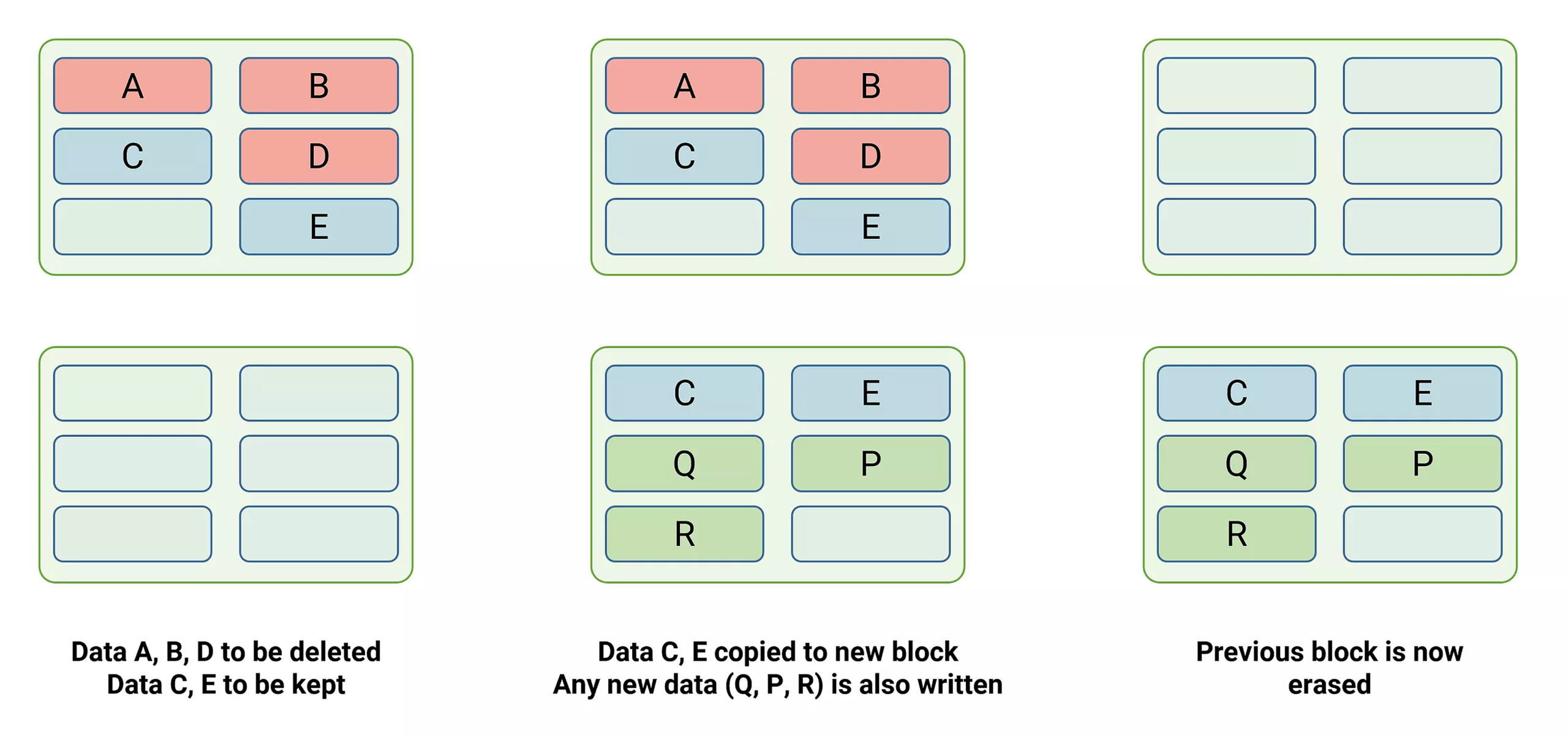
Timing and behavior vary by device, connection, and operating system. Nevertheless, “I have not saved anything since deletion” does not guarantee recoverability on an SSD. Disabling TRIM afterward cannot restore content the device has already made unavailable.
Physical damage and unstable hardware
A clicking HDD, repeated disconnections, severe read errors, or a device showing the wrong capacity requires a different response. Desktop recovery software cannot repair heads, electronics, or damaged storage media.
Stop scanning if these symptoms appear. A specialist may need controlled imaging or hardware work before file extraction. For irreplaceable data, seek an assessment before experimenting.
Encrypted data without the required credentials
ファイル復元ソフト does not bypass BitLocker or decrypt ransomware-encrypted content merely by finding it. You generally need the appropriate password, recovery key, or a separate valid decryption method.
A surviving encrypted file and a readable document are different outcomes. Keep any available keys and check whether a backup contains an unencrypted version.
How to Choose a Recovery Method Safely
1. Check existing copies first
最高だ: files that may remain in the Recycle Bin, a backup, or cloud version history.
Check those locations from another device where practical, especially if the affected disk runs Windows. A valid existing copy usually offers a more dependable route than reconstructing deleted content.
期待される結果: a complete copy from before the loss. 制限: backups and versions must already exist. If they do not, assess whether a local scan suits the device.
2. Use software for a stable, readable device
最高だ: deletion, quick-format loss, or logical file system errors without hardware warning signs.
使用前 データ復旧ソフト, prepare a separate destination with enough free space. Keep downloads, installations, recovered files, and scan logs off the source device. Another partition on the same physical disk is a less suitable choice than a separate device.
If the lost files came from the Windows system drive, avoid installing more programs there. Where feasible, use another computer or an appropriate external boot environment. If you cannot safely arrange this, get help.
期待される結果: recoverable candidates that you can preview and export. 制限: the scan cannot replace missing bytes. Stop if the hardware becomes unstable.
3. Seek specialist help for hardware problems
最高だ: physical damage, repeated read failures, or irreplaceable data on a suspect device.
Provide the drive model, symptoms, and a record of actions already taken. Avoid opening the drive or repeatedly powering it on to see whether it improves.
期待される結果: an assessment and, where feasible, controlled recovery. 制限: professional services also cannot promise recovery of overwritten or securely erased content.
Do not run CHKDSK repair operations, initialize the disk, or format a RAW volume as a preliminary recovery step. These actions can change information you still need. Consider a sector-level image before recovery when appropriate; leave imaging of unstable hardware to someone with the right tools and experience.
When Magic Data Recovery Is Worth Trying
Magic Data Recovery suits Windows users who have a readable device but cannot access files after deletion, formatting, or file system errors. Its scan, filters, and preview functions help you move from a list of candidates to files worth checking.
For example, suppose you quick-formatted an external HDD containing invoices and photos, then stopped using it. The tool offers a practical way to search that device and inspect supported files without first rebuilding the original volume.
The reasons to consider it are specific:
- Several logical-loss scenarios: it addresses more than files still in the Recycle Bin.
- Preview before export: supported previews help you assess actual content rather than rely only on filenames.
- Filters for large result lists: narrowing candidates by relevant attributes makes inspection easier.
- A visual workflow: users can select a source, inspect results, and choose another destination without constructing recovery commands.
This makes it a more suitable approach than formatting first or running unrelated repair commands when your immediate goal is file recovery. It does not establish a higher success rate than every competing tool. No controlled comparison accompanies this guide.
A practical scan-and-check workflow
1. Download the program from the official Amagicsoft website and install it away from the affected device.
Windows 7/8/10/11およびWindows Serverをサポート
2. Select the original drive or storage device. Confirm its identity and capacity before starting.
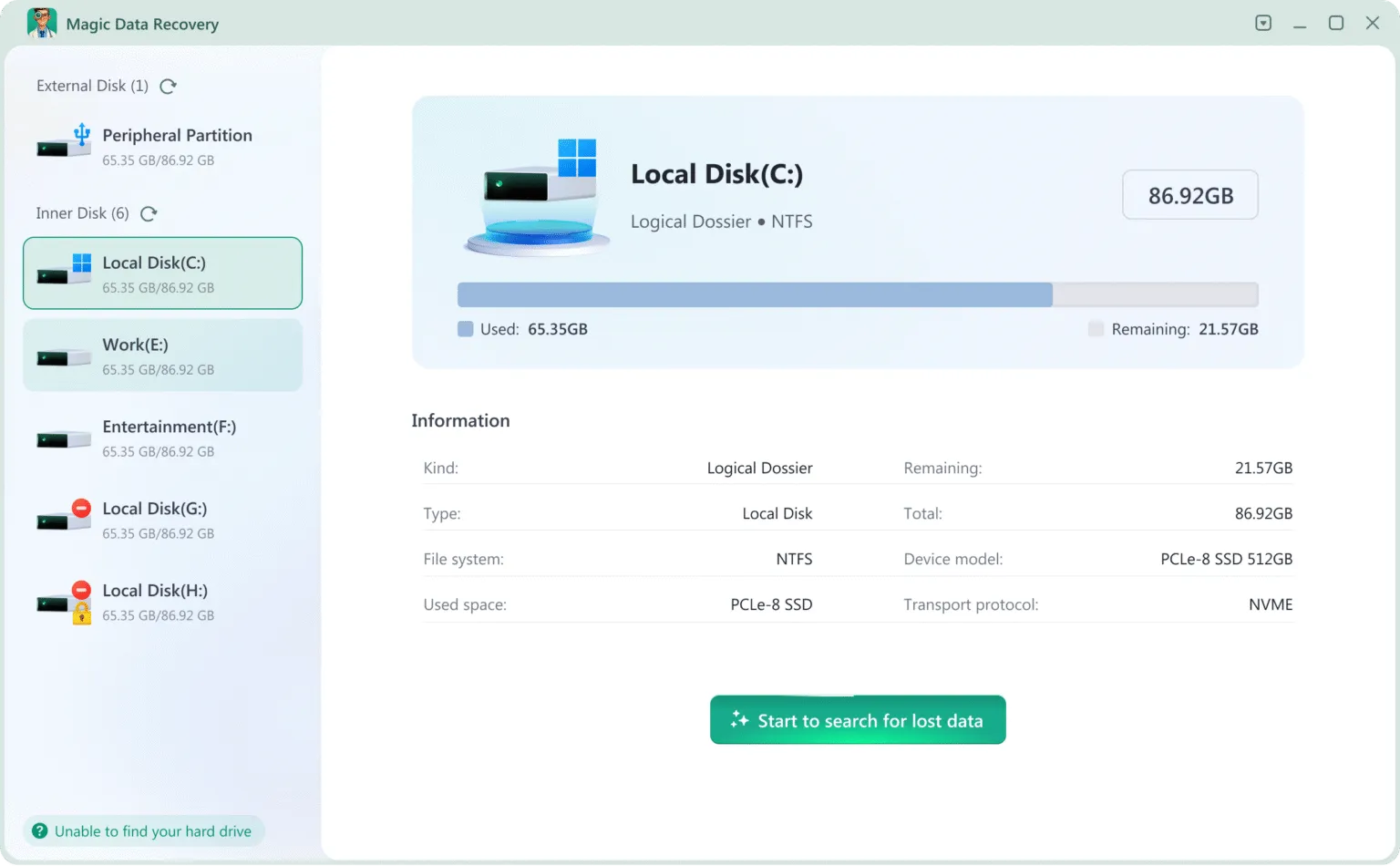
3. Run the scan, then use available filters to locate likely matches.
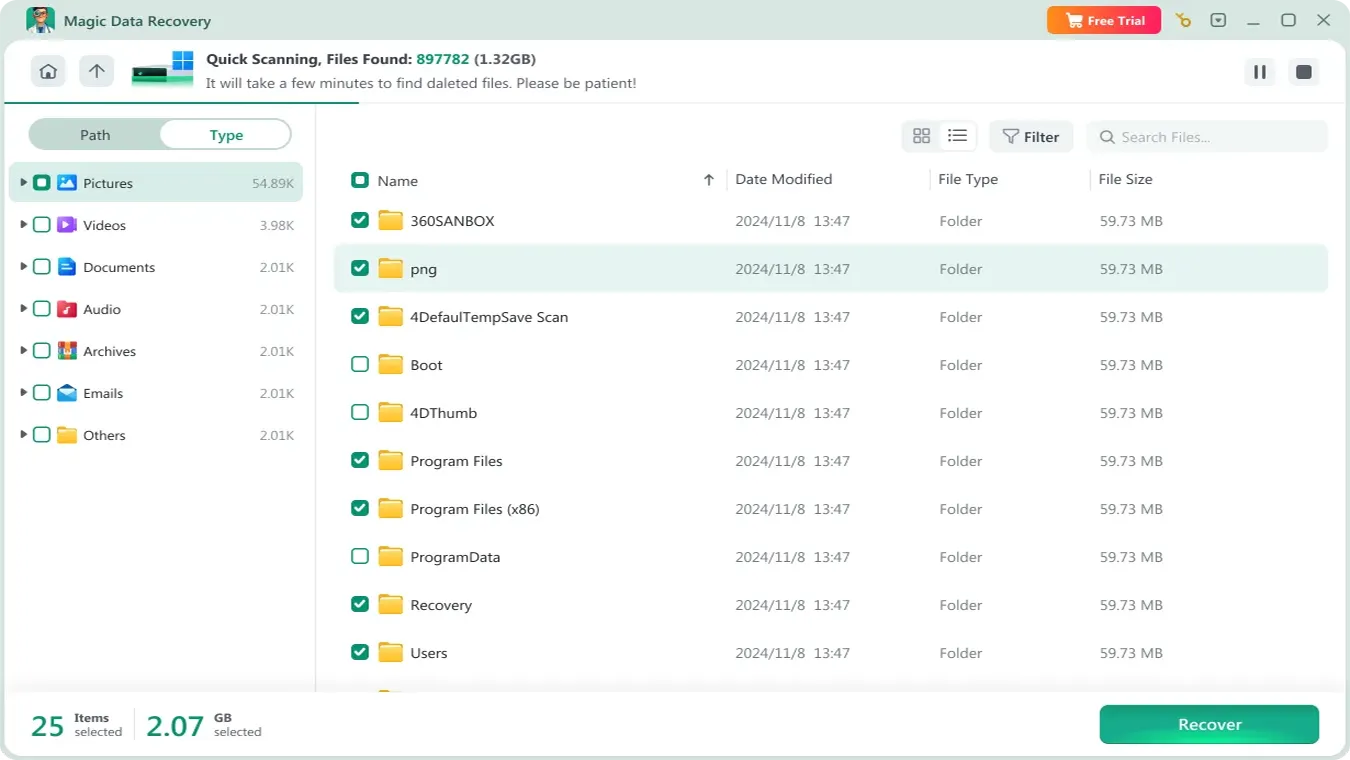
4. Preview supported files. Check meaningful content, such as document pages or a full-resolution photo.

5. Recover selected files to a separate physical device.
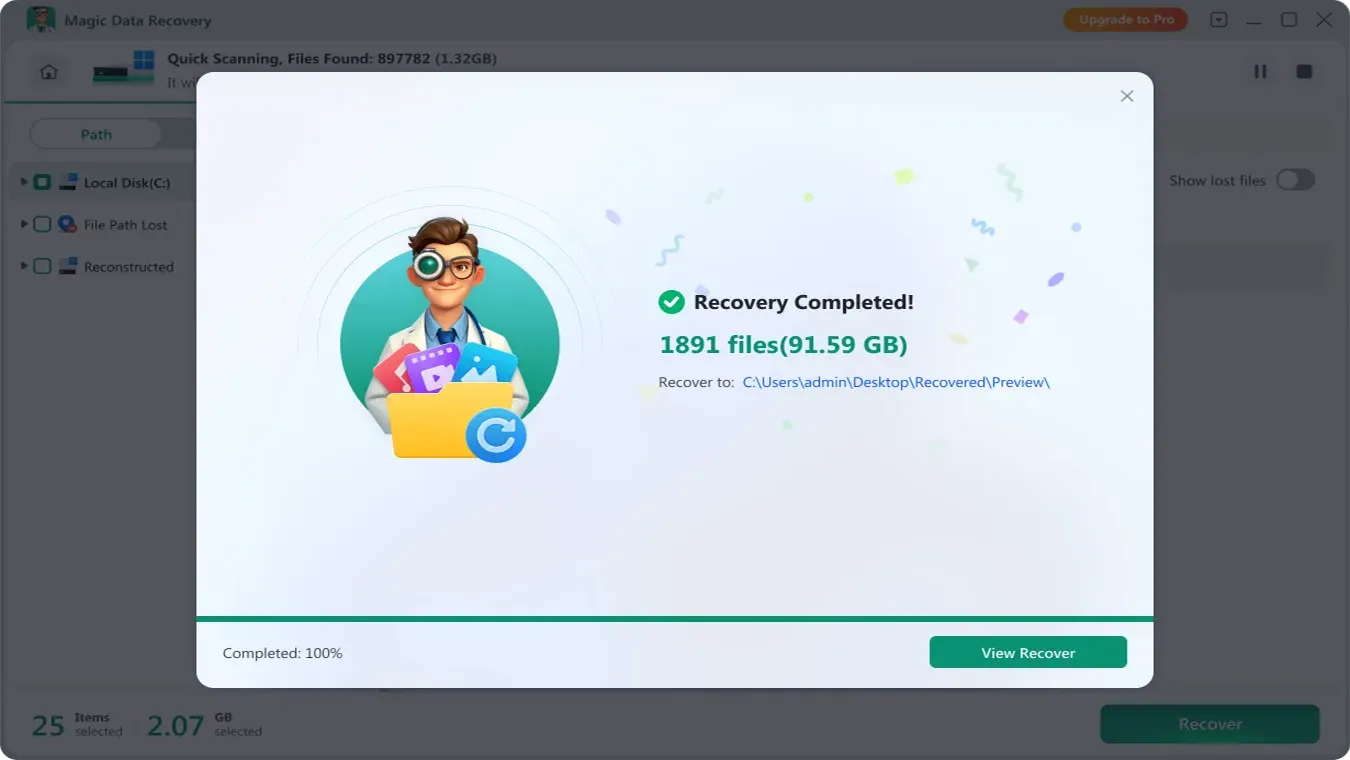
6. Open the exported copies in their normal applications before reusing the source.
Check the current product page for trial and license limits before committing to a large recovery. If a file type lacks preview support, a missing preview alone does not prove that recovery will fail.
How to Tell Whether Recovery Actually Worked
The useful question is not how many files a scan finds. It is how many of your required files you can use.
ファイルの種類 | What to verify after export |
Word document | Open several pages; check text, images, and tables |
Excel workbook | Inspect important sheets, formulas, and embedded content |
写真 | Open at full resolution; inspect the entire image |
Video or audio | Check playback at the beginning, middle, and end |
ZIP or other archive | Run an integrity test and extract its contents |
A preview offers useful evidence, but it may show only part of a file. Exported-file checks provide stronger confirmation. Keep the original device untouched until you finish verification and back up the recovered copies.
Be cautious with any data recovery software success rate that lacks a defined test set. Ask what devices, file systems, loss scenarios, and success criteria the percentage covers. Counting visible filenames measures something different from counting intact, usable files.
Conclusion: Does Data Recovery Software Really Work?
データ復元ソフトは本当に効果があるのか? Yes, when readable content survives and the tool can reconstruct it. It can help after deletion, some quick formats, and logical file system damage. Overwriting, secure erasure, SSD TRIM, and hardware failure impose limits that marketing cannot remove.
私たちは次のように勧める。 Magic Data Recovery for suitable Windows logical-loss cases because its scan, filter, and preview workflow helps users inspect candidates before saving files elsewhere. Check existing copies first, preserve the source, and verify every important export. For a broader walkthrough, follow our 削除ファイル復元ガイド.
Windows 7/8/10/11およびWindows Serverをサポート
よくあるご質問
ごみ箱を空にした後でも、データ復元ソフトは本当に機能するのでしょうか?
データ復旧ソフトの現実的な成功率はどのくらいでしょうか?
フォーマットした後も、ファイル復元ソフトは機能しますか?
有料ツールなら、無料ツールでは復元できないファイルを復元できるのでしょうか?
復元されたファイルはファイル名は正しいのに、なぜ開けないのですか?
復元ソフトを複数回実行しても大丈夫ですか?
復元ソフトは、OneDriveにのみ存在していたファイルを復元できますか?
データ復旧にはどのくらいの時間がかかりますか?

Jasonは、15年以上の実務経験を持つデータ復旧およびテクニカルサポートの専門家です。 彼は第一線のユーザーと幅広く連携し、困難なデータ損失事例のトラブルシューティングを行うとともに、誤削除、ドライブのフォーマット、ファイルシステムの破損、パーティションの消失、システム障害、その他の緊急の復旧事態に対して、実用的な復旧ソリューションを提供してきました。また、バックアップと復元、ファイル修復、災害復旧にも精通しており、安全かつ信頼性が高く、技術的に正確な指導を特に重視しています。.