
Does Data Recovery Software Really Work? What It Can and Cannot Recover
Does data recovery software really work? Yes—when the device still provides readable file data. It can recover files after accidental deletion, some quick formats, and certain file system errors. It cannot recreate overwritten content, reverse secure erasure, or repair a physically failing drive. Stop writing to the affected device before you try anything else.
A scan that displays your missing folder can feel like a breakthrough. However, filenames alone do not prove that the documents, photos, or videos inside still work. This guide explains when recovery makes sense, when to stop, and how to check the result. For a readable Windows storage device with logical data loss, Magic Data Recovery offers a scan-and-preview workflow. Our deleted file recovery guide covers the broader recovery process.
Table of Contents
Does Data Recovery Software Really Work in Your Situation?
Start with the cause of the loss. The same program can restore a recently deleted folder from an HDD and find nothing usable on an SSD after TRIM.
What happened? | Can software help? | Best next step |
You deleted files, but they remain in the Recycle Bin | You usually do not need a recovery scan | Restore the existing copies |
You used Shift+Delete or emptied the Recycle Bin on an HDD | Possibly, if the file content remains readable | Stop writes; check backups, then scan |
You quick-formatted a drive | Possibly; storage type, new writes, and TRIM matter | Stop using it and assess the device before scanning |
Windows shows RAW or asks you to format a drive | Sometimes, if the hardware remains stable and readable | Decline formatting; recover files before attempting repairs |
You deleted files from an SSD with working TRIM | Often limited or unsuccessful | Prioritize backups and cloud version history |
A completed full format or secure erase removed the content | Ordinary recovery software cannot reconstruct erased content | Look for another copy |
The drive clicks, repeatedly disconnects, or reports read errors | A normal DIY scan can make matters worse | Stop and consult a recovery specialist |
A file existed only in cloud storage | A local scan cannot retrieve a cloud-only copy | Use the provider’s trash, versions, or support options |
These are decision rules, not success-rate estimates. A program cannot establish the condition of every missing file from the cause of loss alone.
How Does Data Recovery Software Work?
To understand how data recovery software works, separate the file’s contents from the records that describe it.
File system records help locate deleted files
A file system stores information such as names, folder locations, and the storage areas that hold a file. When you delete a file, the system may mark its space as available rather than immediately replace every byte. Microsoft explains this behavior in its Windows File Recovery documentation and warns that normal computer use can overwrite that space.
A recovery tool looks for surviving records and tries to copy the associated content to another device. If those records remain intact, it may also preserve filenames and folders.
Signature scanning searches for recognizable content
When directory information no longer helps, some tools search for patterns associated with formats such as JPEG or PDF. This technique, often called file carving, can find content without the original filename.
However, scattered file fragments create a harder problem. A tool may recognize a video’s beginning without locating every remaining piece. As a result, a scan may produce generic names, duplicate candidates, or incomplete files.
This explains why file recovery software can find something that resembles your file without restoring a usable copy.
What Can Data Recovery Software Recover?
Deleted files whose content remains available
Accidental deletion from a healthy HDD, USB drive, or memory card can be a reasonable software-recovery case. For example, deleting a folder from an external HDD and immediately disconnecting it leaves a different situation from continuing to copy backups onto that drive.
The phrase recover permanently deleted files usually refers to files that bypassed the Recycle Bin or no longer appear there. It does not mean that a tool can reverse physical erasure.
Files lost after some quick formats
A quick format creates new file system structures without necessarily overwriting every old data area. A scan may locate surviving file content, although it may lose the original folder organization.
Do not treat every format as equivalent. Modern Windows full formatting can zero the volume, while formatting can also send TRIM notifications. Recovery depends on the operation that actually ran and the device’s response—not simply whether someone clicked “Format.”
Data hidden by certain file system errors
A damaged directory or file system can make existing files inaccessible. In a logical failure, the hardware may still read the underlying storage correctly. Software can sometimes locate that content even when File Explorer cannot browse it.
Data recovery software does not need to make the original volume usable to save files elsewhere. Recovering the files first also avoids committing to repairs that change the source.
What Recovery Software Cannot Reliably Recover
Overwritten or securely erased content
If new data replaces the storage areas that held a file, ordinary software cannot recover the previous content from those same areas. A paid upgrade or a longer scan does not change that limit.
Partial overwriting can leave a partially readable file. A photo might display only its upper half; a document might open with missing sections. Search backups or earlier versions for a complete copy.
SSD data after TRIM makes it unavailable
SSD data recovery differs from HDD recovery. TRIM tells a compatible storage device which areas no longer hold needed data. The SSD can then stop providing the previous content through normal reads and reclaim those areas internally.
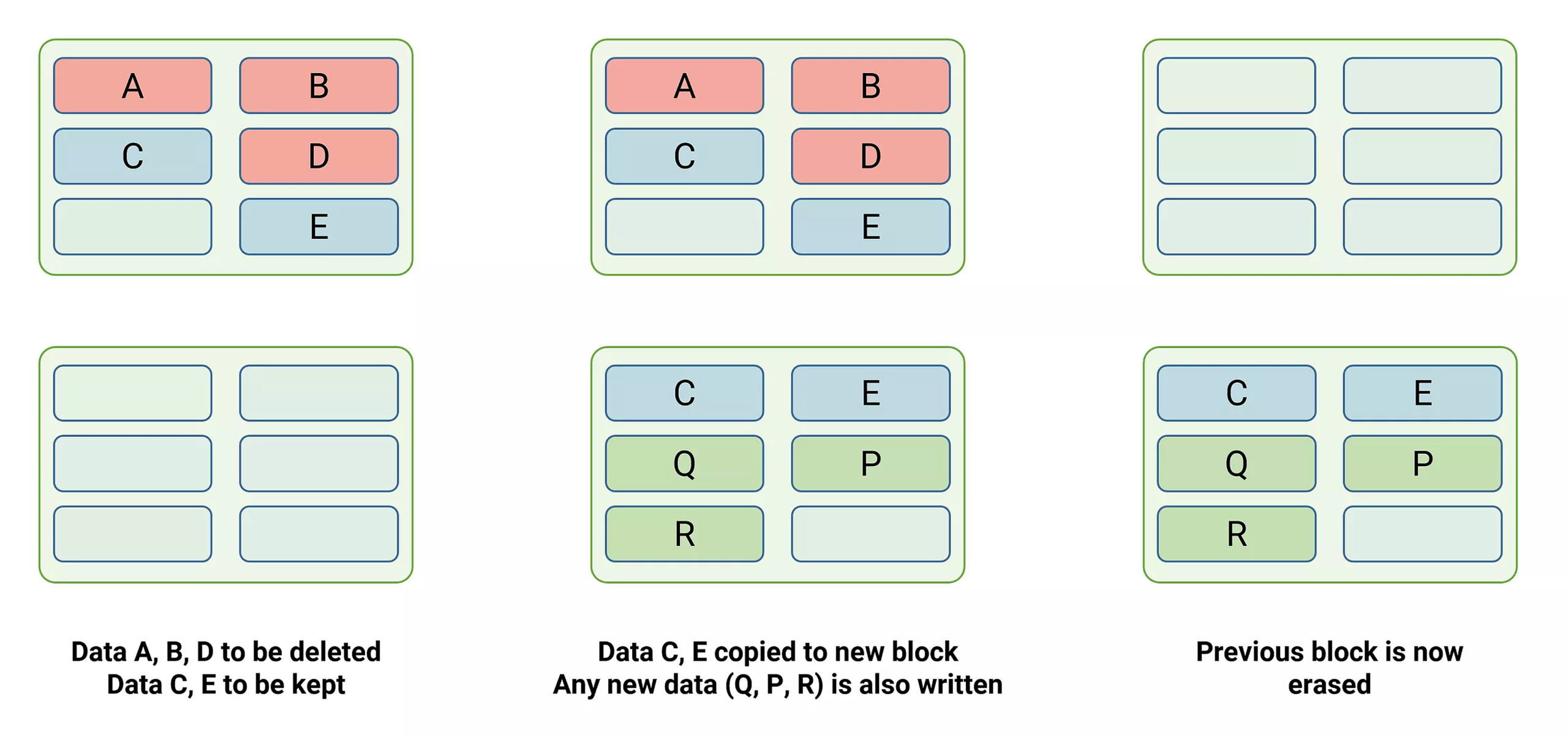
Timing and behavior vary by device, connection, and operating system. Nevertheless, “I have not saved anything since deletion” does not guarantee recoverability on an SSD. Disabling TRIM afterward cannot restore content the device has already made unavailable.
Physical damage and unstable hardware
A clicking HDD, repeated disconnections, severe read errors, or a device showing the wrong capacity requires a different response. Desktop recovery software cannot repair heads, electronics, or damaged storage media.
Stop scanning if these symptoms appear. A specialist may need controlled imaging or hardware work before file extraction. For irreplaceable data, seek an assessment before experimenting.
Encrypted data without the required credentials
File recovery software does not bypass BitLocker or decrypt ransomware-encrypted content merely by finding it. You generally need the appropriate password, recovery key, or a separate valid decryption method.
A surviving encrypted file and a readable document are different outcomes. Keep any available keys and check whether a backup contains an unencrypted version.
How to Choose a Recovery Method Safely
1. Check existing copies first
Best for: files that may remain in the Recycle Bin, a backup, or cloud version history.
Check those locations from another device where practical, especially if the affected disk runs Windows. A valid existing copy usually offers a more dependable route than reconstructing deleted content.
Expected result: a complete copy from before the loss. Limitation: backups and versions must already exist. If they do not, assess whether a local scan suits the device.
2. Use software for a stable, readable device
Best for: deletion, quick-format loss, or logical file system errors without hardware warning signs.
Before using data recovery software, prepare a separate destination with enough free space. Keep downloads, installations, recovered files, and scan logs off the source device. Another partition on the same physical disk is a less suitable choice than a separate device.
If the lost files came from the Windows system drive, avoid installing more programs there. Where feasible, use another computer or an appropriate external boot environment. If you cannot safely arrange this, get help.
Expected result: recoverable candidates that you can preview and export. Limitation: the scan cannot replace missing bytes. Stop if the hardware becomes unstable.
3. Seek specialist help for hardware problems
Best for: physical damage, repeated read failures, or irreplaceable data on a suspect device.
Provide the drive model, symptoms, and a record of actions already taken. Avoid opening the drive or repeatedly powering it on to see whether it improves.
Expected result: an assessment and, where feasible, controlled recovery. Limitation: professional services also cannot promise recovery of overwritten or securely erased content.
Do not run CHKDSK repair operations, initialize the disk, or format a RAW volume as a preliminary recovery step. These actions can change information you still need. Consider a sector-level image before recovery when appropriate; leave imaging of unstable hardware to someone with the right tools and experience.
When Magic Data Recovery Is Worth Trying
Magic Data Recovery suits Windows users who have a readable device but cannot access files after deletion, formatting, or file system errors. Its scan, filters, and preview functions help you move from a list of candidates to files worth checking.
For example, suppose you quick-formatted an external HDD containing invoices and photos, then stopped using it. The tool offers a practical way to search that device and inspect supported files without first rebuilding the original volume.
The reasons to consider it are specific:
- Several logical-loss scenarios: it addresses more than files still in the Recycle Bin.
- Preview before export: supported previews help you assess actual content rather than rely only on filenames.
- Filters for large result lists: narrowing candidates by relevant attributes makes inspection easier.
- A visual workflow: users can select a source, inspect results, and choose another destination without constructing recovery commands.
This makes it a more suitable approach than formatting first or running unrelated repair commands when your immediate goal is file recovery. It does not establish a higher success rate than every competing tool. No controlled comparison accompanies this guide.
A practical scan-and-check workflow
1. Download the program from the official Amagicsoft website and install it away from the affected device.
Supports Windows 7/8/10/11 and Windows Server
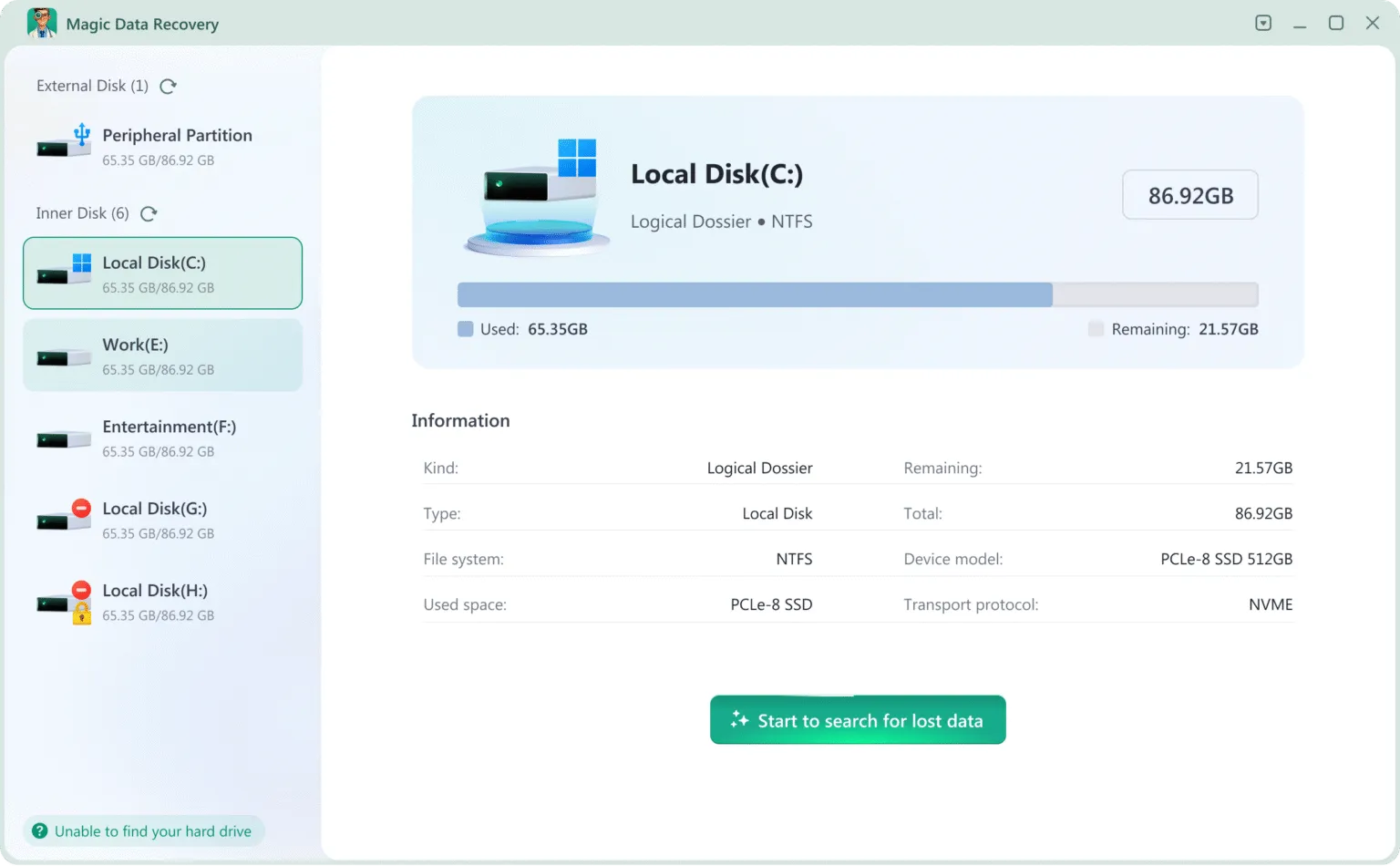
2. Select the original drive or storage device. Confirm its identity and capacity before starting.
3. Run the scan, then use available filters to locate likely matches.
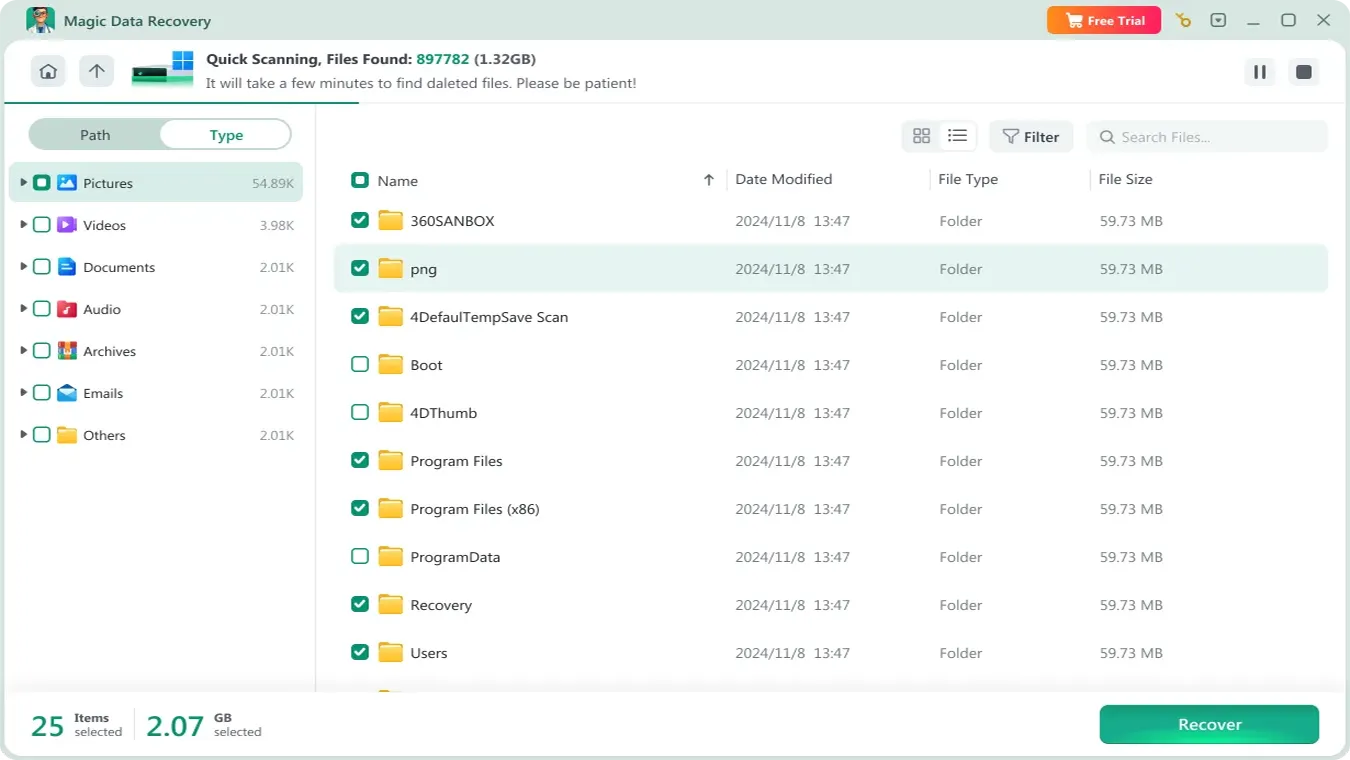
4. Preview supported files. Check meaningful content, such as document pages or a full-resolution photo.

5. Recover selected files to a separate physical device.
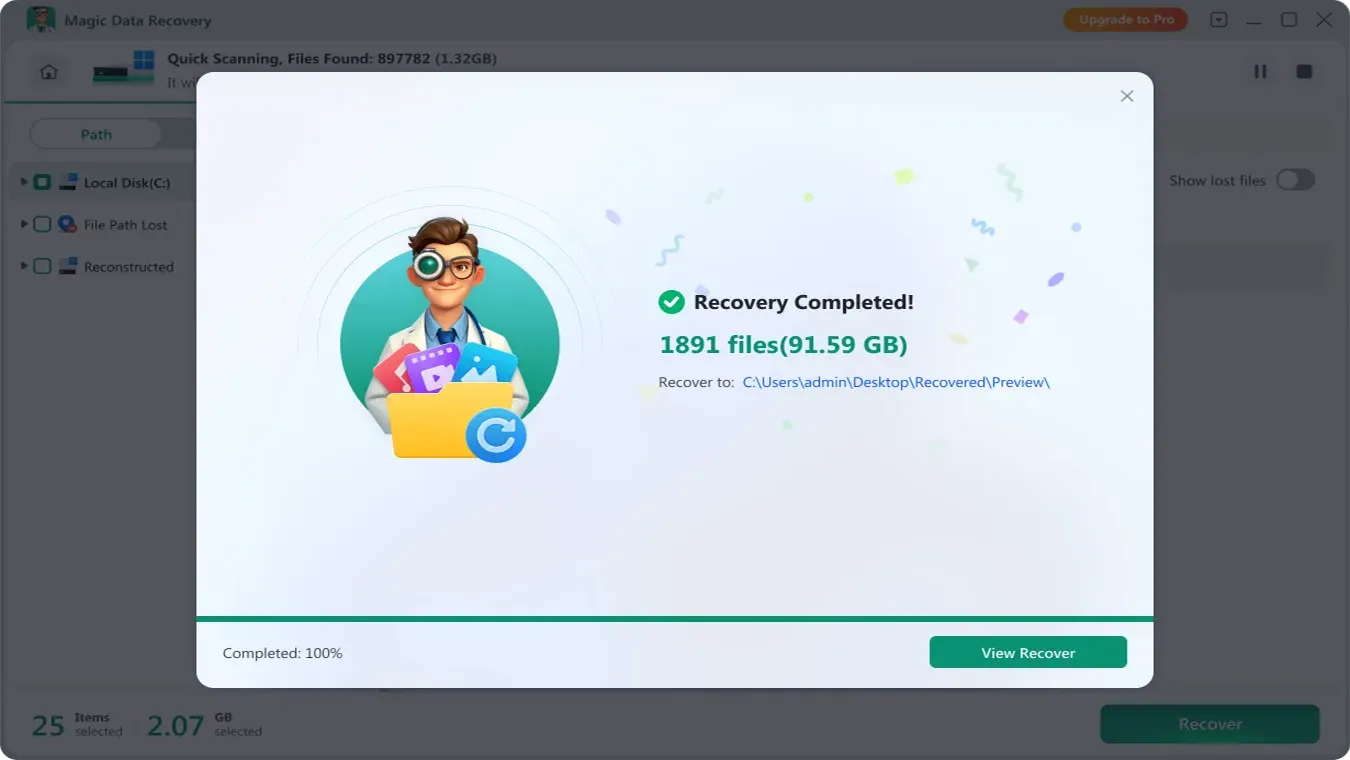
6. Open the exported copies in their normal applications before reusing the source.
Check the current product page for trial and license limits before committing to a large recovery. If a file type lacks preview support, a missing preview alone does not prove that recovery will fail.
How to Tell Whether Recovery Actually Worked
The useful question is not how many files a scan finds. It is how many of your required files you can use.
File type | What to verify after export |
Word document | Open several pages; check text, images, and tables |
Excel workbook | Inspect important sheets, formulas, and embedded content |
Photo | Open at full resolution; inspect the entire image |
Video or audio | Check playback at the beginning, middle, and end |
ZIP or other archive | Run an integrity test and extract its contents |
A preview offers useful evidence, but it may show only part of a file. Exported-file checks provide stronger confirmation. Keep the original device untouched until you finish verification and back up the recovered copies.
Be cautious with any data recovery software success rate that lacks a defined test set. Ask what devices, file systems, loss scenarios, and success criteria the percentage covers. Counting visible filenames measures something different from counting intact, usable files.
Conclusion: Does Data Recovery Software Really Work?
Does data recovery software really work? Yes, when readable content survives and the tool can reconstruct it. It can help after deletion, some quick formats, and logical file system damage. Overwriting, secure erasure, SSD TRIM, and hardware failure impose limits that marketing cannot remove.
We recommend Magic Data Recovery for suitable Windows logical-loss cases because its scan, filter, and preview workflow helps users inspect candidates before saving files elsewhere. Check existing copies first, preserve the source, and verify every important export. For a broader walkthrough, follow our deleted file recovery guide.
Supports Windows 7/8/10/11 and Windows Server
FAQs
Does data recovery software really work after emptying the Recycle Bin?
What is a realistic data recovery software success rate?
Does file recovery software work after formatting?
Can a paid tool recover files that a free tool cannot?
Why do recovered files have the right names but fail to open?
Is it safe to run recovery software more than once?
Can recovery software restore files that existed only in OneDrive?
How long does data recovery take?

Jason is a data recovery and technical support specialist with over 15 years of hands-on experience. He has worked extensively with frontline users, troubleshooting difficult data loss cases and providing practical recovery solutions for accidental deletion, formatted drives, damaged file systems, lost partitions, system failures, and other recovery emergencies. His expertise also includes backup and restoration, file repair, and disaster recovery, with a strong emphasis on safe, reliable, and technically accurate guidance.