
How to Recover Deleted Files on MicroSD Card Safely
If you are wondering how to recover deleted files on MicroSD card, the first thing you should do is stop using the card immediately. Deleted photos, videos, documents, and other files are often not erased right away. They may remain recoverable until new data overwrites the original storage space.
In this guide, you will learn how to recover deleted files on MicroSD card using backups, hidden file checks, Recuva, and Magic Data Recovery. We will also explain what to do before recovery, why some deleted files cannot be restored, and how to get deleted files back from a Micro SD card safely.
For more recovery solutions for SD cards, MicroSD cards, camera cards, and memory cards, visit our SD card recovery guide.
If no backup is available, Magic Data Recovery can help scan your MicroSD card and recover lost photos, videos, documents, music, and other file types to a safe location.
Supports Windows 7/8/10/11 and Windows Server
Wondering if your files can be recovered? Find out in seconds with our quick check below.
Data Recovery Assessment
Answer 3 quick questions to estimate your recovery chances
Table of Contents
What to Do Before Recovering Deleted Files from a MicroSD Card
Before trying to recover deleted files on MicroSD card, take a few precautions to avoid overwriting your lost data:
Stop using the MicroSD card immediately.
Avoid taking new photos or videos with the card.
Do not copy new files to the card.
Skip formatting, even if Windows or your device asks you to do so.
Remove the card from your phone, camera, drone, dashcam, or game console.
Connect the MicroSD card to your computer with a reliable card reader.
Save recovered files to your computer or another external drive, not back to the same MicroSD card.
These steps can improve your recovery chance because deleted files may still exist on the card until their storage space is overwritten.
How to Recover Deleted Files on MicroSD Card Without Software
While recovery software is often the most effective solution, there are a few manual methods you can try to recover deleted files from a MicroSD card. Let’s go through them step by step.
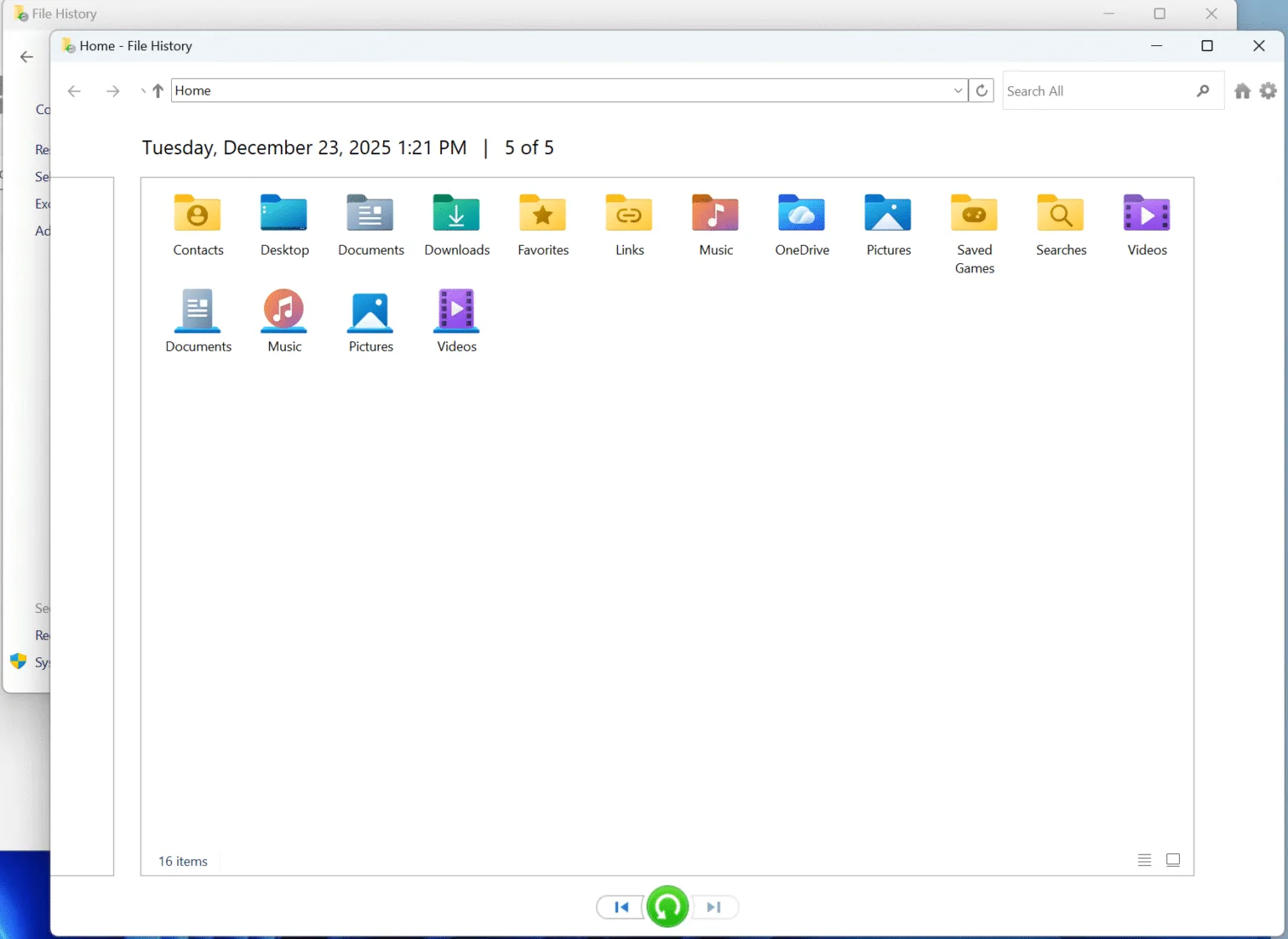
Method 1: Check Backups and Cloud Sync
If your MicroSD card files were copied or synced before deletion, check your backups first. You can look in:
Windows File History
OneDrive
Google Drive
Google Photos
iCloud Photos
Phone gallery trash
Camera import folders on your PC
Previous folders where you copied the MicroSD card files
This method only works if the files were backed up before deletion. If you cannot find the deleted files in any backup location, you need to scan the MicroSD card with recovery software.
Method 2: Check Whether the Files Are Hidden
Sometimes files are not deleted but hidden because of system settings, virus issues, or file attribute errors. To check hidden files on Windows:
Connect the MicroSD card to your computer with a card reader.
Open File Explorer.
Click View.
Enable Hidden items.
Open the MicroSD card and check whether your missing files or folders appear.
If you find them, copy them to your computer immediately.
This method does not recover truly deleted files. It only helps when the files are hidden or invisible.
Method 3: Check the Original Device Trash or Recently Deleted Folder
If the MicroSD card was used in a phone, tablet, camera, or other device, check whether the device has a Trash, Recently Deleted, or Recycle Bin folder. Some gallery apps keep deleted photos and videos for a limited time before removing them permanently.
For example, check:
Gallery Trash on Android phones
Recently Deleted in photo apps
File manager recycle folders
Camera app trash folders
Cloud photo backup trash folders
If you find the deleted files, restore them to the device or copy them to your computer.
Why Manual Methods May Not Recover Deleted Files from a MicroSD Card
Manual methods only work when your deleted files still exist in a backup, cloud sync folder, hidden folder, or device trash folder. If the files were deleted directly from a camera, Android phone, drone, dashcam, game console, or Windows File Explorer, they may not appear in the Recycle Bin.
In most MicroSD card deletion cases, the file entry is removed from the file system, but the original data may still remain on the card until it is overwritten. That is why recovery software is often needed to scan the card and rebuild recoverable files.
You may need a recovery tool if:
You deleted files from a MicroSD card without a backup.
The files were removed from a phone, camera, drone, or dashcam.
Your MicroSD card was formatted.
The card shows as RAW or asks to be formatted.
The MicroSD card is corrupted or unreadable.
Files disappeared after transfer interruption.
You need to recover photos, videos, documents, audio files, or archives.
Can Recuva Recover Deleted Files from a MicroSD Card?
Yes, Recuva can help recover deleted files from a MicroSD card in some simple cases. It can scan memory cards and try to restore deleted photos, videos, documents, music, and other common file types.
Recuva may be worth trying if:
The files were deleted recently.
The MicroSD card is still readable on Windows.
You have not saved new data to the card.
You only need to recover common file types.
You want to try a free recovery option first.
However, Recuva may not work well if the MicroSD card was formatted, corrupted, RAW, physically unstable, or heavily used after deletion. If Recuva cannot find your files or shows them as unrecoverable, stop using the card and scan it with Magic Data Recovery before formatting or repairing the card.
How to Recover Deleted Files on MicroSD Card with Magic Data Recovery
If backups and manual methods do not work, Magic Data Recovery can help you scan the MicroSD card directly and recover deleted photos, videos, documents, music, archives, and other file types.
Step 1: Connect the MicroSD Card to Your Computer
Remove the MicroSD card from your phone, camera, drone, dashcam, game console, or other device. Insert it into a card reader and connect it to your Windows computer. Make sure the card appears in File Explorer or Disk Management.
Step 2: Install Magic Data Recovery on a Different Drive
Download and install Magic Data Recovery on your computer. Do not install it on the MicroSD card where files were deleted, because new data may overwrite recoverable files.
Supports Windows 7/8/10/11 and Windows Server
Step 3: Select the MicroSD Card
Launch Magic Data Recovery and select the MicroSD card from the device list. Make sure you choose the correct card, especially if multiple external devices are connected.

Step 4: Scan for Deleted Files
Start the scan and wait while the software searches for deleted and lost files. During the scan, you can browse found files by type, path, or category.

Step 5: Preview Recoverable Files
Preview photos, documents, videos, and other files when available. This helps you confirm whether the files are the ones you want to recover.

Step 6: Recover Files to a Safe Location
Select the files you need and save them to your computer or another external drive. Do not recover files back to the same MicroSD card until all important data has been restored.

Why Use Magic Data Recovery to Recover Deleted Files on MicroSD Card?
Magic Data Recovery is useful when manual methods cannot get your files back or when the MicroSD card has a more complex data loss problem.
It can help with:
Deleted files from MicroSD cards, SD cards, USB drives, and external drives
Lost photos, videos, documents, music, and archives
Formatted MicroSD cards
RAW or corrupted memory cards
Files lost after transfer errors or interrupted writing
Previewing recoverable files before saving them
Recovering files to a safe location instead of the original card
Recovery results depend on whether the deleted data has been overwritten. For the best chance, stop using the MicroSD card immediately and scan it before adding new files.
Why You May Fail to Recover Deleted Files on MicroSD Card
MicroSD card recovery is not always successful. Deleted files may become unrecoverable if the original data has already been overwritten or if the card has serious damage.
Recovery may fail when:
You continued taking photos or videos after deletion.
New files were saved to the MicroSD card.
Full formatting was performed before recovery.
Severe file system corruption prevents normal scanning.
Bad sectors or physical damage affect the MicroSD card.
Deleted videos were fragmented before removal.
CHKDSK, repair tools, or formatting changed the card structure.
The card disconnects repeatedly during scanning.
If the MicroSD card is physically damaged, cannot be detected, or causes your device to freeze, avoid repeated scans. In that case, professional data recovery service may be safer than software recovery.
Conclusion
Now you know how to recover deleted files on MicroSD card safely. Start by stopping all use of the card, then check backups, hidden files, and device trash folders. If these methods do not work, scan the card with recovery software before formatting or repairing it.
Magic Data Recovery can help you scan a MicroSD card, preview recoverable files, and restore deleted photos, videos, documents, music, and other file types to a safe location. For more solutions for SD cards, MicroSD cards, camera cards, and memory cards, visit our SD card recovery guide.
Supports Windows 7/8/10/11 and Windows Server
FAQs – How to Recover Deleted Files on MicroSD Card
How to recover deleted files on MicroSD card?
Can I recover deleted files from a MicroSD card without backup?
How do I get deleted files back from a Micro SD card?
Is there a Recycle Bin on a MicroSD card?
Can Recuva recover deleted files from a MicroSD card?
Can I recover deleted photos from a MicroSD card?
Can I recover files from a formatted MicroSD card?
Where should I save recovered MicroSD card files?

Vasilii is a data recovery specialist with around 10 years of hands-on experience in the field. Throughout his career, he has successfully solved thousands of complex cases involving deleted files, formatted drives, lost partitions, and RAW file systems. His expertise covers both manual recovery methods using professional tools like hex editors and advanced automated solutions with recovery software. Vasilii's mission is to make reliable data recovery knowledge accessible to both IT professionals and everyday users, helping them safeguard their valuable digital assets.