
File Too Large for Destination File System? 5 Safe Fixes
You drag a large ZIP file, video, ISO image, virtual machine, or backup to a USB drive, and Windows suddenly stops with the message:
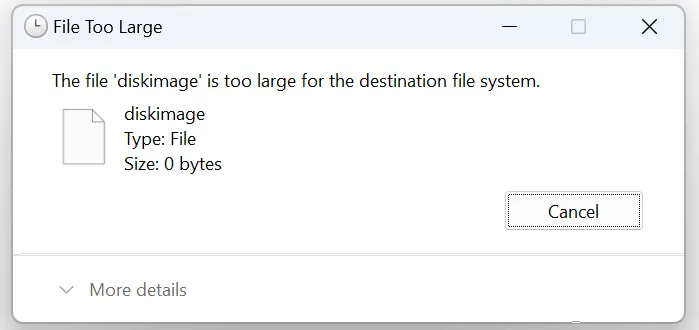
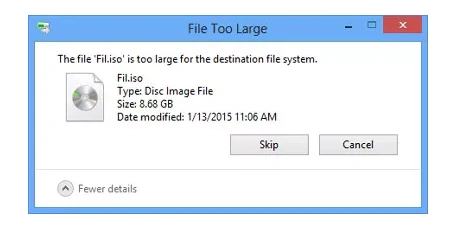
The file is too large for the destination file system.
The confusing part is that the destination drive may still have tens or even hundreds of gigabytes of free space.
In most cases, this error does not mean the USB drive is full or damaged. It usually appears because the destination drive uses FAT32, which has a maximum individual file size of 4 GiB according to Microsoft’s official file system functionality comparison.
The safest way to fix file too large for destination file system is to first check the drive’s file system. If it is FAT32, you can convert it to NTFS, use exFAT after backing up the drive, or keep FAT32 and split the large file.
Table of Contents
Quick Answer: Why Does Windows Say the File Is Too Large?
The most common reason is simple:
Your destination drive uses FAT32, and the file you are copying is larger than 4 GiB.
This limit applies to each individual file, not to the total storage capacity of the drive. Microsoft lists the maximum FAT32 file size as 4 GiB, while NTFS and exFAT support much larger individual files.
For example:
- USB drive capacity: 64 GB
- Available space: 40 GB
- Video size: 8 GB
- File system: FAT32
The drive has more than enough free space, but FAT32 cannot store that 8 GB file as a single file.
Check the Destination File System First
- Open File Explorer.
- Right-click the USB drive, external drive, or other destination.
- Select Properties.
- Find File system.
If it says FAT32, the 4 GB individual-file limit is probably causing the error.
If it already says NTFS or exFAT, do not format the drive. Jump to the section on diagnosing NTFS or exFAT destinations instead.
Before You Fix It: Protect Important Files First
Checking the file system is harmless, and several solutions below do not delete data.
However, some fixes—especially formatting—change the file-system structure of the destination drive.
Before using those methods, copy important files to another storage device.
This is especially important before:
- formatting FAT32 as exFAT;
- formatting FAT32 as NTFS;
- repartitioning a drive;
- retrying repairs after an interrupted conversion.
Microsoft documents that Windows’ quick format removes the file table and root directory of a previously formatted volume.
If the files on the destination drive are still accessible, backing them up now is much safer than trying to recover them later.
If you have already formatted the wrong drive and lost files, see the formatted drive recovery guide before writing additional data to the drive.
Check Which Situation Matches Yours
What you see | Likely cause | Recommended direction |
Drive is FAT32 and file is over 4 GB | FAT32 individual-file limit | Convert to NTFS, use exFAT, or split the file |
Drive has lots of free space but still shows the error | Individual-file limit rather than capacity limit | Check whether the drive is FAT32 |
Drive is already NTFS or exFAT | FAT32 is probably not the cause | Verify destination, free space, and write access |
The USB must remain FAT32 for another device | Compatibility requirement | Split the file |
Important files are stored on the drive | Data-protection concern | Back up before formatting |
Files disappeared after formatting | Data-loss scenario | Stop writing and recover first |
You do not need to try every fix in this article. Choose the branch that matches the state of your drive.
Why Is the File Too Large for the Destination File System?
FAT32 Has a 4 GiB Individual File Limit
FAT32 is still common on removable storage because it is recognized by a wide range of devices.
It may be used on:
- USB flash drives;
- cameras;
- TVs;
- car multimedia systems;
- game consoles;
- older computers;
- firmware-update media.
Its main limitation for this problem is that a single file cannot exceed 4 GiB.
That means available capacity and individual-file size are separate limits.
A FAT32 drive can have 100 GB free and still reject a 6 GB file.
Your Device May Require FAT32
Sometimes FAT32 is intentional.
For example, a USB drive may need FAT32 because a TV, camera, car head unit, BIOS utility, or another embedded device does not support NTFS or exFAT.
In that situation, changing the file system may fix Windows’ copy error but create a new compatibility problem.
If the USB must remain FAT32, skip formatting and use the Split the Large File method instead.
You May Be Checking the Wrong Destination
If you believe the destination is already NTFS or exFAT, verify that Windows is actually copying the file to the volume you inspected.
Check:
- the destination drive letter;
- the drive name;
- its file system under Properties;
- whether the copy target is another partition, SD card, removable disk, or mounted volume.
This simple check can prevent unnecessary formatting.
Fix Tier 1: Try Low-Risk Solutions First
These methods either preserve the existing files or avoid changing the destination drive completely.
Fix 1. Convert FAT32 to NTFS Without Formatting
Best for: A FAT32 drive mainly used on Windows when you want to keep the existing files.
Windows provides the convert command to change a FAT/FAT32 volume to NTFS without performing a traditional format.
Before You Start
Back up irreplaceable files first.
The conversion is intended to retain existing data, but any file-system operation can be interrupted by:
- power loss;
- USB disconnection;
- hardware instability;
- existing file-system corruption.
Steps
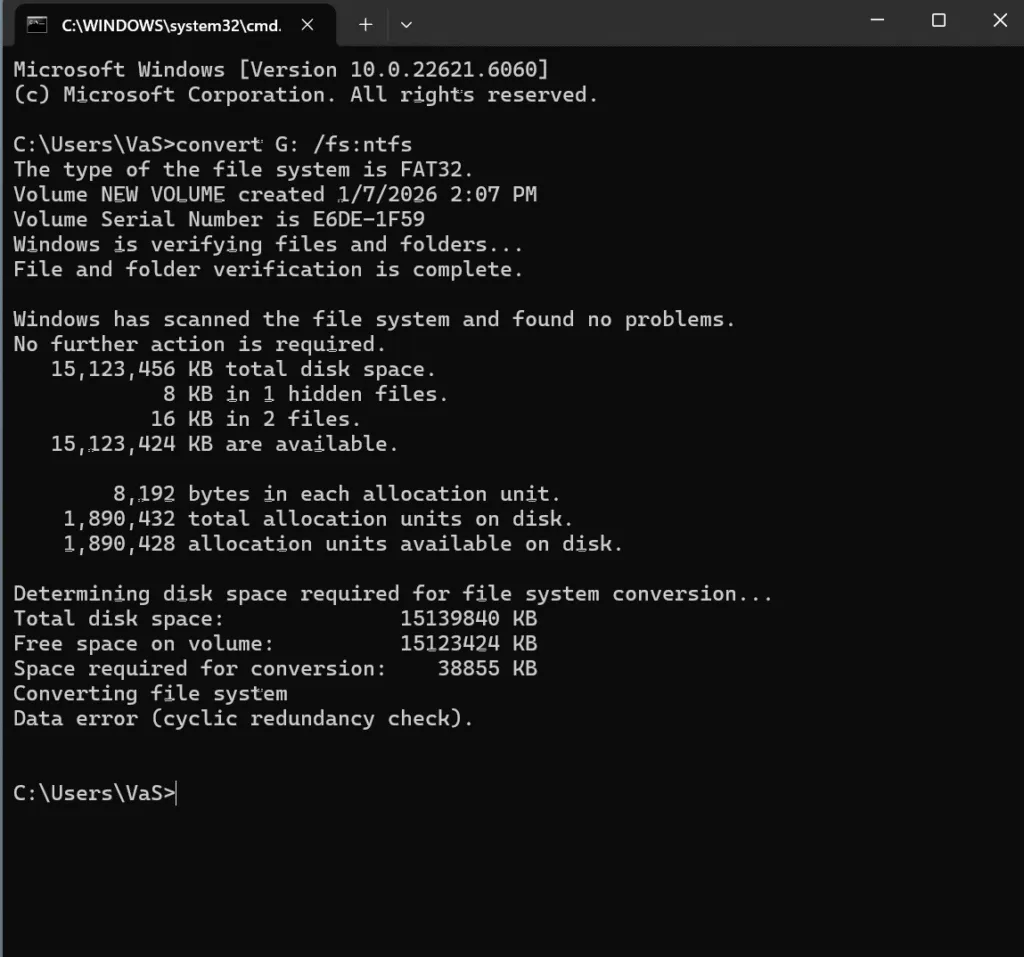
- Open File Explorer and confirm the destination drive letter.
- Search Windows for Command Prompt.
- Right-click it and choose Run as administrator.
- Enter:
- convert E: /fs:ntfs
Replace E: with the actual drive letter.
What the Command Does
E:identifies the volume./fs:ntfstells Windows to convert the volume to NTFS.
This changes the file system without using the normal Format operation.
Expected Result
After the command finishes:
- Open File Explorer.
- Right-click the drive.
- Select Properties.
- Confirm that File system now says NTFS.
- Retry the original large-file transfer.
If the file copies successfully, the FAT32 limit was the cause.
If It Fails
Do not repeatedly rerun the conversion if:
- Windows reports file-system errors;
- the USB keeps disconnecting;
- the drive becomes inaccessible;
- the process repeatedly fails.
If the drive is still readable, back up the files before attempting a more invasive method.
Fix 2. Split the Large File and Keep FAT32
Best for: A USB drive that must remain FAT32 for compatibility with another device.
If you cannot change the file system, divide the large file into smaller parts.
Archive tools such as 7-Zip or WinRAR can create multipart archives.
For example, with 7-Zip:
- Right-click the large file.
- Choose 7-Zip > Add to archive.
- Find Split to volumes, bytes.
- Select a size below 4 GB.
- Create the archive.
You can then copy each part to the FAT32 drive.
Verify the Result
Make sure:
- every part is smaller than 4 GB;
- all parts copy successfully;
- all parts are available when you need to extract the original file.
If that works, no file-system change is required.
Fix 3. Compress the File If It Is Only Slightly Over 4 GB
Best for: A compressible file that is only slightly larger than FAT32’s limit.
You can try creating a ZIP archive:
- Right-click the file.
- Select Compress to ZIP file.
- Check the resulting archive size.
- If it is below 4 GB, copy it to the FAT32 drive.
This works best with files that contain compressible data.
It may make little difference to files that are already compressed, including:
- MP4;
- MKV;
- JPEG;
- ZIP;
- many ISO files.
If the compressed file is still larger than 4 GB, stop compressing it repeatedly and use the split-file method instead.
Verify Before Moving to a Higher-Risk Fix
After trying the low-risk options, check the result before doing anything more invasive.
Ask:
- Can the file now be copied?
- Does Windows still show the same message?
- Does the destination need to remain FAT32?
- Are important files on the drive backed up?
If splitting the file works and FAT32 compatibility matters, there is no reason to reformat the drive.
If you want the drive itself to support files larger than 4 GB, continue below.
Data Protection Checkpoint
The next methods use formatting.
Formatting creates a new file-system structure, so only continue if at least one of the following is true:
- the drive is empty;
- important files have been copied elsewhere;
- you have a verified backup;
- you do not need the existing files.
If the drive contains important data that is not backed up, stop here and copy it first.
If you accidentally formatted a USB drive while trying to fix this error, the formatted flash drive recovery guide explains the recovery path and why you should stop writing new data to the device.
Fix Tier 2: Change the Destination File System
Fix 4. Format the Drive as exFAT
Best for: USB drives and removable storage that need to handle large files while remaining useful across Windows and other modern systems.
Microsoft’s Windows format command supports FAT, FAT32, NTFS, exFAT, ReFS, and UDF file-system options.
What Formatting Changes
Formatting creates a new file-system structure on the volume.
That means you should not treat it as a harmless first troubleshooting step.
Before You Continue
Back up everything you need.
Steps
- Connect the destination drive.
- Open File Explorer.
- Right-click the drive.
- Select Format.
- Under File system, select exFAT.
- Leave Quick Format selected unless you specifically need a full format.
- Recheck the drive letter.
- Click Start.
- Read the warning.
- Confirm only if your data is safe.
Expected Result
When formatting is complete:
- Open Properties.
- Confirm File system: exFAT.
- Copy the original large file again.
Because exFAT does not have FAT32’s 4 GiB individual-file limit, the copy should no longer fail for that reason.
If It Still Fails
Check:
- whether the correct drive was formatted;
- whether enough free storage remains;
- whether the destination is writable;
- whether the actual copy target is another FAT32 volume.
Fix 5. Format the Drive as NTFS
Best for: Storage mainly used with Windows.
NTFS supports much larger individual files than FAT32 and provides Windows-oriented features such as permissions, journaling, compression, and other file-system capabilities. Microsoft’s file-system comparison documents these differences.
FAT32 vs exFAT vs NTFS
File system | Best suited for | Files over 4 GB | Main consideration |
FAT32 | Maximum legacy-device compatibility | No | 4 GiB individual-file limit |
exFAT | Removable and cross-platform storage | Yes | Good for large removable-media files |
NTFS | Windows-focused storage | Yes | Strong Windows feature support |
Before Formatting
Back up the drive.
If you have already lost files after an accidental format, recover the data before reformatting the drive again. Amagicsoft’s formatted drive recovery guide covers this scenario.
Steps
- Open File Explorer.
- Right-click the destination drive.
- Select Format.
- Choose NTFS under File system.
- Confirm that you selected the correct drive.
- Click Start.
- Accept the warning only after confirming your files are safe.
Verify the Fix
After formatting:
- Open Properties.
- Confirm NTFS is shown.
- Retry the original file transfer.
If it now succeeds, the previous FAT32 limit was the cause.
File Too Large Even Though There Is Enough Space
This is one of the most confusing versions of the error.
Imagine this example:
- USB capacity: 64 GB
- Free space: 40 GB
- File size: 8 GB
- File system: FAT32
Windows can still say:
The file is too large for the destination file system.
The reason is that free space and maximum individual-file size measure different things.
Your USB has enough total capacity for the 8 GB file, but FAT32 cannot create one file larger than 4 GiB.
Deleting more files to create additional free space will therefore not solve this specific problem.
File Too Large for a USB Flash Drive
USB flash drives frequently trigger this error because FAT32 remains common on removable media.
To diagnose it:
- Open File Explorer.
- Right-click the USB drive.
- Select Properties.
- Check the file system.
If it is FAT32:
- use NTFS when the drive is primarily used with Windows;
- consider exFAT for modern removable storage;
- keep FAT32 and split the file if another device requires it.
If you format the wrong USB drive by mistake, stop using it immediately. Writing new files can overwrite recoverable data. See Data Recovery from Formatted Flash Drive for the recovery branch.
ZIP File Too Large for Destination File System
A ZIP archive is still one individual file.
So if:
- ZIP size: 6 GB
- Destination: FAT32
Windows cannot store it as one file.
Your practical options are:
- split the archive into parts smaller than 4 GB;
- convert FAT32 to NTFS;
- back up the drive and format it as exFAT or NTFS.
Compressing an existing ZIP again is usually ineffective because the contents are already compressed.
ISO File Too Large for Destination File System
ISO files commonly exceed FAT32’s limit.
If you are only storing the ISO, exFAT or NTFS can handle files larger than 4 GB.
However, if the USB is being prepared as bootable installation media, do not change the file system solely because the ISO is too large.
Boot-media requirements depend on:
- firmware;
- operating system;
- creation utility;
- target hardware.
Follow the official installation-media procedure for the operating system or device you are preparing.
Video or MKV File Too Large for Destination
Large videos—especially high-bitrate or 4K recordings—often exceed 4 GB.
Changing the file extension does not solve the problem.
If the destination is FAT32, use one of these routes:
- exFAT for suitable modern removable storage;
- NTFS for Windows-oriented storage;
- split the file when the playback device requires FAT32.
Before reformatting a USB used in a television, vehicle, camera, or console, verify that the target device supports the new file system.
What If the Destination Is Already NTFS or exFAT?
If the destination is already NTFS or exFAT, the normal FAT32 explanation does not fit.
Do not format the drive merely because formatting appears elsewhere in this guide.
Use these checks instead.
Verify the Actual Destination
Confirm:
- drive letter;
- destination folder;
- partition;
- actual file system.
If you checked E: but Windows is copying to F:, the diagnosis is based on the wrong volume.
Check the Real Free Space
Right-click the actual destination and choose Properties.
Make sure the available free space is larger than the file being transferred.
If not, this is a capacity problem rather than a file-system limitation.
Test Whether the Drive Is Writable
Create a small text file or copy a small test file to the destination.
If small files also fail to write, investigate:
- read-only state;
- permissions;
- storage-device errors;
- hardware instability.
The problem is no longer simply “file larger than FAT32 allows.”
Check Device Stability
Pay attention to symptoms such as:
- repeated disconnections;
- drive disappearing from File Explorer;
- RAW file system;
- extremely slow reads;
- Windows freezing while accessing the disk;
- unusual mechanical noises from an HDD.
Those signs require a different troubleshooting path.
What If Conversion or Formatting Causes Data Loss?
The normal file too large for destination file system message does not itself delete files.
The main data risks come from what happens afterward, such as:
- formatting the wrong drive;
- losing power during a file-system change;
- repartitioning the disk;
- continuing to use the device after files disappear.
If data has already become inaccessible, stop writing new data to that drive.
At this point, data recovery becomes a separate branch.
Magic Data Recovery is designed to scan Windows-recognized storage devices for files lost through scenarios such as formatting, deletion, inaccessible file systems, and other logical data-loss events. Its current product page lists support for HDDs, SSDs, USB drives, SD cards, FAT/exFAT, NTFS and thousands of file formats.

If the loss happened specifically after formatting, you can also follow Amagicsoft’s Formatted Drive Recovery workflow.
When recovering files, save them to a different drive, not back to the affected source.
When Should You Stop DIY Troubleshooting?
The FAT32 file-size limit itself is normally easy to resolve.
However, stop converting, formatting, or repeatedly scanning the drive if you also notice:
- repeated disconnections;
- severe or worsening read slowdown;
- Windows freezing whenever the disk is accessed;
- the file system suddenly becoming RAW;
- the device appearing and disappearing;
- clicking, grinding, or abnormal mechanical sounds from an HDD.
These symptoms point beyond a simple FAT32 limitation.
If the only copy of important data is on that device, preserving the data should take priority over restoring normal drive use.
Which Fix Should You Use?
Use this quick decision path.
The drive is FAT32 and mainly used on Windows:
Convert FAT32 to NTFS after backing up important files.
The drive is FAT32 and used as removable storage across modern systems:
Back it up and consider exFAT.
The receiving device requires FAT32:
Keep FAT32 and split the file.
The destination is already NTFS or exFAT:
Do not format it. Verify the actual destination, free space, write access, and device state.
Files disappeared during formatting or conversion:
Stop writing to the drive and recover the data before making further changes.
Conclusion
The file too large for destination file system error usually means the destination drive uses FAT32 and the file exceeds FAT32’s 4 GiB individual-file limit. It normally does not mean the drive is full or damaged.
Start by checking the destination file system.
If it is FAT32:
- convert it to NTFS when Windows compatibility is the priority;
- format it as exFAT after backup when removable-storage compatibility is more important;
- split the file if the drive must remain FAT32.
If the destination is already NTFS or exFAT, diagnose the actual destination, free space, write access, and device stability rather than formatting it unnecessarily.
If files were lost during formatting or another repair attempt, stop writing to the drive. You can use Magic Data Recovery or follow the site’s formatted drive recovery workflow before continuing with file-system changes.
Supports Windows 7/8/10/11 and Windows Server
FAQs
Why does it say "file too large for destination file system" when there is enough space?
How do I fix file too large for destination file system without formatting?
Can FAT32 store a 5 GB file?
Should I use NTFS or exFAT for a USB drive?
Will converting FAT32 to NTFS delete my files?
Will formatting to exFAT erase my USB drive?
If the drive was already formatted accidentally, avoid writing new files and refer to the formatted flash drive recovery guide.
Why is my ZIP or ISO file too large for the USB drive?
What should I do if files disappear after changing the file system?

Jason is a data recovery and technical support specialist with over 15 years of hands-on experience. He has worked extensively with frontline users, troubleshooting difficult data loss cases and providing practical recovery solutions for accidental deletion, formatted drives, damaged file systems, lost partitions, system failures, and other recovery emergencies. His expertise also includes backup and restoration, file repair, and disaster recovery, with a strong emphasis on safe, reliable, and technically accurate guidance.