
Master File Table Repair: Complete Guide + Best Practices
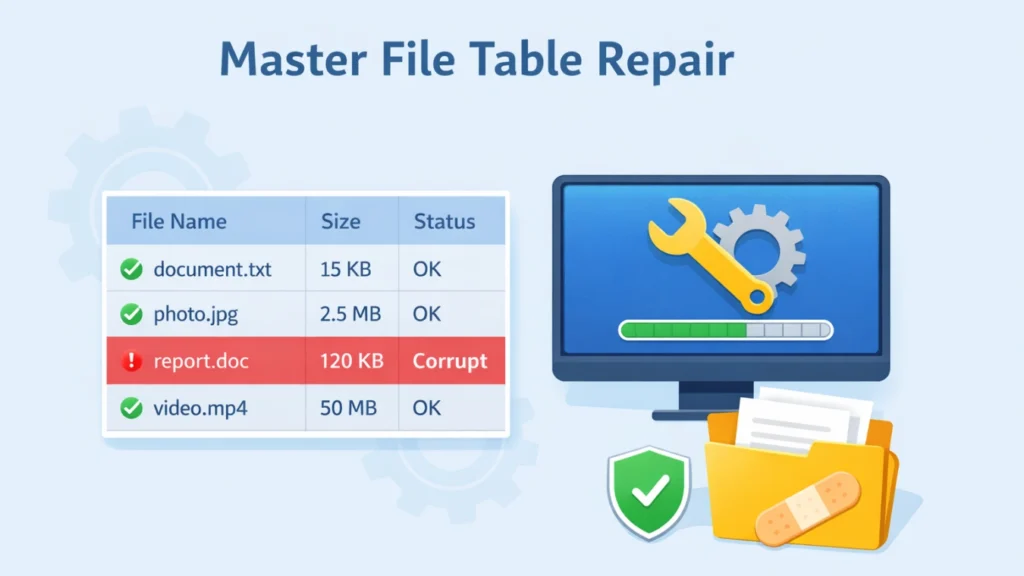
Encountering a Master File Table repair issue can be alarming. When Windows reports errors such as “Corrupt Master File Table” or “Windows cannot recover Master File Table”, your files often become inaccessible and critical data is at risk. Instead of rushing into repair tools which may overwrite data, it’s important to first recover your files. This guide explains why data recovery before attempting MFT repair is a must and how tools like Magic Data Recovery can help.
Supports Windows 7/8/10/11 and Windows Server
Table of Contents
What Is a Master File Table (MFT)?
The Master File Table (MFT) is the heart of the NTFS file system. It acts as a detailed index of every file and directory on your drive — holding metadata such as file name, size, attributes, and storage location. If the MFT becomes corrupt, Windows may not read the drive correctly, leaving your files inaccessible even though they still physically exist.
Why MFT Errors Happen
Before diving into repair Master File Table procedures, it’s crucial to understand why MFT corruption occurs:
- Sudden power outages or improper shutdowns during write operations can interrupt MFT updates.
- Virus or malware attacks may tamper with critical NTFS structures.
- Removing external drives without safely ejecting increases the risk of MFT inconsistency.
- Excessive bad sectors on aging drives cause logical damage to the MFT.
Why You Must Recover Data Before Repairing MFT
Many guides suggest tools like CHKDSK, TestDisk, or Windows built-in utilities to fix MFT errors. However, attempting a direct MFT repair without securing your files can lead to further damage or overwrite recoverable data.
Key Reasons to Recover First
- Repair tools can modify file system structures — this can overwrite or destroy lost file entries permanently.
- Severe corruption may hide data that recovery tools can still extract even if the repair fails.
- Professional recovery software works in read-only mode, ensuring original data remains intact during the scan.
How to Recover Data First (Step-by-Step)
Here’s a proven workflow to protect your files before attempting any master file table repair:
1. Stop Using the Drive
Stop all write operations to the affected volume immediately. Writing new data increases the risk of overwriting recoverable files.
2. Use Magic Data Recovery

Magic Data Recovery is a powerful recovery tool designed to safely retrieve files from drives with damaged MFT structure. Its key advantages include:
- Read-only scanning prevents further damage to original data.
- Broad file support including photos, videos, documents, even if file system is damaged.
- Easy preview & selective restore before recovery.
- Works with NTFS, FAT, and other file systems.
Supports Windows 7/8/10/11 and Windows Server
Typical Recovery Workflow
- Install and launch Magic Data Recovery.
- Select the affected drive.
- Start a full scan to locate recoverable data.
- Preview files found and save them to a different healthy drive.
Why this matters: Recovering your data first reduces the risk of accidental loss during the subsequent MFT repair process.
After Data Recovery: MFT Repair Methods
Once all critical data is safely backed up:
Windows CHKDSK Utility
- Use chkdsk /f in Command Prompt to fix logical NTFS errors.
- This might fix minor MFT inconsistencies without data loss.
TestDisk
- A more advanced master file table repair software that compares the main MFT with its mirror copy to restore file system entries.
Drive Reformat
- In severe cases where repair tools fail, formatting the drive will rebuild NTFS structures, including the MFT.
- Only proceed after recovery because formatting deletes existing file system data entirely.
Best Practices to Prevent MFT Damage
To reduce the chance of encountering MFT errors:
- Use UPS to avoid sudden power loss.
- Monitor hard drive SMART health status.
- Always eject external drives properly before disconnecting.
- Keep at least 15% free space on NTFS volumes.
Conclusion
When you face Master File Table repair, remember that data recovery should always come first. Rushing into repair tools can worsen data loss. Tools like Magic Data Recovery provide a safe data recovery solution to extract files before attempting repairs. Once data is protected, you can proceed confidently with repair options such as CHKDSK, TestDisk, or reformatting. This safer process minimizes the risk of irrevocable loss and ensures your digital assets remain secure.
If you need a reliable solution to retrieve files from a drive with MFT errors, consider trying Magic Data Recovery — it’s a practical first step toward recovery and repair.
Supports Windows 7/8/10/11 and Windows Server
FAQs
What does it mean when the Master File Table is corrupt?
Why should I recover data before repairing the MFT?
Can Windows CHKDSK fix a corrupt MFT?
Is MFT repair software safe to use?
How does Magic Data Recovery help with MFT errors?
What causes MFT corruption?
Can data still be recovered if the MFT is corrupt?
Should I format my drive if MFT repair fails?

Jason is a data recovery and technical support specialist with over 15 years of hands-on experience. He has worked extensively with frontline users, troubleshooting difficult data loss cases and providing practical recovery solutions for accidental deletion, formatted drives, damaged file systems, lost partitions, system failures, and other recovery emergencies. His expertise also includes backup and restoration, file repair, and disaster recovery, with a strong emphasis on safe, reliable, and technically accurate guidance.