
What to Do If Seagate Hard Drive Not Recognized?
Discovering that your Seagate hard drive is not recognized can be stressful, especially if it contains critical files. However, don’t panic—the good news is that your data is often not permanently lost.Several common issues, ranging from connection problems to file system corruption, can prevent a computer from detecting a drive. This article provides a systematic approach to identify the root cause and restore access to the not recognized Seagate hard drive, including practical solutions and professional hard drive recovery options.
Table of Contents
Common Causes of Seagate Hard Drive Not Recognized
First of all, understanding why your Seagate drive is not recognized is the first step toward resolution:
1. Connection Issues
In many cases, faulty USB cables, ports, or power supply can prevent detection. Using a different port or cable often resolves the issue.
2. Drive Letter Conflicts
In some situations, an unassigned drive letter may cause the system to not display the drive. Assigning a unique letter in Disk Management can restore visibility.
3. File System Corruption
NTFS or exFAT file system errors may prevent recognition. For example, corruption can result from improper ejection, sudden power loss, or malware attacks.
4. Driver or Firmware Problems
Outdated or corrupted drivers can cause detection failures. Updating or reinstalling Seagate drivers and firmware can address this issue.
5. Hardware Failure
Mechanical or electronic failure in the hard drive can make it unreadable. While more serious, data recovery may still be possible with specialized tools.
Step-by-Step Solutions to Fix Seagate Hard Drive Not Recognized Issue
Step 1. Check Hardware Connections
- Ensure the USB cable is functional and securely connected.
- Test the drive on a different computer or USB port.
- Use a powered USB hub if your drive requires additional power.
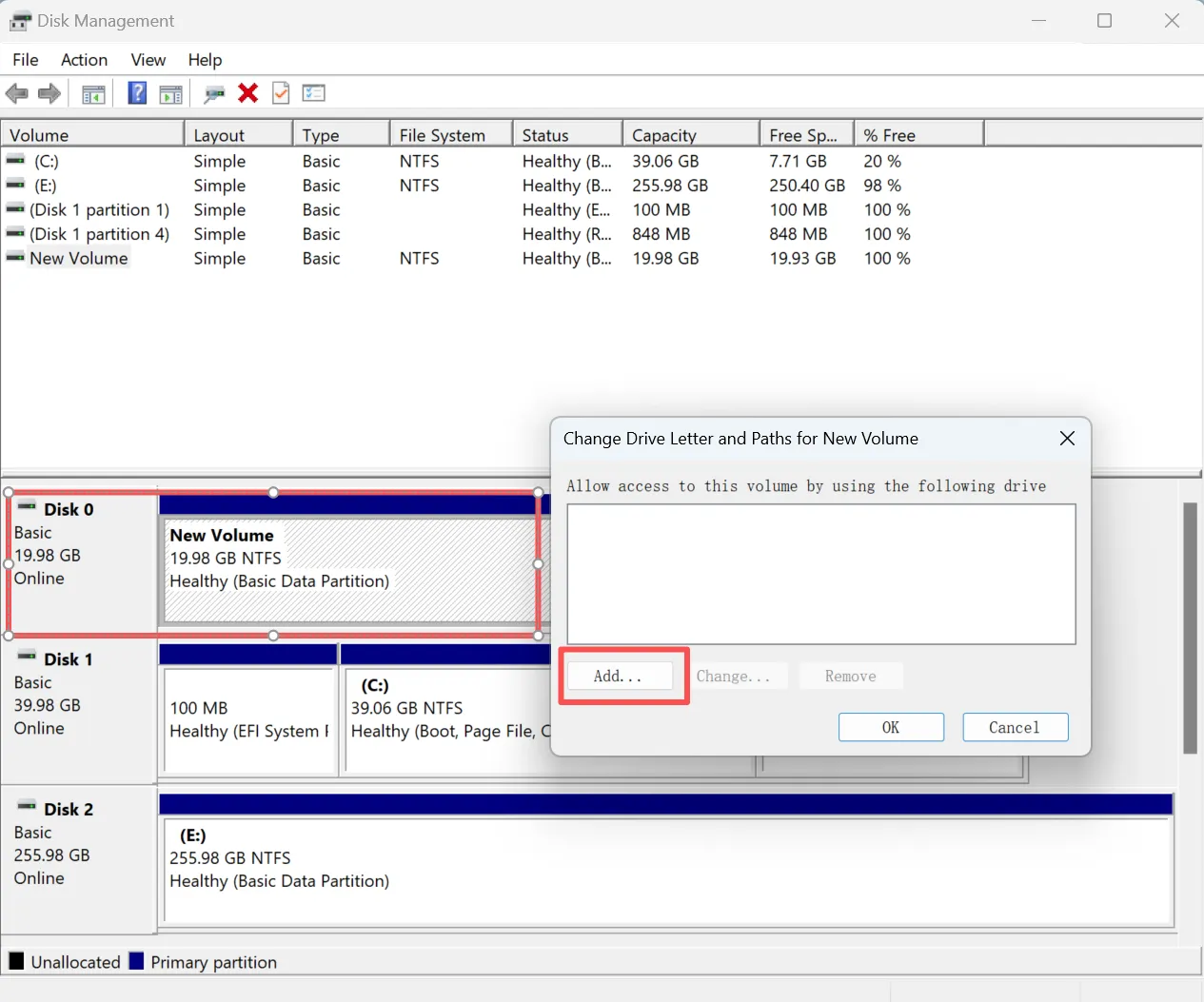
Step 2. Assign a Drive Letter (Windows)
1. Open Disk Management (Win + X → Disk Management).
2. Locate the not recognized Seagate drive, right-click, and select Change Drive Letter and Paths.
3. Assign a unique drive letter and confirm.
Step 3. Update or Reinstall Drivers
1. Open Device Manager and expand Disk Drives.
2. Right-click the not recognized Seagate drive → Update Driver.
3. If detection fails, uninstall the driver and restart your PC to reinstall automatically.
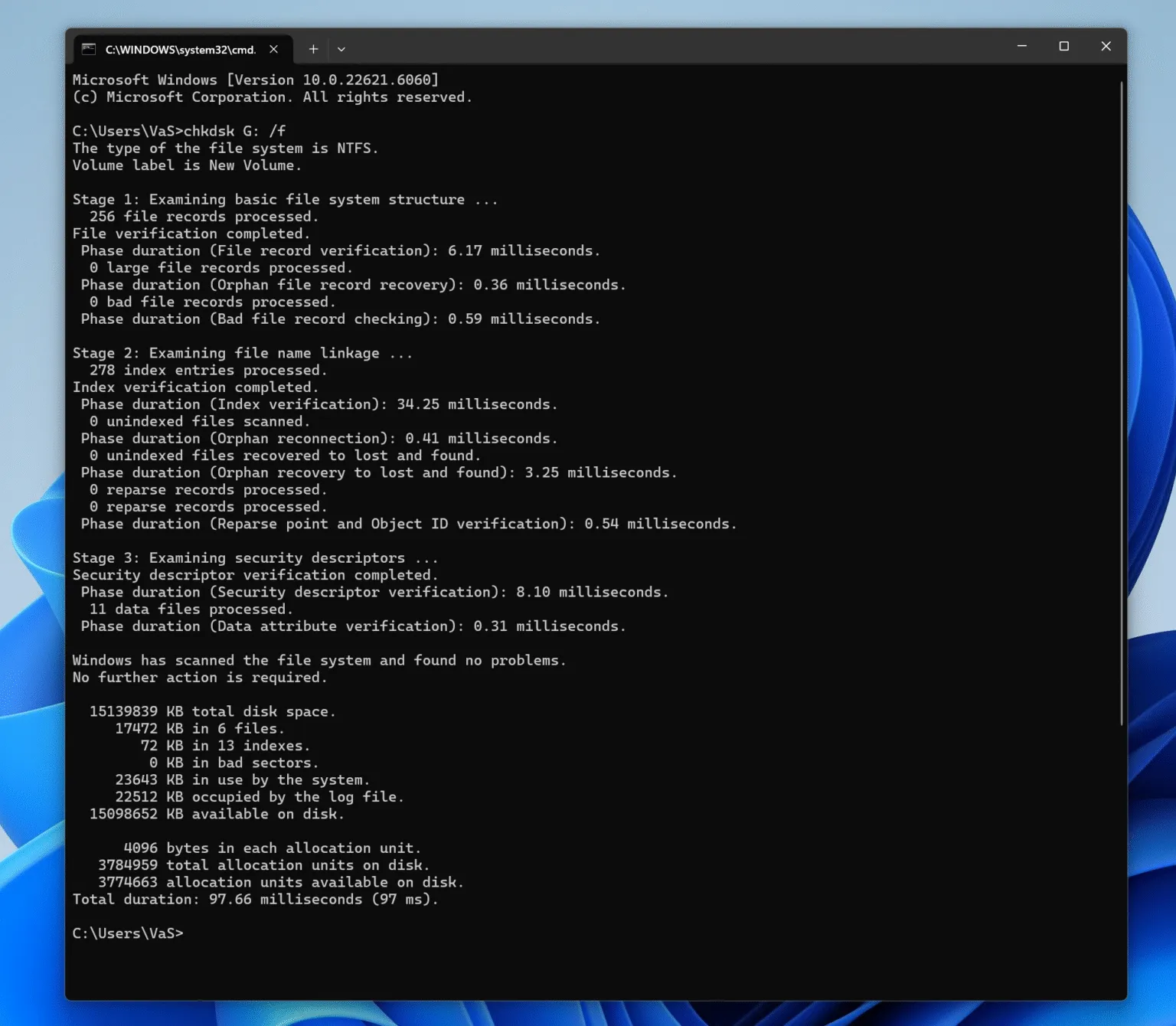
Step 4. Run Disk Check Utilities
- Use
chkdsk /f X:(replace X with the drive letter) to repair minor file system errors. - Avoid formatting if recovery of existing data is required.
Step 5. Data Recovery with Magic Data Recovery
At this stage, if the Seagate drive is still not recognized but contains important files, professional software like Magic Data Recovery can safely scan and recover data without modifying to the affected disk.
Preventive Measures
- Always safely eject your external drives.
- Maintain regular backups of critical data.
- Monitor drive health using S.M.A.R.T. tools.
- Avoid physical shocks and extreme temperatures for portable drives.
Conclusion
In summary, if a Seagate hard drive not recognized by your computer, don’t panic. It is often solvable with systematic troubleshooting. From simple cable checks to professional recovery software like Magic Data Recovery, you can restore access to critical files safely. Always combine recovery efforts with preventive practices to protect your data from future issues. Download Magic Data Recovery today to recover files from drives safely and efficiently.
Supports Windows 7/8/10/11 and Windows Server
Seagate Hard Drive Not Recognized – FAQ
How do I fix a not recognized Seagate external hard drive?
How do I fix a corrupted Seagate hard drive?
How to recover an external hard drive that is not detected?
Do Seagate external hard drives go bad?
How to reset a Seagate hard drive?
Why isn't my computer detecting my external hard drive?
What is the lifespan of an external hard drive?

Vasilii is a data recovery specialist with around 10 years of hands-on experience in the field. Throughout his career, he has successfully solved thousands of complex cases involving deleted files, formatted drives, lost partitions, and RAW file systems. His expertise covers both manual recovery methods using professional tools like hex editors and advanced automated solutions with recovery software. Vasilii's mission is to make reliable data recovery knowledge accessible to both IT professionals and everyday users, helping them safeguard their valuable digital assets.