
How to Recover Deleted Recycle Bin Files
Accidentally deleting files is one of the most common scenarios that cause panic, especially when you realize you have permanently deleted the Recycle Bin. Whether it’s important documents, cherished photos, or critical work files, losing these can be devastating. The good news is, even after emptying the Recycle Bin, it is still possible to recover Recycle Bin files. In this article, we will explain how to recover deleted Recycle Bin files, including detailed deleted files recovery methods for those who have already emptied their Recycle Bin.
If you’re wondering how can I restore emptied Recycle Bin files, keep reading. We will guide you through the steps and recommend the best solution—Magic Data Recovery.
Supports Windows 7/8/10/11 and Windows Server
Wondering if your files can be recovered? Find out in seconds with our quick check below.
Data Recovery Assessment
Answer 3 quick questions to estimate your recovery chances
Table of Contents
How to Recover Deleted Recycle Bin Files (Even After Emptying)
Method 1: Restore Files from the Recycle Bin (If Not Emptied)
If you haven’t emptied the Recycle Bin yet, recovering deleted files is simple. Here’s how to recover deleted Recycle Bin files:
1. Open the Recycle Bin by double-clicking the icon on your desktop.
2. Browse through the files.
3. Right-click on the file you want to restore.
4. Select Restore, and the file will be returned to its original location.
This method works well as long as you haven’t emptied the Recycle Bin. But what if you have already emptied or you permanently deleted the files? Try following methods.
Method 2: Using Backup or File History
If you have enabled File History or System Restore, recovering deleted files becomes easier:
1. Open File Explorer and navigate to the folder where the deleted file originally located.
2. Right-click the folder and choose Restore previous versions.
3. Select a backup from before the file was deleted, and restore it.
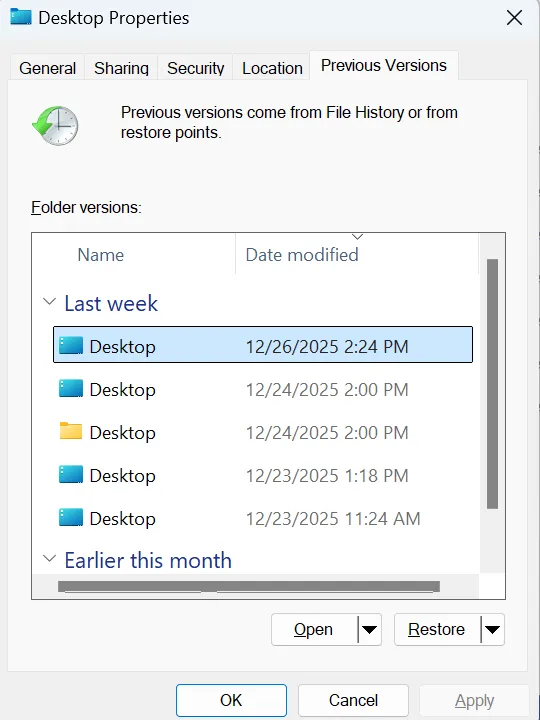
This method relies on backups and needs to be set up in advance, but it can be an effective way to recover deleted files, including those removed from the Recycle Bin.
Method 3: Recover Emptied Recycle Bin Files Using Magic Data Recovery
Once the Recycle Bin is emptied, the files are not necessarily gone forever. Using data recovery software like Magic Data Recovery, you can easily recover deleted Recycle Bin files. The software scans your drive for deleted files and recovers them even after you have removed from the Recycle Bin.
Steps to use Magic Data Recovery:
1. Download Magic Data Recovery from the official website and install it.
Supports Windows 7/8/10/11 and Windows Server
2. Select the drive where you delete the files and Start a scan.

3. Wait till the scan completes.
Magic Data Recovery runs Advanced Scan automatically. It displays all the files after the scan.

4. After the scan, preview the recoverable files.
With this feature, you can easily confirm whether they are the files you are looking for.

5. Select the files you want to restore and click Recover.
Save the files to a different drive. DO NOT save them back to the original drive as it risks overwriting the lost files.

Magic Data Recovery is an ideal solution for users who need to recover deleted files from the Recycle Bin, even after emptying it. The software ensures a high recovery rate for a wide range of file types.
Why Magic Data Recovery is the Best Tool to Recover Deleted Recycle Bin Files
If you’ve emptied the Recycle Bin and need to recover those deleted files, Magic Data Recovery is your go-to tool. Here’s why:
- High Recovery Success Rate: Magic Data Recovery excels at recovering deleted Recycle Bin files, even after you permanently removed the files.
- Comprehensive Scanning: The software scans all storage drives and partitions, ensuring that you can recover all the files.
- User-Friendly Interface: Magic Data Recovery is designed with ease of use in mind. You don’t need technical skills to recover deleted Recycle Bin files; just follow the straightforward steps.
- Preview and Select: After scanning, you can preview the deleted files and select which ones to recover, ensuring you get exactly what you need.
- Supports Multiple File Types: Magic Data Recovery can recover various file formats, including documents, images, videos, and emails, making it a versatile tool for all recovery needs.
If you’ve ever wondered how to recover deleted Recycle Bin files after emptying it, this software offers a highly reliable and efficient solution.
Best Practices to Avoid Future Data Loss
Preventing data loss is always preferable to dealing with it later. Here are a few tips to help you protect your files:
1. Regular Backups: Make it a habit to back up your files using cloud services or external storage devices.
2. Adjust Recycle Bin Settings: Set your Recycle Bin to retain files for a longer period before you permanently delete the files.
3. Enable File History: Turn on File History to automatically back up your files to recover them easily in the future.
By following these steps, you can avoid the frustration of file loss and ensure that you’re always prepared in case of accidental deletion.
Conclusion
In conclusion, if you’re wondering how to recover deleted Recycle Bin files, you don’t have to worry. Even after emptying your Recycle Bin, there’s still a chance to recover your files with the right Recycle Bin recovery solutions. Magic Data Recovery is the most effective solution for this purpose. It offers a high recovery rate and is incredibly easy to use, making it the go-to choice for both tech-savvy users and beginners. Don’t make your deleted files lost forever. Try Magic Data Recovery today and effortlessly restore your valuable files.
Supports Windows 7/8/10/11 and Windows Server
FAQ
Can you recover permanently deleted files from the Recycle Bin?
Are deleted files permanently stored in the Recycle Bin?
How can I recover accidentally deleted files?
Where does the Recycle Bin restore to?
Are permanently deleted files really gone?
Can I see permanently deleted files?
Where do files go after being permanently deleted?
Can I recover permanently deleted files in Windows?

Vasilii is a data recovery specialist with around 10 years of hands-on experience in the field. Throughout his career, he has successfully solved thousands of complex cases involving deleted files, formatted drives, lost partitions, and RAW file systems. His expertise covers both manual recovery methods using professional tools like hex editors and advanced automated solutions with recovery software. Vasilii's mission is to make reliable data recovery knowledge accessible to both IT professionals and everyday users, helping them safeguard their valuable digital assets.