
How to Fix USB Drive Not Showing Up
When you search for how to fix usb drive not showing up, you are usually dealing with a frustrating issue where your USB device either does not appear in File Explorer or is not recognized at all. In some cases, the system detects the drive but does not display it properly. In other cases, nothing shows up anywhere.
This problem often relates to driver errors, file system corruption, or missing drive letters. However, before you attempt any fix, you should understand one critical rule: fixing a USB drive incorrectly may lead to permanent data loss. Therefore, this guide explains how to fix usb drive not showing up step by step, while also showing when you should recover your data from your USB drive first.
Table of Contents
Why Is My USB Drive Not Showing Up on Windows?
Before attempting any repair, understanding the root cause significantly improves success. In practice, most how to fix USB drive not showing up situations fall into several predictable categories.
1. USB Port or Power Issue
Sometimes the issue originates from the port itself. For example, insufficient power delivery may prevent proper initialization. As a result, Windows fails to detect the device.
2. Missing Drive Letter
In many cases, Windows detects the USB internally; however, it does not assign a drive letter. Consequently, the drive remains invisible in File Explorer even though it exists in Disk Management.
3. Corrupted File System
If you remove the drive without safely ejecting it, the file system may become corrupted. In that situation, the USB often appears as RAW.
4. Driver Conflicts
After a Windows update, outdated or incompatible drivers may interfere with recognition. Therefore, resolving driver conflicts often fixes how to fix usb drive not working problems.
5. Partition Table Damage
Occasionally, partition metadata becomes damaged. When this occurs, Windows cannot mount the volume properly.
Because each scenario differs, identifying the exact condition ensures you avoid unnecessary risks.
How to Fix USB Drive Not Showing Up on Windows: Step-by-Step
To properly understand how to fix USB drive not showing up, always begin with the simplest solutions. Then, if necessary, move toward advanced repairs.
1. Check the USB Connection First
Before modifying system settings, confirm the hardware connection.
- Try another USB port
- Avoid external hubs temporarily
- Test the drive on a different computer
If the USB works elsewhere, then your Windows system likely causes the issue. On the other hand, if it fails everywhere, hardware damage becomes more likely.
2. Use Disk Management for Diagnosis
Next, open Disk Management. This tool plays a critical role in diagnosing how to fix USB drive not showing up.
Steps:
- Press Win + X
- Select Disk Management
- Locate your USB drive
At this stage, you may notice different statuses. For instance, the drive may appear healthy but lack a letter. Alternatively, it may display as RAW or unallocated.
Each condition requires a different response.

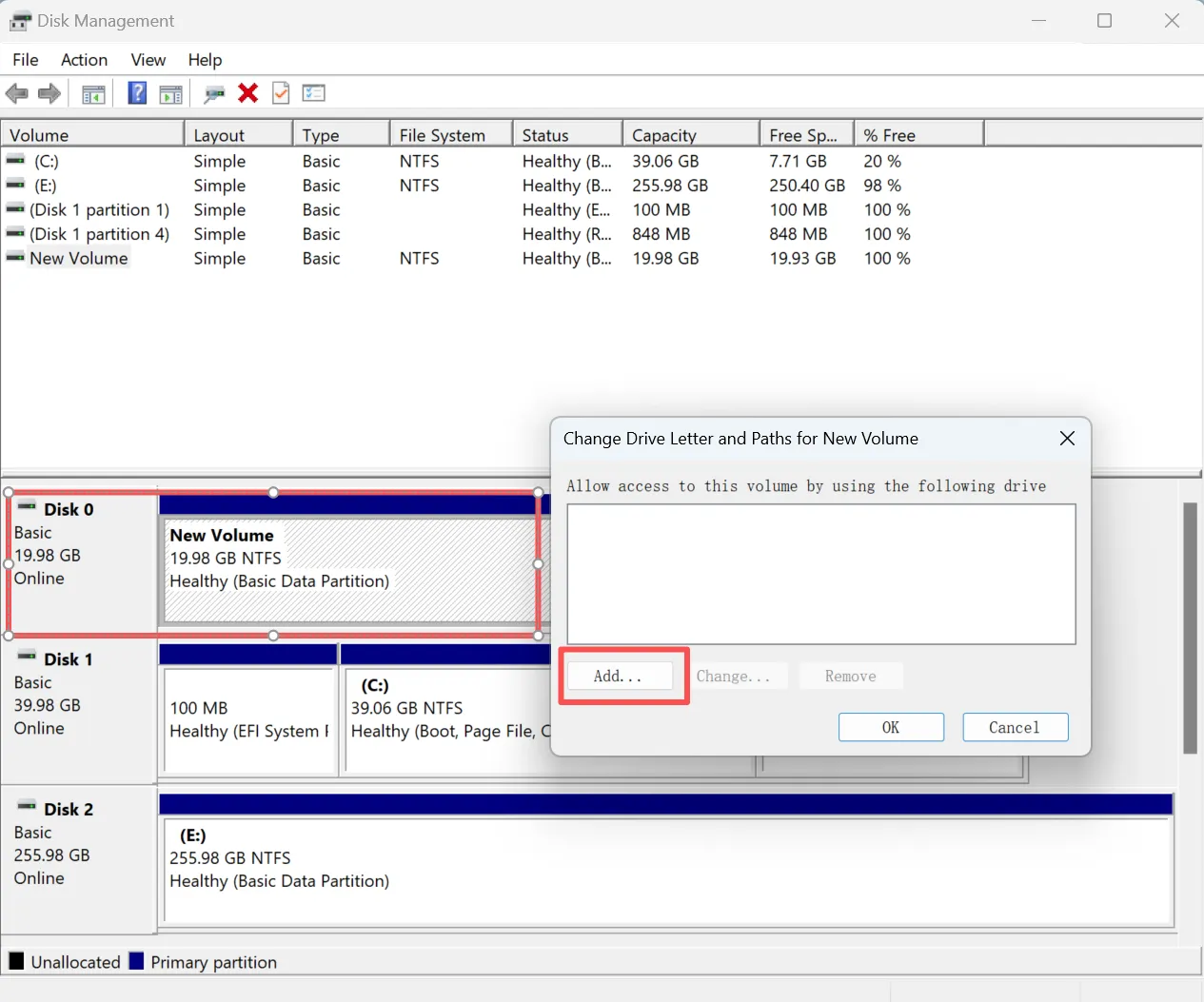
3. Assign a Drive Letter
If the partition appears healthy yet invisible in Explorer, assigning a drive letter often solves the problem.
- Right-click the partition
- Choose “Change Drive Letter and Paths”
- Click “Add”
- Select a new letter
After completing these steps, Windows should immediately display the drive. Therefore, this fix commonly resolves how to fix usb flash drive not working cases without further action.
4. Update or Reinstall USB Drivers
If the drive still does not appear, driver issues may exist. In that case, addressing them becomes necessary.
To update drivers:
- Open Device Manager
- Expand Disk Drives
- Right-click your USB device
- Select Update Driver
If updating does not help, uninstall the device and restart your computer. Subsequently, Windows will reinstall the driver automatically. As a result, many how to fix usb drive not working issues resolve at this stage.
5. Run CHKDSK to Repair Logical Errors
If the drive appears but fails to open, run CHKDSK.
- Open Command Prompt as Administrator
- Type: chkdsk X: /f
This command repairs logical errors. However, because it modifies disk structures, you should recover important files first. Otherwise, some data may become inaccessible.

6. Format the USB Drive (Last Resort)
If corruption remains severe, formatting may restore usability. Nevertheless, this step deletes all data.
In Disk Management:
- Right-click the partition
- Select Format
- Choose NTFS or exFAT
Only proceed after securing critical files. Otherwise, recovery becomes more complex.
How to Fix USB Drive Not Showing Up When It Appears as RAW
When Windows labels a USB as RAW, the file system becomes unreadable. Consequently, Explorer cannot mount the drive.
Instead of formatting immediately, pause and evaluate your data importance. First, perform recovery. Then, once files are secure, format the drive to rebuild its file system.
This approach significantly reduces risk in how to fix usb drive not working situations involving corruption.
USB Drive Not Working but Light Is On
Sometimes the LED indicator lights up; however, Windows shows no drive. In this scenario, the controller may function while the partition remains damaged.
Therefore, try the following:
- Update chipset drivers
- Disable USB selective suspend
- Scan for hardware changes in Device Manager
If detection still fails, internal hardware damage may exist. In that case, professional service may be required.
Recover Files Before Repairing the USB
Although many users focus only on how to fix USB drive not showing up, data safety should always come first. Repair utilities prioritize disk structure repair, whereas recovery tools prioritize file extraction. Because structural repair can overwrite metadata, recovering files beforehand increases success probability.
Consequently, performing recovery first represents best practice in professional troubleshooting workflows.
Why Use Magic Data Recovery Before Fixing the Disk?
When facing how to fix USB drive not showing up, especially in RAW or unallocated states, securing data should become your immediate priority.
Core Problem It Solves
Magic Data Recovery retrieves files from corrupted or inaccessible USB drives before you attempt formatting or CHKDSK repairs.
Unique Advantages
- Deep sector-level scanning
- Support for NTFS, FAT32, and exFAT
- File preview before recovery
- Simple interface for non-technical users
Practical Scenario
For example, if Disk Management shows your USB as RAW, Windows will recommend formatting. Instead, run Magic Data Recovery first. The software scans the drive and extracts recoverable files safely. After that, you can repair the disk without fear of losing data.
Why It’s More Reliable
Unlike built-in Windows tools, which focus on repairing the disk structure, recovery software scans raw sectors directly. Therefore, it often retrieves files even when partitions appear damaged.
If you are searching for a safer solution while handling how to fix usb flash drive not working, consider recovering your files with Magic Data Recovery before proceeding.

Prevent Future USB Detection Issues
Once you resolve how to fix USB drive not showing up, prevention becomes essential.
- Always use “Safely Remove Hardware”
- Avoid interrupting file transfers
- Keep drivers updated
- Maintain regular backups
By following these habits, you significantly reduce recurring how to fix usb drive not working problems.
Conclusion
Resolving USB drive not showing up issue requires patience and structure USB flash drive solutions. First, verify hardware connections. Next, diagnose the issue in Disk Management. Then update drivers or assign a drive letter if necessary. Finally, consider formatting only after recovery.
Most importantly, prioritize file safety before disk repair. Magic Data Recovery offers a reliable way to extract files from corrupted USB drives, particularly in RAW scenarios. Therefore, it provides a safer path compared to immediate formatting.
By following this guide, you will know how to fix usb drive not working situations while minimizing data risk and maximizing recovery success.
Supports Windows 7/8/10/11 and Windows Server
FAQs – How to Fix USB Drive Not Showing Up
Why is my USB drive detected but not accessible?
How do I fix a corrupted USB without formatting?
Can a USB drive be repaired permanently?
Why does my USB show RAW format?
How to fix usb drive not working after Windows update?
Why is my USB not showing in Explorer but visible in Disk Management?
Should I format my USB drive if it is not recognized?

Vasilii is a data recovery specialist with around 10 years of hands-on experience in the field. Throughout his career, he has successfully solved thousands of complex cases involving deleted files, formatted drives, lost partitions, and RAW file systems. His expertise covers both manual recovery methods using professional tools like hex editors and advanced automated solutions with recovery software. Vasilii's mission is to make reliable data recovery knowledge accessible to both IT professionals and everyday users, helping them safeguard their valuable digital assets.