
Master File Table Records Explained: NTFS MFT Guide + Fix & Recovery
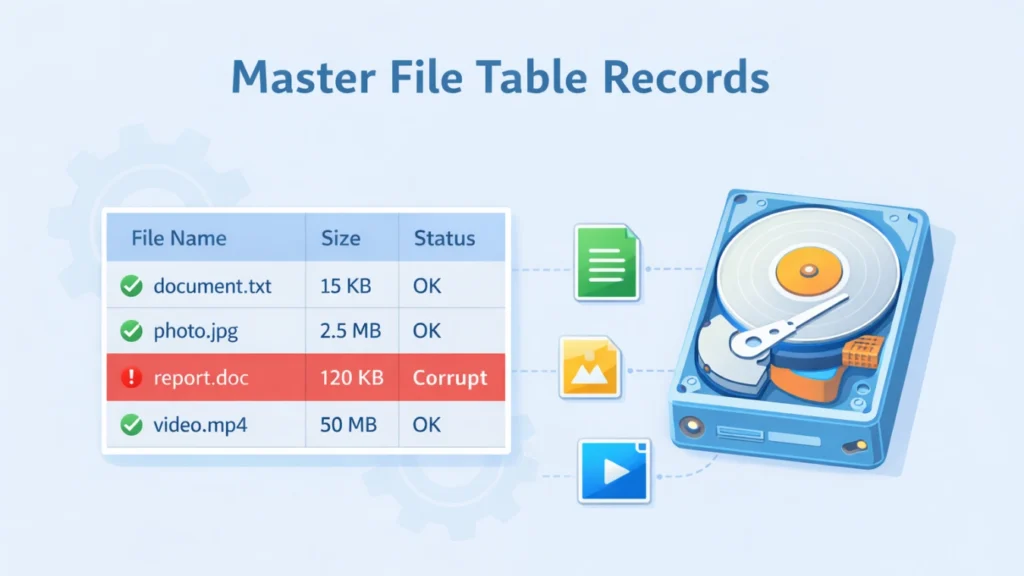
If you’ve ever seen Windows errors that mention the “Master File Table,” or you’ve noticed files disappearing after a crash, you’re likely dealing with master file table records—the core index entries that help NTFS “remember” where every file lives.
This guide explains what MFT records are, how they work, why they get corrupted, and what you can safely do first. At the end, you’ll also find a data-recovery recommendation if MFT issues already caused data loss.
Table of Contents
What Are Master File Table Records?
In NTFS (New Technology File System), the Master File Table (MFT) is a special file that stores at least one entry for every file and folder on the volume—including the MFT itself. Each entry (often called an MFT “record”) contains critical metadata such as timestamps, permissions, file name details, and pointers to where file content is stored.
A simple way to think of it:
- Your file data is the “book content”
- The MFT record is the “library catalog card” that tells the system what the book is and where to find it
When those catalog cards are damaged or inconsistent, Windows may not be able to locate files—even if the raw data blocks still exist.
Why MFT Records Matter So Much in NTFS
NTFS relies on MFT records for everyday operations:
- Opening files quickly (fast lookups instead of scanning the whole disk)
- Managing permissions and ownership
- Tracking file sizes and timestamps
- Supporting advanced NTFS features and system files
Microsoft documents that file information is stored in MFT entries, or outside the MFT as described by those entries, which is exactly why a broken entry can make a file appear “gone.”
MFT Record Structure: What’s Inside an MFT Record?
At a high level, a master file table record typically includes:
- File identifiers and flags (in-use vs free)
- File name attributes
- Security descriptors / permissions
- Data attributes (where the file’s data runs/clusters are)
- Optional attributes (indexes, reparse points, etc.)
Many technical deep dives describe the MFT as a table of records that grows over time. Also, NTFS reserves early records for special metadata, which is one reason MFT damage can be especially disruptive.
What Happens to MFT Records When You Delete a File?
Here’s a key behavior that affects recovery:
- When a file is deleted, its MFT entry is typically marked as free and can later be reused.
- The MFT file itself does not automatically shrink just because files were deleted.
This matters because “deleted” often means not immediately overwritten—so recovery is sometimes possible if you stop using the drive quickly.
Common Causes of Master File Table Record Corruption
Master file table records can become corrupted or inconsistent due to:
- Unexpected shutdowns / power loss during writes
- Bad sectors or failing HDD/SSD media
- Unsafe USB removal (external NTFS drives)
- Driver/firmware issues (less common, but real)
- File system fragmentation pressure and heavy churn (many small files)
- Malware or buggy disk utilities (rare, but high impact)
Microsoft also notes NTFS reserves an “MFT zone” to help MFT growth remain contiguous, and fragmentation patterns can change as disk space fills—another reason disk health and capacity planning matter.
Symptoms: How to Tell If MFT Records Are Damaged
You might be facing MFT-related trouble if you see:
- “The file or directory is corrupted and unreadable”
- “CHKDSK is verifying files (stage 1…)” frequently
- Sudden missing folders after a crash
- Drive becomes RAW or inaccessible
- Very slow access when listing directories
- Repeated disk I/O errors in Event Viewer
Important note: these symptoms can overlap with hardware failure. If the drive is clicking, disconnecting, or showing SMART warnings, prioritize drive safety first.
Safe First Steps Before You Try Any Fix
If you suspect master file table record issues, follow these safety rules:
- Stop writing to the drive (avoid installs, downloads, copying big files)
- If it’s an external drive, disconnect it safely
- If data is critical, consider imaging/cloning before repairs (best practice)
Why? Because “repair” actions can change on-disk structures and reduce recovery chances.
Fix Options: What You Can Do (From Low Risk to Higher Risk)
1) Check physical disk health (lowest risk)
- Review SMART status with a reputable tool
- Swap cables/ports for external drives
- If hardware is unstable, don’t keep “testing”—stability matters more than speed
2) Run CHKDSK carefully (moderate risk)
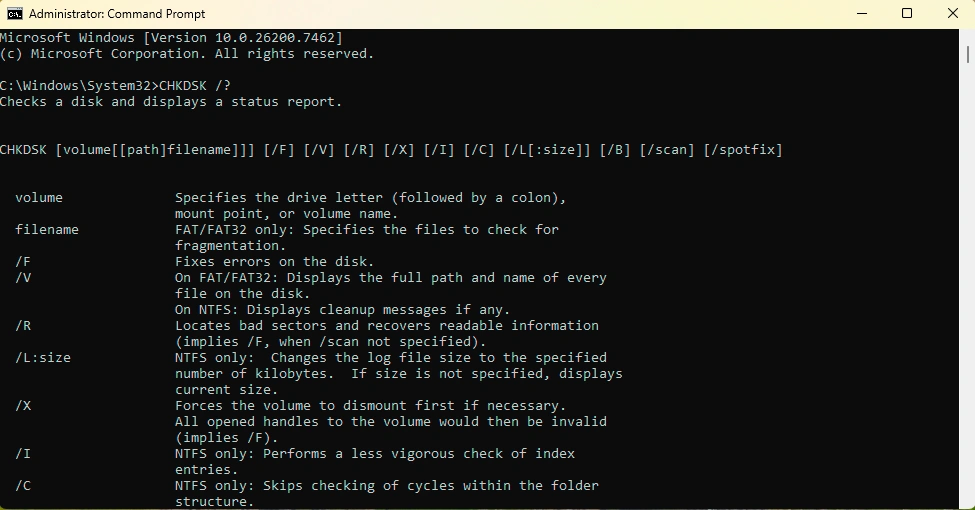
CHKDSK can repair logical file system issues, but it can also modify metadata. If your priority is data recovery, recovery-first is often safer than repair-first.
A practical approach many professionals use:
- Recover important files first (if possible)
- Then run repairs after you have a safe copy
3) Consider professional recovery (highest success for severe cases)
If the disk has physical damage, firmware failure, or extensive bad sectors, software fixes may fail or worsen the situation.
Prevention: How to Avoid Master File Table Record Problems
A few habits reduce MFT risk dramatically:
- Use a UPS for desktops / NAS
- Keep 15–20% free space on NTFS volumes
- Always “Safely Remove Hardware” for external drives
- Avoid sudden power-offs during heavy file transfers
- Monitor disk health (SMART + periodic scans)
- Keep backups (versioned backups beat single copies)
When Master File Table Errors Cause Data Loss: Use Magic Data Recovery
If master file table record corruption (or related NTFS errors) has already caused missing files, the priority becomes getting your data back without overwriting recoverable content.
In that situation, it’s recommended to use a dedicated data recovery solution such as Magic Data Recovery to scan the affected NTFS volume and restore lost files to a different drive (never recover back onto the same disk you’re scanning). This workflow helps reduce the chance of overwriting recoverable data.
Supports Windows 7/8/10/11 and Windows Server
FAQs
What are master file table records in NTFS?
Are MFT records the same as file contents?
What happens to an MFT record when a file is deleted?
Can CHKDSK fix master file table record corruption?
Why do master file table errors cause missing files?
How can I prevent MFT record problems in the future?
Does SSD vs HDD change how MFT recovery works?
What should I do if master file table errors already caused data loss?

Jason is a data recovery and technical support specialist with over 15 years of hands-on experience. He has worked extensively with frontline users, troubleshooting difficult data loss cases and providing practical recovery solutions for accidental deletion, formatted drives, damaged file systems, lost partitions, system failures, and other recovery emergencies. His expertise also includes backup and restoration, file repair, and disaster recovery, with a strong emphasis on safe, reliable, and technically accurate guidance.