
How to Open Task Manager – Check Running Processes Easily
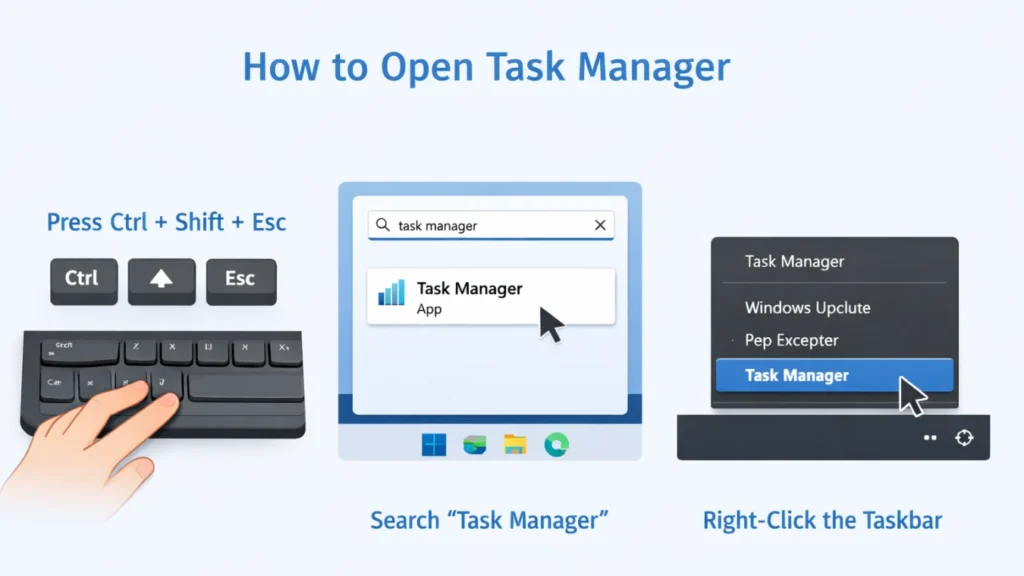
If your computer slows down, freezes, or runs heavy programs, knowing how to use the Task Manager becomes essential.
This guide not only shows you how to open Task Manager but also explains how to monitor processes and confirm whether a program is still running properly.
Table of Contents
What Is Task Manager
The Task Manager is a built-in Windows utility that allows users to monitor and manage system performance.
With Task Manager, you can:
- View all running programs and background processes
- Monitor CPU, memory, disk, and network usage
- End unresponsive applications
- Check if a process is still active
It is one of the most important tools for troubleshooting system issues.
How to Open Task Manager (Step-by-Step with Images)
Below are the most effective ways to open Task Manager. You can choose the method that suits your situation.
Method 1: Keyboard Shortcut (Fastest Way)
- Press Ctrl + Shift + Esc
- Task Manager opens instantly
Best for: Quick access anytime
Method 2: Ctrl + Alt + Delete Screen
- Press Ctrl + Alt + Delete
- Click Task Manager
Best for: When your system is frozen
Method 3: Right-Click Taskbar
- Right-click on the bottom taskbar
- Select Task Manager
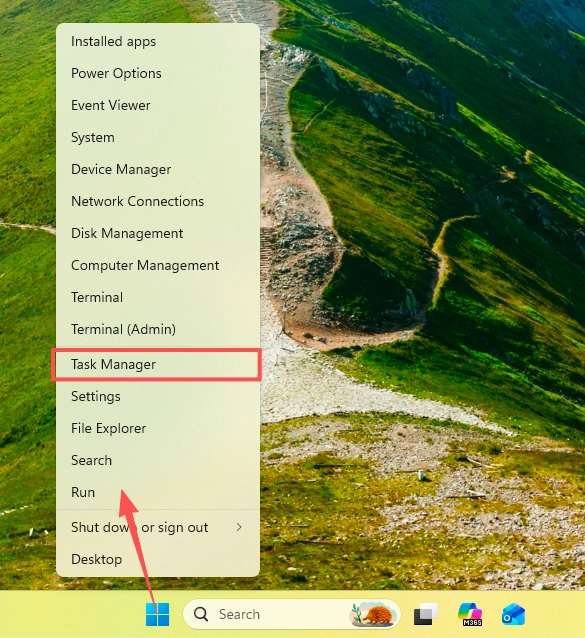
Best for: Beginners
Method 4: Windows Search
- Click the Start Menu
- Type Task Manager
- Click the result
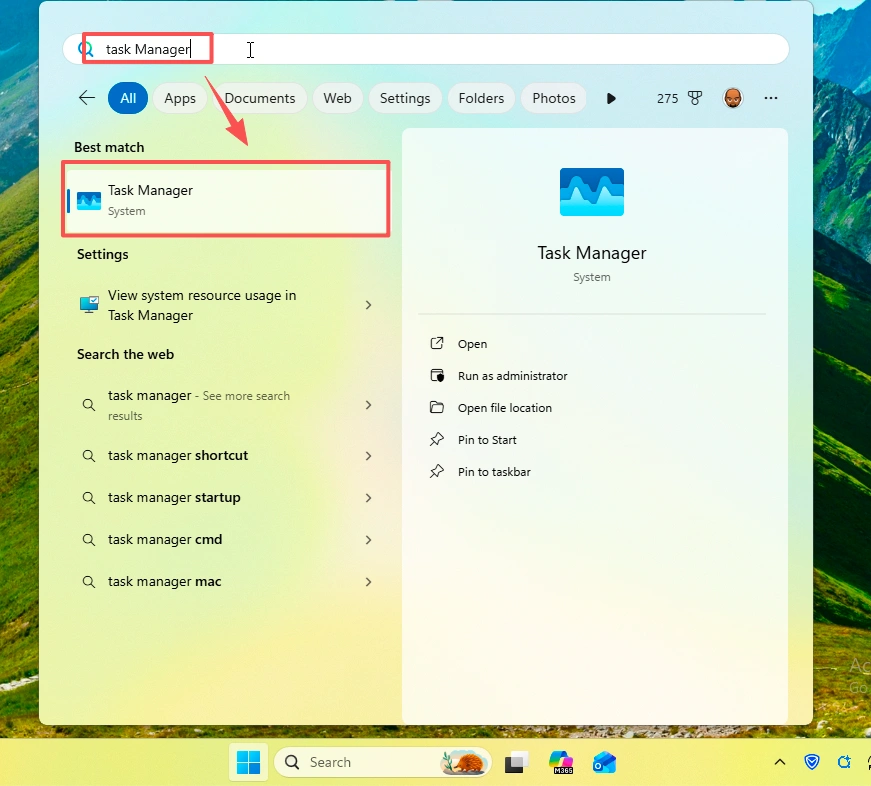
Best for: General users
Method 5: Run Command
- Press Windows + R
- Type taskmgr
- Press Enter
Best for: Advanced users
How to Start the Task Manager in Full Mode
When you first open Task Manager, it may appear in compact mode.
To expand it:
- Click More details
- You will see full tabs:
- Processes
- Performance
- Startup
- Users
This is the full Task Manager interface where all features are available.
How to Check Running Processes in Task Manager
To view active tasks and processes:
- Open Task Manager
- Click the Processes tab
- Review the following:
- Apps – currently open programs
- Background processes – running in the background
- Windows processes – system-level tasks
Key Metrics You Should Monitor
- CPU usage → Indicates processing activity
- Memory usage → Shows RAM consumption
- Disk usage → Important for scanning or file operations
- Status → Shows if a program is responding
How to Confirm If a Program Is Still Running
Sometimes a program may look frozen but is actually still working.
Example: Magic Data Recovery Scanning
When using Magic Data Recovery, especially on large disks:
- Scans can take a long time
- The interface may stop updating
- Users may think the program has crashed
How to Check If It’s Still Running
- Open Task Manager
- Go to Processes
- Locate Magic Data Recovery
- Check:
- CPU usage (should not be 0%)
- Disk activity (indicates scanning)
- Status (avoid “Not Responding”)
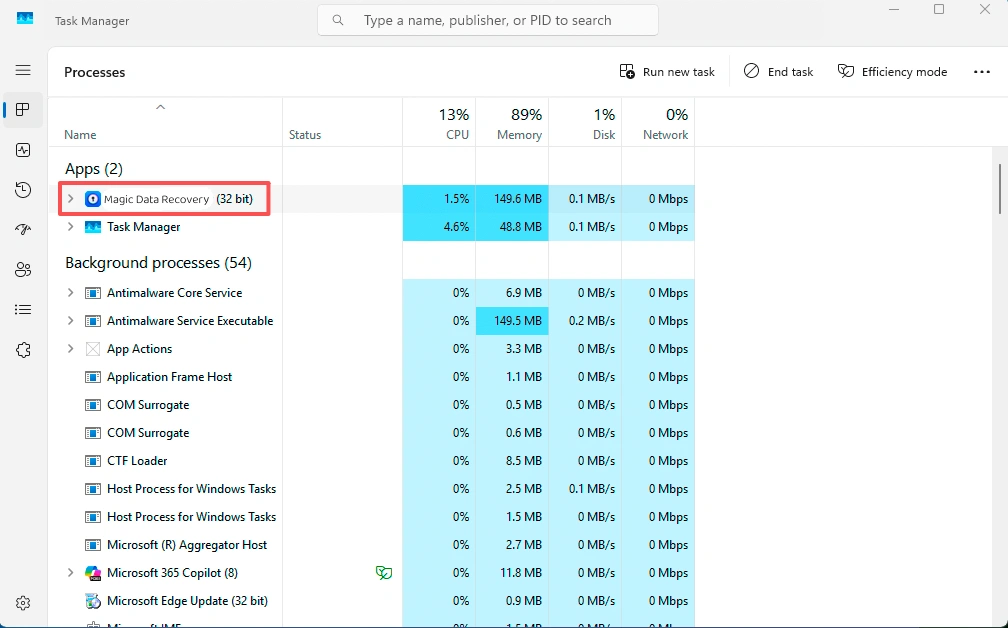
If there is activity, the scan is still running normally.
Why Task Manager Is Important
Using Task Manager helps you:
- Avoid closing programs prematurely
- Diagnose system slowdowns
- Monitor heavy tasks like data recovery or video rendering
- Improve system performance
Final Thoughts
Understanding how to open Task Manager and how to start the Task Manager is essential for every Windows user. More importantly, knowing how to check running processes ensures you don’t mistakenly close programs that are still working.
Whether you’re troubleshooting or monitoring tools like Magic Data Recovery, Task Manager gives you full visibility and control over your system.
Supports Windows 7/8/10/11 and Windows Server
FAQs
What is Task Manager in Windows?
Task Manager is a built-in Windows tool that allows users to monitor system performance, view running applications, and manage background processes. It helps identify resource-heavy programs and troubleshoot system issues efficiently.
How to open Task Manager quickly?
The fastest way to open Task Manager is by pressing Ctrl + Shift + Esc. This shortcut launches it instantly without navigating menus, making it the most efficient method for quick access.
Why is Task Manager important?
Task Manager helps monitor system performance, detect issues, and manage running applications. It is especially useful when your computer slows down or programs stop responding, allowing you to take immediate action.
How do I know if a program is still running?
You can check Task Manager under the Processes tab. If the program shows CPU or disk activity, it is still running. Even if the interface freezes, background activity indicates ongoing processing.
Can I end tasks safely in Task Manager?
You can safely end most user applications, especially if they are not responding. However, you should avoid ending system processes unless you are sure, as this may cause system instability.
Why does a program show “Not Responding”?
A program may show “Not Responding” when it is overloaded or temporarily frozen. However, it may still be processing tasks in the background, especially during heavy operations like scanning or rendering.
What does high CPU usage mean in Task Manager?
High CPU usage indicates that a program is actively using processing power. This is normal during intensive tasks like data recovery scans, video editing, or software installations.
How to check disk activity in Task Manager?
Open Task Manager and go to the Processes tab. Look at the Disk column to see if a program is reading or writing data. Continuous disk activity usually means the program is still working.

Jason is a data recovery and technical support specialist with over 15 years of hands-on experience. He has worked extensively with frontline users, troubleshooting difficult data loss cases and providing practical recovery solutions for accidental deletion, formatted drives, damaged file systems, lost partitions, system failures, and other recovery emergencies. His expertise also includes backup and restoration, file repair, and disaster recovery, with a strong emphasis on safe, reliable, and technically accurate guidance.