
File Allocation Table Example: How It Works & Fix FAT Data Loss
When a storage device suddenly becomes inaccessible or files disappear, the issue often traces back to the file allocation table example structure being damaged. Many users don’t realize that FAT (File Allocation Table) is the backbone of how files are stored and retrieved.
In this guide, you’ll learn a practical file allocation table example, understand how FAT works, and discover proven ways to recover lost data. If FAT corruption has already caused damage, we’ll also introduce a reliable solution—Magic Data Recovery—to help you regain access safely.
Supports Windows 7/8/10/11 and Windows Server
Table of Contents
What Is a File Allocation Table (FAT)?
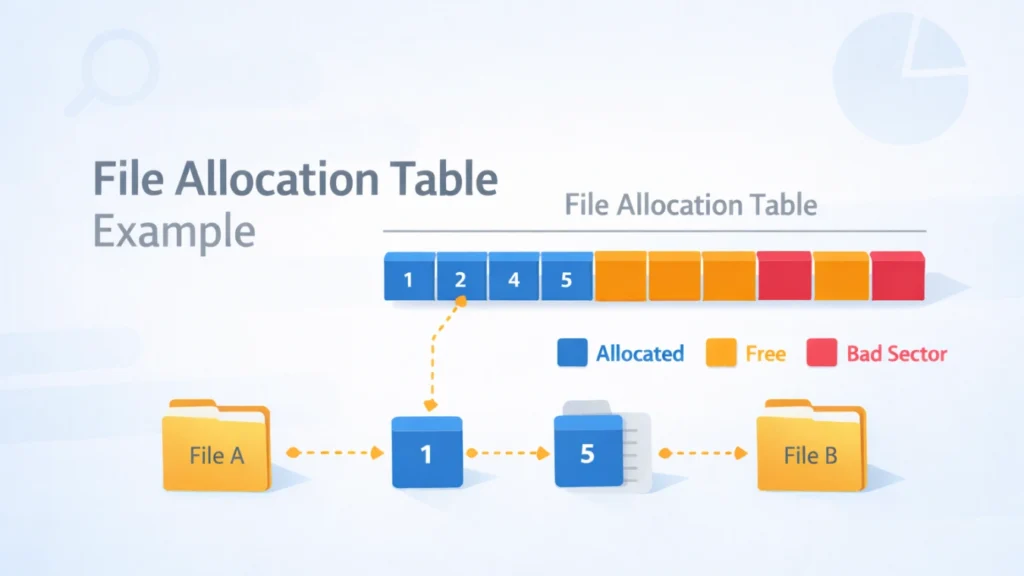
The file allocation table example helps illustrate how FAT organizes data on storage devices like USB drives, SD cards, and older hard disks.
How FAT Works (Simple Explanation)
FAT is essentially a map:
- It tracks where each file is stored
- It links file fragments across sectors
- It marks used and free space
Think of it as an index in a book. Without it, the system cannot locate your files.
File Allocation Table Example (Step-by-Step)
Let’s break down a simple file allocation table example:
Example Scenario
A file named “photo.jpg” is stored across multiple clusters.
Cluster | Next Cluster |
2 | 5 |
5 | 9 |
9 | End |
What This Means
- The file starts at cluster 2
- Continues at cluster 5
- Ends at cluster 9
The FAT links these clusters together. If any link breaks, the file becomes unreadable.
Common FAT Problems That Cause Data Loss
Understanding a file allocation table example makes it easier to diagnose issues.
1. FAT Table Corruption
Caused by:
- Sudden power loss
- Unsafe USB removal
- Virus attacks
Result:
- Files disappear
- Storage shows “RAW”
2. Broken Cluster Chains
If links in the FAT break:
- Files become partially readable
- Some data is missing
3. Partition Becomes Inaccessible
You may see:
- “Drive not formatted” error
- “Access denied” message
How to Fix FAT Errors (Practical Methods)
Method 1: Use CHKDSK (Basic Fix)
Steps:
- Open Command Prompt
- Type: chkdsk X: /f
- Press Enter
👉 Works for minor FAT issues, but may overwrite damaged data.
Method 2: Rebuild FAT Structure (Advanced)
This involves:
- Partition tools
- Sector-level repair
⚠️ Risky if you lack technical experience.
Method 3: Use Data Recovery Software (Recommended)
When FAT is severely damaged, recovery software is the safest option.
Best Solution: Recover Data with Magic Data Recovery
When dealing with FAT corruption, relying on a professional tool is often the most efficient approach.

Why FAT Issues Are Hard to Fix Manually
- FAT links are complex
- Manual repair can overwrite data
- Some sectors become invisible
How Magic Data Recovery Helps
Magic Data Recovery solves these core problems:
Key Advantages
- Deep scan for lost FAT entries
- Recovers files without original FAT structure
- Supports USB, SD cards, HDDs
- User-friendly interface
Real Use Case
For example:
A USB drive shows as RAW due to FAT corruption. Instead of formatting:
- Run Magic Data Recovery
- Scan the drive
- Preview and restore files
Why It’s More Reliable
Compared to manual repair:
- No risk of overwriting
- Recovers fragmented files
- Works even when partitions are inaccessible
👉 If you’re looking for a safer and more efficient solution, you can try Magic Data Recovery.
Supports Windows 7/8/10/11 and Windows Server
Tips to Prevent FAT Data Loss
To avoid needing another file allocation table example analysis:
- Always eject devices safely
- Avoid sudden power interruptions
- Use antivirus protection
- Back up important files regularly
Conclusion
A clear file allocation table example shows how critical FAT is to file storage. Once it gets damaged, files can disappear or entire partitions become inaccessible.
While basic tools can fix minor issues, they often fall short in serious cases. That’s why Magic Data Recovery stands out—it recovers data directly from damaged FAT structures without risking further loss.
If your storage device is currently unreadable, using a reliable recovery solution is the smartest next step.
Supports Windows 7/8/10/11 and Windows Server
FAQs
What is a file allocation table example used for?
A file allocation table example helps explain how FAT organizes file storage across clusters. It shows how files are linked in segments, making it easier to understand why corruption can break file access. This concept is especially useful when diagnosing storage issues or learning data recovery basics.
What causes FAT corruption?
FAT corruption usually happens due to unsafe device removal, power failure, or malware attacks. These events interrupt the writing process, damaging the file structure. Once corrupted, the system cannot properly locate files, leading to missing data or inaccessible partitions.
Can I recover files from a corrupted FAT drive?
Yes, you can recover files even if the FAT is corrupted. Professional recovery tools scan the disk directly and rebuild file structures. Unlike manual fixes, they don’t rely on the original FAT, which increases the chances of successful recovery without data overwrite.
Is CHKDSK safe for FAT repair?
CHKDSK is useful for minor issues, but it may delete corrupted file entries during repair. This can result in permanent data loss. Therefore, it’s recommended to recover important files first before running CHKDSK on a damaged FAT drive.
Why does my drive show as RAW?
A drive shows as RAW when the FAT or file system becomes unreadable. This often results from corruption or physical issues. In this state, the system cannot recognize the file structure, making data inaccessible until repaired or recovered.
How does Magic Data Recovery work?
Magic Data Recovery scans storage devices sector by sector to locate lost files. It reconstructs file data even when FAT entries are missing. This allows users to recover files from damaged, formatted, or inaccessible drives efficiently.
Can FAT errors affect all types of storage devices?
Yes, FAT errors can occur on USB drives, SD cards, external hard drives, and older internal disks. Any device using FAT or FAT32 is vulnerable. Regular backups and safe usage habits help reduce the risk of such issues.
What is the best way to prevent FAT data loss?
The best prevention methods include safely ejecting devices, avoiding sudden shutdowns, and maintaining backups. Additionally, using reliable antivirus software helps prevent corruption caused by malware, which is a common but often overlooked factor.

Jason is a data recovery and technical support specialist with over 15 years of hands-on experience. He has worked extensively with frontline users, troubleshooting difficult data loss cases and providing practical recovery solutions for accidental deletion, formatted drives, damaged file systems, lost partitions, system failures, and other recovery emergencies. His expertise also includes backup and restoration, file repair, and disaster recovery, with a strong emphasis on safe, reliable, and technically accurate guidance.