
How to Fix RAW USB Drive Without Formatting
A USB flash drive turning RAW can be frustrating, especially when it contains important files. When this happens, many users start searching for how to fix raw USB drive without formatting, because Windows may display messages such as “You need to format the disk before you can use it” or show the drive as inaccessible. Acting too quickly and formatting the device often leads to permanent data loss.
In situations like this, using a professional USB data recovery solution such as Magic Data Recovery helps retrieve files safely before any repair attempt.
Supports Windows 7/8/10/11 and Windows Server
Table of Contents
What is a RAW USB Drive and Why Does It Happen?
A USB drive is labeled as “RAW” when the Windows operating system can no longer recognize its file system (like NTFS, FAT32, or exFAT) in File Explorer or Disk Management. This usually occurs due to:
- Improper removal of the USB drive
- Power failure during file transfer
- File system corruption
- Malware or virus infection
- Bad sectors or physical wear
- Interrupted formatting processes
For example, many users encounter RAW errors after unplugging a USB drive without using the “Safely Remove” option.
⚠️ Important: Data First, Fix Second
Before attempting any technical repairs, the safest approach is to extract your data. Many “fixes” for RAW drives can lead to permanent data loss if the underlying issue is a failing partition table. Use a professional data recovery tool to scan the RAW drive and save your files to a secure location first.
Can You Fix a RAW USB Drive Without Formatting?
In some situations, yes—but not always.
You may be able to avoid formatting if:
- The partition table is still intact
- The USB drive is detected normally
- Data sectors have not been overwritten
However, Windows built-in tools offer limited help. CHKDSK cannot repair a RAW file system directly. For this reason, raw USB drive recovery should always be completed before attempting any repair.
Important Steps Before RAW USB Drive Recovery
Before scanning or repairing a RAW USB drive, take the following precautions:
- Stop using the USB drive immediately
- Do not format the drive when prompted
- Avoid copying new files to the device
- Connect the drive directly to your computer
- Use a stable power source
These steps reduce the risk of overwriting recoverable data.
How to Perform Raw USB Drive Recovery Safely
Recovering files first gives you flexibility. Once your data is safe, you can decide how to fix the drive.
Step-by-Step Recovery Using Magic Data Recovery
Magic Data Recovery is designed to handle data loss caused by deletion, formatting, file system errors, and system reinstallation.
1. Install Magic Data Recovery
Download and install the software on a healthy computer. Do not install it on the affected USB device.
Supports Windows 7/8/10/11 and Windows Server
2. Connect the RAW Flash Drive
Plug in the RAW USB flash drive. The software will detect it even if the file system is unreadable.

3. Search for Lost Data from RAW drive
Choose the flash drive and click “Search for lost data” for RAW and formatted devices. This ensures deeper scanning.

4. Scan and Preview Files
Magic Data Recovery performs a comprehensive scan and organizes recoverable files by type and structure. Previewing files helps confirm recoverability.

5. Recover and Save Files Safely
Select the required files and save them to a different storage location. This prevents data overwriting and improves recovery integrity.

Why Magic Data Recovery Is a Practical Choice
Magic Data Recovery focuses on safe recovery rather than aggressive repair.
Core problems it solves:
- Recovering files from RAW USB drives
- Restoring data after accidental formatting
- Handling file system corruption
- Recovering files after system reinstallations
Key advantages:
- Supports RAW, formatted, and corrupted drives
- Read-only scanning protects original data
- File preview improves recovery accuracy
- Simple workflow suitable for non-technical users
For example, users who encounter a RAW USB drive after improper removal often recover their files successfully before attempting any repair.
If you are looking for a controlled and reliable solution, Magic Data Recovery offers a balanced approach compared to manual repair methods.
How to Fix RAW USB Drive Without Formatting After Data Recovery
Once your files are safely backed up, you can attempt to fix the USB drive itself.
Method 1: Use the CHKDSK Command (The First Line of Defense)
The CHKDSK command can sometimes repair a corrupted file system without a full format.
- Plug your USB drive into the PC.
- Type cmd in the Windows search bar, right-click, and select Run as Administrator.
- Type the following command and press Enter:
chkdsk X: /f(Replace X with your USB drive letter). - Note: If you see the message “CHKDSK is not available for RAW drives,” proceed to the next method.

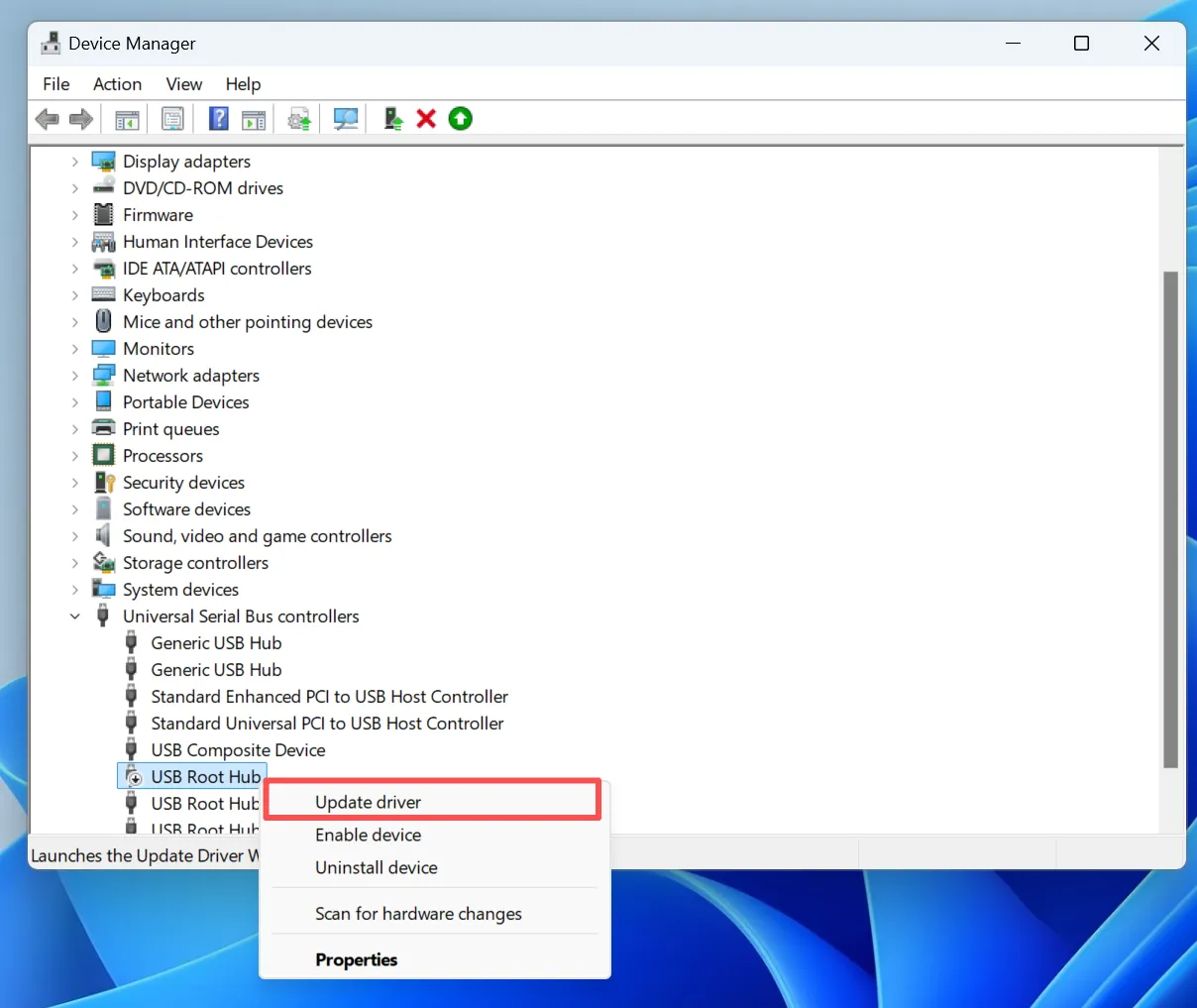
Method 2: Update or Reinstall USB Drivers
Sometimes the “RAW” error is caused by a communication glitch between the OS and the hardware.
- Right-click the Start button and select Device Manager.
- Expand Disk drives.
- Right-click your USB drive and select Update driver or Uninstall device.
- Unplug the USB and plug it back in; Windows will automatically reinstall the latest drivers.
Method 3: Use the Error Checking Tool
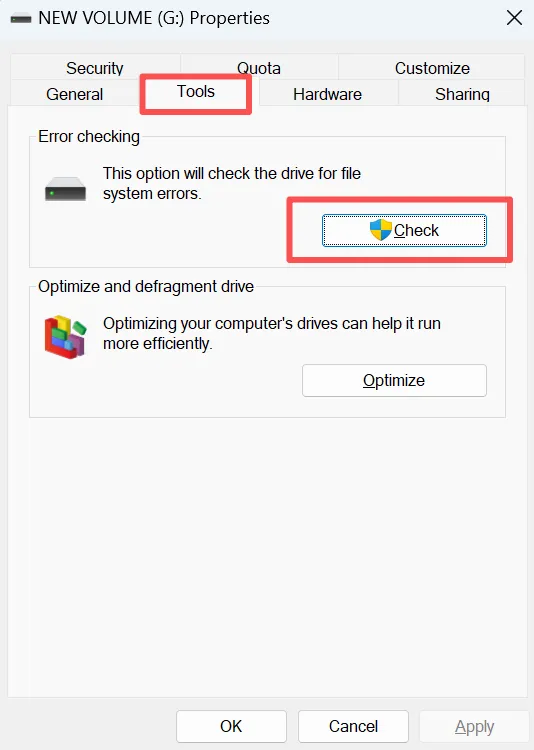
Windows has a built-in GUI tool that is occasionally more effective than the command line for minor file system errors.
- Open File Explorer and go to This PC.
- Right-click your USB drive (if it appears) and select Properties.
- Go to the Tools tab.
- Under Error checking, click Check.
Method 4: Rebuild the Partition Table (Advanced)
If the drive is RAW because the partition table is deleted or corrupted, you can use partition management software to “undelete” or rebuild the partition. This effectively restores the NTFS or FAT32 structure without wiping the data area.
Conclusion
Dealing with a RAW USB drive requires caution. Understanding how to fix raw USB drive without formatting starts with protecting your data first. Attempting repairs too early often causes irreversible loss.
By completing raw USB drive recovery before any repair attempt, you retain control and reduce risk. Tools like Magic Data Recovery provide a reliable way to recover USB drive files safely, making them a practical choice when data matters more than speed.
Supports Windows 7/8/10/11 and Windows Server
FAQs
How to recover a RAW USB drive?
Can RAW files be recovered?
How to recover a RAW drive without formatting?
Why is my USB stick showing up RAW?
Can a RAW drive be fixed?
Can you recover a corrupted USB drive?
How to repair corrupted RAW files?
How do professionals recover data from a hard drive?

Jason is a data recovery and technical support specialist with over 15 years of hands-on experience. He has worked extensively with frontline users, troubleshooting difficult data loss cases and providing practical recovery solutions for accidental deletion, formatted drives, damaged file systems, lost partitions, system failures, and other recovery emergencies. His expertise also includes backup and restoration, file repair, and disaster recovery, with a strong emphasis on safe, reliable, and technically accurate guidance.