
File Allocation Table Diagram
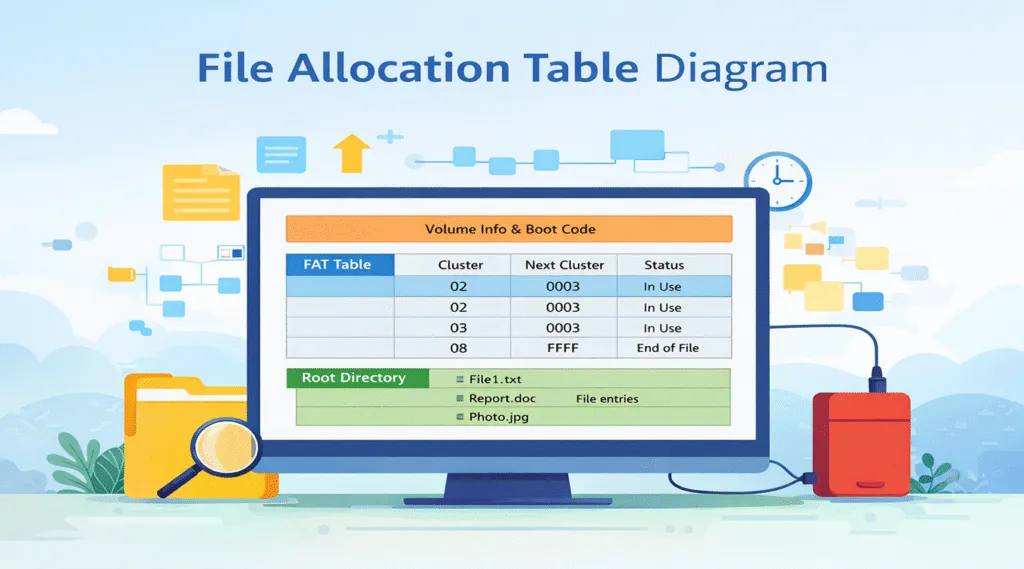
Many users search for a file allocation table diagram because they want a clear explanation of how files are stored on USB drives or SD cards. However, most articles either focus too much on theory or fail to connect the concept with real-world issues. As a result, users often feel confused when files suddenly disappear.
In reality, once you understand a file allocation table diagram, you can quickly identify how data is organized and why errors occur. More importantly, file loss in FAT systems usually happens due to broken structure rather than actual deletion. Therefore, learning how FAT works helps you make better recovery decisions. In this guide, you will not only understand FAT visually, but also learn practical solutions when problems occur.
Table of Contents
What Is a File Allocation Table Diagram and Why It Matters
A file allocation table shows how the FAT file system organizes data using clusters and links. Instead of storing files in one block, FAT splits them into smaller pieces and connects them through a table.
Key Concepts
- Cluster: the smallest storage unit
- FAT table: stores links between clusters
- Directory entry: keeps file metadata
In other words, FAT behaves like a chain system. Each cluster points to the next one. Therefore, even fragmented files remain accessible. However, once a link breaks, the file becomes unreadable.
File Allocation Table Structure Diagram
To better understand a file allocation table, you should first look at its overall layout. Fortunately, FAT uses a consistent structure, which makes it easier to analyze.
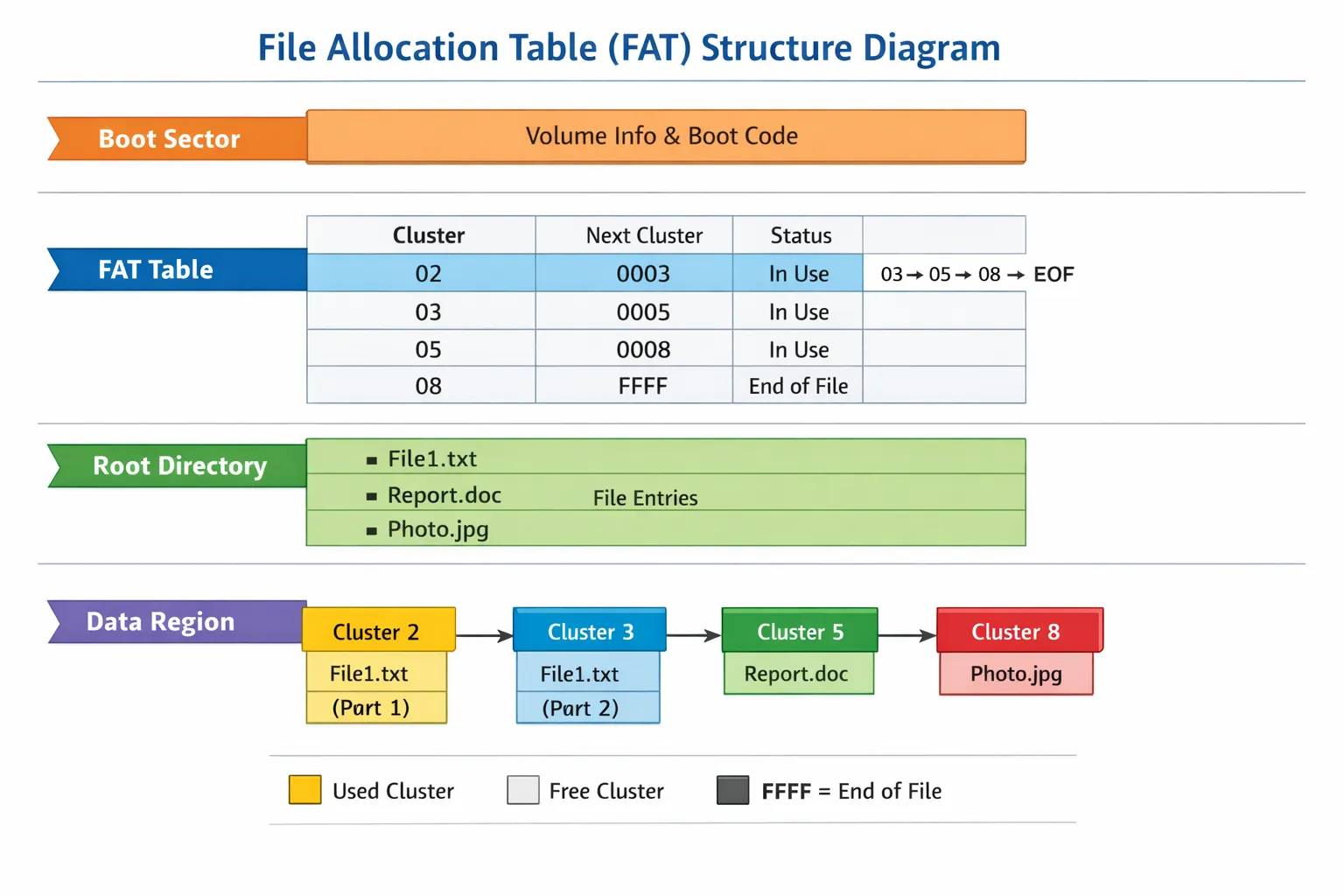
Core Sections of the FAT Structure
- Boot Sector – contains system information
- FAT Region – tracks cluster connections
- Root Directory – lists file entries
- Data Region – stores actual content
At first glance, this structure looks simple. However, each section plays a crucial role. For example, if the FAT region gets corrupted, the system cannot follow cluster chains anymore. As a result, files may appear missing.
How the File Allocation Table Diagram Shows Cluster Chains
A file allocation table becomes more intuitive when you focus on cluster chains. This is where the real logic happens.
Example of Cluster Linking
- File → Cluster 4 → Cluster 8 → Cluster 15 → End
Here’s how it works:
- Each cluster stores part of the file
- The FAT entry points to the next cluster
- The last cluster marks the end
Therefore, the system reads files sequentially. However, if one cluster link breaks, the chain fails. Consequently, the file becomes inaccessible even though the data still exists.
How the File Allocation Table Works: Step-by-Step Diagram
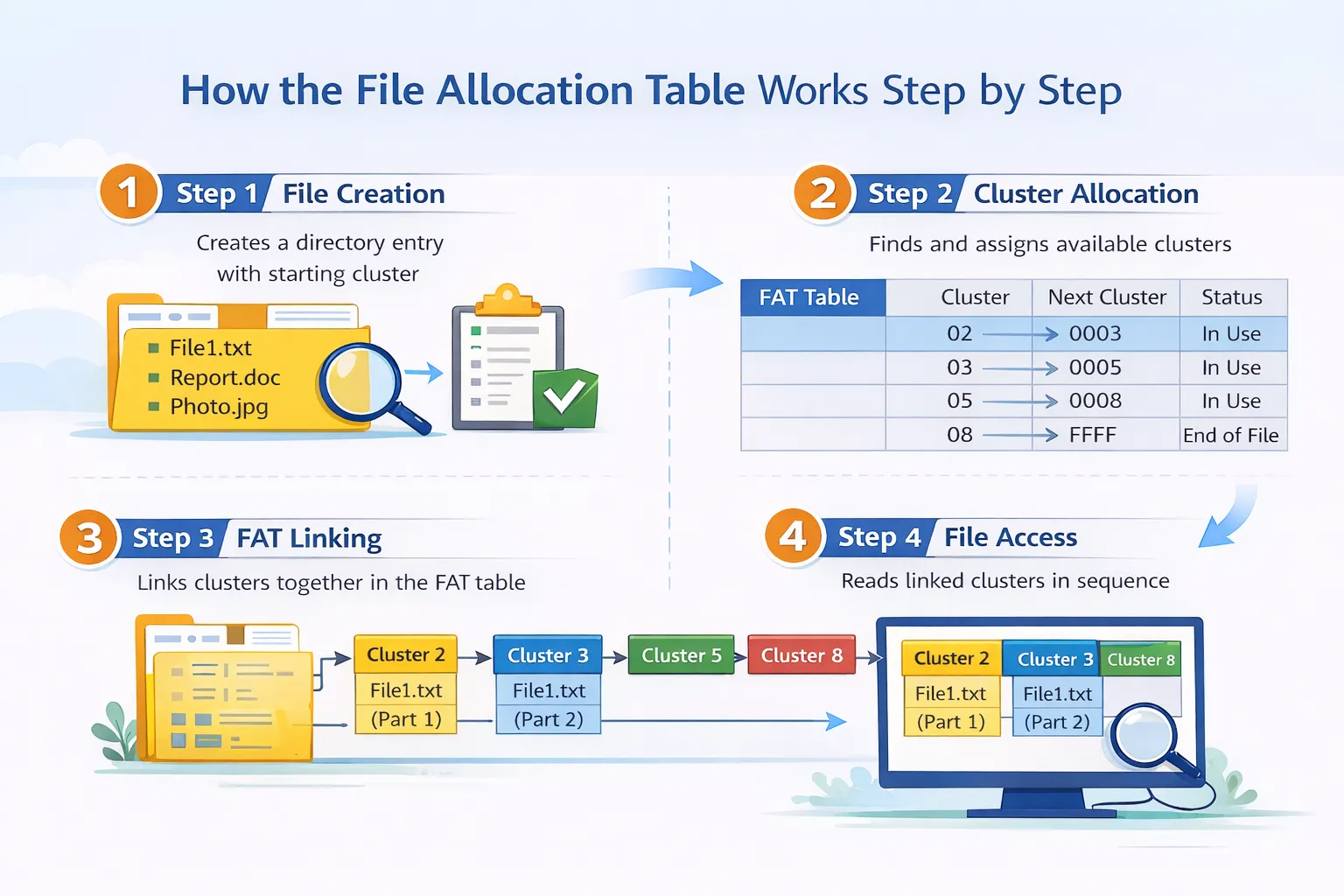
Now that you understand the structure, let’s connect it to real operations. A file allocation table directly reflects how files are written and read.
Step 1 – File Creation
First, the system creates a directory entry and assigns a starting cluster.
Step 2 – Cluster Allocation
Next, it finds available clusters and assigns them to the file.
Step 3 – FAT Linking
Then, it links each cluster in the FAT table.
Step 4 – File Access
Finally, the system reads clusters in sequence.
As you can see, every step depends on the FAT. Therefore, even a small error can disrupt the entire process.
File Allocation Table Comparison: FAT12 vs FAT16 vs FAT32
Different FAT types influence how a file allocation table diagram behaves. Therefore, understanding these differences helps you diagnose issues more accurately.
Type | Max Size | Usage |
FAT12 | ~32MB | Legacy devices |
FAT16 | ~2GB | Older systems |
FAT32 | ~2TB | Modern USB/SD |
Key Differences
- FAT32 supports more clusters
- FAT16 uses simpler addressing
- FAT12 is mostly outdated
As a result, most modern devices rely on FAT32 for compatibility and efficiency.
Common Problems Revealed by a File Allocation Table
Although FAT is simple, it is also vulnerable. A file allocation table helps explain why failures occur.
Typical FAT Issues
- Broken cluster chains
- Corrupted FAT entries
- Missing directory records
- Unsafe device removal
Real Scenario
For example, if you unplug a USB drive during a write process, the FAT may not update correctly. Consequently, cluster links break. As a result, files appear missing even though the data remains on the device.
How to Recover Data from a Broken File Allocation Table
When a file allocation table becomes damaged, files often disappear from view. However, recovery remains possible in many cases.
Why Recovery Works
- Data clusters still exist
- Only pointers are damaged
- Cluster chains can be rebuilt
Therefore, recovery tools focus on scanning raw data instead of relying on the damaged FAT.
Best Solution for File Allocation Table Issues: Magic Data Recovery
When basic fixes fail, you need a reliable tool. This is where Magic Data Recovery becomes a practical solution.
Problems It Solves
- Recovers files from corrupted FAT systems
- Rebuilds broken cluster chains
- Finds files without directory entries
Key Advantages
- Advanced Scan detects deep-level structures
- Supports FAT12, FAT16, FAT32
- Allows preview before recovery
- Works even after severe corruption
Real-World Example
For instance, if your SD card suddenly shows empty folders, the FAT structure is likely damaged. In this situation, Magic Data Recovery scans the data region directly. Then, it reconstructs file chains. As a result, files become accessible again.
Why It Is More Reliable
Unlike system repair tools, it does not depend on the existing FAT. Moreover, it reduces the risk of overwriting data. Therefore, it provides a safer and more effective recovery approach.

Conclusion
A file allocation table diagram provides a clear understanding of how files are stored and linked. More importantly, it explains why files become inaccessible when the structure breaks.
Therefore, instead of assuming data is lost, you should focus on recovery. Magic Data Recovery stands out because it rebuilds file structures without relying on the damaged FAT. As a result, it offers a safer and more reliable solution for recovering files from corrupted drives.
Supports Windows 7/8/10/11 and Windows Server
FAQs
What is a file allocation table diagram?
A file allocation table diagram visually explains how FAT organizes files using clusters and links. It shows how data is stored across non-contiguous spaces. Therefore, it helps users understand both file storage behavior and potential data loss scenarios.
Why is a file allocation table diagram important?
A file allocation table diagram helps users understand how files are structured. As a result, it becomes easier to diagnose problems such as missing files or corruption. Moreover, it provides a foundation for choosing the right recovery method.
How does FAT store files?
FAT stores files as linked clusters. Each cluster points to the next one through the FAT table. Therefore, files can be reconstructed even if they are fragmented across the disk.
What causes FAT corruption?
FAT corruption often occurs due to unsafe removal, power failure, or system crashes. Consequently, the FAT table may lose track of cluster links. As a result, files appear missing or inaccessible.
Can files be recovered after FAT corruption?
Yes, in many cases. Since FAT mainly stores pointers, the actual data often remains intact. Therefore, recovery software can scan raw data and rebuild file structures successfully.
Is FAT still relevant today?
Yes, FAT remains widely used in USB drives and SD cards. Although newer systems prefer NTFS or exFAT, FAT offers better compatibility. Therefore, it is still important to understand how it works.
What is the safest way to recover FAT files?
The safest approach involves using professional recovery software. It scans data directly and avoids overwriting existing files. Therefore, it increases the chances of successful recovery while protecting your data.

Vasilii is a data recovery specialist with around 10 years of hands-on experience in the field. Throughout his career, he has successfully solved thousands of complex cases involving deleted files, formatted drives, lost partitions, and RAW file systems. His expertise covers both manual recovery methods using professional tools like hex editors and advanced automated solutions with recovery software. Vasilii's mission is to make reliable data recovery knowledge accessible to both IT professionals and everyday users, helping them safeguard their valuable digital assets.