
File Allocation Table Definition: What Is FAT
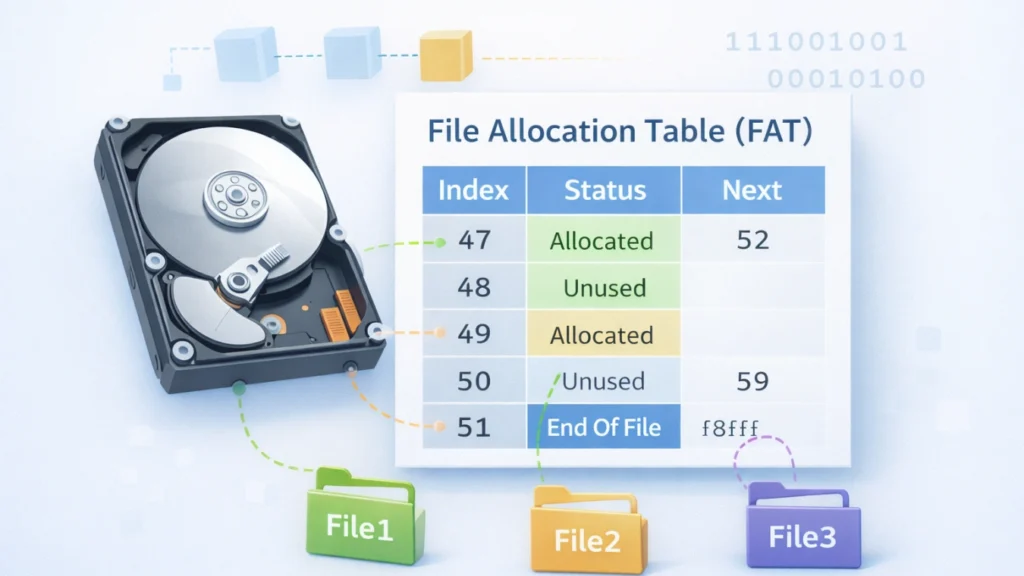
The file allocation table definition explains how a storage system organizes and tracks file data. Although modern systems now use advanced formats, FAT still appears in USB drives and memory cards. Therefore, understanding the file allocation table helps you manage storage more efficiently. In addition, it allows you to diagnose issues and recover lost files more effectively. In this guide, you will learn what FAT is, how it works, and why it still matters.
Table of Contents
What Is File Allocation Table (FAT)?
The file allocation table definition describes a file system that uses a table to record where file data is stored. Instead of saving files in a single block, the system splits data into clusters. Then, it connects these clusters through entries in the table.
In other words, the file allocation table works like a navigation map. As a result, the operating system can quickly locate and access each part of a file. Because of this simple structure, FAT became widely adopted.
Originally introduced by Microsoft, FAT gained popularity due to its strong compatibility. Even today, many portable devices still rely on it.
How the File Allocation Table Works Step by Step
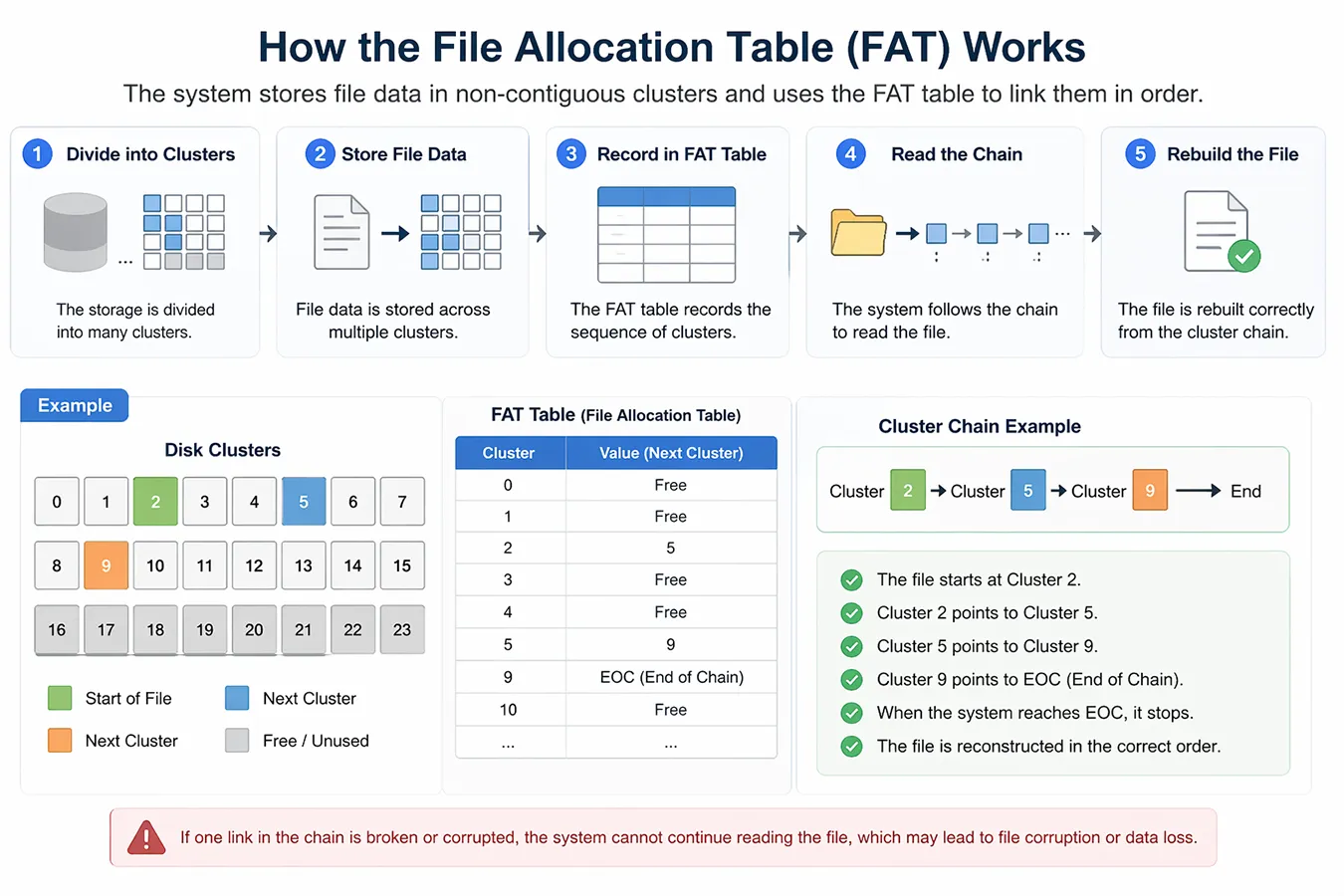
To understand the file allocation table definition, you need to follow the process carefully. First, the system divides storage into clusters. Next, it stores file data across multiple clusters. Then, it records the sequence in the FAT table. Finally, the system reads the chain to rebuild the file.
Cluster and FAT Table Relationship
Each cluster stores a portion of the file. Meanwhile, the FAT table records how clusters connect. Therefore, when you open a file, the system follows the chain step by step. As a result, it reconstructs the file correctly.
Cluster Chain Example
For example:
Cluster 2 → Cluster 5 → Cluster 9 → End
In this case, the file allocation table links clusters in order. However, if one link breaks, the system cannot continue reading the file. Consequently, the file may become corrupted.
File Allocation Table Structure and Components
The file allocation table definition also includes several internal components. Each part works together to manage data efficiently.
- Boot sector: stores system information
- FAT table: tracks cluster usage
- Root directory: stores file metadata
- Data area: contains actual file content
Because each component has a clear role, FAT remains simple to implement. However, this simplicity also limits its flexibility.
File Allocation Table Types: FAT12 FAT16 and FAT32
Over time, the file allocation table evolved into multiple versions. Each version improved storage capacity and usability.
FAT12
FAT12 works with very small storage devices. For example, early floppy disks used this format. Therefore, it is rarely used today.
FAT16
FAT16 supports larger disks than FAT12. However, it still has size limitations. As a result, it cannot handle modern storage needs.
FAT32
FAT32 is the most common version. It supports larger partitions. However, it limits individual files to 4GB. Therefore, large file storage becomes difficult.
Common FAT Problems That Cause Data Loss
Even though FAT is simple and widely used, it is prone to errors. These issues often result in data loss or inaccessible partitions.
1. FAT Table Corruption
- Caused by improper ejection or power failure
- Leads to missing files or unreadable drives
2. Virus or Malware Attacks
- Malicious programs can damage the FAT structure
- Files may disappear or become hidden
3. Bad Sectors
- Physical damage to storage blocks
- FAT cannot correctly map file locations
4. File System Errors
- Occur due to interrupted writes
- Results in “drive not accessible” errors
File Allocation Table vs NTFS vs exFAT
To better understand the file allocation table definition, it helps to compare FAT with newer file systems.
Feature | |||
Max File Size | 4GB | Very Large | Very Large |
Security | No | Yes | No |
Compatibility | High | Medium | High |
Performance | Basic | Advanced | Optimized |
Overall, FAT provides excellent compatibility. However, NTFS offers better security. Meanwhile, exFAT improves performance for flash storage. Therefore, each system serves a different purpose.
How to Fix FAT Errors and Recover Data
Method 1: Use CHKDSK (Basic Fix)
Windows provides a built-in tool:
chkdsk X: /f
Pros:
- Free and simple
Cons:
- May overwrite recoverable data
- Not effective for severe corruption
Method 2: Restore from Backup
If backups exist, restoring data is the safest option. However, many users don’t have updated backups—this is where recovery tools become essential.
Method 3: Use Magic Data Recovery (Recommended Solution)
When FAT corruption causes data loss, using a professional recovery tool is often the most reliable approach.
Why FAT Issues Need Specialized Recovery
FAT damage breaks the link between files and storage clusters. Standard tools cannot reconstruct these links effectively.
Magic Data Recovery: A Practical Solution
Magic Data Recovery is designed to handle file system failures, including FAT corruption.

Core Problems It Solves
- Recovers lost files from corrupted FAT partitions
- Restores inaccessible USB drives and SD cards
- Retrieves data even when partitions show as RAW
Key Advantages
- Deep Scan Technology
Rebuilds file structures even when FAT is damaged
- Wide File Support
Recovers documents, photos, videos, and more
- User-Friendly Interface
Suitable for beginners and professionals
- Preview Before Recovery
Ensures accuracy before restoring files
Real-World Use Case
For example, if a USB drive suddenly asks for formatting:
- Avoid formatting immediately
- Launch Magic Data Recovery
- Scan the device
- Preview and recover files
This approach prevents further damage and maximizes recovery success.
Why It’s More Reliable Than Other Methods
Unlike CHKDSK or basic tools, Magic Data Recovery:
- Does not overwrite existing data
- Works on severely corrupted FAT structures
- Uses advanced algorithms to reconstruct file chains
👉 If you are looking for a safer and more efficient solution, you can try Magic Data Recovery.
Supports Windows 7/8/10/11 and Windows Server
Best Practices to Prevent FAT Data Loss
Prevention reduces the risk of dealing with FAT corruption again:
- Always eject devices safely
- Avoid sudden power loss
- Use antivirus protection
- Back up important data regularly
- Format drives properly
Conclusion
Understanding the file allocation table definition helps you recognize why FAT errors can lead to serious data loss. Since FAT acts as the backbone of file storage, any corruption disrupts access to your files—even if they still exist.
While basic tools may help in minor cases, advanced recovery requires specialized solutions. Magic Data Recovery stands out because it safely reconstructs damaged file systems and retrieves lost data without risking further loss.
If your drive becomes inaccessible or files disappear unexpectedly, using a reliable recovery tool is the most practical step forward.
Supports Windows 7/8/10/11 and Windows Server
FAQs About File Allocation Table Definition
What is the file allocation table definition in simple terms?
The file allocation table definition refers to a system that tracks how data is stored on a disk. It acts like a map, helping the operating system locate files quickly. Without it, files may exist physically but remain inaccessible to users or software.
Why does FAT corruption cause data loss?
FAT corruption breaks the link between file names and their actual storage locations. Even though the data may still exist, the system cannot find it. This results in missing files, inaccessible drives, or RAW partitions that require recovery tools to fix.
Can I recover data from a corrupted FAT drive?
Yes, you can recover data from a corrupted FAT drive using professional tools. Software like Magic Data Recovery scans the disk deeply and reconstructs file structures, allowing you to retrieve lost files even when the file system is severely damaged.
What are the common causes of FAT errors?
Common causes include improper device removal, sudden power outages, malware attacks, and bad sectors. These issues can damage the file allocation table structure, leading to unreadable drives or missing data.
Is CHKDSK safe for fixing FAT issues?
CHKDSK can fix minor FAT errors, but it may overwrite data during repair. This makes it risky when dealing with important files. For severe corruption, using a dedicated recovery tool is a safer option.
What is the difference between FAT32 and exFAT?
FAT32 supports smaller files and has a 4GB file size limit, while exFAT supports larger files and modern storage devices. Both follow the definition of file allocation table, but exFAT offers better performance and compatibility.
How do I know if my FAT partition is damaged?
Signs include error messages like “drive needs formatting,” missing files, slow performance, or corrupted folder names. If these symptoms appear, your FAT structure may be compromised and require immediate attention.
Why choose Magic Data Recovery over other tools?
Magic Data Recovery offers deep scanning, supports multiple file types, and avoids overwriting data. It works effectively even when the FAT structure is severely damaged, making it a reliable choice for recovering lost or inaccessible files.

Jason is a data recovery and technical support specialist with over 15 years of hands-on experience. He has worked extensively with frontline users, troubleshooting difficult data loss cases and providing practical recovery solutions for accidental deletion, formatted drives, damaged file systems, lost partitions, system failures, and other recovery emergencies. His expertise also includes backup and restoration, file repair, and disaster recovery, with a strong emphasis on safe, reliable, and technically accurate guidance.