
DiskInternals RAID Recovery & VMFS Recovery
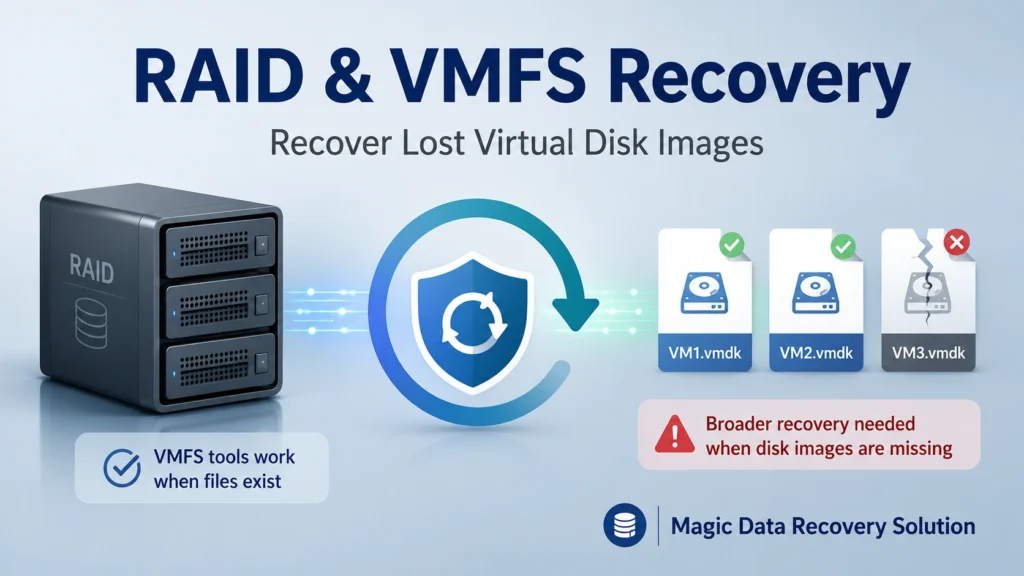
When a VMware datastore, RAID array, or virtual machine fails, many users search for diskinternals raid recovery or diskinternals vmfs recovery because they need a fast way to access business-critical data. DiskInternals can help in many VMware-related cases, especially when virtual disk images still exist but have become inaccessible, corrupted, or trapped inside a VMFS datastore. However, one important problem remains: if the virtual machine disk image itself has been deleted, formatted, or lost from the storage device, VMFS-level tools may not be enough.
This guide explains what diskinternals raid recovery and diskinternals vmfs recovery are designed to do, where they work well, and where they may fall short. More importantly, it shows when you should use a broader recovery solution like Magic Data Recovery to recover deleted or lost virtual machine files such as VMDK, VHD, VHDX, VMX, snapshot files, and other VM-related data.
Supports Windows 7/8/10/11 and Windows Server
Table of Contents
What Is DiskInternals RAID Recovery?
Diskinternals raid recovery refers to DiskInternals’ RAID-focused recovery solution. It is designed to reconstruct RAID arrays and recover files from damaged or inaccessible RAID-based storage. This type of tool can help when a RAID 0, RAID 1, RAID 5, RAID 6, or nested RAID setup becomes unreadable because of controller failure, missing disks, corrupted metadata, or partition damage.
For many users, the value of diskinternals raid recovery is that it can analyze disk members and rebuild the array structure virtually. In other words, users do not always need to repair the original RAID controller before they can inspect recoverable files. This approach helps in cases such as:
- A RAID controller stops working.
- A NAS or server no longer mounts the array.
- RAID metadata becomes corrupted.
- A disk order changes after migration.
- A RAID volume appears as RAW or unallocated.
- VM files stored on a RAID volume become inaccessible.
However, RAID recovery and virtual machine recovery are not always the same task. If your VMware datastore sits on a RAID array, you may need RAID reconstruction first. After that, you still need to recover or extract the virtual machine files stored on the recovered volume.
What Is DiskInternals VMFS Recovery?
Diskinternals vmfs recovery is a VMware-focused recovery solution for VMFS datastores and virtual disks. VMFS is the file system used by VMware ESX/ESXi and vSphere environments to store virtual machine files. These files often include .vmdk, -flat.vmdk, .vmx, .nvram, .vmsd, .vmsn, and snapshot-related files.
The main purpose of diskinternals vmfs recovery is to help users access data from healthy or corrupted virtual disk images used by VMware vSphere, ESX/ESXi, and VMware ESX Server. In many cases, the process works in two stages. First, the software scans the ESX/ESXi storage or VMFS datastore. Then, it extracts the required VMDK images and launches the normal data recovery process.
This makes diskinternals vmfs recovery useful when:
- A VMFS datastore does not mount normally.
- A VMDK file is corrupted but still exists.
- A virtual disk image is readable but the guest OS cannot boot.
- You need to extract files from a VMware virtual disk.
- A datastore was damaged by file system errors.
- VMware tools cannot open the virtual disk directly.
For VMware administrators, this can save time because they do not need to rebuild the whole virtual machine before checking whether important files are still available.
DiskInternals RAID Recovery vs DiskInternals VMFS Recovery
Although the names sound similar, diskinternals raid recovery and diskinternals vmfs recovery solve different layers of the same larger problem.
DiskInternals RAID Recovery focuses on storage structure
RAID recovery deals with the physical or logical storage layer. It helps reconstruct arrays, detect disk order, and recover files from RAID volumes. If your VMware datastore was stored on a failed RAID array, this layer matters first.
DiskInternals VMFS Recovery focuses on VMware data
VMFS recovery deals with the VMware datastore layer. It helps locate and extract virtual disk images, especially VMDK files, from VMFS-formatted storage. If the RAID is already accessible but the VMware datastore is damaged, this layer becomes more relevant.
The key difference
Use diskinternals raid recovery when the RAID array itself has failed. Use diskinternals vmfs recovery when the VMware datastore or virtual disk structure is the main problem. In complex cases, both layers may matter. For example, a RAID 5 array may fail first, and the VMFS datastore on that array may also become unreadable.
When DiskInternals Works Well
Diskinternals vmfs recovery can be a practical option when the virtual disk image still exists. For example, if a VMDK file is corrupted, a VM will not start, or a VMFS datastore cannot be mounted by ESXi, the tool may still find the virtual disk and extract files from it.
Likewise, diskinternals raid recovery can help when the array metadata is broken but the member disks still contain recoverable data. In these cases, the software can scan the disks, build a virtual RAID configuration, and let users preview or copy files to another safe location.
Common workable scenarios include:
- Corrupted VMFS partitions.
- Inaccessible ESXi datastore.
- Damaged VMDK image.
- Failed RAID controller.
- RAID array detected as RAW.
- Lost access after server migration.
- VM cannot boot but its disk image still exists.
These are exactly the situations where specialized tools make sense. They understand the file system, the virtual disk format, or the RAID layout better than general file recovery utilities.
The Limitation: What If the Virtual Disk Image Is Lost?
Here is the critical point many articles do not explain clearly: diskinternals vmfs recovery works best when the virtual disk image can still be found, accessed, or reconstructed from the datastore. If the VMDK, VHD, VHDX, or related VM file has been deleted from the underlying storage, you need to recover that missing file first.
This is common in real environments. For example:
- An administrator deletes the wrong virtual machine folder.
- A VMDK file disappears after a failed datastore cleanup.
- A VM directory is lost after formatting a disk.
- A RAID rebuild overwrites part of the datastore.
- A backup script removes old VM files by mistake.
- A file system error hides or deletes VM disk images.
- A virus or ransomware attack damages VM files.
In these cases, a VMFS reader or VMDK extractor may not solve the first problem. The tool needs something to read. If the virtual disk image file no longer appears in the datastore, the recovery strategy must shift from “open the virtual disk” to “recover the missing virtual disk file from the physical storage.”
That is where Magic Data Recovery becomes relevant.
Why Magic Data Recovery Is Useful for Lost VM Disk Images
Magic Data Recovery is designed to recover lost data caused by deletion, formatting, file system errors, partition loss, and other common storage problems. For virtual machine users, its key value is that it can help recover the VM files themselves before you try to mount, repair, or extract them.
Instead of only working inside an existing virtual disk image, Magic Data Recovery scans the storage device for lost files. This makes it suitable when VMDK, VHD, VHDX, VMX, snapshot, ISO, or configuration files are missing from a hard drive, SSD, USB drive, external disk, RAID volume, or other storage media.

Core pain point it solves
The biggest pain point is simple: your VM recovery tool cannot repair a virtual disk image that no longer exists in the visible file system. Magic Data Recovery helps bridge that gap by locating and restoring deleted or lost virtual machine files from the storage device.
Key advantages
Magic Data Recovery offers several practical advantages for VM-related data loss:
- It supports recovery from deletion, formatting, and file system errors.
- It can scan storage devices for lost virtual machine disk images.
- It helps recover VM-related files before deeper VM repair begins.
- It supports common recovery scenarios for hard drives and external devices.
- It provides a clear recovery workflow for non-technical users.
- It lets users recover data to another safe location, reducing overwrite risk.
This makes the tool especially useful before you use diskinternals vmfs recovery, VMware Workstation, ESXi, or another VM repair method.
Supports Windows 7/8/10/11 and Windows Server
Practical Recovery Workflow: Which Tool Should You Use First?
Choosing the right sequence matters. If you scan or write to the wrong disk too early, you may reduce the chance of recovery. Use this workflow as a practical guide.
Step 1: Stop using the affected storage
Do not create new VMs, copy files, rebuild the datastore, or reinstall the system on the affected disk. New writes may overwrite deleted virtual disk data.
Step 2: Identify the loss type
Ask one simple question: do the virtual machine disk files still exist?
If the VMDK, VHD, VHDX, or VM folder is visible but unreadable, diskinternals vmfs recovery may help. If the files are missing, deleted, or lost after formatting, use Magic Data Recovery first.
Step 3: Recover missing VM files with Magic Data Recovery
Launch Magic Data Recovery on a separate working computer whenever possible. Connect the affected storage device as a secondary disk. Then scan the device and look for lost VM files, including VMDK, VHD, VHDX, VMX, snapshots, and related folders.

Step 4: Save recovered files to another disk
Never save recovered VM files back to the same affected drive. Use a separate healthy disk with enough free space.

Step 5: Repair, mount, or extract the virtual disk
After you recover the VM disk image, you can use VMware, a VMFS recovery tool, or another virtual disk utility to mount, inspect, or extract data from the recovered file.
This workflow separates file recovery from virtual disk repair. As a result, it gives you a cleaner and safer recovery path.
DiskInternals vs Magic Data Recovery: Which Is Better?
The better choice depends on what you lost.
Scenario | Better First Choice | Why |
RAID array is broken | diskinternals raid recovery | It focuses on RAID reconstruction and array-level access. |
VMFS datastore is corrupted | diskinternals vmfs recovery | It understands VMware VMFS and VMDK structures. |
VMDK file exists but will not open | diskinternals vmfs recovery | It can help access or extract data from virtual disks. |
VMDK/VHD/VHDX file was deleted | Magic Data Recovery | It focuses on recovering lost files from storage devices. |
Disk was formatted and VM folder disappeared | Magic Data Recovery | It scans for lost data after formatting. |
File system error hides VM files | Magic Data Recovery | It can recover files from damaged or unreadable partitions. |
You need a simple recovery workflow | Magic Data Recovery | It offers a clearer path for general users. |
This comparison does not mean one tool replaces the other in every situation. Instead, they solve different parts of the recovery chain. Diskinternals raid recovery and diskinternals vmfs recovery are specialized options for RAID and VMware structures. Magic Data Recovery is more useful when the VM files themselves have disappeared from the storage device.
Best Practices Before Any RAID or VMFS Recovery
Before using diskinternals raid recovery, diskinternals vmfs recovery, or Magic Data Recovery, follow these best practices.
Do not rebuild the RAID immediately
A forced rebuild can write new parity or metadata to the disks. If the wrong disk order or wrong member disk is used, the damage may become worse.
Do not format the datastore again
Formatting creates new file system structures. Even if the process looks quick, it may overwrite important metadata.
Avoid saving recovered files to the same disk
This mistake can overwrite the very data you want to recover. Always prepare another disk for recovered files.
Check whether the descriptor or data file is missing
In VMware environments, a small .vmdk descriptor file and a large -flat.vmdk data file can serve different roles. If only the descriptor is missing, you may recreate it in some cases. If the actual data file is missing, you need file recovery or backup.
Preview before recovery when possible
A preview helps verify whether the found file is useful. This also reduces wasted time when multiple old VM files exist on the same disk.
How to Recover Lost Virtual Machine Files with Magic Data Recovery
You can use Magic Data Recovery when virtual machine files are lost due to accidental deletion, formatting, file system corruption, or similar storage issues.
Step 1: Install Magic Data Recovery on a safe computer
Do not install it on the affected disk. Use another Windows computer or another healthy drive.
Supports Windows 7/8/10/11 and Windows Server
Step 2: Connect the affected storage device
Connect the disk that stored the missing VM files. If the lost VM was stored on an external drive, connect that drive directly. If it was stored on an internal disk, attach it as a secondary drive where possible.
Step 3: Scan the target disk or partition
Select the disk or partition where the VM files were stored. Start the scan and allow the software to search for deleted and lost files.
Step 4: Locate VM-related files
Look for files such as:
- .vmdk
- -flat.vmdk
- .vhd
- .vhdx
- .vmx
- .vmsn
- .vmsd
- .nvram
- Snapshot files
- VM folders
Step 5: Recover to another location
Choose the files you need and restore them to a separate healthy disk. After that, you can try to open the recovered virtual disk with VMware or use a VMFS/VMDK recovery tool for deeper extraction.
When Should You Still Use DiskInternals?
You should still consider diskinternals raid recovery or diskinternals vmfs recovery when the problem is clearly related to RAID reconstruction, VMFS datastore access, or VMDK extraction. These tools are built for specialized environments and can save time when the virtual disk file still exists.
For example, if your ESXi datastore is visible at the disk level but cannot be mounted normally, diskinternals vmfs recovery may be the right tool. If your RAID array has lost its configuration, diskinternals raid recovery may help rebuild the logical structure. However, if the VM folder or virtual disk image has been deleted, Magic Data Recovery should come first.
Common Mistakes to Avoid
Many failed recovery attempts happen because users act too quickly. Avoid these mistakes:
- Creating a new VM on the affected datastore.
- Rebuilding RAID without confirming disk order.
- Saving recovered files back to the damaged disk.
- Assuming a missing descriptor file means all VM data is gone.
- Assuming a visible VMDK always contains usable data.
- Running multiple repair tools on the original disk.
- Ignoring backups before trying manual repair.
A careful workflow gives you a better chance than trial-and-error recovery.
Conclusion
Diskinternals raid recovery and diskinternals vmfs recovery are useful tools for specific recovery scenarios. RAID Recovery helps when the storage array fails. VMFS Recovery helps when VMware datastores or virtual disk images are damaged but still available. However, these tools may not solve the problem when the virtual machine disk image itself has been deleted, formatted, or lost from the underlying storage.
That is why Magic Data Recovery is worth considering. It helps recover missing virtual machine files such as VMDK, VHD, VHDX, VMX, snapshot files, and other VM-related data from deletion, formatting, and file system error scenarios. If you are dealing with lost VM disk images rather than just corrupted VMFS access, Magic Data Recovery offers a more direct and practical first step.
If you are looking for a more efficient solution to recover lost virtual machine disk images before repairing or mounting them, try Magic Data Recovery.
Supports Windows 7/8/10/11 and Windows Server
FAQs
What is DiskInternals RAID Recovery used for?
Diskinternals raid recovery is used to recover data from damaged, failed, or inaccessible RAID arrays. It can help when RAID metadata is corrupted, a controller fails, or a RAID volume appears as RAW. It focuses on reconstructing the storage structure so users can access files from the recovered array.
What is DiskInternals VMFS Recovery used for?
Diskinternals vmfs recovery is designed for VMware VMFS datastores and virtual disk images. It helps users access VMDK files, extract data from damaged virtual disks, and recover files from ESX/ESXi storage. It works best when the virtual disk image still exists but cannot be opened normally.
Can DiskInternals recover deleted VMDK files?
It may help in some deleted VMDK scenarios if the VMFS datastore still contains recoverable records and the virtual disk data has not been overwritten. However, if the VMDK or -flat.vmdk file is completely lost from the storage device, you should first use a file recovery tool like Magic Data Recovery.
Why use Magic Data Recovery before VMFS recovery?
Magic Data Recovery is useful when the virtual machine files themselves are missing. A VMFS recovery tool needs a datastore or virtual disk structure to analyze. If the VMDK, VHD, VHDX, or VM folder was deleted or lost after formatting, Magic Data Recovery can scan the storage device and restore those files first.
Can Magic Data Recovery recover VMware files?
Yes. Magic Data Recovery can help recover lost VMware-related files, including VMDK, VMX, snapshot files, and other VM folders, when they were deleted, formatted, or lost because of file system errors. After recovering them, users can try to mount, repair, or extract data from the virtual disk.
Is VMFS recovery the same as VMDK recovery?
No. VMFS recovery focuses on the VMware datastore file system, while VMDK recovery focuses on the virtual disk file. In practice, the two tasks often overlap. If the datastore is damaged, use a VMFS-focused tool. If the VMDK file is missing from the disk, use Magic Data Recovery first.
What should I avoid after losing virtual machine files?
Stop using the affected disk immediately. Do not create new VMs, rebuild the datastore, format the drive, or save recovered files to the same location. These actions may overwrite deleted VM data. Instead, scan the affected storage carefully and recover files to another healthy disk.
Which is better: DiskInternals or Magic Data Recovery?
Neither tool is always better. Diskinternals raid recovery and diskinternals vmfs recovery are better for RAID reconstruction and VMware datastore access. Magic Data Recovery is better when virtual machine disk images or VM files are deleted, formatted, or lost from the storage device. Use the tool that matches the actual loss scenario.

Jason is a data recovery and technical support specialist with over 15 years of hands-on experience. He has worked extensively with frontline users, troubleshooting difficult data loss cases and providing practical recovery solutions for accidental deletion, formatted drives, damaged file systems, lost partitions, system failures, and other recovery emergencies. His expertise also includes backup and restoration, file repair, and disaster recovery, with a strong emphasis on safe, reliable, and technically accurate guidance.