
Easy Recovery Professional Review

Losing files can create instant stress. You may delete a work document, format a USB drive, lose SD card photos, or fail to find a folder after a crash. Therefore, many users search for Easy Recovery Professional because they want a reliable way to recover lost files from hard drives without sending a device to a data recovery lab.
This Ontrack EasyRecovery Professional review explains what the tool does, where it works well, and what limits users should check first. In addition, it compares the software with Magic Data Recovery, a simpler data recovery software for Windows that helps users scan, preview, and recover files through a clearer workflow.
Supports Windows 7/8/10/11 and Windows Server
Table of Contents
What Is Easy Recovery Professional?
Easy Recovery Professional usually refers to Ontrack EasyRecovery Professional, a paid edition in the Ontrack EasyRecovery product line. It helps users recover files after accidental deletion, quick formatting, file system errors, and other logical data loss problems.
Logical data loss means the storage device still works, but the files no longer appear in their normal location. For example, you may empty the Recycle Bin, format the wrong partition, or open a USB drive and find that important folders have disappeared. In these cases, recovery software scans the storage media and looks for file records, directory information, or raw file signatures.
However, not every user needs a professional-level toolkit. If you only need to restore photos, videos, documents, or archives from a common storage device, a simpler EasyRecovery Professional alternative may feel faster and easier.
Easy Recovery Professional Key Features
A useful review should explain features in plain language. Therefore, this section focuses on the functions that matter most during real recovery work.
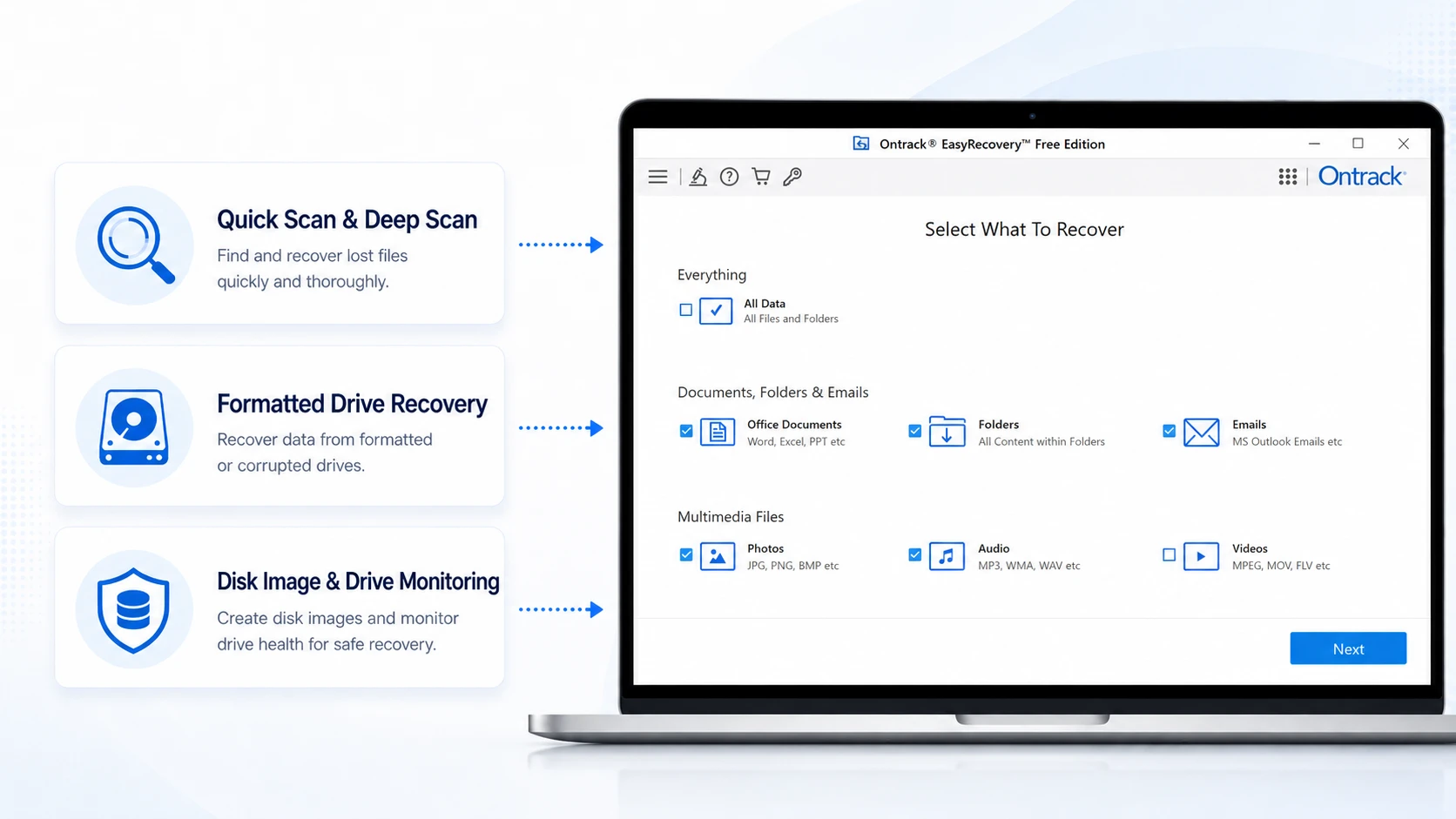
Quick Scan and Deep Scan
Easy Recovery Professional offers scan modes for different file loss levels. A quick scan checks common file records and often works best when you deleted files recently. In contrast, a deep scan takes more time, but it searches the drive more thoroughly after formatting or file system issues.
Formatted Drive Recovery
Formatted drive recovery matters because many users choose the wrong disk or partition by mistake. Fortunately, a quick format does not always erase every file immediately. Instead, it marks the space as available for new data. Because of that, you should stop using the affected device and avoid saving recovered files back to the same location.
Disk Image and Drive Monitoring
The Professional edition also includes advanced tools such as disk image creation and hard drive health monitoring. A disk image can help when a drive seems unstable, because you can scan a copy instead of stressing the original device. Even so, software cannot fix physical damage. If a drive clicks, disconnects repeatedly, or smells burnt, stop using it.
Easy Recovery Professional Free Limit and Download Notes
Before you start an EasyRecovery Professional download, you should understand the free recovery limit. The free version allows limited recovery, so it may help with a few small files. However, it may not fit large videos, ZIP archives, design files, or full folders.
This EasyRecovery Professional free limit matters because users often discover it after scanning. As a result, they may spend time finding files but still need a paid plan before completing recovery. Therefore, compare file preview, device support, file type support, destination options, and interface clarity before choosing any recovery software.
Easy Recovery Professional Pros and Cons
The software can help many users, but it does not fit every situation. Therefore, a balanced view works better than a one-sided recommendation.
Pros
First, it comes from a known data recovery brand. It supports common cases such as deletion, formatting, missing files, and damaged file systems. Moreover, its quick scan and deep scan options give users flexibility. The Professional edition also offers tools that advanced users may value, including disk image creation and drive health monitoring.
Cons
However, the tool may feel more complex than necessary for everyday recovery. Some users only want to recover a few lost files, not compare several editions or learn technical recovery concepts. Also, advanced features may depend on the exact plan. Therefore, the tool suits technical users better than beginners who want a direct process.
Why Magic Data Recovery Is a Practical EasyRecovery Professional Alternative
If Easy Recovery Professional feels too complex for your file loss situation, Magic Data Recovery gives you a more direct recovery path. It solves the core pain point: users need to know whether lost files still exist and how to restore them safely.
For example, you may need to recover deleted photos from an SD card, restore documents after emptying the Recycle Bin, or recover files from a formatted USB drive. In these cases, a clean workflow matters. Magic Data Recovery lets users select a location, run a scan, preview recoverable files, and save the needed data to a safe place.
In addition, Magic Data Recovery supports 5000+ file formats, including documents, photos, videos, audio files, archives, and more. It also works with common storage devices, such as HDDs, SSDs, USB drives, SD cards, memory cards, and cameras. More importantly, the preview function reduces guesswork. Therefore, if you want a simpler data recovery software for Windows, Magic Data Recovery is a strong option.
How to Recover Lost Files with Magic Data Recovery
If you want to recover files without dealing with a complex professional toolkit, Magic Data Recovery gives you a clear five-step process. Before you start, stop using the affected device. This reduces the risk of overwriting lost data.
Step 1: Download and Install Magic Data Recovery
First, download Magic Data Recovery and install it on a separate drive, not on the device where files were lost. This approach helps prevent new data from overwriting deleted files and protects recoverable data.
Supports Windows 7/8/10/11 and Windows Server
Step 2: Select the Drive or Partition to Scan
Next, launch the program and check the main interface. Then, choose the drive, partition, USB drive, SD card, or other storage device where the files disappeared. After selecting the correct location, start the scan.

Step 3: Scan the Drive for Lost Files
Then, Magic Data Recovery starts an Advanced Scan to search for deleted, formatted, or missing files. Meanwhile, the software lists recoverable files as the scan progresses, so you can review results before the scan finishes.

Step 4: Preview Files Before Recovery
Next, use the preview function to confirm file content. This step helps when many results look similar or when original file names no longer appear. As a result, you can recover only the files you actually need.

Step 5: Recover Files to a Safe Location
Finally, select the target files and save them to a different drive or storage device. Never restore data to the same drive where files were lost, because doing so may overwrite recoverable data or cause file corruption.

Easy Recovery Professional vs Magic Data Recovery
Many people search for this tool because they want a trustworthy recovery path. Still, the better choice depends on the actual problem.
Comparison Point | Easy Recovery Professional | Magic Data Recovery |
Main focus | Professional recovery workflow | Simple Windows file recovery |
Best for | Advanced users and small businesses | Beginners, home users, and office users |
Common cases | Deletion, formatting, file system issues | Deleted files, formatted drives, USB drives, SD cards, hard drives |
Ease of use | More technical options | Clear scan, preview, and recovery steps |
File support | Depends on edition and scan type | Supports 5000+ file formats |
Privacy approach | Local software recovery | Local recovery with zero cloud uploads |
This comparison does not mean one tool always beats the other. Instead, it shows the difference in user experience. Easy Recovery Professional gives more professional options, while Magic Data Recovery helps users recover files with fewer decisions and clearer steps.
When Should You Still Choose Easy Recovery Professional?
Although Magic Data Recovery suits many everyday cases, Easy Recovery Professional still makes sense for some users. For example, choose it if you need disk image creation, CD/DVD recovery, drive monitoring, or a more advanced recovery environment.
In addition, small businesses and technical users may prefer a tool with more professional controls. However, if your goal is to recover deleted files from hard drives, USB drives or SD card devices, a simpler workflow may help you finish faster.
Best Practices Before Using Easy Recovery Professional
Before you use any recovery program, follow these safety tips:
- Stop using the affected device immediately.
- Install recovery software on a different drive.
- Avoid formatting the device again.
- Preview files before recovery whenever possible.
- Save recovered files to another safe location.
- Stop scanning if the device shows signs of physical failure.
- Contact a recovery lab if the hardware has serious damage.
These steps matter because recovery success depends on what happens after data loss. Therefore, careful action can protect more recoverable data.
Conclusion: Is Easy Recovery Professional Worth It?
Easy Recovery Professional is worth considering if you need a professional recovery workflow, disk image tools, and more advanced control. However, many users need a simpler solution. They want to restore deleted documents, recover photos from an SD card, retrieve files from a hard drive, or scan a formatted partition without learning a complex toolkit.
In conclusion, choose Easy Recovery Professional when you need professional-level features. Choose Magic Data Recovery when you want an easier EasyRecovery Professional alternative that focuses on scanning, previewing, and recovering lost files safely. If important files disappeared, start with a safe scan and recover them to a separate location.
Supports Windows 7/8/10/11 and Windows Server
FAQs About Easy Recovery Professional
Is Easy Recovery Professional safe to use?
Yes, the software can help in many logical data loss cases, such as deletion or quick formatting. However, safety also depends on how you use it. Install the software on a different drive, scan carefully, and save recovered files to another location. If the device has physical damage, seek expert help.
What is the EasyRecovery Professional free limit?
The EasyRecovery Professional free limit allows only limited recovery, so users should check the latest official terms before relying on it. In practice, this limit may work for a few small files but not for videos, archives, or large folders. Therefore, preview your files first and confirm whether the allowance fits your needs.
What is the best EasyRecovery Professional alternative?
The best EasyRecovery Professional alternative depends on your situation. If you want a simpler workflow for deleted files, formatted drives, USB drives, SD cards, or hard drives, Magic Data Recovery is a practical choice. It supports many file types, offers preview before recovery, and keeps the process easier for non-technical users.
Can I recover deleted files from hard drive, USB, or SD card?
Yes, recovery software can often recover deleted files from hard drive USB SD card devices when new data has not overwritten the lost files. First, stop using the affected device. Then, scan it with a recovery tool, preview the results, and save recovered files to a different location to reduce overwrite risk.
Should I try an EasyRecovery Professional download first?
You can try an EasyRecovery Professional download if you need professional features or already prefer the Ontrack ecosystem. However, compare the edition, free limit, and workflow before you start. If you want a beginner-friendly process, scan with Magic Data Recovery first to see whether your files remain recoverable.
Why should I not save recovered files to the same drive?
Saving recovered files to the same drive can overwrite other lost data that recovery software has not restored yet. As a result, you may reduce your chance of recovering more files. Therefore, always choose another drive, partition, or storage device as the recovery destination after deletion, formatting, or partition loss.
Is Magic Data Recovery good for beginners?
Yes, Magic Data Recovery works well for beginners because it uses a simple scan, preview, and recover process. Instead of asking users to understand complex recovery settings first, it helps them choose the lost data location and review recoverable files. Therefore, it suits home users, students, and office users.

Vasilii is a data recovery specialist with around 10 years of hands-on experience in the field. Throughout his career, he has successfully solved thousands of complex cases involving deleted files, formatted drives, lost partitions, and RAW file systems. His expertise covers both manual recovery methods using professional tools like hex editors and advanced automated solutions with recovery software. Vasilii's mission is to make reliable data recovery knowledge accessible to both IT professionals and everyday users, helping them safeguard their valuable digital assets.