
All Deleted Photos Recovery: Ultimate Guide
Losing precious memories due to an accidental click, a corrupted SD card, or a sudden system crash can be incredibly frustrating. Photos capture irreplaceable moments of our lives, and seeing them vanish in an instant is a stressful experience. Fortunately, file deletion is rarely permanent right away. Whether you are dealing with a formatted camera memory card or an emptied recycle bin, you can still get your pictures back. This comprehensive guide will walk you through the complete process of all deleted photos recovery, providing practical solutions like Magic Data Recovery to restore your lost images safely and efficiently.
Supports Windows 7/8/10/11 and Windows Server
Table of Contents
What Happens When You Delete a Photo?
To successfully rescue your files, it helps to understand how digital storage works. When you delete an image from your computer, hard drive, or memory card, the actual data does not instantly vanish from the storage sectors. Instead, the operating system simply removes the file pointer and marks that specific space as “available” for new data.
As long as you do not save new files to that same drive, the original image remains hidden but intact. However, if you continue using the device, the system will overwrite that space, making your photo recovery software ineffective. Therefore, the absolute golden rule of data rescue is to immediately stop using the affected device or storage media to prevent data overwriting. Consequently, immediate action always determines the success rate of your all deleted photos recovery efforts.
How to Recover Deleted Photos Free (Built-in Methods)
Before exploring third-party software utilities, you should check the built-in restoration tools provided by your Windows operating system or cloud services. These free methods are highly effective for recovering recently deleted items.
Method 1: Check the Recycle Bin
This is the most obvious first step, yet many users overlook it during a panic. When you delete a file normally, it goes directly to a temporary holding area. If you act quickly, you can achieve an instant all deleted photos recovery without extra tools.
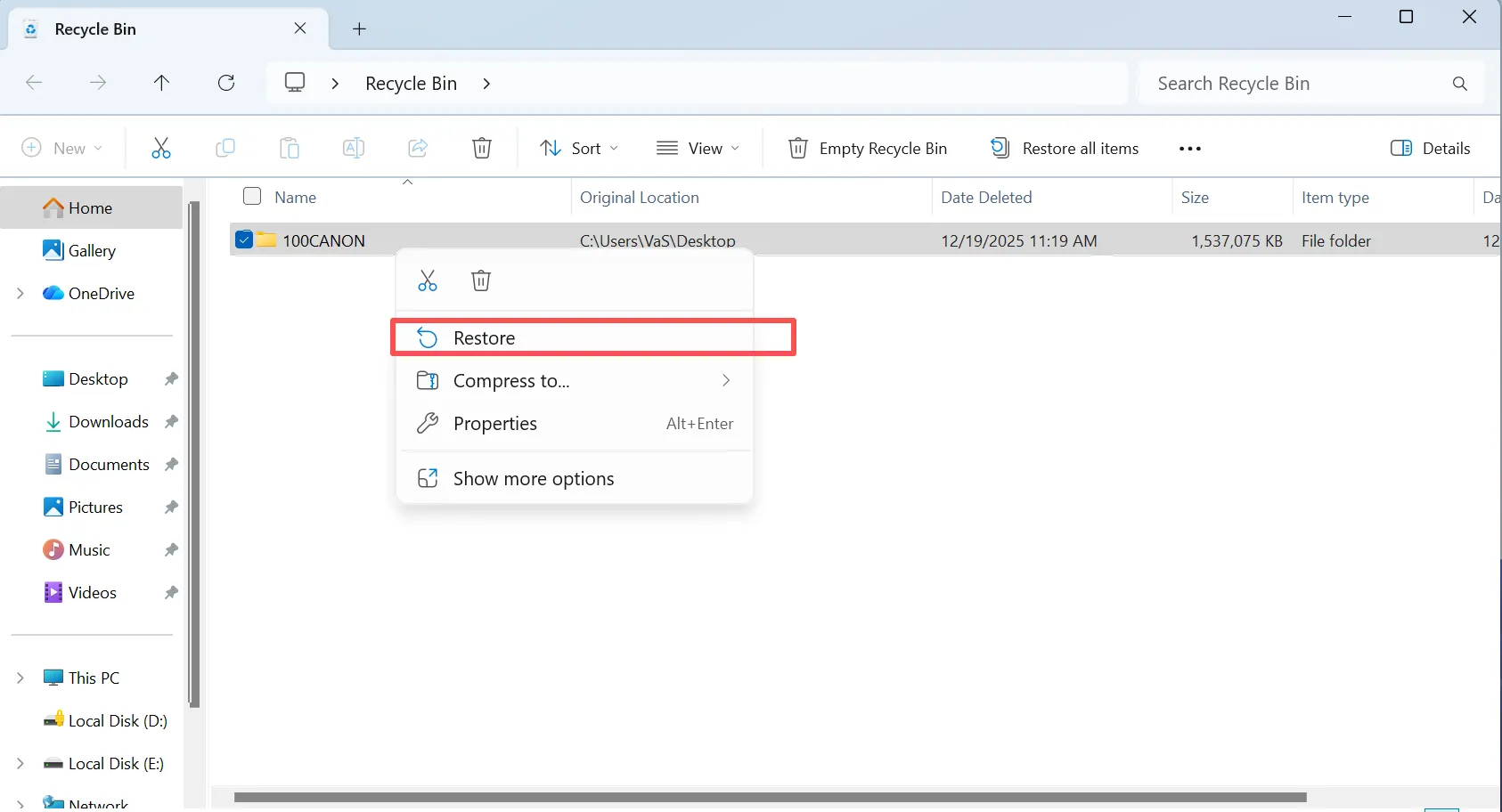
- Action Plan: Open the Recycle Bin from your Windows desktop, look for your lost pictures or folders, right-click them, and choose “Restore” to return them to their original folder.
Method 2: Restore from Cloud Backups
Most modern devices sync with cloud storage automatically. If you use cloud-based services, your files might still exist online even if you removed them from your local device storage. Therefore, cloud storage remains a vital channel for all deleted photos recovery tasks.
- Google Photos: Sign in to your Google Photos account, click on the “Trash” folder in the left sidebar, select your images, and click “Restore”. Items usually remain here for 60 days before permanent deletion.
- OneDrive: Log into the OneDrive web portal, navigate to the “Recycle bin” on the left side of the screen, select the deleted photos, and click the restore option.

Method 3: Restore Previous Versions
Windows automatically saves snapshots of your files and folders as part of its protection points. If you accidentally modify or delete pictures within a specific folder, you can roll back that entire directory to an earlier state using the native settings.
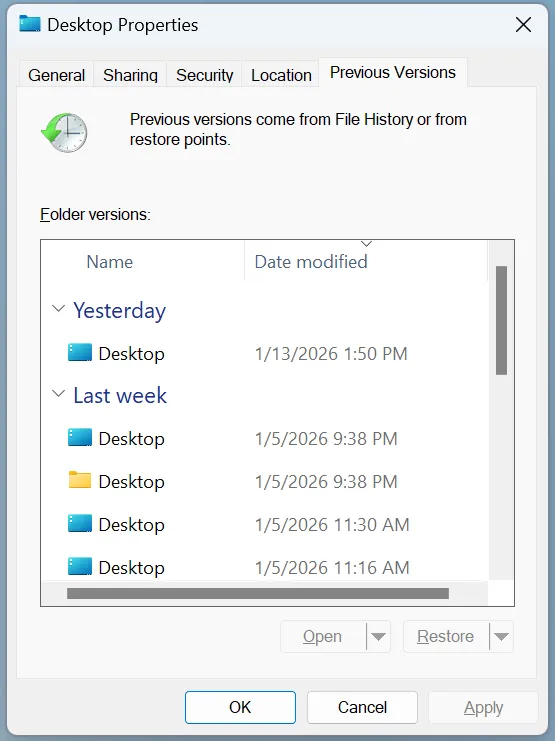
- Action Plan: Navigate to the folder where your deleted images used to live. Right-click on the folder, select “Properties” from the context menu, and click on the “Previous Versions” tab. Choose a version dated before the data loss occurred, and click “Restore” to recover your pictures.
The Best All-in-One Solution for All Deleted Photos Recovery
When built-in system tools or backups fail to find your files, specialized utility software is the most reliable alternative. For comprehensive results, a dedicated tool designed to handle complex data loss scenarios can scan the storage sectors directly.
If you are looking for a highly efficient solution, you should try Magic Data Recovery. This professional software specializes in deep storage scanning while remaining completely accessible to regular Windows users. It resolves the core pain point of accidental data loss by rebuilding fragmented files that standard operating systems can no longer read.
Key Features and Advantages
- Broad Format Support: The tool easily recognizes standard image formats like JPEG, PNG, and BMP, as well as professional RAW files and modern HEIC formats.
- Deep Scanning Technology: It penetrates deep into the storage sectors to piece together images from formatted or corrupted file systems like NTFS, FAT32, and exFAT.
- Risk-Free Preview: Users can preview the found images before performing the actual rescue, ensuring you only restore what you actually need.
- Flexible Free Limit: The software allows you to test its capabilities by providing a generous 500MB free file recovery limit without requiring an upfront subscription.
Use Case Example
Imagine you just returned from a family vacation, and your digital camera suddenly displays a “Card Error” message. Instead of formatting the card, you can connect the storage media to your computer and let the software run a deep scan. It bypasses the file system error to locate and rebuild your holiday photos safely.
Step-by-Step: How to Achieve All Deleted Photos Recovery
Using this utility is straightforward and requires no technical background. Follow these steps to retrieve your lost pictures:
Step 1: Download and Install Magic Data Recovery
First, download the software from the official Magic Data Recovery website to initiate the all deleted photos recovery process. Install the program on a drive different from the partition where your photos were lost. This approach prevents accidental overwriting and protects lost data.
Supports Windows 7/8/10/11 and Windows Server
Step 2: Select the Target Location to Scan
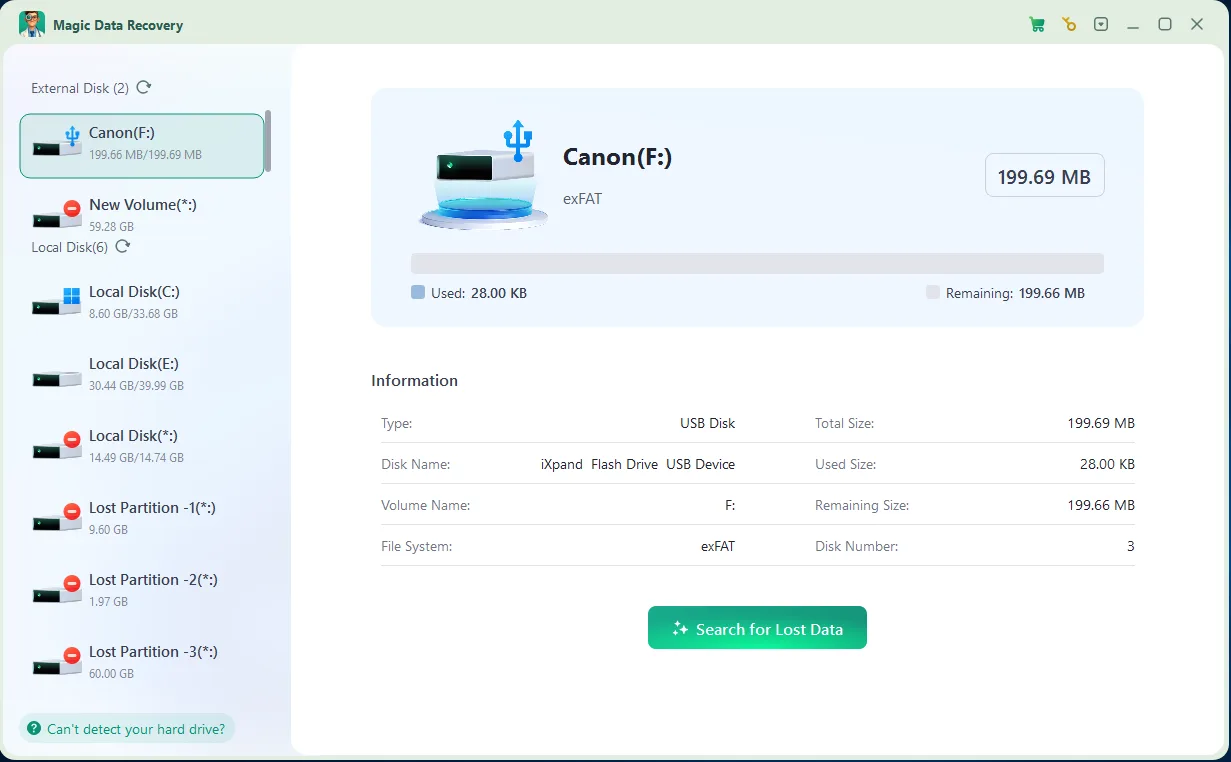
Launch the program. Then, from the main interface, choose the specific drive, partition, or storage media where you deleted files and start the scan.
Step 3: Scan the Location for Deleted Photos
The software automatically performs an Advanced Scan. Meanwhile, it lists all recoverable files as the scan progresses, allowing you to track the found items in real time.

Step 4: Preview Deleted Files Before Recovery
Next, use the built-in preview function to confirm file content and image quality. This step ensures you recover only the files you actually need for your all deleted photos recovery goals.

Step 5: Recover Files to a Safe Location
Finally, select the target files and save them to a different drive or storage device. Never restore data to the same partition, because doing so risks permanent data corruption.

All Deleted Photos Recovery Across Different Devices
Different devices utilize different storage structures. Understanding these nuances helps you select the right approach for how to recover lost pictures successfully.
1. Recovering Photos from SD Cards & Digital Cameras
Digital cameras usually store images on external SD cards using FAT32 or exFAT file systems. These file systems are highly susceptible to corruption if you remove the card while the camera is still writing data. When a camera card becomes unreadable, do not format it. Instead, connect it to a Windows PC and utilize a free photo recovery scan through dedicated software to extract the intact image sectors directly, achieving an effective all deleted photos recovery.
2. Recovering Photos from Android Devices
Smartphones handle data deletion aggressively to optimize internal storage space. Once you empty the internal trash folder on an Android device, the operating system quickly reorganizes the flash memory storage blocks. For mobile devices, your highest chance of success relies on checking cloud backups like OneDrive or Google Photos immediately before the system cleans the temporary cache.
Common Pitfalls to Avoid During All Deleted Photos Recovery
Data rescue is a delicate process, and a single mistake can destroy your files permanently. Avoid these critical mistakes to maximize your chances of success:
- Installing Software on the Same Drive: Never download or install recovery utilities onto the exact partition where the data loss occurred, as the installation process will likely overwrite the deleted photos.
- Continuing to Use the Device: Using a camera or phone after data loss continuously writes new system logs and thumbnail caches over your old pictures, blocking potential all deleted photos recovery opportunities.
- Trusting Unreliable Free Tools: Avoid obscure, unverified freeware that promises unlimited results. These programs often contain bundled malware or intrusive advertisements that can further corrupt your storage media.
Conclusion
Successfully executing all deleted photos recovery requires quick action and the right set of tools. Always begin by checking your local Recycle Bin and cloud backups to see if a free copy is readily available. If those methods fail, turning to a reliable utility is your best course of action. We suggest trying Magic Data Recovery because it combines advanced, sector-level scanning with a straightforward, user-friendly interface. Its 500MB free recovery limit allows you to safely preview and recover your lost pictures without any initial financial commitment.
Supports Windows 7/8/10/11 and Windows Server
FAQs
Can I achieve all deleted photos recovery after emptying the Recycle Bin?
Yes, you can still rescue them successfully. Emptying the Recycle Bin removes the file visibility, but the raw data remains on your hard drive until new files occupy that space. Therefore, using professional photo recovery software is the most effective way to extract this hidden data before overwriting occurs.
How can I recover permanently deleted photos for free?
You can recover permanently deleted photos for free by using built-in system tools like Windows File History or Mac Time Machine. Alternatively, check your cloud backups such as Google Photos or iCloud. If these backups are unavailable, you can use Magic Data Recovery with the free 500MB files recovery.
How long do I have to recover lost pictures before they disappear?
There is no fixed time limit, but rather a device usage limit. If you store the drive in a drawer, the photos can remain recoverable for years. However, if you continue using the drive actively, the operating system will overwrite the data within minutes.
Can I perform a free photo recovery for RAW camera files?
Yes, you can. Professional software natively supports high-end RAW formats alongside standard JPEGs. By utilizing the free version of Magic Data Recovery, you can scan your camera's SD card, preview the RAW images, and restore up to 500MB of data without paying anything.
What should I do if my SD card displays a formatting error?
You must never format the card when this error appears. Formatting can wipe the file pointers and complicate the rescue process. Instead, connect the card to your computer immediately and run an advanced scan to extract your precious files safely.
Why do recovered photos sometimes appear corrupted or unreadable?
This problem typically occurs because new data has already partially overwritten the original file structure. If you continue using a device after data loss, the system breaks the old files. To prevent this, you must stop using the drive immediately and start the rescue process.

Vasilii is a data recovery specialist with around 10 years of hands-on experience in the field. Throughout his career, he has successfully solved thousands of complex cases involving deleted files, formatted drives, lost partitions, and RAW file systems. His expertise covers both manual recovery methods using professional tools like hex editors and advanced automated solutions with recovery software. Vasilii's mission is to make reliable data recovery knowledge accessible to both IT professionals and everyday users, helping them safeguard their valuable digital assets.