
How to Recover Files Deleted from Google Drive
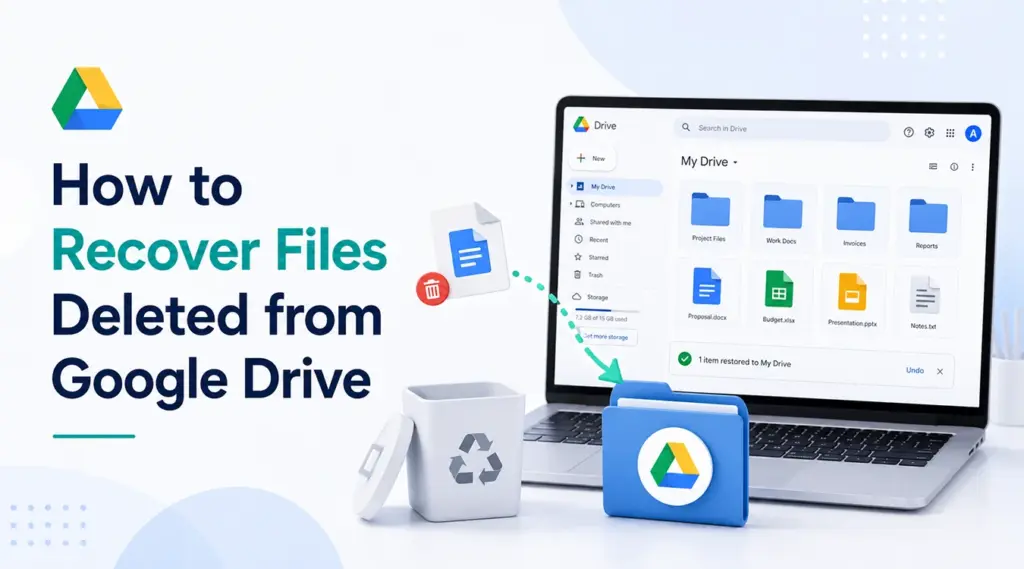
Accidentally deleting a Google Drive file can stop your work in seconds. You may lose a report, spreadsheet, PDF, photo, video, or shared project file. Fortunately, the file may still exist in Trash, a shared location, a synced folder, or a local backup. This guide explains how to recover files deleted from Google Drive with clear steps. First, you will try Google’s recovery options. Next, you will check Workspace admin recovery. Then, if the file once synced or downloaded to your Windows computer, USB drive, SD card, or another local storage location, you can scan for it with Magic Data Recovery.
No third-party tool can pull files directly from Google’s cloud after Google permanently removes them. However, a deleted file recovery tool can help if a local copy once existed. So, how to recover files deleted from Google Drive depends on both cloud status and local storage history.
Supports Windows 7/8/10/11 and Windows Server
Table of Contents
Quick Answer: How to Recover Files Deleted from Google Drive
If you need how to recover files deleted from Google Drive quickly, start here.
Situation | Best Solution |
File is still in Trash | Restore it from Google Drive Trash |
Trash no longer shows the file | Try Google’s recovery support option |
Work or school account | Ask a Google Workspace admin |
File synced to Windows | Scan the synced folder with Magic Data Recovery |
File saved on USB or SD card | Scan that device with Magic Data Recovery |
No cloud or local copy exists | Recovery may not be possible |
Therefore, check the easiest option first. If Trash fails, move to account recovery, admin help, and local recovery.
Method 1: How to Recover Files Deleted from Google Drive Trash
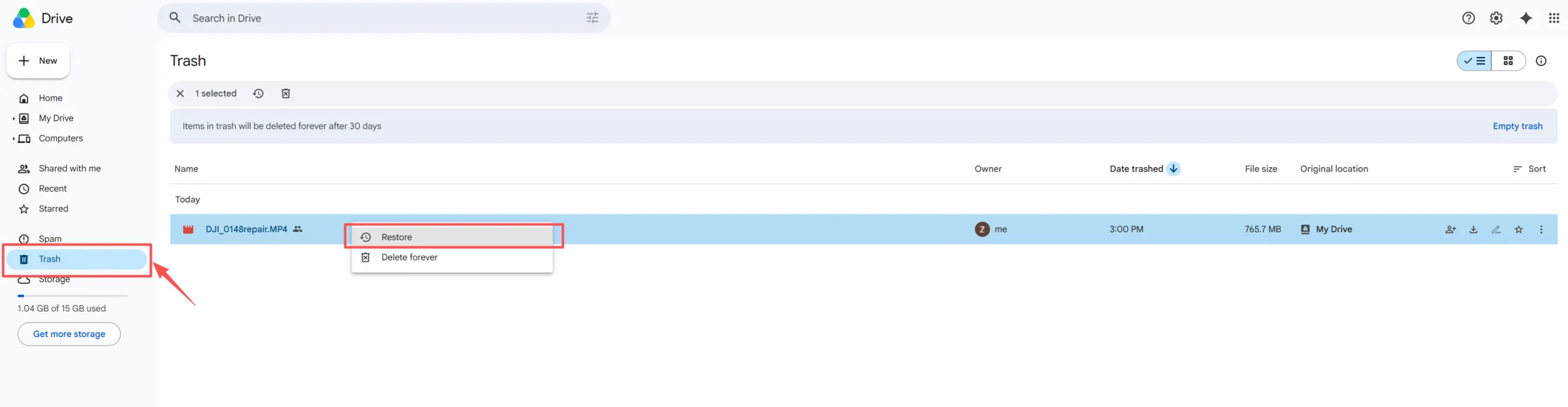
The simplest way to recover deleted Google Drive files is to restore deleted files from Google Drive Trash. This method works when the file still appears in Trash.
- Open Google Drive.
- Click “Trash” in the left menu.
- Search for the file or sort by trashed date.
- Right-click the file.
- Click “Restore.”
After that, Drive usually returns the file to its original folder. If you cannot find it, search My Drive by file name.
This method answers how to recover files deleted from Google Drive in most recent-deletion cases. However, if you emptied Trash, continue with the next solution.
Method 2: How to Recover Files Deleted from Google Drive Permanently
Method 3: How to Recover Files Deleted from Google Drive with Workspace Admin Help
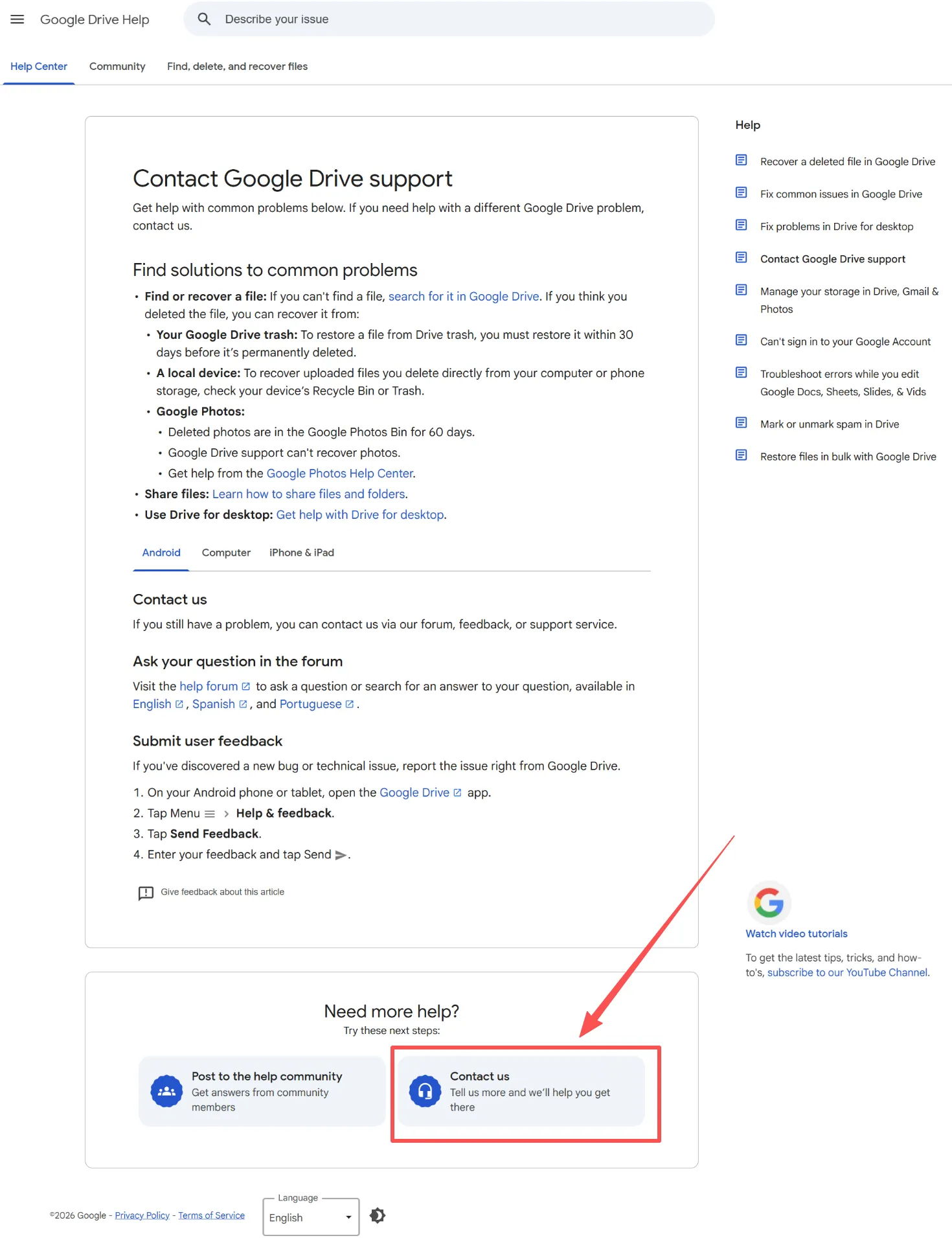
If your Drive belongs to a company, school, or organization, contact your Google Workspace admin. Admin recovery may help after Trash no longer shows the file.
Google Workspace documentation says admins can restore Drive items within 25 days after a user empties Trash. To help your admin move faster, provide the file name, owner, folder path, and deletion date. This is the best route for Google Workspace admin restore Drive files searches. Therefore, ask for help as soon as you notice the loss.
Method 4: How to Recover Files Deleted from Google Drive with Magic Data Recovery
When Google’s cloud recovery options fail, local recovery may still work. Magic Data Recovery helps when the missing file once existed on your Windows computer, a synced Google Drive folder, a USB drive, an SD card, or another local storage location.
This method does not replace Google Drive recovery. Instead, it fills a gap. Google focuses on cloud-side recovery, while Magic Data Recovery scans local storage. According to Amagicsoft, the tool supports 5000+ file types and works with HDDs, SSDs, USB drives, SD cards, and more.
Use Magic Data Recovery when you used Google Drive for desktop, synced the file to Windows, downloaded it before deletion, emptied Windows Recycle Bin, or failed to recover it through Google Drive Trash. For example, if you deleted both the cloud file and a downloaded PDF, the tool can scan the last local storage location.
How to Use Magic Data Recovery
Step 1: Download and Install Magic Data Recovery
Download Magic Data Recovery and install it on a drive different from the location where you last saved the missing Google Drive file. This step helps prevent accidental overwriting and protects lost data.
Supports Windows 7/8/10/11 and Windows Server
Step 2: Select the Drive or Synced Google Drive Folder to Scan
Launch the program. Then, from the main interface, choose the disk, partition, or synced Google Drive folder where the deleted file previously appeared. After that, start the scan.

Step 3: Scan for Deleted Google Drive Files
The software scans the selected location. Meanwhile, it lists recoverable files as the scan progresses. You can wait for the scan to finish, or you can review results during the process.

Step 4: Preview Deleted Files Before Recovery
Next, use the preview function to confirm file content. This step helps you recover only the documents, photos, videos, PDFs, or other files you actually need.

Step 5: Recover Files to a Safe Location
Finally, select the target files and save them to a different safe location. Do not restore files to the same original location, because that choice may overwrite deleted data or reduce the chance of recovering other missing files.

Cloud Recovery vs Local Recovery
To understand how to recover files deleted from Google Drive, compare cloud recovery with local recovery.
Recovery Type | Best For |
Google Drive Trash | Recently deleted files |
Google recovery support | Recently removed personal files |
Workspace admin restore | Work or school files |
Magic Data Recovery | Synced, downloaded, or copied files |
If Google still keeps the cloud file, use Google’s tools first. However, if the cloud copy is gone and a local copy once existed, Magic Data Recovery gives you another practical route.
How to Recover Files Deleted from Google Drive After 30 Days
Many users search recover Google Drive files after 30 days because Trash no longer helps. First, check whether you use Google Workspace. If yes, contact your admin right away. Next, search Drive, shared folders, email attachments, downloads, USB drives, SD cards, and old computers.
If you find no visible copy, scan the local storage location with Magic Data Recovery. The earlier you scan, the better your chance. However, if the file only existed in Google’s cloud and Google permanently removed it, recovery tools cannot pull it back from Google servers.
Conclusion
Now you know how to recover files deleted from Google Drive through Trash, Google support, Workspace admin help, and local recovery. Start with Trash. Then try Google recovery support or admin help if the file no longer appears there.
Finally, check local folders, downloads, USB drives, SD cards, and backups. Magic Data Recovery deserves a place in this guide because it solves a practical deleted file recovery gap: when cloud recovery fails, a local copy may still remain. If you need a more efficient next step, try Magic Data Recovery and scan the place where the missing file last existed.
Supports Windows 7/8/10/11 and Windows Server
FAQs About How to Recover Files Deleted from Google Drive
Can I recover Google Drive files after 30 days?
Yes, but options become limited after 30 days. First, check whether you use a Google Workspace account, because an admin may still help within Google’s recovery window. Next, search downloads, backups, USB drives, and SD cards. If a local copy once existed, Magic Data Recovery may help.
Can Magic Data Recovery recover permanently deleted Google Drive files?
Magic Data Recovery cannot restore files directly from Google’s cloud servers. However, it can help recover permanently deleted files from Google Drive when those files once synced, downloaded, or saved to local storage. Therefore, use it after checking Google Drive Trash, Google recovery support, and Workspace admin options.
Where do restored Google Drive files go?
Google Drive usually returns restored files to their original folder. However, if the original folder no longer exists or you lost access, search My Drive by file name. Also, check Recent, Shared with me, and the file owner’s Drive if the item belonged to someone else.
What should I do immediately after deleting a Drive file?
First, stop deleting, syncing, or saving new files in related locations. Then check Google Drive Trash, Windows Recycle Bin, synced folders, and downloads. If those checks fail, contact Google support or your Workspace admin. Finally, scan local storage with Magic Data Recovery if the file once existed on your device.
Can I recover files from a shared Google Drive folder?
Yes, in some cases. First, confirm who owns the file. If another person owns it, ask that owner to check Trash or restore sharing access. For shared drives in a Workspace account, contact the admin quickly. Recovery depends on permissions, deletion time, and account type.
Is Google Drive Trash the same as Windows Recycle Bin?
No. Google Drive Trash belongs to your cloud account, while Windows Recycle Bin belongs to your computer. Therefore, check both places if you use Google Drive for desktop. A file may disappear from Drive but still remain in Windows Recycle Bin, a synced folder, or another local location.

Vasilii is a data recovery specialist with around 10 years of hands-on experience in the field. Throughout his career, he has successfully solved thousands of complex cases involving deleted files, formatted drives, lost partitions, and RAW file systems. His expertise covers both manual recovery methods using professional tools like hex editors and advanced automated solutions with recovery software. Vasilii's mission is to make reliable data recovery knowledge accessible to both IT professionals and everyday users, helping them safeguard their valuable digital assets.