
Card Recovery: What It Can and Can’t Do
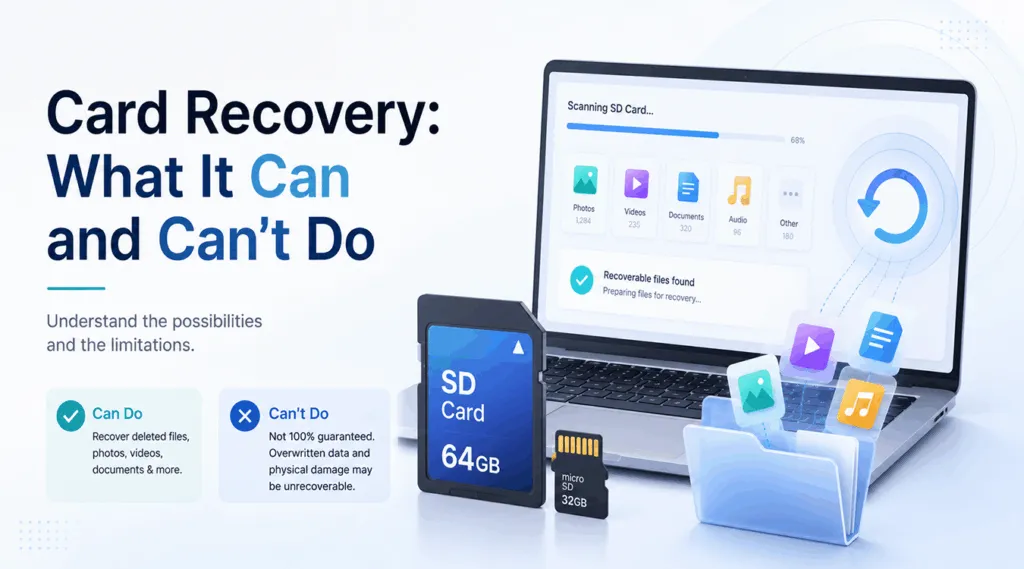
Losing important files from an SD card can quickly become frustrating, especially when the card stores travel photos, camera videos, work documents, or client projects. Many users search for Card Recovery because they want a quick way to recover deleted photos from SD card, restore videos, or fix a formatted memory card. However, not every recovery case fits a photo-focused tool. Therefore, this Card Recovery review explains what the software does, where it may fall short, and why Magic Data Recovery can be a more flexible solution to recover data from SD cards.
Supports Windows 7/8/10/11 and Windows Server
Table of Contents
What Is Card Recovery?
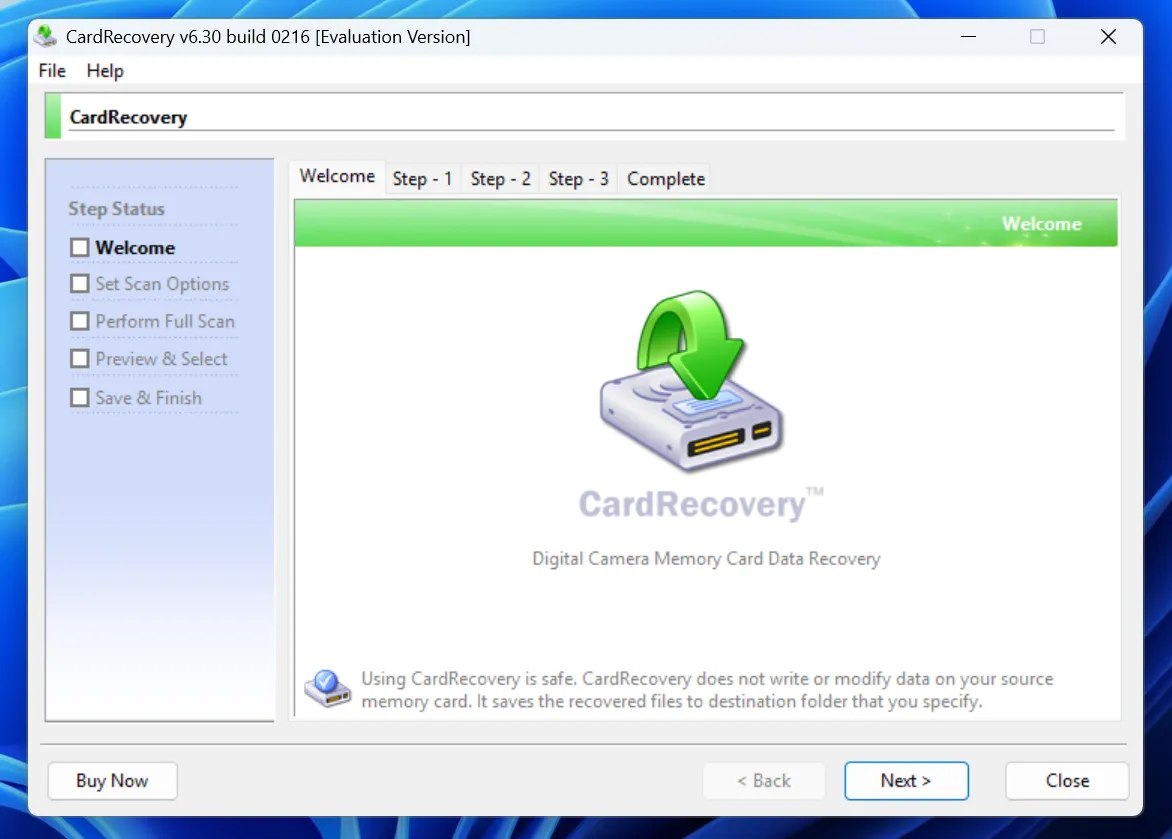
Card Recovery is a memory card recovery software that mainly helps users recover lost photos and videos from removable storage cards. It usually targets devices such as SD cards, microSD cards, SDHC cards, CompactFlash cards, Memory Stick cards, and other camera memory cards.
In a typical recovery case, users connect the card to a Windows computer, select the affected card, scan it, preview recoverable files, and save the needed files to another location. This process works well for people who accidentally deleted photos, formatted a card, or found that a camera card suddenly became unreadable.
However, recovery software does not truly “undo” deletion. Instead, it scans the storage device for file traces that still exist. As a result, the recovery success rate depends heavily on whether new data has overwritten the lost files. For this reason, users should stop using the SD card as soon as they notice data loss.
Key Features of Card Recovery Software
People often choose this tool because it offers a simple process. Instead of asking users to use technical commands, it guides them through a scan, preview, and recovery workflow.
Common features include:
- Photo recovery from deleted, formatted, or corrupted memory cards
- Video recovery from camera cards and removable media
- Support for SD, microSD, SDHC, CF, and Memory Stick cards
- Read-only scanning to protect original card data
- Preview before recovery
- A step-by-step interface for Windows users
These features make Card Recovery useful for camera-related data loss. Still, the product mainly focuses on photos and videos. If your SD card contains documents, compressed files, project folders, or mixed file types, you may need broader data recovery software.
Where Card Recovery Falls Short
A fair Card Recovery review should explain both strengths and weaknesses. The tool works best when the recovery case is simple and media-focused. Yet modern SD cards often store more than camera photos.
For instance, one memory card may contain JPG images, RAW photos, MP4 videos, MOV clips, folders, audio files, and documents. A basic photo recovery tool may not handle every file type equally well. As a result, users may recover part of the lost content but still miss other important files.
Device coverage also matters. Today, users often need to recover files from SD cards, USB drives, hard drives, SSDs, or formatted partitions. Therefore, a more complete recovery solution can save time and reduce confusion.
Best Card Recovery Alternative: Magic Data Recovery
If Card Recovery feels too limited for your situation, Magic Data Recovery offers a more practical option. It helps recover photos, videos, audio files, documents, archives, and other common file types from multiple storage devices.
This matters because users often do not know exactly what they lost until they scan the device. For example, an SD card from a camera may contain RAW images, edited photos, videos, and small metadata files. Meanwhile, a card used in a phone or tablet may contain downloads, documents, and app folders. Therefore, a broader scan can give users a clearer recovery path.
Magic Data Recovery can help with deleted files, formatted SD card recovery, RAW or inaccessible card recovery, missing documents from removable storage, and file recovery from USB drives, hard drives, and SSDs. Moreover, it lets users scan the affected device and preview recoverable files before saving anything. This workflow reduces guesswork and avoids risky repair attempts before file recovery.
Card Recovery vs Magic Data Recovery
Feature | Card Recovery | Magic Data Recovery |
Main focus | Photo and video recovery from memory cards | Broader file recovery for multiple devices |
SD card recovery | Yes | Yes |
Photo and video recovery | Yes | Yes |
Document recovery | Limited focus | Supported |
Archive recovery | Limited focus | Supported |
USB drive recovery | Not the main focus | Supported |
Hard drive and SSD recovery | Not the main focus | Supported |
Best for | Simple camera card media loss | SD card, USB, HDD, SSD, photo, video, and document recovery |
This comparison does not mean Card Recovery has no value. Instead, it shows that the right choice depends on your recovery goal. If you need one tool for different file types and devices, Magic Data Recovery provides a better fit.
How to Recover Files from an SD Card with Magic Data Recovery
If you cannot find important photos, videos, documents, or other files on your SD card, stop using the card immediately. Then, use Magic Data Recovery to scan the card and preview recoverable files before saving them to a safe location.
Step 1: Download and Install Magic Data Recovery
Download Magic Data Recovery and install it on your computer. Avoid installing any software or saving new files to the affected SD card. This helps prevent accidental overwriting and gives you a better chance of recovering lost data.
Supports Windows 7/8/10/11 and Windows Server
Step 2: Select the SD Card to Scan
Launch the program and connect your SD card to the computer with a reliable card reader. Then, from the main interface, choose the SD card where files were deleted, lost, or formatted. After that, start the scan.

Step 3: Scan the SD Card for Lost Files
The software automatically performs an advanced scan. Meanwhile, it lists recoverable files as the scan progresses, so you can check found photos, videos, documents, and other file types without waiting for the whole process to finish.

Step 4: Preview Files Before Recovery
Next, use the preview function to confirm the file content. This step helps you recover only the files you actually need, instead of restoring unnecessary or damaged files.

Step 5: Recover Files to a Safe Location
Finally, select the files you want to restore and save them to another safe location, such as your computer or a separate storage device. Do not save recovered files back to the same SD card, because doing so may overwrite other lost data.

When Can Card Recovery Software Recover Lost Files?
Recovery software works best when lost files still remain on the card. For example, recovery may work after accidental deletion, quick formatting, file system errors, RAW card issues, or interrupted writing from a camera, drone, or phone.
However, software has limits. If the SD card has physical damage, severe controller failure, or overwritten data, no regular program can promise a complete result. For instance, if you deleted videos and then recorded new footage on the same card, the new footage may overwrite the old data.
Therefore, your first action matters. Stop using the card, avoid formatting it again, and scan it before trying repair commands.
Tips to Improve SD Card Recovery Success
Good recovery habits can protect your files before and during the recovery process. Therefore, follow these tips before using any recovery tool:
- Stop using the SD card immediately.
- Do not format the card again.
- Avoid saving new photos or videos to the card.
- Use a reliable card reader.
- Preview files before recovery.
- Save recovered files to a different location.
- Contact a professional service if the card has physical damage.
In addition, avoid running random repair commands before recovery. Commands such as CHKDSK may fix some file system errors, but they can also change file records. If your missing files matter, recover them first and repair the card later.
Conclusion
Card Recovery can still help users who only need a simple photo and video recovery tool for memory cards. It has a clear purpose, and that purpose may fit basic camera card recovery cases.
However, modern data loss often involves more file types and more devices. Users may need to recover photos, videos, documents, folders, archives, or files from SD cards, USB drives, hard drives, and SSDs. In these situations, Magic Data Recovery becomes easier to recommend because it supports broader recovery scenarios and gives users a practical preview-before-recovery workflow.
In short, choose Card Recovery if your case only involves basic memory card photo recovery. Choose Magic Data Recovery if you want a more flexible solution for SD card recovery, formatted card recovery, USB drive recovery, hard drive recovery, and everyday file loss.
Supports Windows 7/8/10/11 and Windows Server
FAQs
Is Card Recovery free to use?
The software may offer a trial or evaluation version, but full file recovery often requires a paid license. Therefore, users should check the current product page before downloading or purchasing. If you want to compare results first, scan the card and preview recoverable files before making a final decision.
Is this tool safe for SD card recovery?
It is safer when the software scans the SD card in read-only mode and avoids changing original data. However, users still need to follow safe recovery habits. For example, do not save recovered files back to the same SD card, and avoid formatting the card before scanning it.
Can the software recover formatted SD cards?
The tool may recover photos or videos from a formatted SD card if the lost data has not been overwritten. However, results depend on the formatting type, card condition, and later usage. For broader file types, Magic Data Recovery may offer a more suitable recovery workflow.
What is the best alternative for this software?
Magic Data Recovery is a strong alternative because it supports SD cards, USB drives, hard drives, SSDs, photos, videos, documents, archives, and more common file types. It also allows users to scan and preview recoverable files before saving them to a safe location.
Can I recover deleted photos from an SD card?
Yes, you can often recover deleted photos from an SD card if you stop using the card quickly. Deleted files may remain recoverable until new data overwrites them. Therefore, scan the SD card as soon as possible and save recovered photos to another storage location.
Why should I not save recovered files to the same SD card?
Saving recovered files to the same SD card may overwrite other lost data that still exists on the card. As a result, your recovery chances can drop. To stay safe, always save restored photos, videos, or documents to your computer or another separate storage device.
What should I do if my SD card asks to be formatted?
Do not format the SD card immediately if it contains important files. Instead, connect it with a reliable card reader and run a recovery scan first. After you recover and back up your files, you can decide whether to format or replace the card.

Vasilii is a data recovery specialist with around 10 years of hands-on experience in the field. Throughout his career, he has successfully solved thousands of complex cases involving deleted files, formatted drives, lost partitions, and RAW file systems. His expertise covers both manual recovery methods using professional tools like hex editors and advanced automated solutions with recovery software. Vasilii's mission is to make reliable data recovery knowledge accessible to both IT professionals and everyday users, helping them safeguard their valuable digital assets.