
How to Recover Data from a Formatted SD Card

Formatting the wrong SD card can make years of photos, videos, or work files disappear in seconds. Fortunately, formatted SD card recovery is often possible when the card has not been reused or overwritten. The most important thing is to stop using the card immediately. Do not take new photos, copy files to it, format it again, or run repair tools before recovery.
This guide explains how formatted SD card recovery works, what quick and full formats actually change, and how to choose the safest SD card recovery method. You will also learn how to recover data from a formatted SD card with backups, free recovery tools, and Magic Data Recovery when you need a simpler graphical solution.
Quick Answer: If you accidentally formatted an SD card, remove it from the camera or other device immediately. Connect it to a computer with a reliable card reader, scan it before writing anything new, and always save recovered files to a different drive.
Table of Contents
Supports Windows 7/8/10/11 and Windows Server
What Happens When You Format an SD Card
Yes, in many cases. Formatted SD card recovery mainly depends on the type of formatting and whether new data has overwritten the original files.
A quick format usually rebuilds or clears important file-system structures instead of intentionally overwriting every data sector. Microsoft explains that the Windows quick-format option deletes the file table and root directory without performing a sector-by-sector scan for bad areas. Therefore, some original file data may remain available for recovery.
However, no recovery software can guarantee a successful result. If a full format, secure erase, or later recording has overwritten the sectors that contained your files, recovery becomes much harder or impossible.
Situation | Recovery Outlook | Recommended Action |
Quick format with no new files added | Often good | Stop using the card and scan it |
Camera format with no new photos taken | Often possible | Remove the card and use a card reader |
New photos or videos recorded afterward | Reduced | Stop using the card immediately |
Full format or overwrite operation | Low to uncertain | Try recovery software, then consider a lab |
Card not detected by the computer | Software may not help | Test another reader or seek professional help |
Physical damage | DIY recovery is risky | Contact a professional recovery service |
For the best SD card recovery after format, start recovery before copying, recording, repairing, or reformatting anything on the card.
How Formatted SD Card Recovery Works
To understand formatted SD card recovery, it helps to know what formatting actually changes.
An SD card uses a file system to track filenames, folders, file locations, and available storage space. After formatting, the operating system may lose the metadata that points to your previous files. As a result, those files disappear from File Explorer or your camera even though some underlying file content may still exist.
Importantly, not every SD card uses the same file system. According to the SD Association, SDHC cards normally use FAT32, while SDXC and SDUC cards use exFAT. Therefore, it is inaccurate to assume that every formatted memory card relies on the same FAT structures.
Quick Format vs Full Format
A quick format modifies file-system information quickly and can leave much of the old data area untouched. This creates better conditions for formatted SD card data recovery, provided that no new data has replaced the original files.
A full format may perform significantly more writing to the storage device. If that process overwrites the sectors that contained your old photos, videos, or documents, recovery software cannot reconstruct the overwritten information.
Therefore, recovery success depends not only on whether the card was formatted, but also on what happened to the physical data afterward.
File-System Recovery vs File Carving
Recovery software can use different techniques to find lost files. When useful file-system metadata still exists, a recovery program may restore original filenames, folder structures, timestamps, or file locations.
However, if that metadata has disappeared, software can use file-signature scanning, also known as file carving. This technique scans raw storage for recognizable patterns belonging to JPEG, MP4, DOCX, ZIP, and other file formats.
PhotoRec, for example, documents that it can ignore the file system and search underlying data even when the media has been reformatted or the file system is badly damaged.
This distinction matters when you recover files from formatted SD card storage. File carving may restore the actual photo or video while losing its original filename or folder location.
What to Do Before Formatted SD Card Recovery
What you do immediately after formatting can directly affect the result. Before starting formatted SD card recovery, follow these best practices:
- Stop using the SD card immediately.
- Do not take new photos or record videos.
- Do not copy new files to the card.
- Do not format the card again.
- Avoid running repair tools such as CHKDSK before recovering important data.
- Never install recovery software on the affected SD card.
- Save recovered files to your computer, external drive, or another storage device.
Microsoft also recommends minimizing use of storage after data loss because new writes can overwrite file data that may still be recoverable.
In addition, pay attention to the physical condition of the card. If it disconnects repeatedly, becomes unusually hot, disappears during scanning, or causes the computer to freeze, stop repeated recovery attempts. Hardware instability may require professional assistance.
How to Recover Data from a Formatted SD Card
There is no single best recovery method for every situation. The right formatted SD card recovery solution depends on whether a backup exists, whether your computer detects the card, and how comfortable you are with technical recovery tools.
Method 1: Check Your Backups First
Before scanning the formatted card, check whether another copy of the missing files already exists.
Look in:
- Google Photos, OneDrive, iCloud, or another cloud service
- Previous camera imports on your computer
- External hard drives
- NAS backup folders
- Photo or video editing project folders
- Shared albums
- Messaging apps where you previously sent the files
A backup provides the safest solution because you do not need to perform additional reads from the affected card. If no backup exists, move on to recovery software.
Method 2: Recover a Formatted SD Card with Magic Data Recovery
For users who want a visual recovery workflow rather than command-line tools, Magic Data Recovery provides a practical way to recover formatted SD card files on Windows.
Magic Data Recovery supports SD and microSD cards that Windows can detect through a card reader. It also supports FAT32 and exFAT file systems, formatted and RAW storage, file preview, and a read-only scanning process designed to avoid writing recovered data back to the source card.
Why Use Magic Data Recovery?
Magic Data Recovery addresses several common problems that users face during formatted SD card recovery.
Easy recovery workflow
Instead of working with disk sectors or complex commands, you can select the card, start a scan, preview the results, and recover the files you need.
Support for formatted storage
The software can search formatted media for remaining file-system information and recognizable file data.
File preview before recovery
Previewing found photos, documents, or other supported files helps you determine whether the files you need are still recoverable before saving them.
FAT and exFAT support
This matters because SDHC cards commonly use FAT32, while modern SDXC cards generally use exFAT.
Read-only scanning
A recovery tool should avoid intentionally modifying the source media during scanning. Keeping the original card unchanged reduces unnecessary overwrite risk.
Useful for common SD card data
Typical use cases include recovering photos from a camera card, videos from a drone or action camera, documents from a memory card, or files from a formatted microSD card.
These advantages do not mean Magic Data Recovery can restore overwritten data. Rather, the software provides a more accessible recovery workflow than manual hex editing and requires less technical knowledge than command-line utilities.
How to Recover a Formatted SD Card with Magic Data Recovery
Follow these steps to perform formatted SD card recovery:
Step 1: Install Magic Data Recovery
Download and install Magic Data Recovery on your Windows computer.
Do not install the program on the formatted SD card itself. Although applications are normally installed on a computer drive rather than a memory card, always make sure the affected storage remains untouched.
Supports Windows 7/8/10/11 and Windows Server




Method 3: Recover a Formatted SD Card for Free with Windows File Recovery
Users who prefer a free solution can consider Windows File Recovery.
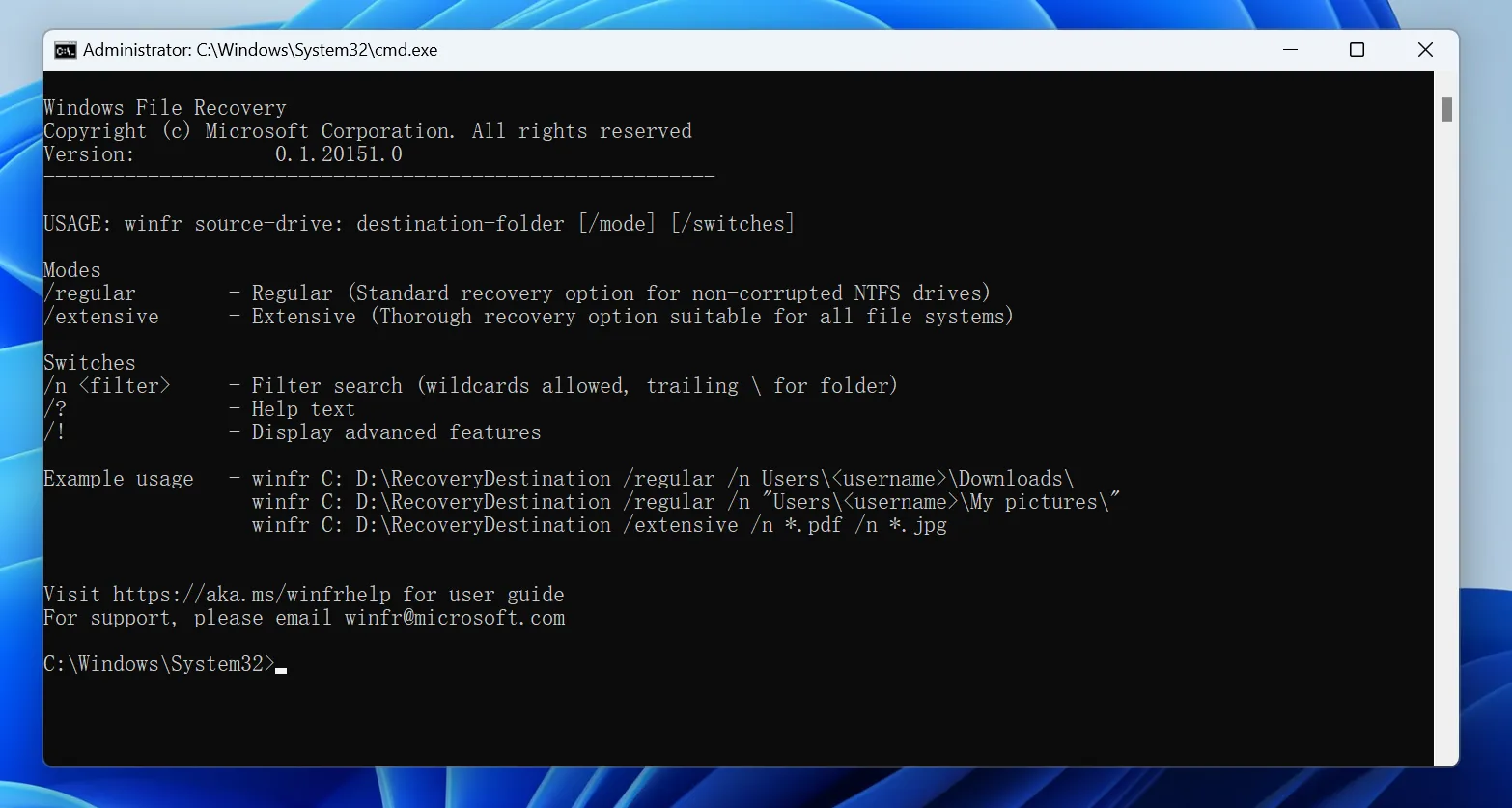
Windows File Recovery is Microsoft’s command-line utility for restoring deleted or lost files from supported local storage devices. Microsoft states that FAT and exFAT recovery should use Extensive mode.
For example:
winfr E: D: /extensive /n *.jpg /n *.mp4
In this example:
E:represents the formatted SD card.D:represents another drive where recovered files will be saved./extensiveperforms a deeper scan./nlets you search for specific file types.
The source and destination must be different drives.
Windows File Recovery offers a useful free option for formatted SD card recovery, but it requires command-line input and does not provide the same visual preview workflow as consumer recovery software.
For experienced Windows users, this may not be a problem. For less technical users, a graphical application can make it easier to select the correct storage device and review recovery results.
Method 4: Use PhotoRec for File-Signature Recovery
PhotoRec is another free option.
It is an open-source recovery utility that works on Windows, macOS, Linux, and several other operating systems. Instead of relying completely on the original file system, PhotoRec searches the underlying storage for known file signatures.
Therefore, PhotoRec can help with formatted SD card recovery when the card’s original directory information is unavailable.
However, there is an important trade-off. Signature-based recovery may not preserve original filenames or folders. You may recover hundreds of photos successfully but need to organize and rename them afterward.
PhotoRec also has a more technical interface than many consumer-focused recovery programs.

Method 5: Advanced Formatted SD Card Recovery with WinHex
Advanced users and data recovery specialists may use a hex editor such as WinHex to inspect the raw contents of a memory card.
A hex editor can help analyze:
- File-system structures
- Partition information
- Directory records
- Raw file signatures
- Specific sectors or offsets
However, manual hex recovery requires a strong understanding of storage structures.
For ordinary users, WinHex should not be the first choice to recover files from formatted SD card storage. Editing the original card or making incorrect changes can complicate recovery.
If you use forensic tools, work from a disk image whenever possible rather than editing the original device.

What If the Formatted SD Card Is Not Detected?
Software-based formatted SD card recovery requires the computer to recognize the card as a storage device.
If Windows cannot detect it, try the following steps:
- Connect the card with another card reader.
- Try another USB port.
- Test the card on another computer.
- Open Windows Disk Management.
- Check whether the card appears with approximately the correct capacity.
- If the card appears without a drive letter, do not format it again.
- If it repeatedly disconnects or shows an obviously incorrect capacity, stop DIY scanning.
If the card does not appear in Disk Management at all, ordinary recovery software may not be able to access it.
At that point, professional data recovery may be the safer option, especially when the files are irreplaceable.
Tips to Improve Formatted SD Card Recovery Success
Several simple habits can improve the practical chances of formatted SD card recovery:
- Act quickly. New data can replace previously stored content.
- Keep the source card unchanged. Avoid repair, formatting, or unnecessary writes.
- Use a reliable card reader. Unstable connections can interrupt long scans.
- Save recovered files elsewhere. Never use the source card as the recovery destination.
- Allow a full scan to finish. Deeper scanning may find files that a quick scan misses.
- Preview important files. Confirm that critical photos or documents are usable when preview is available.
- Create an image of an unstable card. Experienced users should consider sector-by-sector imaging before extensive recovery work.
- Know when to stop. Physical failure requires a different approach from logical data loss.
Think of the original card as evidence. Recovery software should read from it while leaving the remaining data unchanged whenever possible.
Conclusion
Formatted SD card recovery is often possible when you act quickly, stop using the card, and prevent new data from overwriting the original files.
Quick-format cases usually provide better recovery conditions than situations involving a full overwrite. Meanwhile, physically damaged or unstable memory cards may require professional recovery rather than repeated software scans.
Start with backups whenever they are available. Windows File Recovery and PhotoRec offer useful free solutions for users who are comfortable with technical tools.
For users who prefer a simpler Windows workflow, Magic Data Recovery is worth considering because it supports common SD card file systems, scans formatted storage, provides file preview, and removes much of the complexity associated with command-line.
If you need to recover formatted SD card photos, videos, or documents, stop using the card and scan it before making any further changes. Taking that precaution gives the best practical SD card recovery chance of success.
Supports Windows 7/8/10/11 and Windows Server
FAQ
Can a formatted SD card really be recovered?
Can I recover a formatted SD card without software?
Is formatted SD card recovery free?
Can I recover photos after formatting an SD card?
Does Quick Format Permanently Erase an SD Card?
Can a Full-Format SD Card Be Recovered?
Can CMD Recover a Formatted SD Card?
Where Should I Save Recovered Files?

Vasilii is a data recovery specialist with around 10 years of hands-on experience in the field. Throughout his career, he has successfully solved thousands of complex cases involving deleted files, formatted drives, lost partitions, and RAW file systems. His expertise covers both manual recovery methods using professional tools like hex editors and advanced automated solutions with recovery software. Vasilii's mission is to make reliable data recovery knowledge accessible to both IT professionals and everyday users, helping them safeguard their valuable digital assets.