
Desktop Files Disappeared on Windows 10/11? How to Get Them Back
The desktop looked normal yesterday. Today, your project folder is missing—or every icon has vanished after a restart. If your desktop files disappeared on Windows 10 or Windows 11, that does not automatically mean Windows deleted them. The files may still be in another folder, under your usual user account, or inside OneDrive.
Recovery depends on what happened. Hidden or relocated files can usually be accessed directly. Deleted files may be recoverable from a backup or from storage that has not been overwritten. SSD TRIM and physical drive damage can make disk recovery much less likely.
Start with the checks below before resetting Windows or changing sync settings. If you already know the files were permanently deleted, reduce use of the affected drive and follow our deleted file recovery guide for the broader recovery process.
Table of Contents
Before You Start: Protect the Missing Data
If deletion is possible, avoid downloading files, installing tools on the affected drive, running cleanup utilities, or reinstalling Windows. Prepare a separate external drive for recovered files.
Do not format or initialize a drive that Windows suddenly cannot open. Avoid repair commands that modify the file system until important data has been secured.
If an HDD clicks, repeatedly disconnects, or becomes harder to read, stop using it and seek professional help. Repeated scans are not the right next step for unstable hardware.
Quick Diagnosis: Where Should You Look First?
Use the symptom that best matches your situation. You do not need to try every method.
What you notice | What to verify | Start here |
Every icon disappeared, but the wallpaper is unchanged | Whether desktop icons are disabled | Show desktop icons |
Files are visible in File Explorer but absent from the screen | Whether Explorer displays the same Desktop location | Check the active folder and refresh Explorer |
Files vanished after changing OneDrive settings | Whether Desktop backup or the sync account changed | Check OneDrive locally and online |
Wallpaper, settings, and desktop all look unfamiliar | Whether Windows loaded another or temporary profile | Check the original user folder |
Files disappeared after a major upgrade | Whether the old profile or Windows.old contains them | Check upgrade-related locations |
Only a few downloaded tools or scripts vanished | Whether security software quarantined them | Check Protection history |
Individual documents or folders are missing | Whether they were moved or deleted | Search, then check Recycle Bin and backups |
No copy exists and the drive reads normally | Whether deleted content remains recoverable | Consider a recovery scan |
The drive clicks or disconnects during reading | Whether there is a hardware problem | Stop DIY recovery |
A failed search alone does not prove deletion. Search can miss locations, and the current account may not have access to another user’s folders.
1. Restore Desktop Visibility and Show Hidden Files
Best for: The desktop suddenly looks empty, or files remain visible in File Explorer.
Right-click an empty area of the desktop, select View, and enable Show desktop icons. This setting changes the display; it does not recover deleted data.
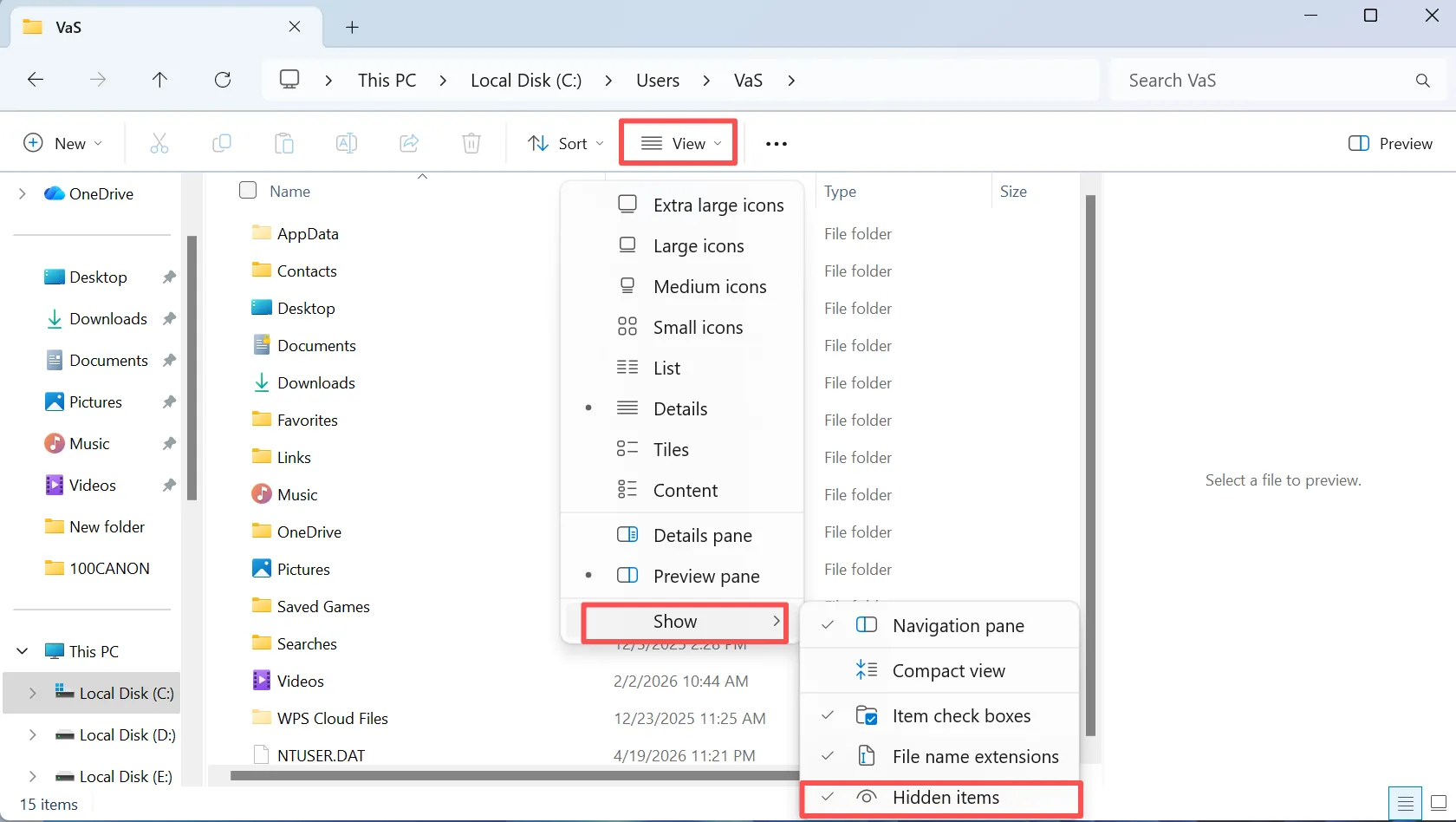
Next, open File Explorer and inspect the Desktop folder. To display hidden items, use the menu for your system:
Setting | Windows 10 | Windows 11 |
Show desktop icons | Right-click desktop > View > Show desktop icons | Right-click desktop > View > Show desktop icons |
Show hidden files | File Explorer > View > Hidden items | File Explorer > View > Show > Hidden items |
If a known personal file appears faded, check its Properties for the Hidden attribute. Change only the item you recognize; do not apply broad attribute-changing commands across the system drive.
If the correct Desktop folder contains your files but the screen still does not refresh:
- Press Ctrl + Shift + Esc.
- Locate Windows Explorer in Task Manager.
- Right-click it and select Restart.
Expected result: Existing files reappear. If the folder itself is empty, move to location checks rather than repeatedly refreshing the desktop.
2. Find the Desktop Folder Windows Is Actually Using
Best for: Files disappeared after a folder-location change, account switch, or OneDrive setup.
The visible desktop can contain items from your personal Desktop and the Public Desktop. Your personal folder may also be redirected away from its default location.
Press Win + R, enter the following command, and press Enter:
- shell:desktop
This opens the current account’s Desktop shell view. Inspect the available Desktop location in File Explorer; if its folder properties offer a Location tab, read the path without changing it.
Then check these possible locations:
Location | What it can contain |
| The default local Desktop folder, which may differ from the active redirected location |
| A common personal OneDrive Desktop location |
| Shared desktop items, often shortcuts |
| Files belonging to an earlier Windows profile |
Your configured OneDrive folder > Desktop | Desktop data under a custom or work/school OneDrive location |
Replace PreviousUserName with the relevant folder name. OneDrive can be stored on another drive, and organizational accounts can use a folder such as OneDrive - CompanyName.
If you find the missing items, open a few to confirm their contents, then copy important files to a separate drive. Establish which folder should be active before moving everything back.
If nothing appears: Search other locations and check the correct OneDrive account.
3. Search for Files That Were Moved
Best for: A few desktop documents or folders are missing, but the computer works normally.
A drag-and-drop operation can move a folder without an obvious warning. Search a distinctive filename before treating it as deleted.
- Open File Explorer.
- Select This PC.
- Search for part of the filename.
- If necessary, search by extension, such as
*.docx,*.xlsx,*.pdf, or*.jpg. - Right-click a relevant result and select Open file location.
Inspect the contents and modified date to distinguish the original from an older copy. Microsoft includes device-wide search and file-type searches in its guidance for finding files after a Windows upgrade.
Limitation: Search results depend on accessible locations and search settings. Manually inspect the likely user folders even if search returns nothing. For cloud files, also search the service’s website.
4. Check OneDrive Before Changing Desktop Backup
Best for: Desktop files disappeared after OneDrive was enabled, unlinked, or signed into a different account.
OneDrive Desktop backup can change where desktop data is stored. Check the account and existing files before toggling backup again.
- Select the OneDrive cloud icon in the notification area.
- Confirm the account and review sync warnings.
- Open that account’s OneDrive folder in File Explorer.
- Inspect its Desktop folder.
- Sign in to OneDrive on the web with the same account.
- Search for the missing files and inspect the online Recycle bin.
If you find an intact cloud copy, download important files to a separate drive. Do not delete cloud items simply to clear the local desktop.
The current Windows backup flow can offer choices about keeping files in OneDrive or on the PC when backup is stopped. Cloud-only items may need downloading first. Read the prompts carefully; do not assume every version automatically returns files to the old Desktop folder. See Microsoft’s OneDrive folder-backup instructions.
Expected result: You identify an existing cloud or redirected copy. If neither contains the files, check the original profile and available backups.
5. Check the User Profile and Upgrade-Related Locations
Best for: Desktop files disappeared after a Windows 10 or Windows 11 update, and the computer looks like a fresh setup.
Check for a Different or Temporary Profile
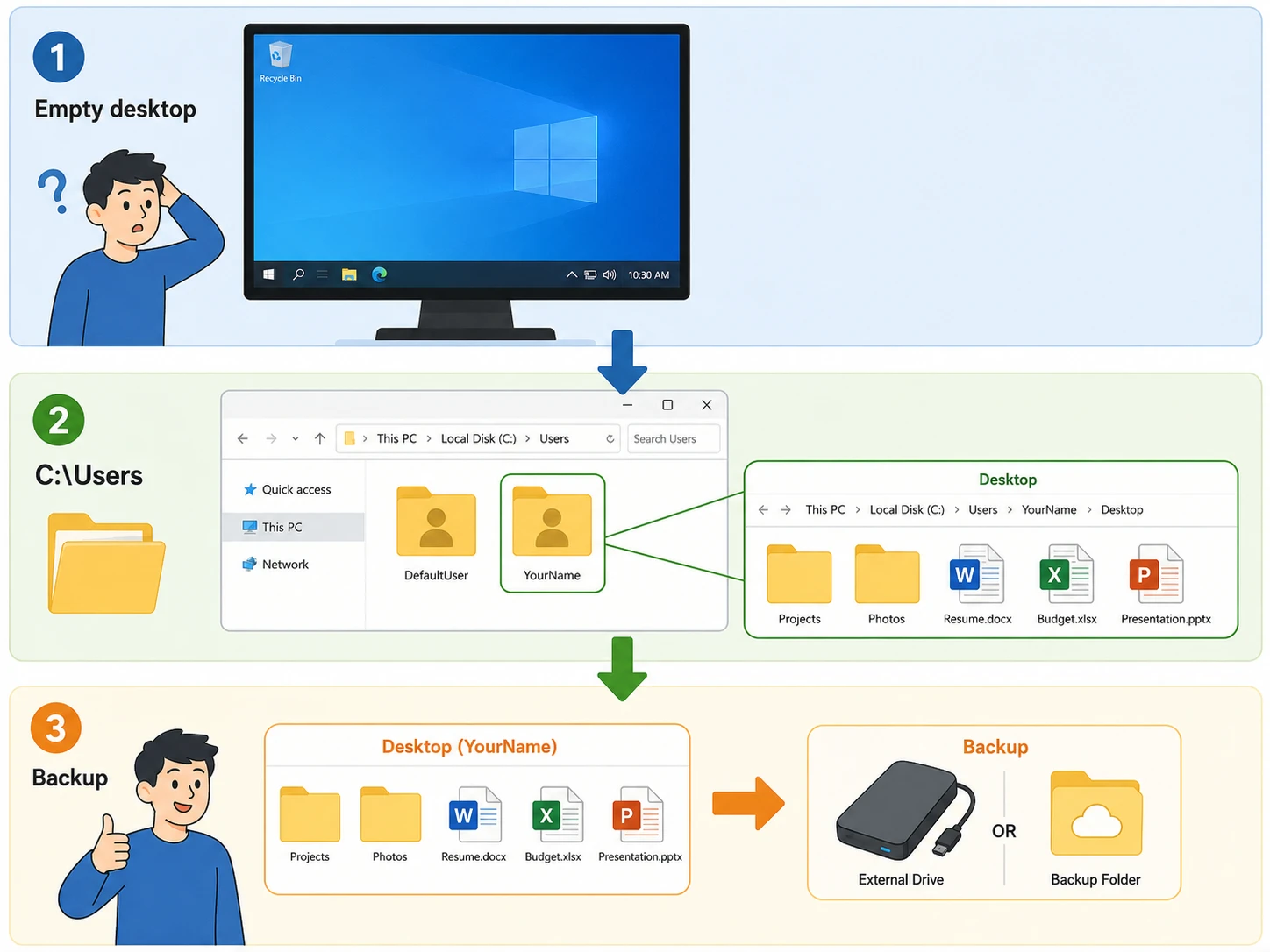
Open Settings > Accounts > Your info and confirm the account. Then inspect C:\Users for your usual profile’s Desktop folder.
A temporary-profile message, unfamiliar wallpaper, and reset preferences are useful clues. If Windows says it cannot sign in to your account, save work created in this session to an external drive before signing out. Microsoft warns that files created or changed within a temporary profile can be lost at sign-out.
After saving that work, restart and try the original account. If the problem persists, follow Microsoft’s account sign-in troubleshooting guide or contact your administrator.
Do not delete old profile folders or edit profile registry entries as an initial recovery step.
Check Windows.old If It Exists
After a qualifying upgrade, inspect:
C:\Windows.old\Users\PreviousUserName\Desktop
Also check the previous profile’s OneDrive folder if Desktop backup was used.
Windows.old is not created by every update or reset. Microsoft’s Windows.old recovery guidance describes a limited retrieval window, generally 10 days in the upgrade scenario it covers. Cleanup or subsequent installation activity can remove it sooner.
Copy needed files to a safe location promptly. If the folder is absent, use backups or recovery options; do not perform another upgrade to try to recreate the old data.
6. Check the Recycle Bin and Security Quarantine
Best for: Particular files vanished while the rest of the desktop stayed intact.
Restore Normally Deleted Files
Open the Windows Recycle Bin and inspect Date deleted and Original location. Select the correct items, right-click, and choose Restore.
The original location matters: a restored item may return to a OneDrive Desktop or another folder rather than the desktop you currently see.
Shift+Delete and an emptied Recycle Bin remove this direct restore route. If that applies, see our guide to recovering files after emptying the Recycle Bin.
Review Windows Security When Specific Tools Vanish
For missing executables, scripts, or downloaded archives:
- Open Windows Security.
- Select Virus & threat protection.
- Open Protection history.
- Review the detection, affected path, and available actions.
Microsoft’s Protection history documentation explains these events and notes that history is retained for two weeks.
A quarantined file is a security decision, not evidence that the disk needs recovery. Restore or allow an item only after verifying that it is safe. For a work device, ask IT to review the detection.
If unexplained removals keep happening, our guide to files automatically deleted from the desktop covers that narrower problem.
7. Restore an Existing Backup or Previous Version
Best for: A backup captured the missing files before they disappeared.
An intact backup avoids the uncertainty of reconstructing deleted data. Check external backups, NAS snapshots, cloud version history, and File History.
For File History:
- Connect the existing backup drive.
- Open Control Panel > System and Security > File History.
- Select Restore personal files.
- Browse the backed-up Desktop and choose a date before the loss.
- Inspect the files, then restore them to another location where possible.
Alternatively, right-click the actual Desktop folder and open Properties > Previous Versions. In Windows 11, some options may be under Show more options. Open an available version first; use Restore to when offered to avoid replacing current files.
These options require an existing backup or available earlier version. Enabling backup now cannot reconstruct yesterday’s missing files. Microsoft’s File History guide explains restoration and the risk of overwriting current versions.
If no usable copy exists: Choose a recovery tool only if the source storage remains stable.
8. Recover Truly Deleted Desktop Files with Magic Data Recovery
Best for: Folder, account, cloud, Recycle Bin, and backup checks have failed, and the source drive can still be read reliably.
Magic Data Recovery is a graphical option for files lost through deletion, formatting, or file-system errors. Its scanning, filtering, and supported-file preview features help you locate relevant results before saving them.
Supports Windows 7/8/10/11 and Windows Server
It cannot make a hidden icon visible or retrieve a file that existed only in cloud storage. Use it when the problem is actual loss from local storage.
Scan the Original Location and Recover Elsewhere
1. Prepare safely. Download and install away from the affected drive where practical. If the files were on C:, running Windows still creates writes even when the program is installed elsewhere. For valuable data, consider connecting the source drive to another Windows PC with appropriate technical help.
2. Choose the original volume. Select the volume that held the Desktop. This may be C:, a redirected data drive, or the volume containing your OneDrive folder.
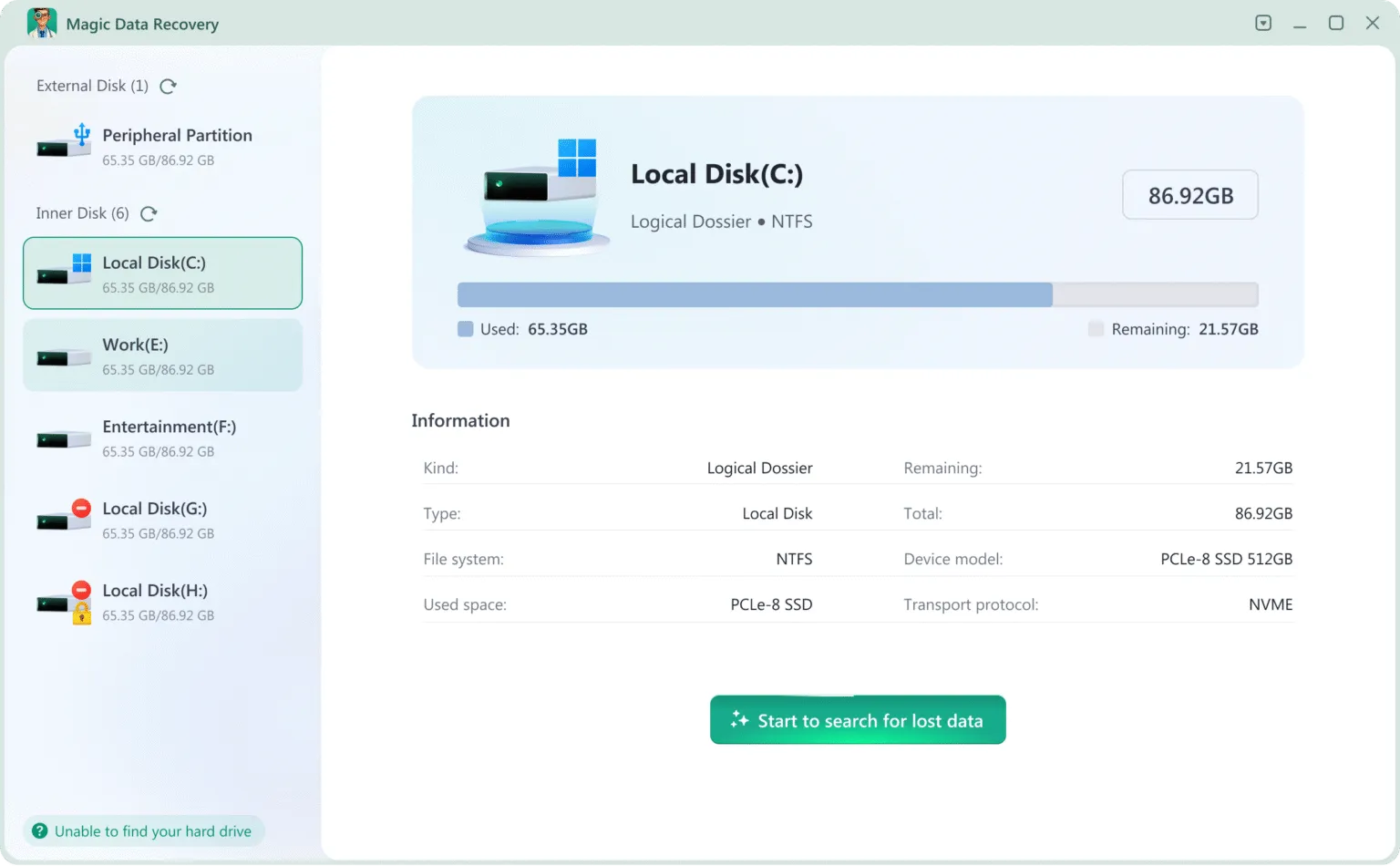
3. Scan and narrow the results. Use available filename, folder, or file-type filters. Check other result categories if original folder records are missing.
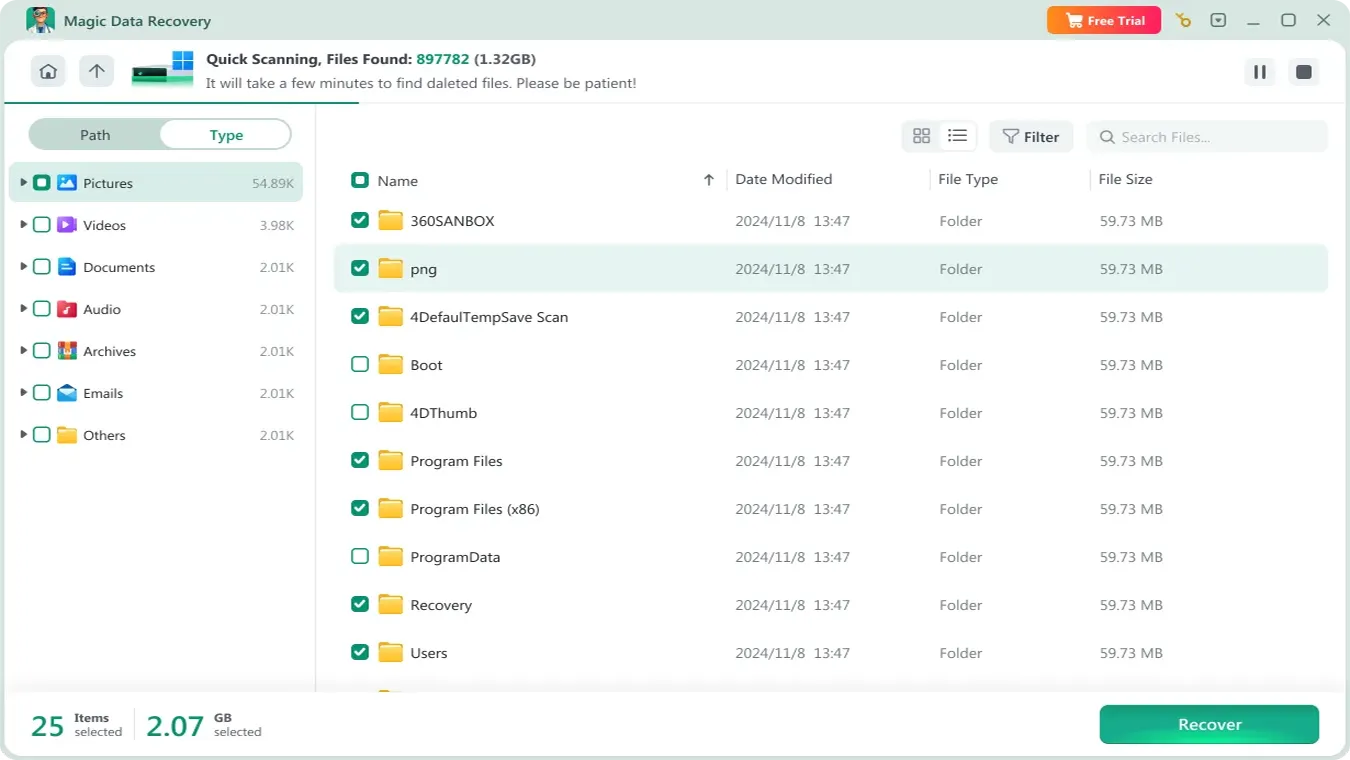
4. Preview supported files. Check recognizable content, not just a matching filename.

5. Save to a separate physical drive. Do not recover onto the source Desktop or another partition on the same source disk.
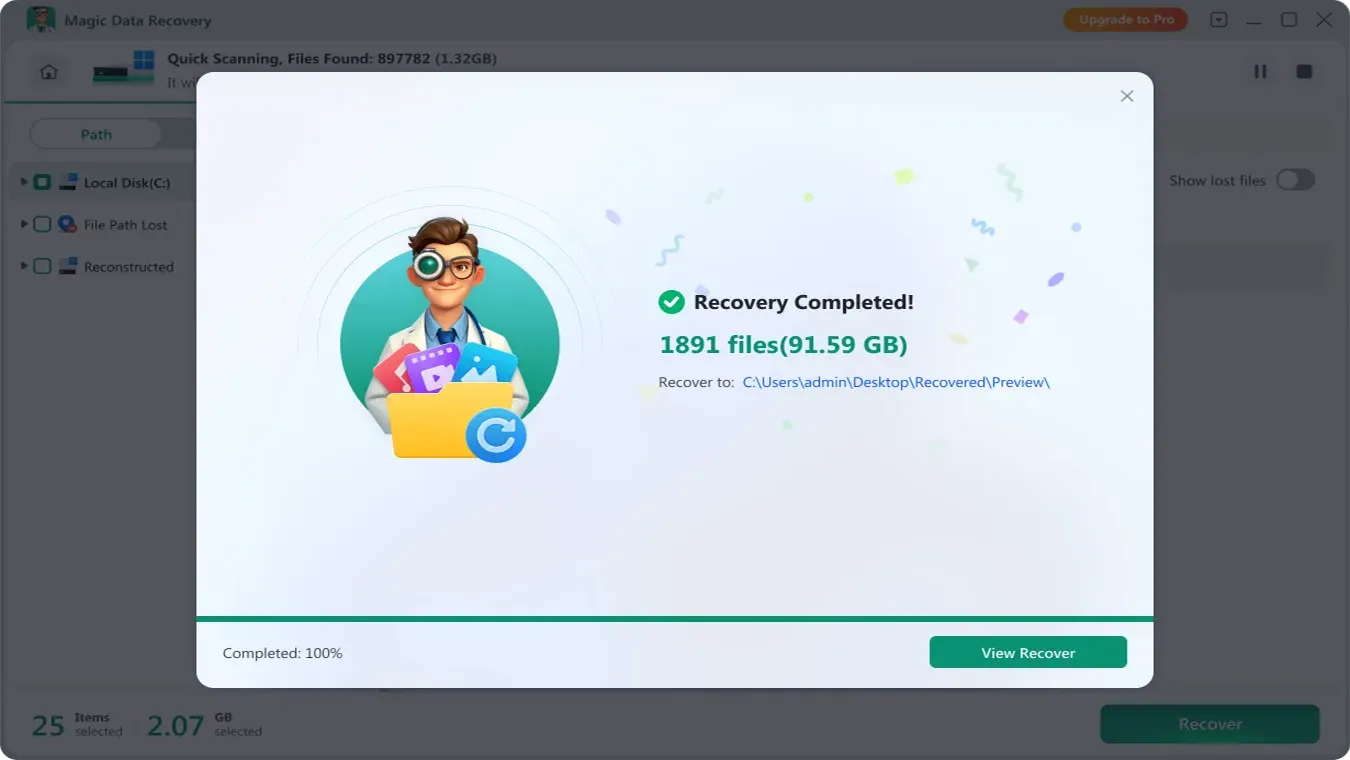
6. Open the recovered copies. Verify important documents, images, and other files before resuming normal use.
Overwrite, secure erasure, SSD TRIM, and physical damage can prevent recovery. A listed filename does not guarantee intact content. If the drive becomes unstable, stop scanning.
9. Consider Windows File Recovery as a Free Alternative
Best for: Users comfortable with commands who need recovery from local storage.
Windows File Recovery is Microsoft’s command-line tool for Windows 10/11. It does not recover directly from cloud storage or network shares.
After preparing a separate destination and installing the tool, open it with administrator permission. For a recently deleted file on a healthy NTFS volume, an example is:
- winfr C: E: /regular /n \Users\Alex\Desktop\*.docx
Replace Alex with the actual profile folder and E: with the destination drive. Use the original path if Desktop was redirected.
For older deletion, formatting, or corruption, Extensive mode may be appropriate:
- winfr C: E: /extensive /n *.docx /n *.pdf
These are examples, not commands for every setup. Confirm source, destination, and filters first. If Regular mode fails on a stable drive, consult Microsoft’s mode guidance before trying Extensive mode. Open the recovered output to verify it.
Verify Recovery Before Repairing Windows or the Drive
Whether files came from a backup or a scan, inspect the copies before declaring success:
- Open documents in their normal applications and check important pages.
- View images at full size.
- Play videos at several points, including near the end.
- Check that archives can be opened and extracted.
- Compare file size and dates against known copies when available.
A file can retain its name while containing incomplete or overwritten data. Preview helps, but checking the recovered copy provides stronger confirmation.
Only after important data is safe should you troubleshoot persistent profile, sync, or file-system problems. CHKDSK with repair switches modifies file-system structures; it is not a general undelete tool. Microsoft’s CHKDSK documentation describes its repair behavior. For recovery-focused cases, preserve data before running modifying repairs.
When to Stop DIY Recovery
Stop if the storage clicks, disappears repeatedly, or produces worsening read errors. Professional assessment is also reasonable when the missing files are the only copy of high-value work.
On an SSD, deletion can lead to TRIM notifications that identify unused storage for purging. Microsoft’s TRIM explanation describes that mechanism. The recovery implication is that deleted content may become unavailable even without you copying new files onto the drive.
Neither software nor a laboratory can guarantee recovery of overwritten or erased content. Check independent copies before paying for repeated scans.
Keep Desktop Files from Disappearing Again
Once the files are safe, make the storage arrangement easier to understand.
- Confirm the active Desktop path. Record whether it is local, redirected, or backed up through OneDrive.
- Keep an independent backup. Store an additional copy on another device, with version history where possible.
- Test the backup. Open a recently backed-up Desktop document to confirm that the folder is actually included.
- Review account and sync changes. Check where files will remain before disabling backup or unlinking a PC.
- Retain old profiles until migration is verified. Check Desktop, Documents, and Downloads before removing an old account.
Cloud synchronization improves access, but a deletion can propagate across synced devices. A separate backup gives you another recovery route when both the desktop and cloud copy are affected.
Conclusion
When desktop files disappeared on Windows 10 or Windows 11, begin with the symptom. A blank desktop calls for visibility and folder checks. An unfamiliar Windows session calls for a profile check. A recent OneDrive change calls for inspecting the correct cloud account and Desktop location.
If an intact copy exists, copy or restore it and verify its contents. If every location and backup check fails while the drive remains healthy, Magic Data Recovery offers a visual scan-and-preview workflow; Windows File Recovery provides a command-line alternative.
Save recovered files to a separate physical drive, then open them before repairing or reusing the source. If hardware becomes unstable, stop DIY attempts. Our deleted file recovery guide explains the broader choices when the problem extends beyond the Desktop folder.
Supports Windows 7/8/10/11 and Windows Server
FAQs
Are the Recovery Steps Different for Windows 10 and Windows 11?
Does a Missing Desktop Shortcut Mean the Original File Was Deleted?
Can Disk Recovery Retrieve a OneDrive File That Was Never Downloaded?
Why Is Previous Versions Empty for My Desktop Folder?
Can I Recover Desktop Files Several Weeks After They Disappeared?
Will Recovering to D: Protect Files That Were Deleted from C:?
Should I Reset Windows to Bring Back Missing Desktop Files?
What If the Desktop Folder Says Access Denied?

Jason is a data recovery and technical support specialist with over 15 years of hands-on experience. He has worked extensively with frontline users, troubleshooting difficult data loss cases and providing practical recovery solutions for accidental deletion, formatted drives, damaged file systems, lost partitions, system failures, and other recovery emergencies. His expertise also includes backup and restoration, file repair, and disaster recovery, with a strong emphasis on safe, reliable, and technically accurate guidance.