
Files Automatically Deleted from Desktop?
Important documents, photos, and work folders can vanish from the desktop without warning. When this happens, many users assume that Windows erased everything permanently. However, files automatically deleted from desktop may actually be hidden, moved, synced to OneDrive, linked to another user profile, or deleted by mistake.
Therefore, do not change random settings or install several tools immediately. First, protect the affected drive. Next, find out whether the files still exist elsewhere. If Windows cannot locate them, Magic Data Recovery can scan the original drive and recover deleted data. This guide explains the safest order to follow.
Supports Windows 7/8/10/11 and Windows Server
Table of Contents
Were the Files Deleted or Simply Missing?
Before recovering files automatically deleted from desktop, identify what changed. A blank desktop does not always mean permanent data loss. In fact, many files automatically deleted from desktop cases involve a path, profile, or sync change rather than deletion.
What you notice | Likely cause | First action |
Every icon is gone | Windows hid desktop icons | Enable Show desktop icons |
Search finds the files | The Desktop path changed | Open the file location |
Files appear in OneDrive | OneDrive redirected the folder | Check OneDrive Desktop |
The desktop looks unfamiliar | Windows loaded another profile | Check the signed-in account |
Only apps or downloads vanished | Security software quarantined them | Review Protection History |
Files appear in Recycle Bin | Normal deletion occurred | Restore the files |
Nothing finds the files | Permanent deletion may have occurred | Stop using the drive |
What to Do First If Files Automatically Deleted from Desktop
If you believe that files automatically deleted from desktop, reduce activity on the drive that originally stored them. Windows may leave deleted file data in place until new information overwrites it.
For that reason:
- Stop saving new files to the Desktop.
- Avoid disk cleanup or optimization tools.
- Pause large downloads and system updates.
- Do not install unnecessary programs.
- Save recovered files somewhere other than the scanned drive.
These precautions cannot guarantee recovery. Nevertheless, they help protect data that may remain recoverable. Therefore, the safest response to files automatically deleted from desktop starts with limiting new drive activity.
How to Find Files Automatically Deleted from Desktop
1. Turn On Desktop Icons
Windows can hide every desktop icon without deleting any files. Right-click an empty desktop area, select View, and enable Show desktop icons.
Afterward, open Desktop in File Explorer. If the items appear there, only the display setting changed, so you do not need recovery software.
2. Search the Entire Computer
If my files disappeared from desktop, search for a filename you remember. Open File Explorer, select This PC, and enter the name in the search box.
You can also search by file type:
*.docxfor Word documents*.xlsxfor Excel workbooks*.pdffor PDF files*.jpgor*.pngfor images*.zipfor archives
Once you find an item, right-click it and select Open file location. Often, this reveals another user folder, partition, or cloud directory.
3. Check Local and OneDrive Desktop Folders
Windows may store desktop data in either of these locations:
C:\Users\<YourName>\Desktop
C:\Users\<YourName>\OneDrive\Desktop
Also inspect any connected work or school account. If you disabled OneDrive backup, unlinked an account, or changed Microsoft accounts, Windows may show an empty local Desktop while the original files remain online. This often explains why my files disappeared from desktop after a sync change.
4. Verify the Desktop Folder Location
The Desktop folder may point to another directory or drive.
- Open File Explorer.
- Right-click Desktop.
- Select Properties.
- Open the Location tab.
- Review the displayed path.
If the path looks unfamiliar, open it before selecting Restore Default. Your missing files may still exist there.
5. Check Both Recycle Bins
Open the Windows Recycle Bin and sort items by deletion date. Restore any relevant files.
Then, sign in to OneDrive online and check its separate Recycle Bin. A cloud-synced deletion may not appear locally. As a result, when files automatically deleted from desktop after a sync conflict, checking both locations may solve the problem quickly.
6. Check the Windows User Profile
A temporary or different profile can show a clean desktop while the original data remains under another account. Common signs include a new wallpaper, reset app settings, and empty Documents or Downloads folders.
First, restart and sign in again. Next, inspect C:\Users for the original account folder.
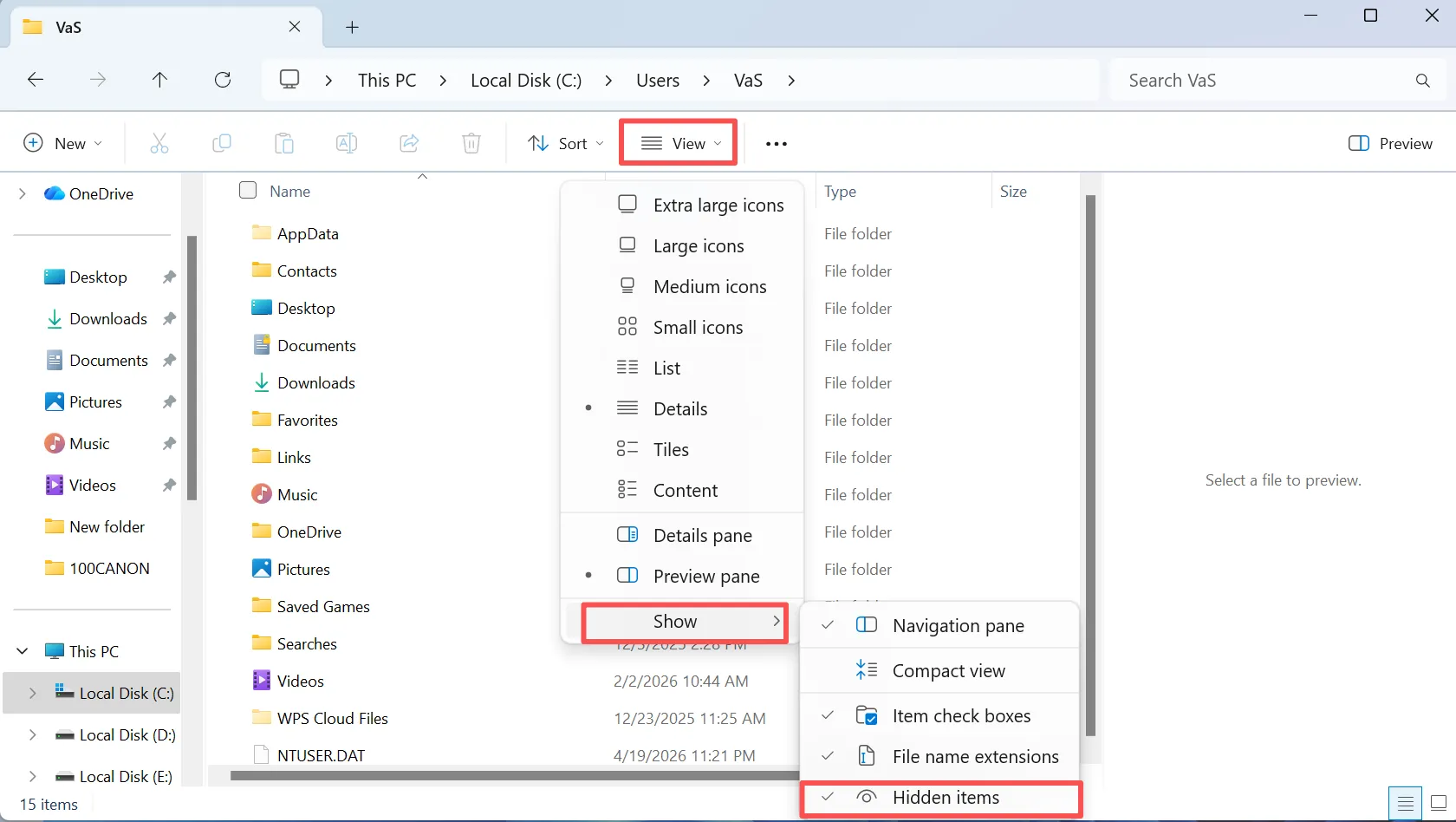
7. Show Hidden Files
A program, command, or malicious process may mark files as hidden. Open File Explorer and select View > Show > Hidden items.
Hidden files usually appear faded. If you recognize them, open Properties and clear the Hidden option. This check helps when my files disappeared from desktop but the drive still reports similar used space.
8. Review Security History and Backups
Windows Security may quarantine suspicious apps, scripts, or downloads. Open Windows Security > Virus & threat protection > Protection history.
However, restore an item only when you trust its source. Never exclude the entire Desktop folder.
Finally, check File History, Previous Versions, or another backup service. These options require a backup or snapshot created before the loss.
How to Fix Files Automatically Deleted from Desktop
After checking icon visibility, search results, Desktop paths, OneDrive, both Recycle Bins, profiles, security history, and backups, you may conclude that the files were truly deleted.
At that point, files automatically deleted from desktop becomes a data recovery problem. Recovery success depends on later drive use, overwriting, SSD TRIM, the file system, and device condition. Because no tool can promise perfect results, start the scan promptly and minimize writing to the source drive.
Recover Files Automatically Deleted from Desktop with Magic Data Recovery
When files automatically deleted from desktop cannot be found through Windows tools, Magic Data Recovery offers a guided solution. It scans the drive that originally held the Desktop folder and searches for documents, photos, videos, archives, and other common formats.
Why Magic Data Recovery Fits This Problem
Magic Data Recovery addresses the main challenge behind files automatically deleted from desktop: normal Windows tools can no longer find the data.
Its practical advantages include:
- Simple workflow: Select a drive and scan without command-line work.
- Advanced Scan: Search for deleted and lost file records.
- Useful filters: Narrow results by filename, path, or file type.
- File previews: Inspect supported files before recovery.
- Selective recovery: Restore only the data you need.
For example, if a project folder disappears after a OneDrive change and no backup exists, a recovery scan is more relevant than repeatedly changing unrelated Windows settings. Unlike backup-based methods, Magic Data Recovery searches the original drive directly. However, overwritten files may no longer remain usable.
How to Use Magic Data Recovery to Recover Deleted Desktop Files
If Windows Search, OneDrive, both Recycle Bins, File History, and other profiles cannot locate the missing files, follow these steps.
Step 1: Download and Install Magic Data Recovery
Download Magic Data Recovery from the official website. Whenever possible, install it on a partition or storage location different from the drive that originally contained the missing desktop files.
For example, if Desktop was stored on C:, avoid installing new software or saving large files to C:. This precaution reduces the chance of overwriting recoverable data.
Supports Windows 7/8/10/11 and Windows Server
Step 2: Select the Drive That Contained the Desktop Files
Launch Magic Data Recovery and review the available drives. Select the drive where the Desktop folder was originally located. On most Windows computers, this is the system drive.
Then, start the scan.

Step 3: Scan for Deleted Desktop Files
Magic Data Recovery starts an Advanced Scan and searches for deleted or missing data. Meanwhile, recoverable files appear as the scan progresses, so you can review results before the process finishes.
For a focused search, check Desktop-related folders or filter results by filename, path, or file type.

Step 4: Preview Files Before Recovery
Next, preview supported documents, photos, videos, and other files before restoring them.
Previewing confirms that you selected the correct version and that its content remains readable. In addition, it helps you avoid unnecessary or duplicate recovery.

Step 5: Recover Files to a Safe Location
Finally, select the desktop files you need and choose the recovery option. Save them to a different partition or storage location rather than the drive you scanned.
Do not restore files directly to the original Desktop during the first attempt. Otherwise, new data may overwrite other deleted files that you have not recovered.

If built-in Windows methods fail, Magic Data Recovery provides a clearer recovery path without complex commands.
Why Files Automatically Deleted from Desktop
Several issues can create the impression that files automatically deleted from desktop. The following causes explain most files automatically deleted from desktop reports.
OneDrive Sync or Folder Redirection
OneDrive can move Desktop content into cloud storage. Therefore, unlinking an account or changing backup settings may expose a different local folder that looks empty.
A Wrong or Temporary User Profile
Windows may load another profile after a sign-in error. As a result, your familiar Desktop, Documents, and settings may seem to disappear.
A Changed Desktop Path
A user, application, or previous configuration may redirect Desktop to another partition. Consequently, Windows may display a new folder while the old data remains elsewhere.
Hidden, Moved, or Deleted Files
Accidental drag-and-drop actions, keyboard shortcuts, scripts, and cleanup tools can move or remove files. In addition, some programs can change file attributes.
Security Quarantine
Security software may isolate specific downloads or executable files. However, quarantine rarely explains the loss of every normal document.
Cleanup Settings
Windows cleanup features mainly target temporary data and older Recycle Bin items. Under standard settings, they do not normally remove ordinary Desktop documents directly.
Drive Errors or Malware
File-system corruption, drive failure, or malware can make files inaccessible. If a drive disconnects, reports repeated errors, or makes unusual noises, stop using it and seek professional help.
How to Prevent Files Automatically Deleted from Desktop
Preventing files automatically deleted from desktop requires both correct folder settings and reliable backups. After recovery, take these steps:
- Confirm the actual Desktop folder location.
- Check whether OneDrive Desktop backup is active.
- Keep another copy of important data outside the computer.
- Enable File History or another scheduled backup.
- Avoid using Desktop as the only storage location.
- Review cleanup settings before enabling automation.
- Keep Windows Security active.
- Use the 3-2-1 backup rule.
- Check drive health when file errors continue.
The 3-2-1 rule keeps three copies on two storage types, with one copy stored separately. Therefore, one failure should not remove every copy.
Conclusion: Recover Files Automatically Deleted from Desktop Safely
When files automatically deleted from desktop, do not assume that Windows erased them permanently. First, check desktop visibility, folder locations, OneDrive, user profiles, hidden items, both Recycle Bins, and backups.
If those methods fail, Magic Data Recovery offers a practical next step. Its guided Advanced Scan, filters, previews, and selective recovery process help ordinary users recover deleted files data without complex commands. More importantly, the tool becomes relevant only after simpler Windows checks rule out hidden, moved, or synced files.
Supports Windows 7/8/10/11 and Windows Server
FAQ
Why did all my desktop files suddenly disappear?
Your files may be hidden, moved to OneDrive, linked to another Desktop path, or stored under a different Windows profile. First, search the entire computer and check both local and OneDrive Desktop folders. Then, inspect both Recycle Bins. If none of these locations contain the files, stop using the source drive and consider a recovery scan.
Can OneDrive remove files from my desktop?
OneDrive synchronizes file changes across connected devices and accounts. Therefore, deleting a synced desktop file on one device may remove it from another device. However, the file may remain in the OneDrive Recycle Bin. Check the online account, confirm which Microsoft account you used, and inspect the OneDrive Desktop folder before using recovery software.
Does Storage Sense delete normal Desktop files?
Storage Sense mainly removes temporary files and older Recycle Bin items according to your settings. It does not normally target ordinary files in the Desktop folder. Nevertheless, a file already moved to the Recycle Bin may disappear during automated cleanup. Therefore, review Storage settings and back up important files instead of relying on the Recycle Bin.
Can I recover files after emptying the Recycle Bin?
You may recover files automatically deleted from desktop after emptying the Recycle Bin because Windows can leave their data on the drive until new information overwrites it. However, recovery is never certain. Stop using the affected drive, avoid downloads and installations, and scan it promptly. Save recovered files somewhere other than the scanned drive.
What should I do if my files disappeared from desktop?
If files disappeared from desktop, start with simple checks. Enable desktop icons, search This PC, inspect local and OneDrive Desktop folders, verify the current profile, and show hidden files. Next, review both Recycle Bins and Windows Security history. If every built-in method fails, protect the source drive and run a recovery scan.
Why did desktop files disappear after a Windows update?
A Windows update may restart OneDrive sync, load a temporary profile, or expose another Desktop location. Therefore, check the active account and inspect C:\Users before assuming deletion. Also review OneDrive and the Desktop Location tab. If the original files remain unavailable, use a backup or recovery scan instead of repeatedly changing system settings.
Is Magic Data Recovery reliable for deleted desktop files?
Magic Data Recovery provides a practical scan, filter, preview, and selective recovery workflow for files that Windows no longer displays. It can help when Search, OneDrive, Recycle Bin, File History, and other profiles fail. However, no tool can recover overwritten data with certainty. For better results, stop using the source drive early and recover files elsewhere.

Vasilii is a data recovery specialist with around 10 years of hands-on experience in the field. Throughout his career, he has successfully solved thousands of complex cases involving deleted files, formatted drives, lost partitions, and RAW file systems. His expertise covers both manual recovery methods using professional tools like hex editors and advanced automated solutions with recovery software. Vasilii's mission is to make reliable data recovery knowledge accessible to both IT professionals and everyday users, helping them safeguard their valuable digital assets.