
Clean Install Windows 10: What to Know and How to Do It
To clean install Windows 10, you start your computer from installation media and install a fresh copy of Windows on the intended drive. Unlike an in-place reinstall, a clean installation removes the previous applications and settings. Deleting the target partitions also erases the files stored on them.
A fresh installation can help resolve persistent software errors, remove unwanted applications, or prepare a new SSD. However, choosing the wrong installation drive or skipping essential backups can lead to permanent data loss.
This guide explains how a clean install of Windows 10 works, how to reinstall Windows using a bootable USB or built-in recovery options, and what to do before and after installation. It also covers important preparation steps, including data backups, Windows activation, and license key recovery, to help you avoid common reinstalling mistakes.
Windows 10 support notice (October 2026): Windows 10 reached the end of standard support on October 14, 2025. Eligible consumer devices enrolled in Microsoft’s Extended Security Updates (ESU) program can receive critical and important security updates through October 12, 2027. ESU does not restore regular feature updates or standard technical support. Consider Windows 11 if your hardware supports it.
Table of Contents
Windows 10 Clean Install: Quick Facts
Item | Details |
Definition | Installing a fresh Windows 10 environment without preserving existing applications and settings |
Main purpose | Replace the current operating system environment |
Standard method | Bootable USB installation |
Official tool | Microsoft Media Creation Tool |
Installation media | Blank USB drive with at least 8GB |
Data impact | Files on deleted partitions become inaccessible |
Windows activation | Requires a valid license or digital entitlement |
Alternative | Reset This PC with Remove everything |
Relevant version | Windows 10 version 22H2 |
Quick answer: The standard way to clean install Windows 10 is to create a bootable USB using Microsoft’s Media Creation Tool, boot your computer from it, select Custom installation, and install Windows on the correct drive.
Always verify your backups before deleting existing partitions.
How Does a Clean Install of Windows 10 Work?
A clean installation replaces the previous Windows environment with fresh operating system files. Instead of repairing the existing installation, Windows Setup creates a new system configuration.
The process involves four main stages.
Boot Into Windows Setup
Your computer starts from external installation media instead of loading the existing Windows installation.
As a result, Windows Setup can access and modify the destination disk independently of the current operating system.
Select the Installation Destination
Setup displays the available disks and partitions. You choose where Windows should be installed.
If you remove the existing partitions from the target disk, Setup can recreate the partitions required for Windows.
However, deleting partitions also removes access to their existing files.
Install Windows System Files
Windows Setup copies operating system files, configures system components, and prepares the new installation to start.
The computer may restart several times during this stage.
Configure the New Windows Environment
After installation, Windows asks you to choose regional settings, configure an account, connect to a network, and review privacy preferences.
The result is a fresh Windows environment without the previous installation’s applications and settings.
Important: A clean installation can resolve software-related problems, but it cannot repair failing hardware or guarantee that every system issue will disappear.
Clean Install vs. Reset This PC vs. In-Place Reinstall
Although these methods can all reinstall Windows, they serve different purposes.
Feature | Clean Install via USB | Reset This PC | In-Place Reinstall |
Installation source | Bootable USB | Cloud or local recovery files | Existing Windows and installation files |
Personal files | Removed from erased partitions | Depends on reset option | Can be preserved |
Installed applications | Removed | Removed | Can be preserved |
Partition control | Full manual selection | Limited | No partition changes |
Working desktop required | No | No, if WinRE works | Usually yes |
Main purpose | Fresh installation | Simplified reset | Repair existing Windows |
When Is a Clean Install the Better Choice?
A clean Windows 10 reinstall may be appropriate when:
- Windows experiences persistent software or configuration errors.
- Previous repair attempts have failed.
- You want to replace the current Windows environment completely.
- You are installing Windows on a new SSD.
- You need greater control over the installation partitions.
However, reinstalling Windows is unnecessary for many isolated problems. For example, if only one application crashes, updating or reinstalling that application may solve the issue.
Likewise, a failing SSD or defective RAM requires hardware troubleshooting rather than another Windows installation.
What to Do Before a Clean Install for Windows 10
Preparing for a clean install Windows 10 procedure is essential because the installation may remove personal files, installed programs, and locally stored licensing information.
Complete these checks before making changes to your system drive.
Step 1. Back Up and Verify Important Files
First, copy essential files to an external drive, another physical disk, or reliable cloud storage.
Check these locations:
- Desktop, Documents, Downloads, Pictures, and Videos.
- Work projects, databases, and local email archives.
- Browser bookmarks and unsynchronized data.
- Application settings and files in custom folders.
Next, open several files directly from your backup location. This confirms that the copies are usable.
Safety tip: Avoid storing your only backup on another partition of the disk you plan to erase. A mistake during partition selection could destroy both copies.
Step 2. Check Your Windows Activation Status
Before a clean reinstall of Windows 10, confirm whether Windows is already activated.
- Open Settings > Update & Security > Activation.
- Check whether Windows displays an activated status.
- Record your installed edition, such as Windows 10 Home or Pro.
- Confirm whether your digital license is linked to your Microsoft account.
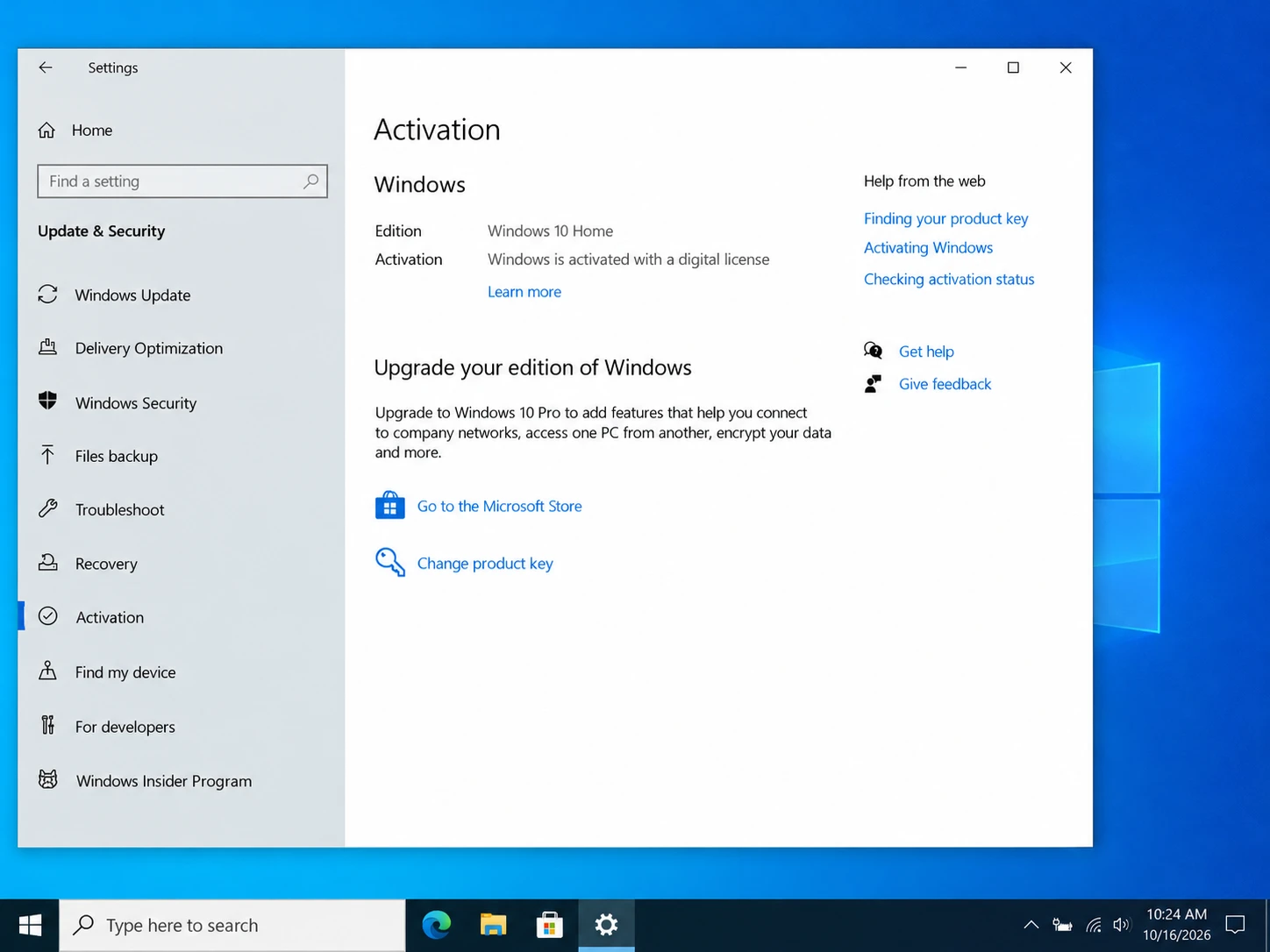
Many computers use digital licenses associated with their hardware. Consequently, reinstalling the same edition on the same device can often reactivate Windows automatically.
However, a digital license does not necessarily provide a readable 25-character product key.
If you need to identify a stored key or understand your activation method, see how to get your Windows 10 product key.
Step 3. Save Your Software Product Keys
Windows activation is only one concern. A fresh installation also removes applications that may require separate licenses.
For example, an older Microsoft Office installation, a PDF editor, or specialized business software may use a product key that you no longer have in your purchase records.
Start by checking your software accounts, purchase emails, and original license documents.
If those records are incomplete, Magic Recovery Key can help locate recoverable license information from Windows and supported applications.
To save available keys:
- Open Magic Recovery Key on your current Windows installation.
- Select Registry Keys under Local.
- Review the detected product keys.
- Copy or save the relevant information to a secure external location.

This approach helps organize available software keys without manually searching multiple Registry locations.
However, not every application stores a recoverable key. Subscription-based software often relies on online accounts, and recovering a key does not guarantee permission to transfer or reactivate a license.
For other methods, read how to find product keys for installed software.
Step 4. Check BitLocker and Installation Requirements
If your computer uses BitLocker or device encryption, confirm that you can access its recovery key.
Check your Microsoft account or contact your organization’s administrator when appropriate.
Also prepare:
- A blank USB flash drive with at least 8GB of storage.
- A stable internet connection.
- A valid Windows 10 license.
- The correct Windows edition and architecture.
- Access to your computer manufacturer’s drivers.
Once you have verified these requirements, you can proceed with the installation.
How to Clean Install Windows 10 Using a USB Drive
The USB method is the most direct way to clean install Windows 10 without relying on the existing operating system.
Follow these six steps carefully.
Step 1. Download the Official Windows 10 Media Creation Tool
Visit the Microsoft Windows 10 download page.
Find Create Windows 10 installation media and select Download Now.
Next, run the Media Creation Tool as an administrator and accept Microsoft’s license terms.
The official download page provides Windows 10 version 22H2 installation media.
Step 2. Create a Bootable Windows 10 USB
Connect your blank USB flash drive.
Then follow these instructions:
- Select Create installation media (USB flash drive, DVD, or ISO file) for another PC.
- Choose the appropriate language, edition, and architecture.
- Select USB flash drive.
- Choose the correct USB device.
- Click Next and wait for the process to finish.
The Media Creation Tool downloads the required files and prepares the USB for installation.
Warning: This process erases existing content on the selected USB device. Always confirm that you have chosen the correct drive.
Step 3. Boot Your Computer From the USB
Insert the prepared USB into the computer where you want to install Windows.
Restart the device and open its boot menu.
Common boot keys include F12, F2, Esc, and Delete. However, the correct key depends on your computer manufacturer.
Select the USB device from the boot menu.
If your computer starts the existing Windows installation instead, check the boot order in BIOS or UEFI.
UEFI is the modern firmware interface that initializes hardware and starts the operating system. Most newer PCs use UEFI rather than traditional Legacy BIOS.
Step 4. Start Windows Setup
When Windows Setup appears:
- Select your language, time, and keyboard preferences.
- Click Next, then Install now.
- Enter your Windows product key if requested.
If the computer already has a valid digital license for the same Windows edition, you can generally choose I don’t have a product key.
Next, select the Windows edition that matches your license.
When Setup asks which installation type you want, choose:
Custom: Install Windows only (advanced)
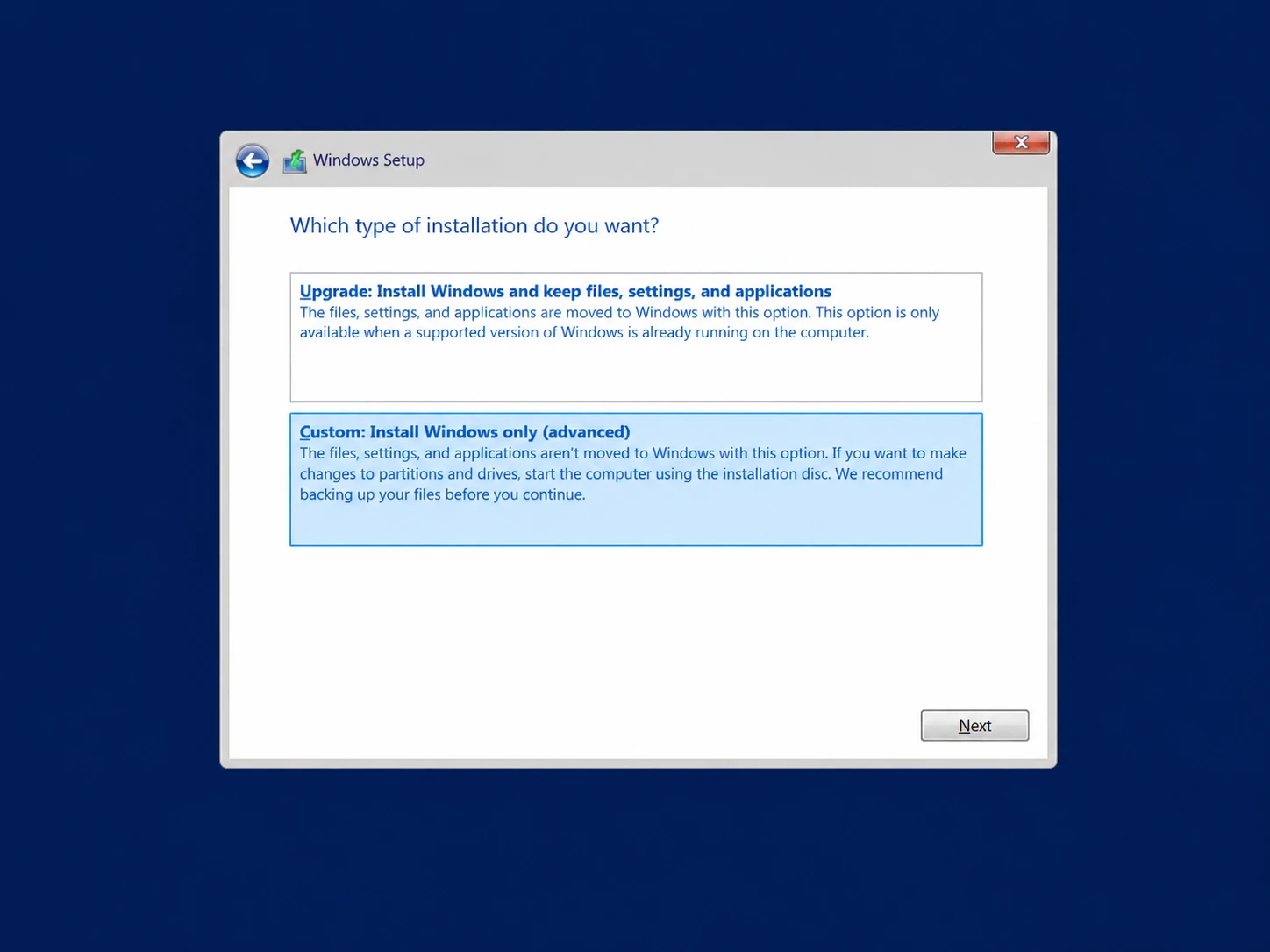
This option allows you to select the installation destination rather than performing an in-place upgrade.
Step 5. Select the Correct Disk and Install Windows 10
Disk selection is the most important stage of the clean install Windows 10 process.
Windows Setup displays the available physical disks and partitions.
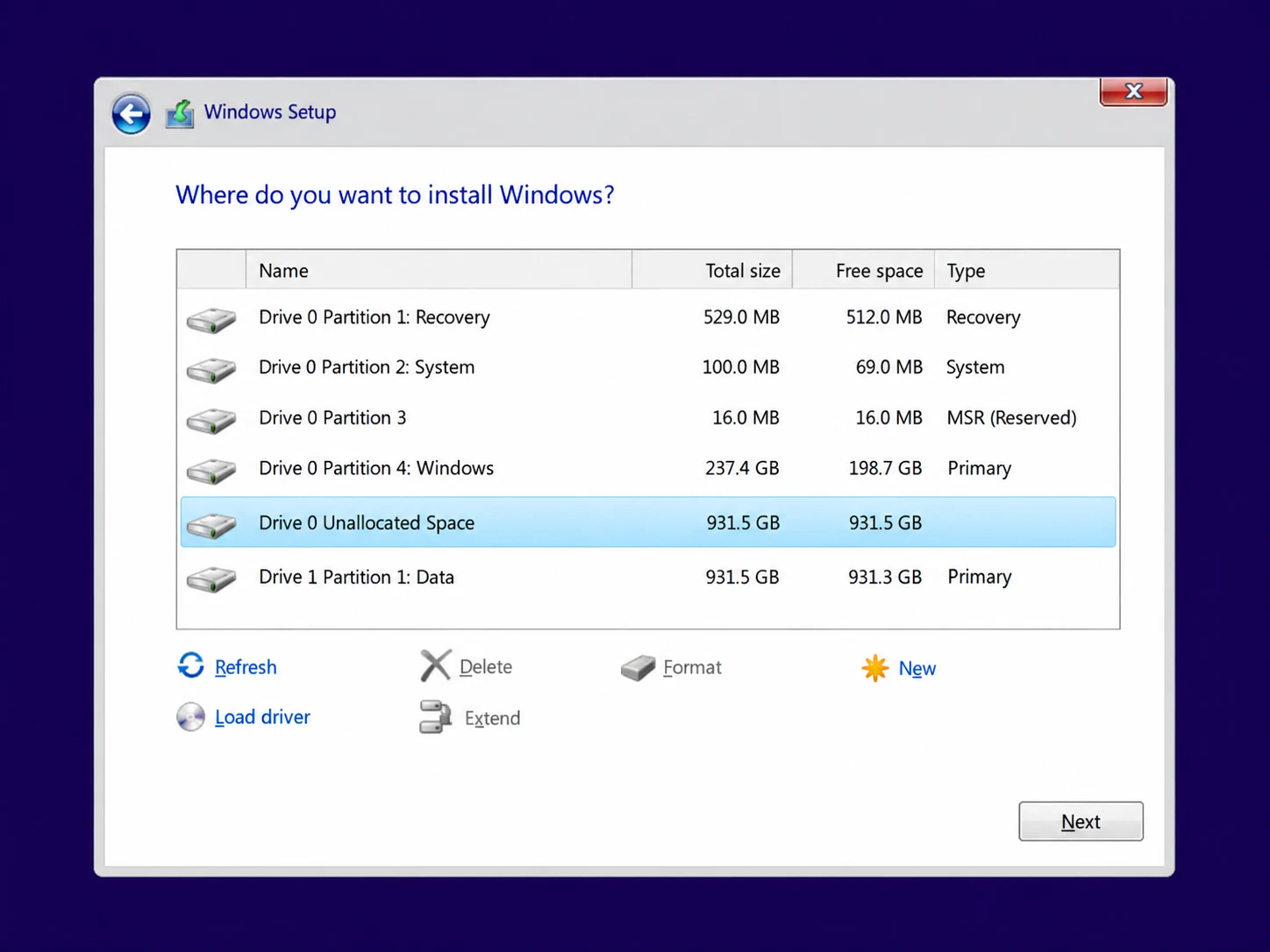
Before continuing, identify your intended system disk by its capacity and partition details.
If your computer contains multiple physical drives, consider disconnecting nonessential drives beforehand.
For a fully backed-up target disk that you intend to erase completely:
- Identify the correct physical disk.
- Select a partition on that disk.
- Click Delete only if you intend to erase its contents.
- Repeat for the remaining partitions on that disk if you want to remove the entire existing layout.
- Select the resulting Unallocated Space.
- Click Next to install Windows.
Windows Setup creates the partitions required for the operating system.
Critical warning: Never assume Disk 0 is automatically the correct disk. Do not delete partitions on backup drives or unrelated storage devices.
Deleting partitions can make existing files unrecoverable, particularly on SSDs where TRIM and garbage collection may remove deleted data.
If you cannot identify the correct target disk, stop before deleting anything.
Step 6. Complete Windows 10 Initial Setup
Windows Setup copies the installation files and restarts the computer.
Afterward, follow the on-screen instructions to:
- Select your region and keyboard layout.
- Connect to a network when appropriate.
- Configure a Windows account.
- Review privacy settings.
- Complete the initial setup.
When the Windows desktop appears, the installation is complete.
However, you still need to check drivers, activation, and application availability.
How to Reinstall Windows 10 Without a USB
You can reinstall Windows without external installation media by using its built-in recovery features.
However, these methods do not provide the same partition-level control as a traditional USB clean installation.
Method 1. Use Reset This PC
If Windows still starts, open:
Settings > Update & Security > Recovery > Reset this PC
Then follow these steps:
- Click Get started.
- Select Remove everything.
- Choose Cloud download or Local reinstall.
- Review the reset settings.
- Confirm your selection.
Cloud download retrieves Windows installation files from Microsoft. In contrast, Local reinstall uses files available on the computer.
Both methods can remove installed applications and personal files according to your reset settings.
Nevertheless, Reset This PC does not necessarily recreate the disk layout.
Method 2. Use Windows Recovery Environment
If Windows cannot start normally, you may still access Windows Recovery Environment (WinRE).
Open the recovery menu and navigate to:
Troubleshoot > Reset this PC > Remove everything
Follow the instructions to reinstall Windows.
Your device may request a BitLocker recovery key before allowing certain recovery operations.
If WinRE is unavailable or the reset fails repeatedly, external installation media may provide a better alternative.
Common Windows 10 Clean Install Problems and Fixes
Even a correctly prepared installation can encounter unexpected problems.
The following solutions address several common situations.
USB Drive Does Not Appear in the Boot Menu
First, reconnect the USB and try another port.
Next, confirm that the Media Creation Tool completed successfully. Check the firmware boot settings and consult your computer manufacturer’s instructions.
If necessary, recreate the installation media.
Windows Cannot Be Installed on the Selected Disk
This error may indicate a mismatch between the firmware boot mode and disk partition style.
Modern UEFI installations normally use GPT partitioning. Older Legacy BIOS configurations commonly use MBR.
Before changing partitions, verify the computer’s boot configuration and confirm that your data is backed up.
Avoid destructive disk-cleaning commands unless you fully understand their effects.
Windows Setup Cannot Detect Your SSD
First, check whether BIOS or UEFI detects the SSD.
Some systems require additional storage-controller drivers, especially when using RAID or Intel VMD configurations.
Download the appropriate driver from the computer manufacturer’s official support website.
If the firmware cannot detect the drive either, investigate the hardware connection or disk health.
Windows 10 Does Not Activate
Check whether the installed Windows edition matches your existing license.
Next, connect to the internet and open Activation settings.
If Windows still fails to activate, use the Activation Troubleshooter when available.
Major hardware changes or licensing restrictions may require additional assistance.
Common Misconceptions and Safety Considerations
Several misunderstandings can lead to unnecessary reinstallations or accidental data loss.
Does a Clean Install Fix Every Computer Problem?
No. A clean installation replaces the software environment but does not repair defective hardware.
For example, a failing SSD, faulty memory module, or overheating processor can continue causing errors after Windows has been reinstalled.
Investigate hardware symptoms before erasing your existing system.
Does a Clean Install Erase Every Connected Drive?
Not automatically.
Windows Setup modifies the disk and partitions you select. Other physical drives normally remain unchanged if you do not modify them.
However, selecting the wrong disk can destroy unrelated data. Disconnecting nonessential drives can reduce this risk.
Is Reset This PC the Same as a Fresh Installation?
Not exactly.
Reset This PC reinstalls Windows through recovery features. A USB clean installation starts from external media and allows you to recreate the target disk’s partition layout.
Both methods can provide a fresh Windows environment, but their technical processes differ.
When Should You Stop the Installation?
Stop before making destructive changes if:
- Your important files have no verified backup.
- You cannot identify the correct installation disk.
- Your drive shows signs of physical failure.
- You do not have access to required BitLocker recovery information.
- Your computer belongs to an organization that manages its Windows installation.
These situations require additional preparation or professional assistance before proceeding.
What to Do After a Clean Windows 10 Reinstall
After you clean install Windows 10, complete the following checks before returning to everyday use.
Verify Windows Activation
Open Settings > Update & Security > Activation.
Confirm that Windows shows an activated status.
If activation fails, check the installed edition, internet connection, and digital license information.
Install Drivers and Applicable Security Updates
Open Device Manager and look for devices displaying warning symbols.
Download missing drivers from your computer manufacturer’s official website.
Next, open Windows Update and check for updates available under your device’s support arrangement.
If your device qualifies for Windows 10 ESU, verify its enrollment status. A clean installation alone does not enroll a computer in ESU or extend standard support.
Restore Personal Files and Applications
Copy your documents and other essential files from the verified backup.
Then reinstall applications from official vendor websites.
If the previous system had malware, scan your backup before restoring executable files or application data.
Restore Your Software Licenses
Review the software license records you saved before reinstalling.
For account-based applications, sign in with the original licensed account. For software that requires serial numbers, use your saved product keys or purchase documents.
If Microsoft Office requests activation, see how to find your Microsoft Office product key.
Keep in mind that a recovered key does not automatically grant permission to transfer software to another device.
Official References and Version Information
This guide primarily covers Windows 10 version 22H2 and its traditional installation interface.
For official installation instructions and technical details, consult:
- Microsoft: Download Windows 10 — Official installation media and hardware requirements.
- Microsoft: Reinstall Windows with Installation Media — Clean installation, backup precautions, and activation guidance.
- Microsoft: Reset Your PC — Cloud download, local reinstall, and recovery options.
- Microsoft: Windows 10 End of Support — Windows 10 lifecycle and consumer Extended Security Updates information.
The exact installation screens, recovery options, and boot menu keys may differ depending on the hardware manufacturer and Windows edition.
Conclusion
A clean install Windows 10 procedure replaces the previous operating system environment with a fresh installation. It can resolve persistent software issues and prepare a new system drive, but it also removes installed applications and may erase important files.
For the safest results, verify your backups, confirm Windows activation, identify the correct installation disk, and save your software license information before proceeding.
We recommend Magic Recovery Key as an optional preparation tool because it helps locate and preserve available Windows and supported application keys before reinstalling. This can be especially useful when older software licenses are difficult to find. For additional information, explore our license key recovery guide.
Finally, consider your Windows 10 support and ESU eligibility before reinstalling. A supported operating system remains the better long-term option whenever your hardware allows it.
Supports Windows 7/8/10/11 and Windows Server
FAQ
Does a clean install of Windows 10 delete everything?
Can I clean install Windows 10 without a USB drive?
Do I need a product key to reinstall Windows 10?
What Is the Difference Between a Clean Install and a Fresh Install?
Can I Clean Install Windows 10 on a New SSD?
Will Microsoft Office Remain Activated After Reinstalling Windows 10?
Is It Safe to Clean Install Windows 10 in 2026?

Vasilii is a data recovery specialist with around 10 years of hands-on experience in the field. Throughout his career, he has successfully solved thousands of complex cases involving deleted files, formatted drives, lost partitions, and RAW file systems. His expertise covers both manual recovery methods using professional tools like hex editors and advanced automated solutions with recovery software. Vasilii's mission is to make reliable data recovery knowledge accessible to both IT professionals and everyday users, helping them safeguard their valuable digital assets.