
How to Format BitLocker Drive Without Recovery Key
When a BitLocker-protected drive suddenly becomes inaccessible, most users feel trapped. Windows 11 repeatedly asks for a recovery key, you cannot open the drive, and the system asks to format the drive. This is why so many people search for format bitlocker drive without recovery key.
However, formatting is not a hard drive solution—it is a point of no return. Once a Bitlocker encrypted drive is formatted, it would be extremely difficult to recover the data. This guide explains how formatting works, why users consider it, and why Magic Data Recovery is a safer option before irreversible data loss occurs.
Supports Windows 7/8/10/11 and Windows Server
Table of Contents
Why Users Search for Format BitLocker Drive Without Recovery Key
In real-world scenarios, users usually face one of these problems:
- A BitLocker drive suddenly shows “Access is denied”
- Windows 11 requests a 48-digit recovery key that cannot be found
- An external encrypted drive appears as RAW or unreadable
At this stage, formatting appears to be the fastest way to make the drive usable again. However, it also permanently destroys the data due to the encryption.
Can BitLocker Drives Be Formatted Without a Recovery Key?
Yes, Windows allows you to format a BitLocker-protected drive even if you do not have the recovery key. This applies to both internal and external drives.
That said, formatting does not unlock or decrypt the data. It simply removes the existing file system and encryption metadata, making the original files permanently inaccessible.
How to Format BitLocker Drive Windows 11 Without a Recovery Key
Method 1: Using Disk Management
This method works when Windows can still detect the drive.
Steps:
1. Right-click Start and open Disk Management
2. Locate the BitLocker-encrypted drive
3. Right-click the partition and choose Format
4. Select a file system and confirm
Once completed, the drive becomes usable, but all encrypted data is lost.
Method 2: Using DiskPart (Advanced)
DiskPart is required when Disk Management fails.
Steps:
1. Open Command Prompt as administrator
2. Type diskpart and press Enter
3. Use list disk to identify the drive
4. Run select disk X
5. Execute clean
This process removes all partition and encryption information, significantly reducing any chance of recovery.
Important Warning: Formatting a BitLocker Drive Destroys Encrypted Data
Without the recovery key, BitLocker-encrypted data cannot be decrypted. Formatting overwrites critical metadata required for decryption, which means recovery tools cannot reconstruct readable files afterward.
This is why formatting should always be the last resort.
If You Forgot the BitLocker Recovery Key (But Have Not Formatted)
How Magic Recovery Key Helps
If the drive has not been formatted, the recovery key may still exist in system storage or related locations. Magic Recovery Key helps locate previously stored BitLocker recovery keys without bypassing encryption.
How to Use Magic Recovery Key
1. Download and Install Magic Recovery Key
Supports Windows 7/8/10/11 and Windows Server
2. Select BitLocker Recovery Key option and Start searching.

3. Once the scan completes, the software displays the recovery key.

4. Save or copy the recovery key to unlock the drive.
When the BitLocker Drive Is Inaccessible but Still Contains Data
In many cases, the issue lies in file system corruption rather than data deletion. Although BitLocker protects access, the data may still be present on the drive.
Recover Data with Magic Data Recovery Before Formatting
Why Magic Data Recovery Is Recommended
Magic Data Recovery is designed to scan drives at a low level and identify recoverable data structures before formatting occurs. It does not attempt to break encryption but helps users evaluate whether recovery is still possible.
Key advantages:
- Works with inaccessible or corrupted drives
- Allows file preview before recovery
- Reduces the risk of unnecessary formatting
How to Use Magic Data Recovery
1. Install the software on a different drive
Supports Windows 7/8/10/11 and Windows Server
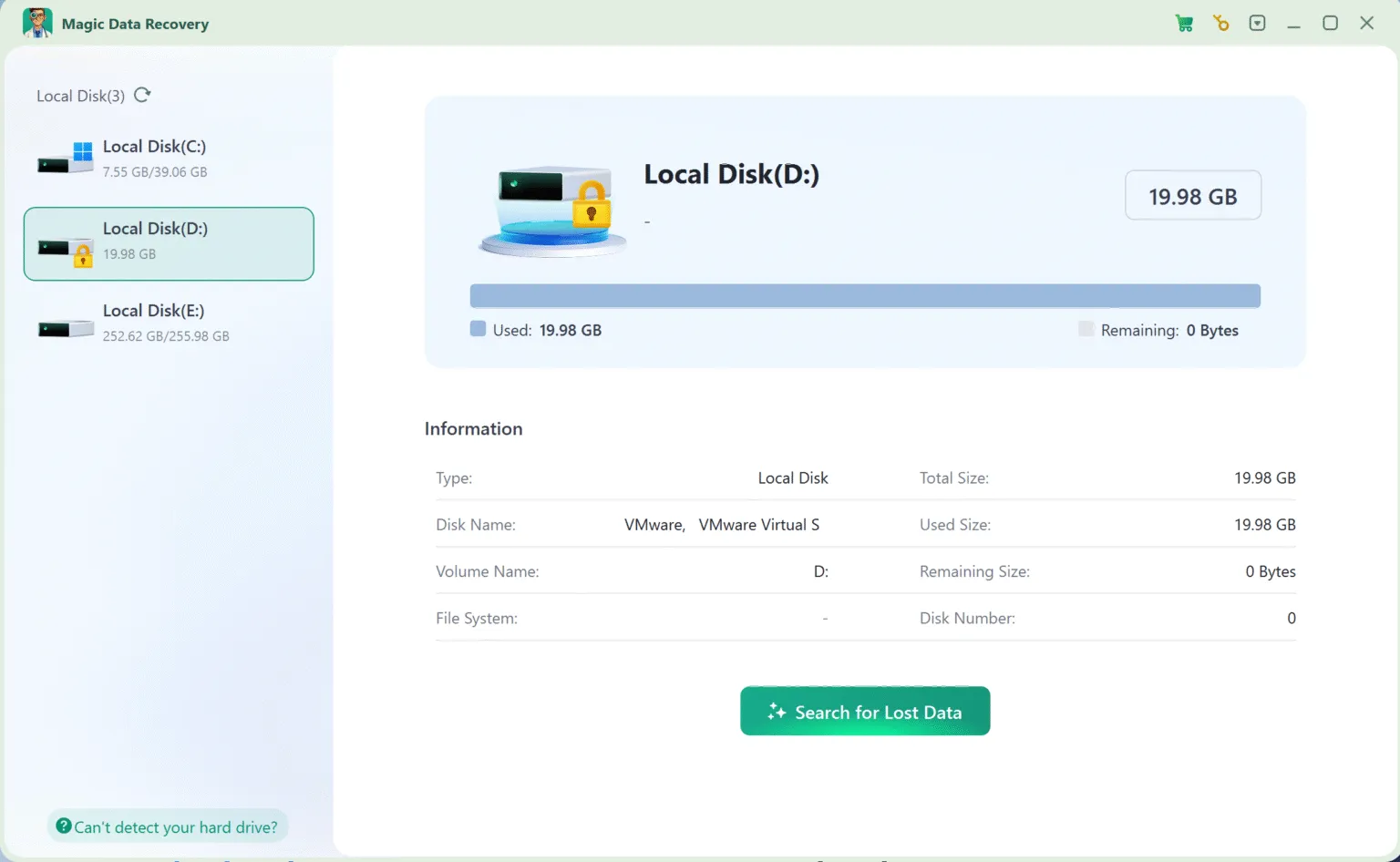
2. Select the BitLocker-affected disk
When you run the software, it displays all the drives connected to the computer.
3. Run a scan
It runs Advanced Scan automatically to find every possible file. When the scan completes, you will see all the recoverable files.

4. Preview Files
Preview feature allows you check the file contents. You can just select the data you need for recovery.

5. Recover Data
After you select the data you need, click the Recover button and save the files to another drive.
Lorem ipsum dolor sit amet, consectetur adipiscing elit. Ut elit tellus, luctus nec ullamcorper mattis, pulvinar dapibus leo.

Conclusion
When dealing with a BitLocker drive without a recovery key, formatting should never be the first step. Data recovery and key retrieval offer safer alternatives that protect valuable files. If you want to find the lost key, Magic Recovery Key offers an easy way to search everywhere Windows saves the key information. If you actually need to recover files from the hard drive, Magic Data Recovery provides a practical and reliable way to search the data before irreversible loss occurs.
When you are facing BitLocker access issues on Windows 11, choosing the right tool before formatting can make all the difference.
Supports Windows 7/8/10/11 and Windows Server
FAQ – Format BitLocker Drive Without Recovery Key
Can BitLocker drives be formatted?
What if I don't have the recovery key for BitLocker?
How to get out of BitLocker recovery without a key?
Can I wipe a drive that has BitLocker?
Can you factory reset a BitLocker computer?
Can you reformat an encrypted hard drive?
How do I find my 48-digit BitLocker recovery key?
What happens if I lose my recovery key?

Vasilii is a data recovery specialist with around 10 years of hands-on experience in the field. Throughout his career, he has successfully solved thousands of complex cases involving deleted files, formatted drives, lost partitions, and RAW file systems. His expertise covers both manual recovery methods using professional tools like hex editors and advanced automated solutions with recovery software. Vasilii's mission is to make reliable data recovery knowledge accessible to both IT professionals and everyday users, helping them safeguard their valuable digital assets.