
Hard Drive Not Recognized? Here’s How to Fix it
When a hard drive is not recognized by your computer, it can immediately trigger concern about potential data loss. Whether the issue affects an internal hard drive or an external HDD, the situation is often recoverable. In many cases, the drive itself is still functional, but logical problems prevent it from appearing in File Explorer or Disk Management.
The good news is that an undetected hard drive does not necessarily mean your data is gone. With a clear understanding of the underlying causes and a structured troubleshooting approach, you can resolve most detection issues safely.
This guide explains why a hard drive may not be recognized and provides practical solutions, followed by professional hard drive data recovery options when the drive remains unreadable.
Table of Contents
Why a Hard Drive Is Not Recognized
A hard drive may fail to appear for several technical reasons. Common causes include:
- Connection issues: Faulty cables, loose SATA connectors, or insufficient power supply.
- Driver problems: Missing, outdated, or corrupted disk drivers in Windows.
- File system errors: Corruption that causes the drive to appear as RAW or unallocated.
- Partition issues: Missing drive letters or damaged partition tables (MBR/GPT).
- BIOS/UEFI settings: The drive is disabled or not initialized at firmware level.
- Malware interference: Viruses can hide partitions or block disk access.
Understanding the cause is essential, as each scenario requires a different solution.
How to Fix a Hard Drive That Is Not Recognized
Follow these steps in order. Avoid formatting the drive unless explicitly instructed, as formatting may overwrite recoverable data.
Step 1: Check Physical Connections
For external drives, try a different USB port or cable. For internal HDDs, reseat the SATA and power cables. If possible, test the drive on another computer.
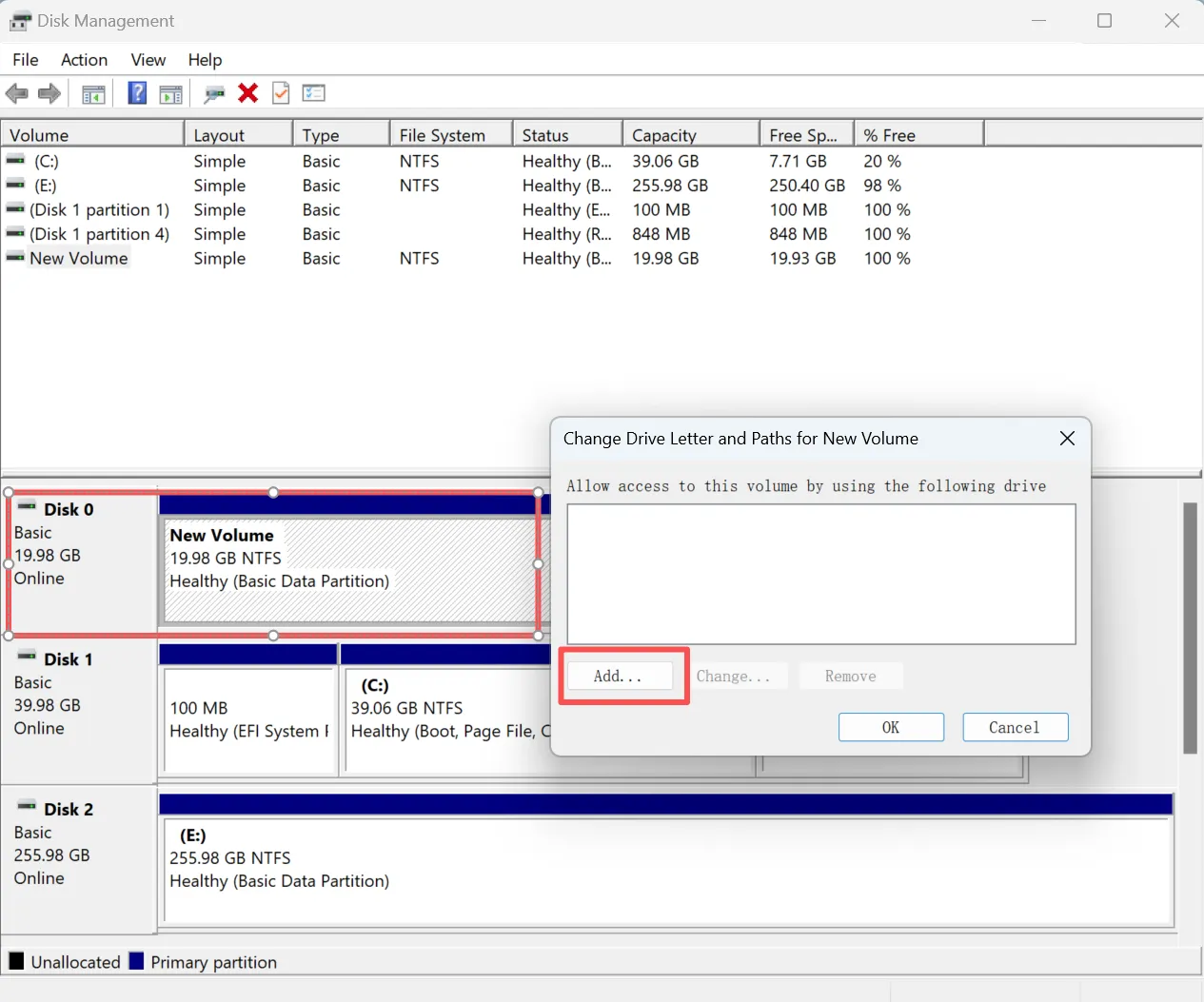
Step 2: Check Disk Management
1. Press Win + X and select Disk Management.
2. Look for the drive status:
- Unallocated: The partition table may be damaged.
- RAW: The file system is corrupted.
- Offline: Right-click and set the disk online.
3. Assign a drive letter if the partition exists but is not visible.
Step 3: Update or Reinstall Disk Drivers
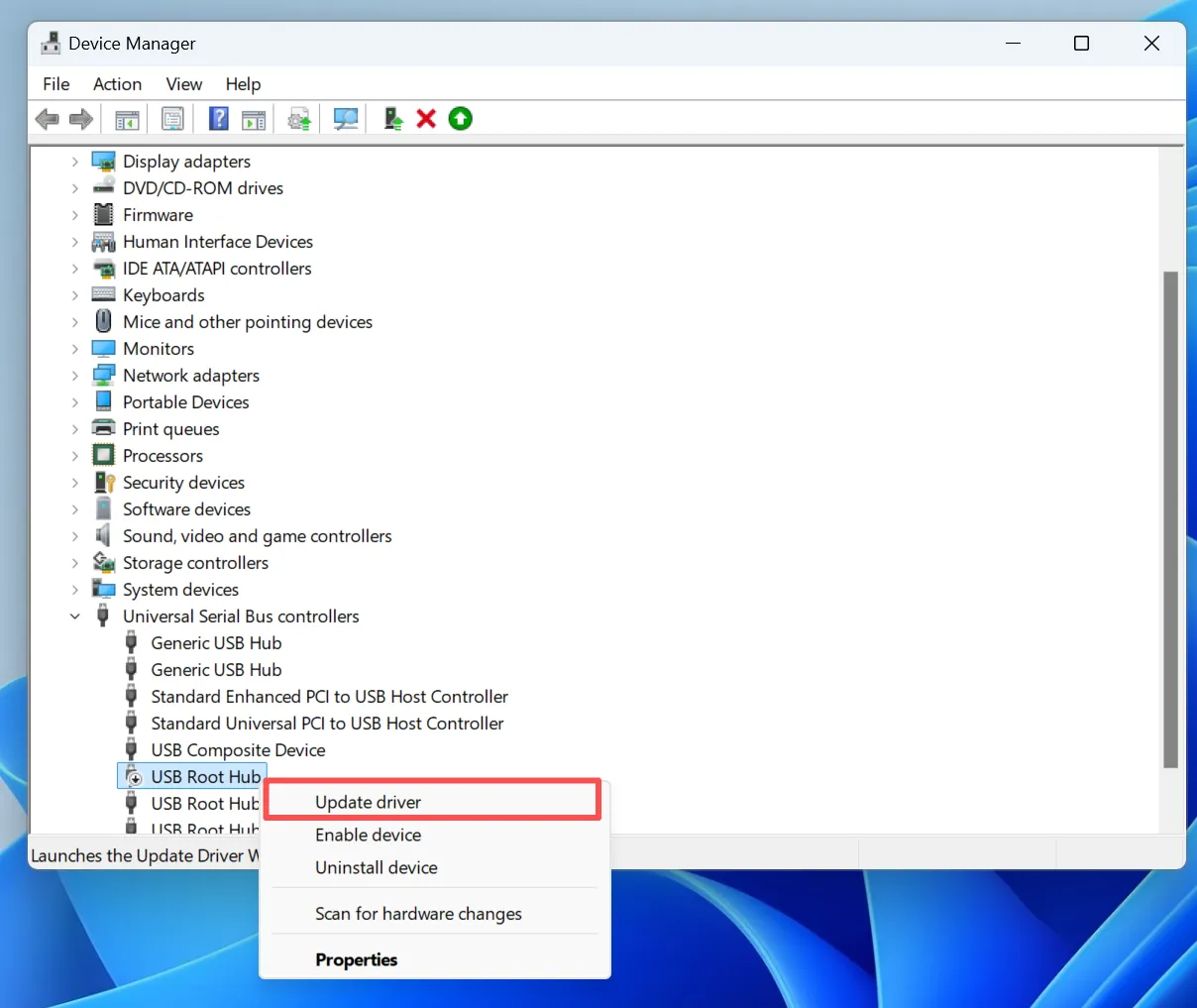
1. Open Device Manager.
2. Expand Disk drives.
3. Right-click the HDD and select Update driver or Uninstall device, then restart Windows.
Microsoft documentation confirms that driver reinitialization after system updates often resolves hard drive not recognized issues.
Step 4: Check BIOS or UEFI
Restart your computer and enter BIOS/UEFI settings. Verify whether it can detect hard drive at firmware level. If it does not appear, the issue may be hardware-related.
Step 5: Scan for File System Errors
If the drive appears but is unreadable, file system corruption is likely. At this stage, you should perform data recovery before any repair attempt like CHKDSK.
How to Recover Data from the Not Recognized Hard Drive
If the hard drive is visible in Disk Management but inaccessible, professional recovery software provides a safe, read-only solution.
Magic Data Recovery by Amagicsoft can scan undetected or unreadable hard drives without modifying existing data. It supports NTFS, FAT32, exFAT, and RAW file systems, making it suitable for most HDD recovery scenarios. This approach ensures data integrity while addressing logical disk failures.
Can a Virus Cause a Hard Drive Not Recognized?
Yes. Certain malware can modify partition tables, hide volumes, or block disk drivers. If a virus is suspected, disconnect the drive immediately and perform data recovery before running antivirus repairs, as cleanup processes may further damage the file structure.
What Is the Lifespan of a Typical Hard Drive?
Most mechanical hard drives have an average lifespan of 3 to 5 years, depending on usage, operating temperature, and power stability. Detection issues may indicate early signs of failure, making timely data backup and recovery essential.
Preventing Future Hard Drive Detection Issues
- Use high-quality cables and power supplies
- Safely eject external drives
- Monitor SMART health data regularly
- Maintain updated drivers and operating systems
- Keep verified backups of critical data
Conclusion
When a hard drive is not recognized, the situation is often less severe than it appears. By following a structured troubleshooting process and avoiding risky actions like formatting, you can preserve your data and restore access safely. When standard fixes fail, professional recovery tools provide a reliable HDD data recovery solution. Download Magic Data Recovery to recover files from unreadable or undetected hard drives safely and efficiently.
Supports Windows 7/8/10/11 and Windows Server
Hard Drive Not Recognized – FAQs
How to fix a hard drive that is not detected?
Why does my computer not recognise my hard drive?
Why isn't my PC finding my hard drive?
How do I force my hard drive to detect?
What is the lifespan of a typical hard drive?
How to recover unreadable HDD?
Can a virus cause a hard drive to disappear?
How do I recover an undetected external hard drive?

Vasilii is a data recovery specialist with around 10 years of hands-on experience in the field. Throughout his career, he has successfully solved thousands of complex cases involving deleted files, formatted drives, lost partitions, and RAW file systems. His expertise covers both manual recovery methods using professional tools like hex editors and advanced automated solutions with recovery software. Vasilii's mission is to make reliable data recovery knowledge accessible to both IT professionals and everyday users, helping them safeguard their valuable digital assets.