
How to Recover Deleted Files from Google Drive
A folder disappears from My Drive, or an important document is missing after Trash was emptied. That does not always mean every recovery option is gone. To recover deleted files from Google Drive, first check whether the file is still in Trash, whether someone else owns it, and which Google account stored it.
Files in Trash have a straightforward restore option. After permanent deletion, the next route depends on the account: a personal account may have an official recovery request available, while a work or school account may qualify for administrator assistance. A downloaded or backed-up copy provides another route if cloud recovery fails.
Start with Google’s recovery options and preserve any remaining copies. This guide separates cloud restoration from local disk recovery so each step fits the actual loss. For broader guidance on protecting deleted data, see our deleted file recovery guide.
Table of Contents
Before You Start: Protect Any Remaining Copies
Do not empty Drive Trash or delete other copies while investigating. If a computer may still hold the file, pause Drive for desktop syncing before checking it. Avoid disconnecting the account or clearing its cache: Google notes that disconnecting a streaming account removes offline files.
If the local copy was also deleted, minimize use of that storage device. Do not install recovery software or save recovered files on the affected drive. These disk precautions protect local data; they do not extend Google’s cloud recovery windows.
Google Drive Deleted File Recovery: Choose Your Next Step
What happened? | First action | Important limit |
The file is still in Drive Trash | Restore it from Trash | Items are automatically permanently deleted after 30 days |
Trash was emptied on a personal account | Open Google’s official recovery page while signed in | A request is not a guarantee of recovery |
A work or school file was permanently deleted | Contact the Workspace administrator promptly | Standard admin recovery has a limited window |
A shared file disappeared | Ask the owner to check the original file and permissions | Removing someone else’s file from your Drive does not delete their original |
A shared drive or its contents were deleted | Ask the administrator to use shared-drive recovery | This uses a separate administrator workflow |
A downloaded or backed-up copy exists | Copy it to a safe location and verify it | It may be an older version |
A real local copy was deleted and no backup exists | Consider local disk recovery | Desktop software cannot scan Google’s servers |
The file exists on the web but is missing on the computer | Investigate the desktop sync state | This is a sync issue, not cloud deletion |
Confirm the File Was Deleted Before Trying Recovery
An empty folder is a symptom, not proof of deletion. A few checks can prevent an unnecessary scan or recovery request.
Check the Account and Search Drive
Open Drive in a browser and confirm the account shown in the profile menu. Search for a distinctive part of the filename, then check My Drive and Shared with me. If a collaborator has the original link, try opening it.
An access request screen may indicate a permissions problem. If the file is available on the web but absent from the desktop folder, focus on Drive for desktop instead. Avoid reinstalling or resetting the desktop app until any remaining local copies are safe.
Check Who Owns the File
Google distinguishes deleting a file you own from removing a file owned by someone else. Removing a shared item from your Drive does not delete the owner’s original. Ask the owner to locate it and share it again before treating the problem as permanent deletion.
Separate the Cloud File from Its Local Copy
A PDF uploaded to Drive may also exist in Downloads, an email attachment, or an external backup. Those are independent recovery candidates.
Drive for desktop also supports streaming and mirroring. Google explains that mirrored files have local copies, while streamed files primarily reside in the cloud. Seeing a filename in File Explorer does not prove a complete, recoverable copy was stored on the computer. A cached or offline item should not be treated as a dependable backup.
Restore Deleted Files from Google Drive Trash
Best for: Files that remain in Trash.
Start here because restoring the existing cloud item avoids disk scanning and preserves the original file rather than replacing it with an export or older backup. Google keeps items in Trash for 30 days unless they are permanently deleted sooner.
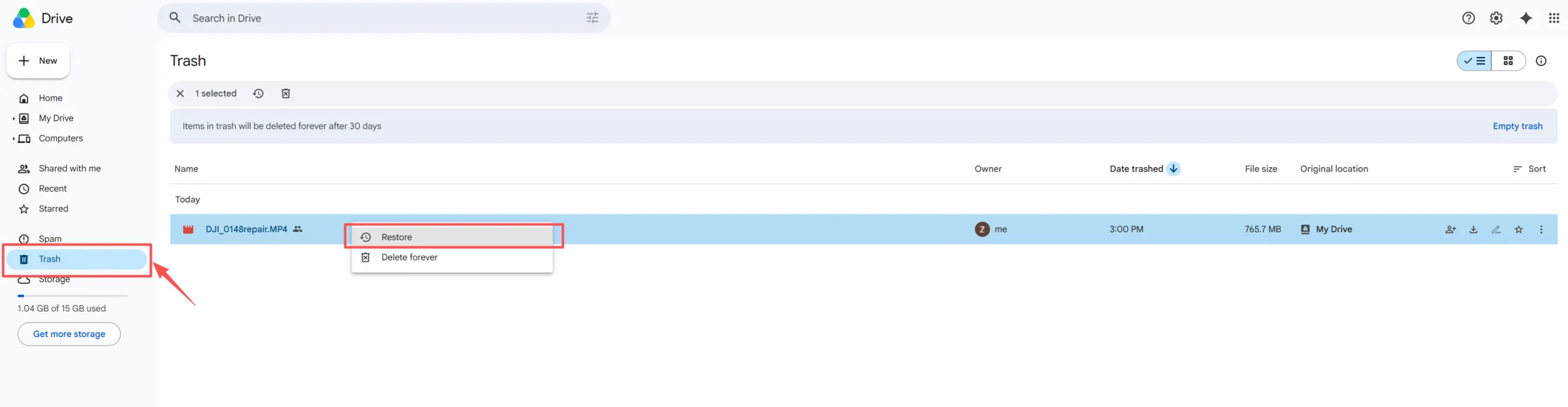
- Open Google Drive in the correct account.
- Select Trash in the left sidebar.
- Locate the file or folder; sort by the trashed date if necessary.
- Right-click the item and select Restore.
- Search Drive for the restored item and open it.
For several items, select the relevant entries before choosing Restore. For a folder, check the important files inside it after restoration rather than assuming the folder name proves everything returned.
Expected result: The item is available in Drive again. Confirm its location, contents, and access permissions.
If it fails: When the item is absent from Trash, use the account-specific options below. Google’s deleted-file recovery instructions document the Trash workflow and official request entry point.
Recover Permanently Deleted Google Drive Files with an Official Request
Best for: Personal-account files that no longer appear in Trash.
An empty Trash does not justify immediately assuming that support has no options. Google’s Drive support page directs users to the official recovery process. Eligibility and the available options depend on the signed-in account.
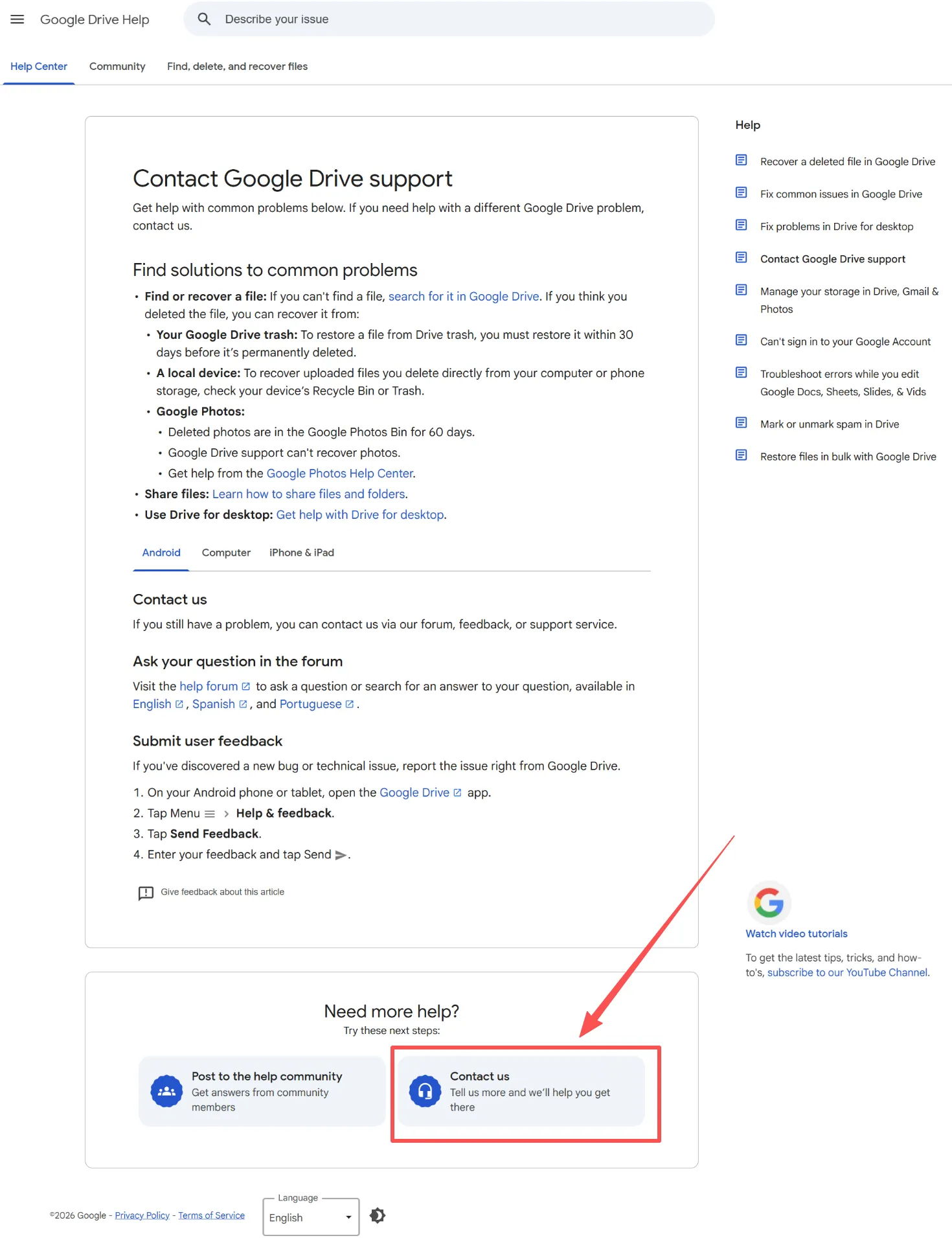
- Open Google’s file recovery page.
- Sign in to the account that held the deleted file.
- Reload the page if it asks you to sign in.
- Follow the recovery request instructions available to that account.
- Keep any confirmation and check the account for the result.
Before beginning, note the approximate deletion date, filenames, and whether you owned the items. Keep the details consistent if Google asks for more information.
Expected result: If Google accepts the request and can restore the data, check the returned files before relying on them.
If it fails: Search independent copies and backups. Do not apply Workspace’s administrator deadline to every personal account or assume that a submitted request guarantees restoration.
Google Workspace Admin Recovery for Work and School Accounts
Best for: Permanently deleted files in a managed user account.
Google documents an admin recovery window of 25 days after removal from Trash. Contact IT immediately with the account, filenames, and deletion time. Ordinary users cannot perform this restore themselves.
An authorized administrator can:
- Open Admin console → Directory → Users.
- Find the affected user and select More options → Restore data.
- Choose a date range covering permanent deletion.
- Select Drive, then Restore.
The restore covers eligible items in the selected date range, rather than an individual file. Large restores may take several days; restored items may need sharing again. See Google’s administrator recovery documentation.
If standard recovery is unavailable, ask IT about independent backups or applicable Vault retention. Vault search and export is separate from restoring files directly to Drive.
Recover Files from a Shared Drive
A shared drive is different from a folder shared by an individual. Ask IT to use the shared-drive restoration procedure.
Administrators use Apps → Google Workspace → Drive and Docs → Manage shared drives, identify the drive, and select the relevant restoration dates. Google limits restoration of items removed from shared-drive Trash to the previous 25 days. Verify the restored contents and member access before closing the incident.
Check Backups and Downloaded Copies Before Scanning
Best for: Files previously downloaded, exported, attached to email, or included in a backup.
An existing copy is usually more predictable than attempting to reconstruct deleted disk data. Check these locations:
- Downloads, Documents, and any known mirrored folder.
- Email attachments and copies sent to collaborators.
- External drives, NAS backups, and older computers.
- File History or Time Machine, if configured before deletion.
- Your organization’s independent Google Workspace backup service, if one exists.
Search by the file’s extension as well as its name. A document exported from Google Docs might have a different name or format from the original.
Copy a candidate to a safe location outside the active sync folder, then open it and check its contents. Confirm that its version is recent enough. Only upload it back to Drive after verification.
If it fails: Local recovery is worth considering only when the actual file contents were previously stored on a readable local device.
Recover Deleted Local Copies with Magic Data Recovery
Best for: A downloaded, exported, or mirrored file that was also deleted from a Windows-accessible disk, with no usable backup.
Magic Data Recovery can help search local storage after deletion, formatting, or file-system errors. It may be relevant to a downloaded PDF, an exported DOCX, or a video once stored in a mirrored folder.
It cannot recover cloud-only files directly from Google Drive. Do not select a virtual Google Drive streaming letter as though it were a physical disk containing every cloud file. Identify the actual local disk that held the content.
Step 1: Preserve the Source and Install Safely
Check the Windows Recycle Bin first. If the local copy is there, restore it and verify it before scanning.
Otherwise, pause syncing and avoid further writes to the source. Install Magic Data Recovery on a different storage device from the one containing the deleted data. If the only copy was on the active system drive and is highly valuable, consider professional help before installing software or continuing to use that computer.
Supports Windows 7/8/10/11 and Windows Server
Step 2: Select the Actual Storage Device
Choose the disk or partition where the downloaded file, export, or mirrored folder was stored. For example, if the PDF was saved in Downloads on the system drive, that local storage is the source—not Google’s cloud storage.

Start the scan and let it search for recoverable files. If the device disconnects or reports repeated read failures, stop rather than forcing more scans.
Step 3: Filter and Preview the Results
Use available filename and file-type filters to narrow the results. Check file size and preview supported formats. Look for the actual document, image, or video, rather than a shortcut bearing a similar name.

A filename in the scan results is only a candidate. The contents may be incomplete or overwritten, so a familiar name alone is not proof of successful recovery.
Step 4: Recover to a Different Device and Verify
Save selected files to a different storage device, outside the active Google Drive sync folder. Open the recovered copies with their normal applications before uploading them back to Drive.

Expected result: An independently saved file that opens correctly and contains the required data.
If it fails: Overwriting, SSD TRIM, or incomplete cached content may prevent recovery. Changing tools repeatedly cannot recreate data that is no longer present. Software also cannot repair physical disk damage.
For a suitable local-copy case, download Magic Data Recovery and assess recoverable results before deciding what to restore.
How to Verify Google Drive Recovery Worked
The recovery task ends when the required content is usable—not when a filename reappears.
File type | What to verify |
Document or PDF | Open it and inspect the important pages, text, and attachments |
Spreadsheet | Check required sheets, formulas, and recent entries |
Photo | Open it at full size and check for missing or damaged areas |
Video | Play the beginning, middle, and end; check audio and duration |
Folder | Compare important contents with your expected file list |
Shared item | Confirm that the intended collaborators can open it |
For a backup or exported copy, check the version as well as file integrity. A healthy older file may still be missing the work that prompted the recovery attempt.
Once verified, keep an independent backup before moving the file into a synced folder or changing the affected device.
When Further Recovery Attempts Are Unlikely to Help
For cloud-only data, the useful escalation is Google’s official route or the organization’s administrator. A disk recovery company cannot scan Google’s servers for your account. If those routes are exhausted and no independent copy exists, local software has no source to recover from.
For a local device, stop DIY scans if it clicks, repeatedly disconnects, or becomes increasingly difficult to read. A professional service may be appropriate for a damaged local disk, especially when it contains the only valuable copy.
Do not format, initialize, or run file-system repairs merely because a disk is inaccessible. Protect or recover its data before attempting changes that may write to the source.
Prevent Another Google Drive File Loss
Sync is useful for keeping devices current, but it is not an independent backup. Google explains that deletions in streamed or mirrored Drive locations can propagate across locations.
- Keep a separate backup. Save critical files to an external device or a backup service with its own retention policy. A second folder inside the same sync system offers limited protection from synchronized deletion.
- Review Trash before emptying it. Leave uncertain items there while checking with their owners or collaborators.
- Export important cloud documents periodically. Keep dated exports of essential Docs, Sheets, and Slides in usable formats. Verify the exported files rather than relying on their names.
- Clarify ownership. For team documents, know who owns the file and who can restore or reshare it. Follow your organization’s shared-drive policy for shared work.
- Test your backups. Occasionally open a backed-up document or restore a small folder. This confirms that the backup contains usable content and that you know the recovery process.
These habits reduce dependence on short recovery windows when an accidental deletion eventually occurs.
Conclusion
To recover deleted files from Google Drive, choose the route that matches the remaining copy. Use Trash when the item is still there, Google’s official request route for eligible personal-account cases, and administrator assistance for managed accounts.
If cloud recovery fails, verify backups and downloaded copies. When a real local copy was also deleted, Magic Data Recovery may help recover it from readable local storage. Our deleted file recovery guide explains the broader precautions for that next step.
Supports Windows 7/8/10/11 and Windows Server
FAQs
Can I recover Google Drive files after 30 days?
Is Google Drive deleted file recovery free?
Can I restore deleted files from Google Drive on Android or iPhone?
Why is a deleted shared file not in my Trash?
Can recovery software restore a deleted Google Docs document?
Does recovering a deleted folder mean all its files are back?
Can I use Google Takeout to recover deleted Drive files?
Will restoring a local copy automatically restore the original cloud file?

Erin Smith is recognized as one of the most professional writers at Amagicsoft. She has continually honed her writing skills over the past 10 years and helped millions of readers solve their tech problems.