
How Do I Recover Files Deleted From the Recycle Bin?

Accidentally deleting important files is frustrating. The situation becomes even more stressful after users empited the Recycle Bin. At that point, many users start asking the same question: how do I recover files deleted from the Recycle Bin?
The good news is that deleted files are not always gone forever. Depending on how your system is configured and you take what actions after deletion, there may still be realistic ways to recover them. In some cases, Windows built-in features like File History can work. In others, a dedicated recovery solution for Recycle Bin files becomes necessary.
This guide explains how to recover files deleted from Recycle Bin using practical, proven methods. We’ll start with Windows-native options and introduce why Magic Data Recovery is a reliable solution, especially when standard recovery attempts fail.
Supports Windows 7/8/10/11 and Windows Server
Wondering if your files can be recovered? Find out in seconds with our quick check below.
Data Recovery Assessment
Answer 3 quick questions to estimate your recovery chances
Table of Contents
What Happens When Files Are Deleted from the Recycle Bin?
Understanding what actually happens after deletion helps you choose the right recovery method. When you delete a file normally, it goes to the Recycle Bin. Once the Recycle Bin is emptied, Windows does not immediately erase the file’s data. Instead:
- The file system marks the storage space as “available”
- The actual data remains on the disk until overwritten
- New data may gradually replace those sectors over time
This explains why users often ask how do I recover files deleted from the Recycle Bin, even days later. As long as the data has not been overwritten, recovery may still be possible.
Try These Built-in Windows Options First
Before turning to third-party tools, it is best practice to check whether Windows already provides a suitable recovery path. These methods work only under specific conditions, so understanding their limitations saves time.
Recover Files Deleted from Recycle Bin Using File History (If Enabled)
File History is one of the most effective built-in options, but only if you enabled it before you delete the files.
When File History works best:
- You enabled File History in advance
- Files were stored in protected folders (Documents, Desktop, Pictures, etc.)
How to restore files using File History:
- Open Control Panel
- Go to “File History”
- Click “Restore personal files”
- Browse earlier versions and restore the needed files
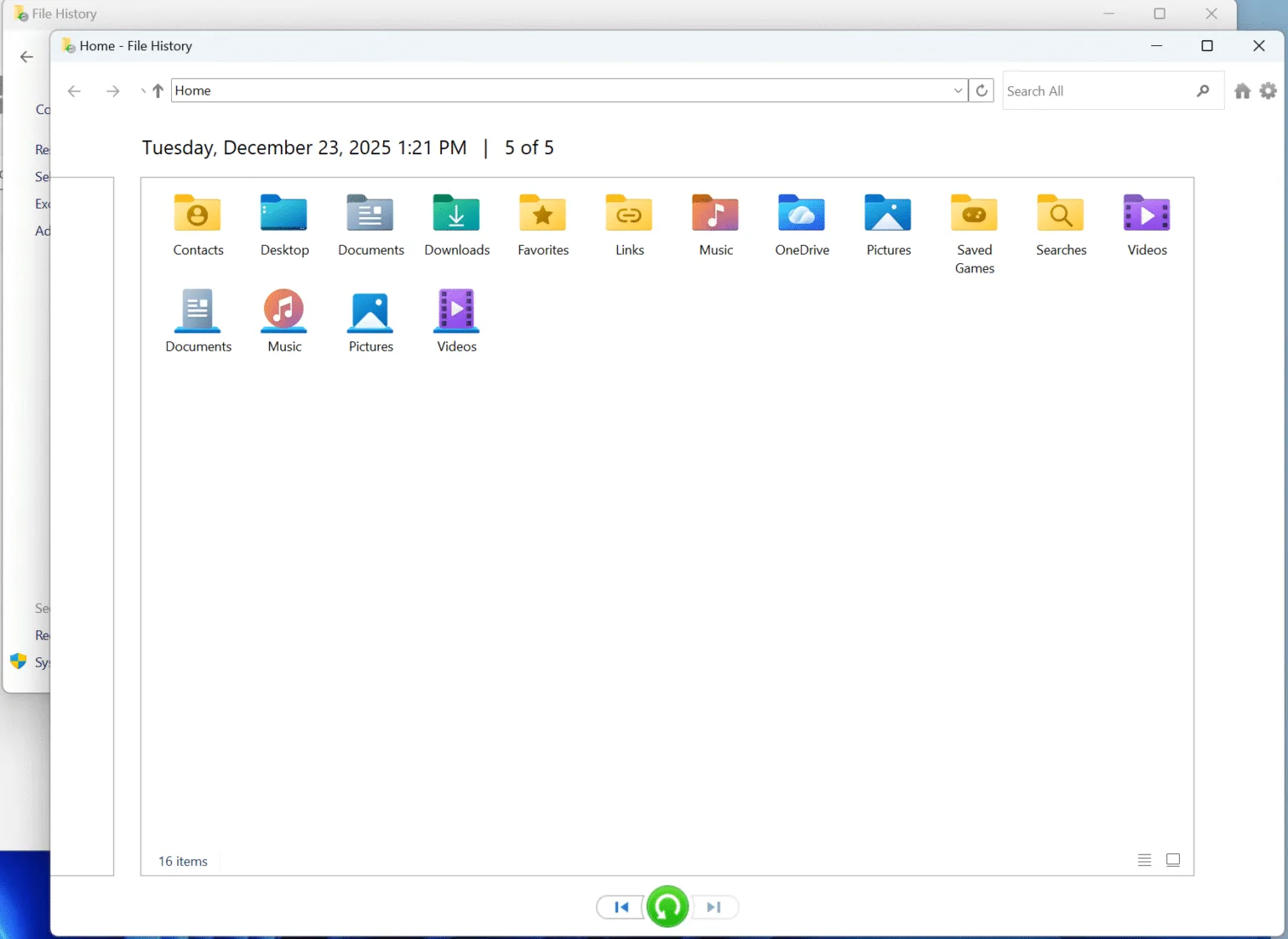
If you never enabled File History, this method will not help. In that case, continuing to try it only wastes time and increases the risk of overwriting data.
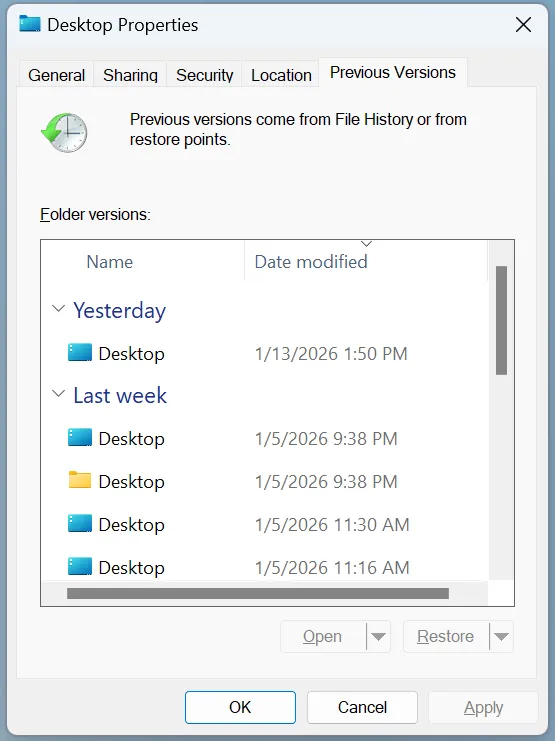
Restore Previous Versions of Files or Folders
Windows may also create restore points that include previous versions of files or folders.
This method depends on:
- System Protection
- Restore points existing before deletion
To check:
- Right-click the original folder location
- Select “Restore previous versions”
- Choose an available snapshot and restore
In practice, many users find this option unavailable, which is why alternative recovery solutions are often required.
Recover Deleted Files Using Windows Backup
If you have used Windows Backup or system image backups, recovery may be possible.
However, this approach:
- Requires a full backup configuration
- Restores files to a previous system state
- Is not ideal for recovering individual files quickly
For most users, this method is limited and rarely practical after Recycle Bin deletion.
When Built-in Methods Fail: Try Magic Data Recovery
If none of the Windows options apply, many users return to the same question: how do I recover files deleted from the Recycle Bin when no backup exists? This is where Magic Data Recovery becomes a practical solution.
Magic Data Recovery can locate deleted files that remain on disk after the Recycle Bin has been emptied. Instead of relying on backups, it scans the file system directly to identify recoverable data.
Why Magic Data Recovery Works After the Recycle Bin Is Emptied
Magic Data Recovery focuses on how deletion actually works at the storage level.
Key strengths include:
- Deep scanning of file system structures
- Detection of deleted but not overwritten data
- Support for documents, photos, videos, archives, and more
- Compatibility with internal drives, external disks, USB drives, and SD cards
Because the software works at the disk level, it can recover files even when Windows no longer shows them.
Step-by-Step Guide to Recover Files from the Recycle Bin with Magic Data Recovery
Follow these simple steps to recover deleted files:
Step 1: Download and Install Magic Data Recovery
To begin, download Magic Data Recovery from the official website. For safety reasons, always install the software on a different drive from the one where you deleted files. This prevents accidental overwriting, which could render your files irrecoverable.
Supports Windows 7/8/10/11 and Windows Server
Step 2: Select the Drive to Scan
Once installed, launch the Magic Data Recovery program. From the main interface, choose the drive where you deleted files and start searching lost files.

Step 3: Scan the Drive for Deleted Files
The software will automatically initiate an Advanced Scan, searching for deleted files. As the scan progresses, it will display a list of all recoverable files. Wait till the scan completes. It will list all the files on the drive.

Step 4: Preview Deleted Files Before Recovery
Once the scan is complete, use the preview function to review the deleted files. This step ensures that you’re recovering only the files you need and helps you avoid restoring unnecessary or corrupted data.

Step 5: Recover Files to a Safe Location
Now, select the files you want to recover and choose a different drive or storage device for saving them. Never restore files to the same location where they were deleted, as doing so can result in data corruption.

Common Scenarios Where Magic Data Recovery Is Especially Useful
Magic Data Recovery is particularly effective in real-world situations such as:
- Recycle Bin emptied accidentally
- Shift + Delete used by mistake
- Files deleted weeks ago but disk usage remained low
- No File History or backup configured
- External drives formatted or cleaned unintentionally
In these cases, traditional Windows tools offer no solution, while disk-level recovery remains viable.
How to Improve Your Chances of Recovering Deleted Recycle Bin Files
Recovery success depends heavily on user behavior after deletion.
Best practices include:
- Stop using the affected drive immediately
- Avoid installing new software on that drive
- Do not run disk cleanup or defragmentation
- Use recovery tools as soon as possible
These steps significantly increase the likelihood that deleted data remains intact and recoverable.
Conclusion
If you are still asking how do I recover files deleted from the Recycle Bin, the answer depends on your situation. Windows tools like File History are worth checking first, but they only work under strict conditions.
When built-in recovery options fail, Magic Data Recovery provides a dependable alternative. Its ability to scan disks directly, preview files before recovery, and support multiple storage devices makes it a practical choice for real-world data loss scenarios. If you are looking for an efficient and trustworthy Recycle Bin recovery solution, it is worth considering as your next step.
Supports Windows 7/8/10/11 and Windows Server
FAQs About File Recovery From the Recycle Bin
How do I recover permanently deleted files from the Recycle Bin?
Where do deleted files go after the Recycle Bin?
Where does the Recycle Bin restore to?
How do I restore files from my Recycle Bin?
Is deleted from Recycle Bin gone forever?
Can permanently deleted things be recovered?
Are permanently deleted files really gone?
Where to locate a Recycle Bin?

Vasilii is a data recovery specialist with around 10 years of hands-on experience in the field. Throughout his career, he has successfully solved thousands of complex cases involving deleted files, formatted drives, lost partitions, and RAW file systems. His expertise covers both manual recovery methods using professional tools like hex editors and advanced automated solutions with recovery software. Vasilii's mission is to make reliable data recovery knowledge accessible to both IT professionals and everyday users, helping them safeguard their valuable digital assets.