
How to Recover Deleted Files from Computer
Accidentally deleting files from a computer can happen at any time. A single wrong click, an emptied Recycle Bin, or an unexpected file system issue may result in losing important documents, photos, or work files. Fortunately, in many cases, recover deleted files from computer is still possible if the right deleted files recovery steps are taken early.
This guide explains how to recover deleted files from computer using proven methods. It starts with understanding what happens after deletion, reviews built-in recovery options, and then introduces Magic Data Recovery as a reliable solution when standard methods no longer work.
Supports Windows 7/8/10/11 and Windows Server
Wondering if your files can be recovered? Find out in seconds with our quick check below.
Data Recovery Assessment
Answer 3 quick questions to estimate your recovery chances
Table of Contents
Can You Recover Deleted Files from Computer?
Yes, users can often recover deleted files. When users delete a file, the operating system usually removes its reference instead of erasing the actual data immediately. The file system marks the storage space as available, but the data stays on the disk until new information overwrites it.
Several factors influence recovery success:
• How long it has passed since you deleted the files
• Whether new data has been written to the same disk
• The deletion method used, such as normal deletion or permanent deletion
What to Do Immediately After Files Are Deleted
The first actions you take play a critical role in recovery success.
Important precautions:
- Stop using the affected drive as soon as possible
- Refrain from installing software on the same disk
- Keep new files from being saved to the original location
These steps reduce the chance of data being overwritten, which is the most common reason recovery fails.
How to Recover Deleted Files from Computer Without Software
Before using third-party tools, it is worth checking the built-in recovery options available on most systems.
Check the Recycle Bin
Files deleted through standard actions often remain in the Recycle Bin. If the file is still there, restoring it takes only a few clicks.
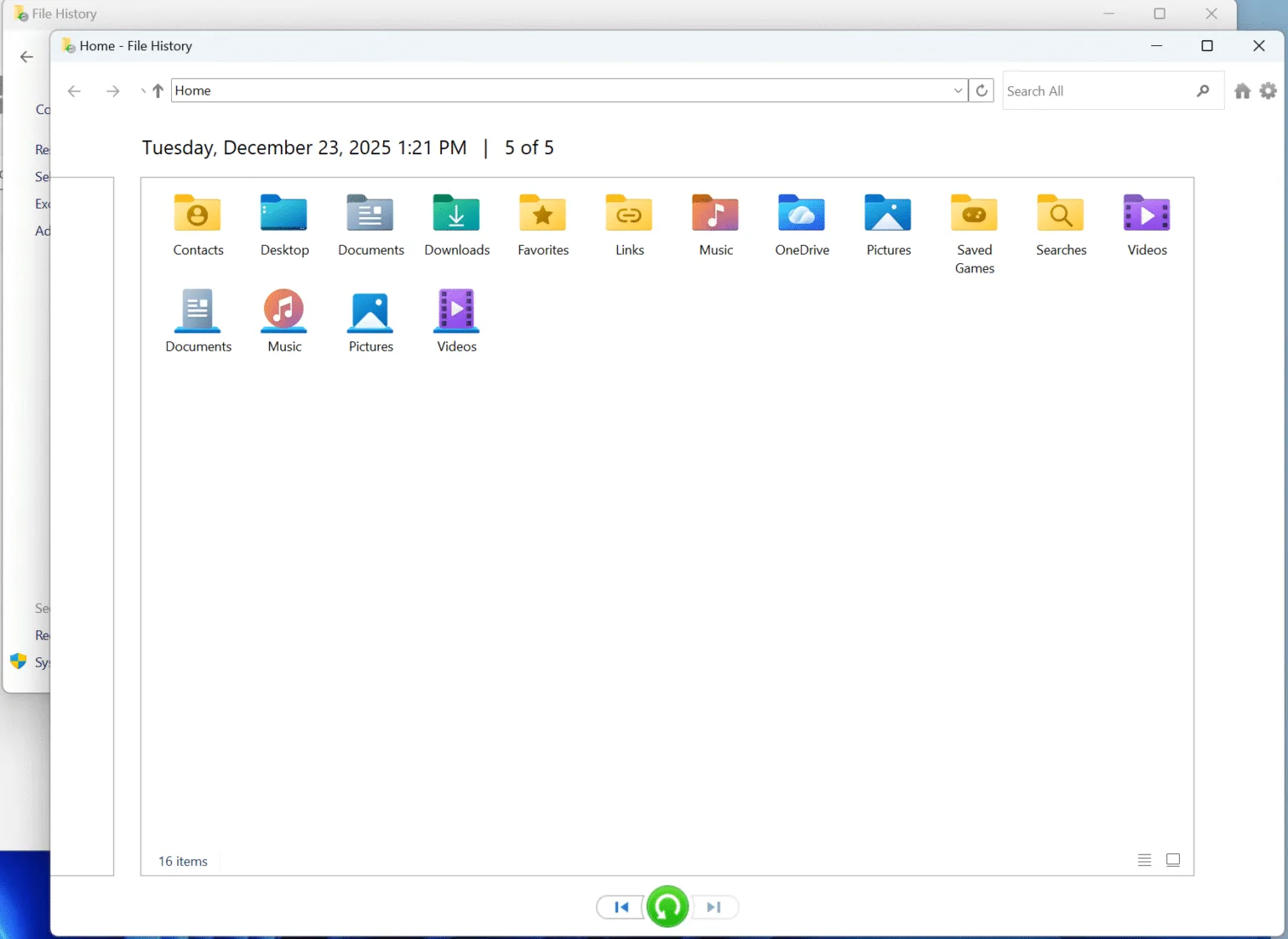
Restore Files Using Backup or File History
If File History or another backup feature was enabled, you may restore files from a previous backup version.
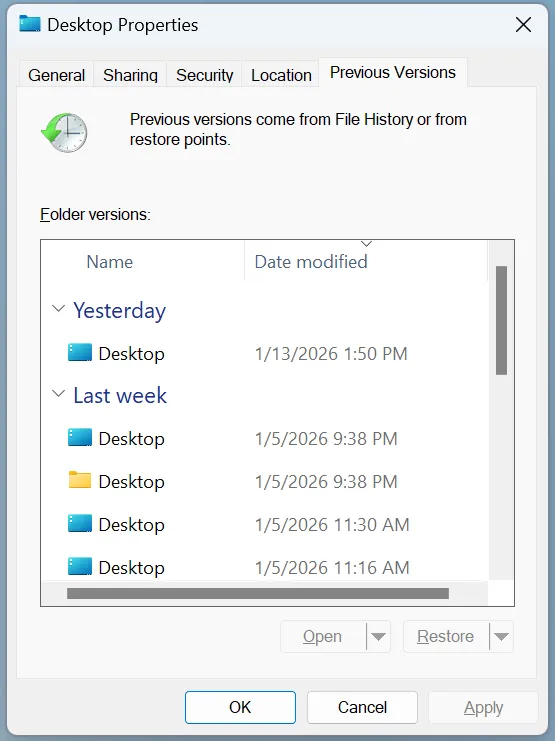
Use Previous Versions
Some systems keep shadow copies of files or folders. If available, these allow you to restore earlier versions.
While these options are useful, they have clear limitations. Once files are permanently deleted or no backup exists, recovery software becomes necessary.
How to Recover Deleted Files from Computer Using Magic Data Recovery
When built-in options fail, a dedicated recovery tool offers a higher chance of success. Magic Data Recovery can scan storage devices deeply and locate deleted files that are no longer visible to the operating system. Unlike manual methods, it analyzes the disk at a lower level, making it suitable for recovering permanently deleted files.
Step-by-Step: Recover Deleted Files with Magic Data Recovery
Step 1: Download and Install Magic Data Recovery
First, download Magic Data Recovery and install it on a drive that is different from the one where the files located. This precaution reduces the risk of overwriting recoverable data and helps preserve the original file structure.
Supports Windows 7/8/10/11 and Windows Server
Step 2: Select the External Hard Drive to Scan
Launch the program and access the main dashboard. From the list of detected storage devices, select the external hard drive that was previously connected to your computer and contained the deleted files. Then, start the scan.

Step 3: Scan the External Hard Drive for Deleted Files
Magic Data Recovery automatically runs an advanced scan on the selected drive. During this process, recoverable files are displayed progressively, allowing you to monitor results as they appear instead of waiting for the scan to fully complete.

Step 4: Preview Deleted Files Before Recovery
Once the scan identifies deleted files, use the preview feature to check their contents. Previewing helps confirm file usability and ensures that you recover only the files you actually need.

Step 5: Recover Files to a Safe Location
Finally, choose the files you want to restore and save them to a different drive or storage device. Avoid restoring data to the same external hard drive, as this may overwrite remaining recoverable files and reduce the overall recovery success rate.

Why Magic Data Recovery Is a Reliable Choice
Magic Data Recovery focuses on solving real recovery problems without exaggerated claims.
Key advantages include:
- Deep scanning for permanently deleted files
- Support for common file formats such as documents, photos, and videos
- File preview to verify recoverability before restoring
- A clear interface suitable for everyday users
Compared with manual solutions, it offers higher recovery potential. Compared with generic free tools, it delivers more consistent results when data matters.
Common Mistakes That Reduce Recovery Success
Many users unknowingly reduce recovery chances by making avoidable mistakes.
- Continuing to use the same disk after deletion
- Installing recovery software on the affected drive
- Restoring files to their original location
- Running repeated scans unnecessarily
Avoiding these mistakes greatly improves the chance to recover deleted files from computer successfully.
Conclusion
File loss can be stressful, but it does not always mean data is lost forever. With the right approach, many users can recover deleted files from computer successfully. Built-in options are worth trying first, but they have clear limits.
When those limits are reached, Magic Data Recovery provides a practical and dependable solution for deleted files. Its deep scanning capability, file preview feature, and user-friendly design make it a strong choice for users who need reliable results without unnecessary complexity. If you are looking for an effective way to recover deleted files, Magic Data Recovery is a solution worth considering.
Supports Windows 7/8/10/11 and Windows Server
FAQs – Recover Deleted Files from Computer
How can I recover permanently deleted files from my computer?
Are deleted computer files gone forever?
How to recover specific deleted files?
How to restore from recently deleted?
Where do permanently deleted files go in computers?
Can deleted files really be recovered?
Does deleting a file from your computer permanently erase it?
How to recover permanently deleted files not in the Recycle Bin?

Vasilii is a data recovery specialist with around 10 years of hands-on experience in the field. Throughout his career, he has successfully solved thousands of complex cases involving deleted files, formatted drives, lost partitions, and RAW file systems. His expertise covers both manual recovery methods using professional tools like hex editors and advanced automated solutions with recovery software. Vasilii's mission is to make reliable data recovery knowledge accessible to both IT professionals and everyday users, helping them safeguard their valuable digital assets.