
iMyFone D-Back: Review & Alternatives
Many users search for iMyFone D-Back after losing important files from a phone, Windows PC, USB drive, SD card, or hard drive. The situation often feels urgent because lost data may include work documents, family photos, videos, financial files, or school projects. However, choosing the right hard drive recovery tool is not always simple.
This review explains what the software does, how iMyFone D-Back for windows works, and whether iMyFone D-Back for pc is the right choice for computer file recovery. In addition, it compares several recovery tools like Magic Data Recovery. As a result, you can choose a tool based on your real recovery scenario rather than brand recognition alone.
Supports Windows 7/8/10/11 and Windows Server
Table of Contents
What Is iMyFone D-Back?
iMyFone D-Back is a data recovery product from iMyFone. Many users know it as a recovery tool for iPhone, Android, Windows, and backup data. In general, the software helps users recover lost data from different sources. Depending on the version, it may support mobile devices, local drives, backup files, and storage devices. Therefore, it can appeal to users who want one recovery brand for several platforms.
However, the best tool depends on where the data was lost, how the loss happened, and whether the storage device still works. For example, recovering deleted iPhone messages is very different from restoring files from a formatted Windows partition. Therefore, PC users should check the software’s actual recovery focus before buying a license.
How iMyFone D-Back for windows Works
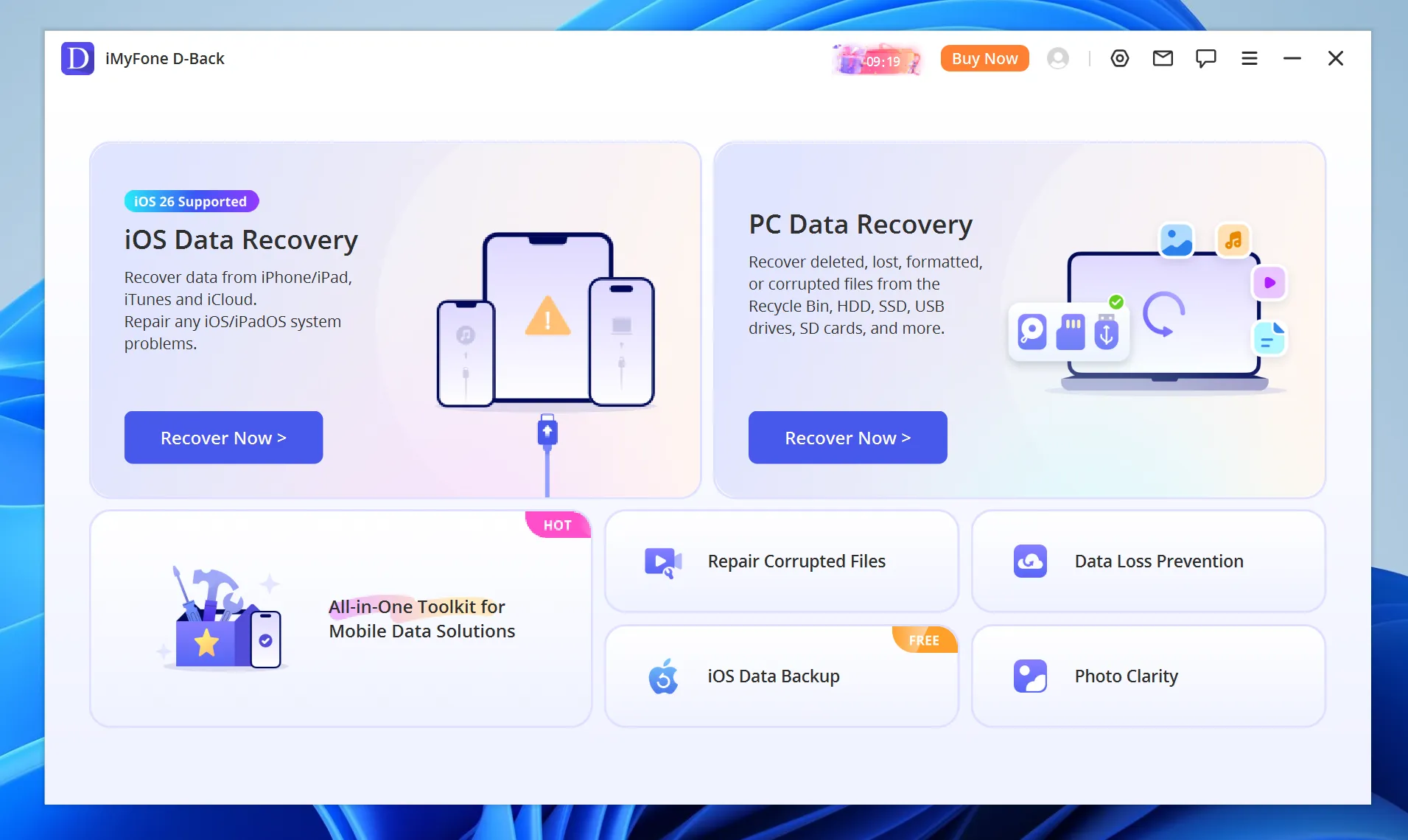
iMyFone D-Back for windows targets users who need recovery software on a Windows computer. In common PC recovery cases, users may need to restore documents, photos, videos, archives, or work files after accidental deletion, formatting, partition loss, or system errors.
A Windows recovery tool usually scans storage devices for file records, file signatures, and recoverable data fragments. However, the final result depends on several conditions. New data may overwrite the lost files. The drive also needs to remain stable enough for scanning. In addition, the file system may still need usable records, especially for path-based recovery. Deep scan or raw scan support can improve the chance of finding files when normal records are missing. Most importantly, users should stop using the affected device quickly to avoid further data loss.
For ordinary users, this Windows version may help when the data loss case is not too complex. For instance, if you deleted files recently or lost photos from a working USB drive, a scan may find recoverable items. Still, no recovery software can promise full recovery after overwriting. Also, software cannot repair a physically damaged hard drive.
iMyFone D-Back for pc: Strengths and Limits
Key Strengths of iMyFone D-Back for pc
The main strength of iMyFone D-Back for pc is convenience. It offers a guided interface, so beginners do not need advanced technical knowledge. In many situations, users can select a device, run a scan, preview files, and recover selected data.
Another advantage is its broad product scope. Since iMyFone covers mobile and computer recovery, users who need both phone recovery and PC recovery may prefer one familiar brand. In addition, preview support helps users check whether a file is worth recovering before they export it.
For users who feel nervous after losing files, this guided workflow can reduce mistakes. Instead of trying risky manual fixes first, they can scan the storage device and confirm what still exists. As a result, they can make a safer decision before recovery.
Limits You Should Know Before Using It
Although the PC version can help in many cases, it may not suit every Windows recovery scenario. Since iMyFone’s recovery ecosystem covers phones, backups, apps, and computers, some users may find the product scope broad rather than deeply focused on PC storage recovery.
In addition, free versions of recovery software often allow scanning but limit actual preview or recovery. Therefore, users should check the current license details before using any tool for urgent recovery.
More importantly, recovery success depends on drive condition. If a hard drive clicks, disconnects repeatedly, or fails to appear in Disk Management, software may not solve the problem. In that case, a professional recovery lab may offer a safer path. On the other hand, if Windows can still detect the device, recovery software has a better chance to scan it.
Best Alternatives to iMyFone D-Back for PC Data Recovery
If your main goal is computer file recovery, iMyFone D-Back is not the only option. Several recovery tools can scan Windows drives, USB devices, memory cards, and formatted partitions. However, each tool has a different focus. Therefore, comparing them by recovery scenario is more useful than choosing software by brand name alone.
| Tool | Best For | Key Strengths | Limitations |
| iMyFone D-Back | Mobile and multi-platform recovery | Supports phone recovery, backup recovery, and some PC recovery cases | Broader product scope may feel less focused for Windows-only recovery |
| iMyFone anyrecover | General computer and external device recovery | Covers PC, Mac, hard drives, USB drives, SD cards, and deleted files | Users may confuse it with other iMyFone recovery products |
| Magic Data Recovery | Windows PC, HDD, SSD, USB, SD card, and partition recovery | Focused Windows recovery workflow, preview before recovery, beginner-friendly scanning process | Does not repair physically damaged drives |
| Wondershare Recoverit | Photo, video, and general file recovery | Broad file type support and polished interface | Pricing may feel high for one-time recovery users |
| EaseUS Data Recovery Wizard | Deleted files, formatted drives, and common PC recovery | Well-known brand, simple recovery steps, supports many scenarios | Free recovery limits and paid plans should be checked first |
| Disk Drill | Windows and Mac recovery with extra disk tools | Modern interface, recovery vault features, useful disk utilities | Some extra features may be unnecessary for basic users |
| Recuva | Simple deleted file recovery | Lightweight and easy for basic deleted file cases | Less suitable for formatted, RAW, or partition-loss cases |
How to Recover Lost Files After Comparing Recovery Tools
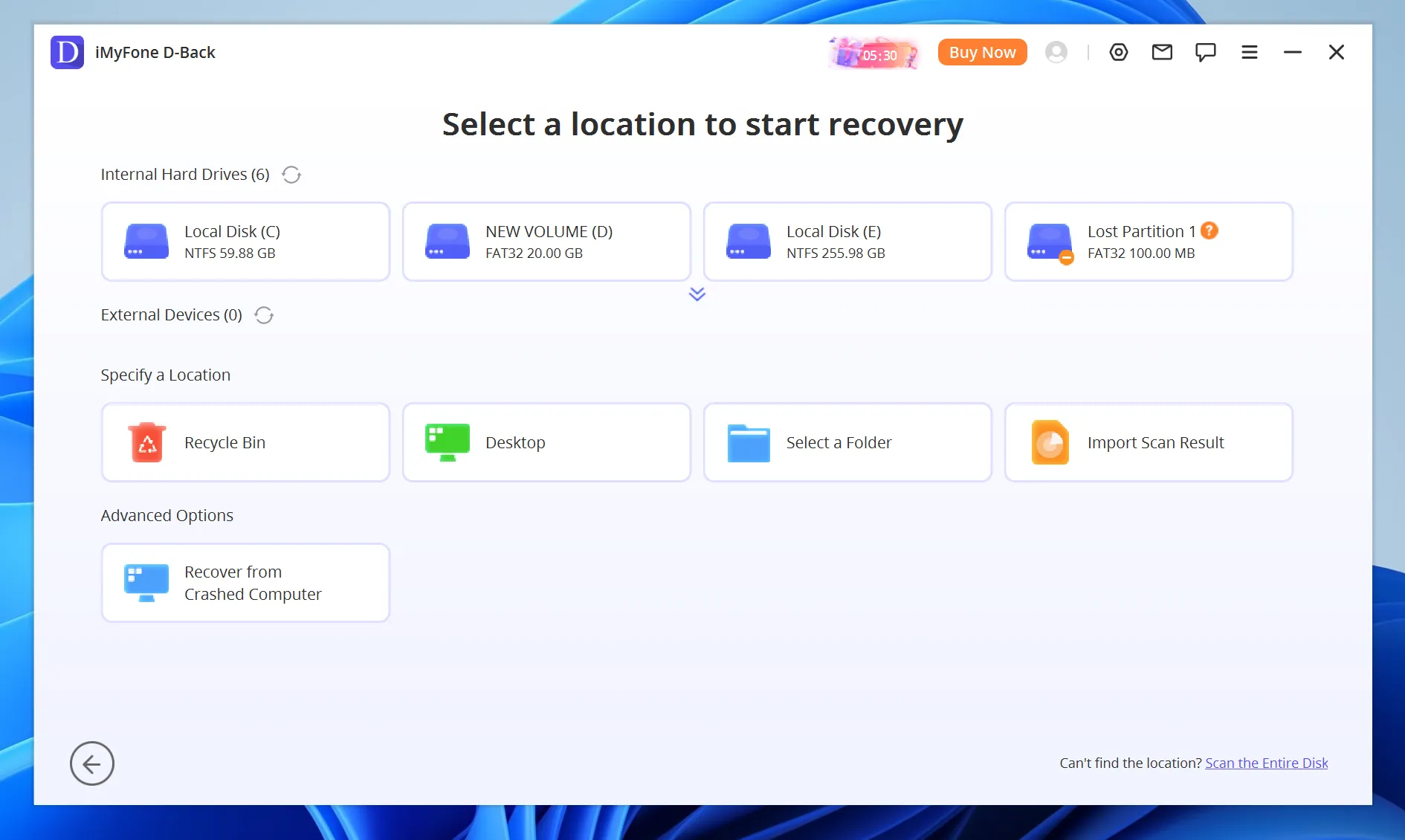
After comparing several options, the next step is to choose a workflow that matches your actual device. If you mainly need mobile backup recovery, D-Back may still be suitable. However, if your files were lost from a Windows drive, USB device, SD card, HDD, SSD, or formatted partition, a PC-focused recovery process is usually more direct.
That is where Magic Data Recovery becomes useful. Instead of covering many mobile backup scenarios, it focuses on scanning Windows storage devices and helping users preview recoverable files before saving them. Therefore, it fits the recovery path discussed above: check the affected device, scan it safely, preview the results, and recover files to another location.
If iMyFone D-Back for pc does not match your main recovery need, Magic Data Recovery offers a more focused workflow for Windows file recovery. It can help when files disappear from a local drive, partition, USB drive, SD card, HDD, or SSD. Before you start, stop using the affected device to reduce the risk of overwriting lost data.
Step 1: Download and Install Magic Data Recovery
Download Magic Data Recovery and install it on a drive or partition different from the one where the files were lost. This approach helps prevent accidental overwriting and protects recoverable data before the scan begins.
Supports Windows 7/8/10/11 and Windows Server
Step 2: Select the Target Drive or Partition to Scan
Launch the program. Then, from the main interface, choose the drive, partition, USB drive, SD card, or other storage device where the files were deleted or lost. After that, start the scan.

Step 3: Scan the Device for Lost Files
Magic Data Recovery automatically performs an Advanced Scan. Meanwhile, it lists recoverable files as the scan progresses, so you can check found items without waiting for the entire process to finish.

Step 4: Preview Files Before Recovery
Next, use the preview function to confirm file content. This step helps you avoid recovering unnecessary files and makes the recovery process more accurate.

Step 5: Recover Files to a Safe Location
Finally, select the target files and save them to a different drive or storage device. Do not restore data to the original location, because doing so may overwrite other recoverable files or cause recovery conflicts.

Conclusion
iMyFone D-Back is a useful recovery option for users who need mobile recovery, backup recovery, and multi-platform support. It offers a friendly workflow and can help in many common data loss scenarios.
However, users may not always need a broad mobile-focused tool. If the goal is to recover deleted, formatted, or inaccessible files from Windows storage devices, Magic Data Recovery provides a more focused solution. It supports common PC recovery scenarios, offers preview before recovery, and helps users recover files from hard drives before trying risky repair steps.
Supports Windows 7/8/10/11 and Windows Server
FAQ
Does iMyFone D-Back for windows work on PC?
Yes, iMyFone D-Back for windows works on Windows computers. It can help users scan local drives or supported storage devices. However, recovery results depend on overwrite status, device health, scan depth, and whether the lost files still remain recoverable.
Can iMyFone D-Back for pc recover deleted files?
iMyFone D-Back for pc can recover deleted files in suitable cases. For the best chance, stop using the affected drive immediately. Then scan the device and recover files to another location instead of saving them back to the same drive.
What is the difference between D-Back and iMyFone anyrecover?
D-Back often focuses on mobile, backup, and multi-platform recovery. iMyFone anyrecover is more commonly associated with general file recovery from computers and storage devices. Therefore, users should compare supported devices, file types, scan options, and recovery scenarios before choosing either product.
Is iMyFone data recovery safe to use?
iMyFone data recovery can be safe when users download it from the official source and avoid writing new data to the affected drive. Also, users should preview files first, recover them to a separate storage device, and avoid risky repair operations before recovery.
What is the best alternative for Windows recovery?
Magic Data Recovery is a strong option for Windows users. It focuses on PC storage recovery, including HDDs, SSDs, USB drives, SD cards, deleted files, formatted partitions, and inaccessible drives that Windows can still detect.
Is iMyFone D-Back good for Windows file recovery?
iMyFone D-Back for windows can help with common recovery cases, such as deleted files, lost photos, and some storage device issues. However, users should check whether their main need is mobile recovery or PC file recovery. For Windows-only recovery, a more focused PC recovery tool may offer a simpler workflow.

Vasilii is a data recovery specialist with around 10 years of hands-on experience in the field. Throughout his career, he has successfully solved thousands of complex cases involving deleted files, formatted drives, lost partitions, and RAW file systems. His expertise covers both manual recovery methods using professional tools like hex editors and advanced automated solutions with recovery software. Vasilii's mission is to make reliable data recovery knowledge accessible to both IT professionals and everyday users, helping them safeguard their valuable digital assets.