
Is Lazesoft Data Recovery Safe? 2026 Review

Losing critical files due to a sudden system crash, accidental formatting, or a corrupted storage drive can be an incredibly stressful experience. When looking for an immediate hard drive solution, many users search for free tools to rescue their lost documents, photos, and partitions. One specific name that frequently appears in tech forums is Lazesoft Data Recovery.
Known for its lifetime free model for home users, this utility has been a go-to choice for budget-conscious individuals for many years. However, data storage technology has advanced significantly, transitioning heavily into modern solid-state drives (SSDs) and high-capacity USB memories. Consequently, many users now wonder if this legacy software can still handle complex, modern data loss scenarios safely.
In this comprehensive lazesoft data recovery review, we will test its capabilities, reveal real user experiences, and evaluate its pros and cons. Furthermore, we will introduce a highly efficient alternative, Magic Data Recovery, to help you restore your files if you encounter modern hardware limitations.
Supports Windows 7/8/10/11 and Windows Server
Table of Contents
What is Lazesoft Data Recovery?
Lazesoft Data Recovery is a core component of the broader Lazesoft Recovery Suite. It is a specialized Windows desktop software designed to salvage deleted, formatted, or corrupted files from various storage media.
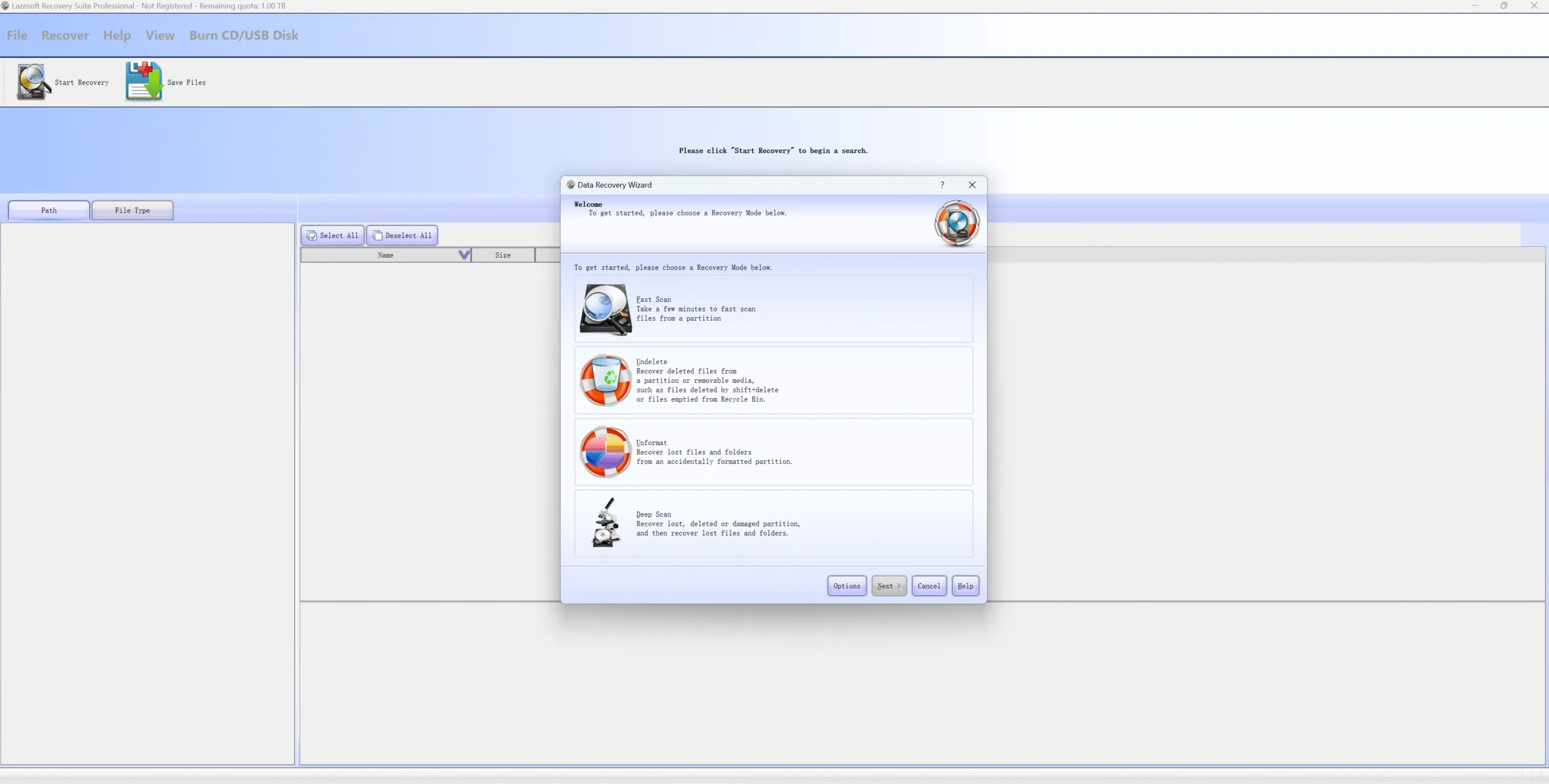
Unlike many modern utilities that limit free users to a few hundred megabytes, this tool stands out because it allows unlimited data retrieval completely free of charge for non-commercial purposes. The application features a modular interface, breaking its capabilities into four specific scanning modes:
- Undelete: Designed to quickly recover accidentally deleted files from working partitions.
- Unformat: Optimized to rescue files from partitions that have been formatted accidentally.
- Deep Scan: A comprehensive sector-by-sector scan used when files are severely damaged or missing.
- Find Partition: Created specifically to restore lost, deleted, or altered disk partitions.
While these modules sound comprehensive on paper, the underlying technology has not kept pace with recent file system developments. Therefore, understanding how it performs in real-world situations is crucial before trusting it with your valuable storage drives.
Lazesoft Data Recovery Performance
To provide an authentic evaluation, we tested the software on various drives and analyzed feedback from professional technical forums like Reddit. While the tool excels at specific legacy tasks, it presents significant roadblocks for modern desktop utility users.
The Advantages (Pros)
First, the application is truly free for home users, which means you will not face hidden paywalls after a long scan. Second, it includes an excellent bootable recovery media builder. This feature allows you to create a bootable CD or USB drive, which helps enormously if your Windows operating system fails to boot properly.
The Real-World Shortcomings (Cons)
Despite the obvious benefits of a free price tag, our testing and user feedback revealed several serious limitations:
- Extremely Slow Scan Speeds: Because the search algorithms lack modern optimization, a lazesoft deep scan on a large external hard drive can take hours, whereas modern utilities finish the same task in minutes.
- Poor Success on Inaccessible Drives: When dealing with file system errors or severe RAW partitions, the tool often struggles. It frequently generates broken, corrupted, or completely unopenable files after recovery.
- Outdated User Interface: The design feels like a relic from the Windows 7 era, making navigation confusing for average users who expect intuitive layouts.
Many IT professionals on Reddit note that while the suite is great for resetting Windows passwords or cloning old mechanical drives, the data recovery module often fails during complex data rescue missions.
Head-to-Head Comparison: Legacy Software vs. Modern Competitors
To help you visualize where the software stands compared to modern engineering, let us look at a direct technical comparison featuring industry competitors like DiskGenius, 4DDiG, DMDE, and Magic Data Recovery.
| Technical Feature | Lazesoft Data Recovery | DMDE | 4DDiG | Magic Data Recovery |
| Scan Optimization | Legacy sequential scanning | Technical sector-by-sector | Multi-threaded scanning | Intelligent multi-threaded scanning |
| User Interface | Technical, outdated layout | Complex, developer-focused | Clean, simplified wizard | Modern, highly intuitive layout |
| SSD TRIM Awareness | Limited support | Moderate support | Automated detection | High optimization for SSDs |
| Handling Inaccessible Drives | High rate of corrupted files | Good, but complex to setup | Decent success rate | Advanced raw file signature matching |
| Free Tier Limitations | 100% Free (Home Use Only) | Limits file partitions | Up to 2GB | 500MB free data recovery |
The Best Alternative for Lazesoft Data Recovery
If you are dealing with critical data loss and need a faster, more reliable solution, Magic Data Recovery by Amagicsoft is the ideal professional choice. You can learn more about its advanced features by visiting the official page: Magic Data Recovery.
This professional software is built from the ground up to address the exact limitations found in older recovery tools. Instead of relying on rigid, outdated scanning patterns, it utilizes an intelligent, multi-threaded deep scanning engine that reads data with extreme precision. Therefore, it serves as the ultimate lazesoft alternative.
Key Features
- High Performance on Modern Hardware: Fully optimized to scan high-capacity SSDs, USB flash drives, and SD cards safely.
- Advanced Raw Reconstruct Engine: It excels at reading inaccessible drives, effortlessly bypassing corrupted file systems to pull raw data signatures directly from the disk sectors.
- Risk-Free Evaluation: To ensure maximum transparency, it offers a generous 500MB free data recovery limit. This feature allows you to scan, preview, and successfully rescue your most critical files before spending money.
- Real-Time File Preview: You can view your photos, documents, and videos directly within the software during the scanning process, ensuring your files are fully intact before restoration.
Real-World Application Scenario
Imagine your external USB drive suddenly displays a “RAW” file system error, making it completely unreadable by Windows. If you run a legacy scanner, it might freeze up due to the bad sectors or corrupted partition tables.
By contrast, launching this modern alternative allows you to bypass the operating system’s logical errors. The tool targets the drive directly, maps the lost structure, and lets you recover your essential documents within minutes. If you are looking for an efficient, hassle-free way to save your data, you should give this modern utility a try.
How to Recover Files with Magic Data Recovery (Step-by-Step Guide)
Restoring your lost files does not require advanced technical skills. Follow these simple steps to get your data back safely.
Step 1: Download and Install the Tool
Download the installer from the official Amagicsoft website. Ensure that you install the software on a separate drive, such as drive C, to avoid overwriting any lost data on your target drive.
Supports Windows 7/8/10/11 and Windows Server
Step 2: Select the Target Location
Launch the application to view the clean, user-friendly dashboard. Select the specific drive, partition, or connected USB device where your files were originally stored.

Step 3: Run the Intelligent Scan
Click the scan button to start the process. The tool will automatically run a fast analysis followed by a deep sector search, displaying recoverable files in an organized list.

Step 4: Preview Files
Browse the found items using the real-time preview window to check file integrity. This step ensures you recover only the files you actually need.

Step 5: Recover Your Files
Select the items you need, click the restore button, and save them to a safe, alternative storage location.

Conclusion
When deciding on a final hard drive solution, your choice should depend entirely on your specific technical needs and the value of your time. Lazesoft Data Recovery remains a valuable, completely free utility if you are working on an old Windows 7 computer, or if you need to build a bootable rescue disk to fix a broken OS login. It provides great value for basic home troubleshooting when speed and file header corruption are not major concerns.
However, if you are working on a modern Windows 11 system, dealing with an inaccessible drive, or trying to recover files from a modern SSD, legacy tools carry a higher risk of failure. For these critical tasks, Magic Data Recovery delivers the advanced architecture, rapid scanning speeds, and reliable file reconstruction you actually need. Its 500MB free trial ensures you can complete your data rescue project with absolute confidence.
Supports Windows 7/8/10/11 and Windows Server
FAQs About Lazesoft Data Recovery
Is Lazesoft Data Recovery completely free for commercial business use?
No, the software is only free for strictly personal, non-commercial home use. Business users must purchase a commercial license from the recovery suite provider, as utilizing the free edition in a commercial environment violates their licensing terms and lacks enterprise technical support.
Can I use Lazesoft Data Recovery to scan an external SSD safely?
While it can technically scan an SSD, its legacy engine lacks optimization for modern solid-state drive architectures. Consequently, this often results in very slow scan speeds, high system resource consumption, or unreadable, corrupted files that cannot open properly after recovery.
Does the Lazesoft Data Recovery deep scan process recover file names accurately?
Unfortunately, the deep scanning module frequently loses original file names and folder structures when dealing with severely corrupted partitions. It organizes files by format types instead, which forces users to preview every single file manually to identify their data.
Does running a Lazesoft Data Recovery deep scan pose any risk to my hardware?
While the process does not damage physical circuitry, a legacy lazesoft deep scan subjects your drive to prolonged read stress due to its unoptimized, sequential search patterns. Consequently, if your storage device is already failing or contains bad sectors, this extended strain can accelerate mechanical drive degradation.
Why do recovered files from legacy tools sometimes become corrupted?
Older tools lack the ability to correctly reconstruct damaged file headers on modern storage media. When file headers are misaligned during the sequential scanning process, the resulting files become corrupted, rendering them completely unopenable by your operating system.

Vasilii is a data recovery specialist with around 10 years of hands-on experience in the field. Throughout his career, he has successfully solved thousands of complex cases involving deleted files, formatted drives, lost partitions, and RAW file systems. His expertise covers both manual recovery methods using professional tools like hex editors and advanced automated solutions with recovery software. Vasilii's mission is to make reliable data recovery knowledge accessible to both IT professionals and everyday users, helping them safeguard their valuable digital assets.