
Puran Data Recovery のレビュー:機能、制限、および代替ソフト
傷がついたDVDや破損したUSBメモリでファイルのコピーができない場合、読み取りエラーに対処できるツールが必要になります。. Puran データ復旧 は、読み取り可能なコンテンツをコピーしつつ、読み取れないセクタをスキップするように設計されています。ただし、このツールは主に、完全に削除されたファイルを復元することを目的としたものではありません。本レビューでは、その本来の目的を解説し、「Puran File Recovery」や「Magic Data Recovery」と比較することで、最適なソリューション選びのお手伝いをします。もし問題の原因がソースデバイス自体にある場合は、当社の ハードドライブ回復ソリューション さらなる指針を示す。.
重要なのは、破損したメディアからのコピーと、削除されたファイルの復元とを区別することです。これらの操作には異なる方法が必要となるため、単一の復元率だけではすべてのツールを公平に評価することはできません。.
目次
おすすめ:どの復旧ツールを選ぶべきか?
- Puran Data Recovery: 破損したメディア上でファイルは表示されているものの、通常のコピー操作では読み取りエラーが発生する場合に、このオプションを選択してください。.
- Puran ファイル復元: 誤って削除してしまったファイルや、フォーマットされたドライブ、失われたパーティションなどには、この方法を検討してみてください。.
- Magic Data Recovery: バックアップや組み込みの復旧オプションが利用できない場合、サポート対象の論理的なデータ損失シナリオに対する代替手段としてご検討ください。.
これらの推奨事項は、文書化された機能および入手可能な証拠に基づいており、特定の製品が他よりも優れているという主張ではありません。Magic Data RecoveryはAmagicsoft製品であり、2つのPuranユーティリティと同じ比較基準を用いて評価されています。.
Puran Data Recovery 対 Puran File Recovery 対 Magic Data Recovery
評価要素 | Puran データ復旧 | Puran ファイル復元 | Magic Data Recovery |
主な目的 | 破損したメディアからファイルをコピーする | 削除されたファイルや失われたパーティションを復元する | 削除されたファイルや紛失したファイルを復元する |
最良のシナリオ | 表示されているファイルが読み取りエラーを引き起こす | パーティションの削除、フォーマット、または消失 | 想定される論理的なデータ損失のシナリオ |
文書化されたバージョン | 2013年9月1.2日 | 2.0.1、2026年1月 | 3.13.271、ビルド 151 |
Windowsとの互換性 | 公式リストはWindows 10で終了します | 公式リストにはWindows 11が含まれています | 製品ドキュメントには、Windows 7~11が記載されています |
価格 | 無料ユーティリティ | 出版社によると、無料で利用できるとのこと | 最大500 MBまでの試用版あり。有料ライセンスもご用意しています。 |
主な制約 | 削除済みファイルを専門にスキャンするツールではない | 復元しても、ファイルが完全な状態で復元されるとは限りません | 物理的なハードウェアの損傷は修復できません |
実績の証拠 | 直接比較可能な公表済みのベンチマークは確認されなかった | USBによる外部復旧に関する調査結果が公開されています | 引用された研究には、直接比較可能な結果は見当たらない |
出典: Puran データ復旧, Puran ファイル復元, そして Magic Data Recovery.
これらのツールの選定方法
3つの選定基準を用いました。.
- 直接的な関連性: 「Puran Data Recovery」が主なテーマとなっているのは、これを検索するユーザーが、破損したメディアからファイルをコピーする必要がある可能性があるためです。.
- 製品名の明確化: 「Puran File Recovery」が同梱されているのは、削除されたファイルの復元が必要なユーザーに対し、開発元がこの別のユーティリティを利用するよう案内しているためです。.
- 適切な代替案: Magic Data Recoveryは、想定される論理的なデータ損失のシナリオに対応しています。これは、メディアの損傷に伴うデータコピーに代わるものとして提示されているわけではありません。.
本レビューの焦点を明確にするため、主要な比較対象から関連性のないツールは除外しました。RecuvaとEaseUSが後述されているのは、独立した調査において、これらがPuran File Recoveryと並んでテストされたためです。.
試験方法と根拠
This review distinguishes verified source-dataset evidence from published third-party research and recovery tests that remain pending. We do not present planned tests as completed experiments or invent scan times, recovery rates, or recovered-file results.
Standardized test environment
We defined the following target configuration for the planned recovery tests.
パラメータ | Defined configuration |
オペレーティングシステム | Windows 11 Pro 25H2, 64-bit |
Target OS build | 26200.9711 (KB5127648) |
CPU and memory | 4 vCPUs and 16 GB RAM |
System disk | 100 GB target capacity |
Source device | Dedicated 32 GB USB 3.x drive |
ファイルシステム | NTFS for deletion and quick-format tests |
Test dataset | 18 files totaling 3,355,523 bytes |
Software versions | Puran Data Recovery 1.2; Puran File Recovery 2.0.1; Magic Data Recovery 3.13.271 |
復元先 | Separate physical disk |
Integrity check | Original SHA-256 manifest |
Planned repetitions | Three runs per applicable tool and scenario |
The configuration specifies the intended environment, not proof that the recovery applications have already been tested on that machine. Before execution, the actual Windows build, device model, allocated resources, and installer hashes must be recorded.
Verified dataset integrity: 18 of 18 files passed
Before testing the recovery applications, we verified the packaged 18-file source dataset against its original SHA-256 manifest. This preflight check was completed independently of the recovery software.
The verification report records each filename, expected and actual file size, expected and calculated SHA-256 hash, and final baseline status. All 18 files passed both the size comparison and hash comparison. The calculated total also matches the manifest.
This dataset includes documents, spreadsheets, presentations, images, audio files, text, HTML, JSON, a ZIP archive, and binary data. Using a manifest establishes a reproducible reference for determining whether recovered files remain identical to their originals.
重要な違いだ: This result verifies the integrity of the original test samples. It does not establish that any recovery application has recovered a file successfully. Actual recovery counts, elapsed times, and post-recovery SHA-256 matches must be measured separately after the recovery tests run.
Reproducible recovery procedures
We separated the planned tests because deleted-file recovery and damaged-media copying are different operations.
Test A: Deleted files
- Copy the original dataset to the dedicated NTFS test volume.
- Verify all 18 files against the original SHA-256 manifest.
- Create a baseline image of the test volume.
- Delete the files using Shift+Delete and capture the resulting disk state.
- Restore the same post-deletion state before testing Puran File Recovery and Magic Data Recovery.
- Record scan settings, elapsed time, files found, files saved, and integrity results.
Test B: Quick format
- Restore the original test-volume baseline.
- Perform a quick format and capture the resulting state.
- Restore the same post-format state before each comparable scan.
- Record the scan modes and settings used by each application.
- Save recovered files to a separate physical disk and verify their hashes.
Test C: Damaged-media copying
Puran Data Recovery requires a separate test because its primary purpose is copying accessible files from damaged media.
Use sacrificial media with verified read errors. Record the device model, connection method, affected files, and errors encountered during normal copying. Then use Puran Data Recovery to copy accessible content to a separate destination.
Record the copy settings, elapsed time, output size, and SHA-256 results. Do not use valuable original media for this experiment.
How recovery results will be measured
For each applicable scenario, the protocol specifies three runs from the same source-state baseline. The following definitions will be used consistently across the tools.
メートル | 定義 |
Files found | Files listed in the application results |
Files recovered | Files successfully saved to the destination |
Intact files | Recovered files whose SHA-256 matches the original |
Hash mismatches | Recovered files whose SHA-256 differs from the original |
Files not found | Original files without a corresponding recovered output |
Median time | Median elapsed time across three completed runs |
A filename appearing in a scan result does not prove that the file is recoverable. Likewise, a preview does not establish that the complete file was restored.
Current testing limitation: The source dataset has passed its integrity preflight, but the additional three-tool recovery tests remain pending. No original scan times, recovery counts, or post-recovery hash results are claimed in this review.
What the Published Recovery Research Shows
A 2025 paper in the DS Journal of Cyber Security, Assessing the Performance of Forensic File Recovery Tools on Deleted Files from a USB Device, evaluated Recuva, Puran File Recovery, and EaseUS Data Recovery.
The researchers used an 8 GB USB flash drive formatted as FAT32. Their dataset contained 18 files totaling 187 MB. They measured file recovery counts, elapsed time, recovered output sizes, and hash matching to evaluate the integrity of recovered files.
The study reported the following results:
Published metric | レクーバ | Puran ファイル復元 | イーザス |
Files reported recovered | 13/18 | 16/18 | 14/18 |
Reported recovery rate | 72.22% | 88.89% | 77.78% |
Reported elapsed time | 6 min 33 sec | 5 min 20 sec | 9 min 29 sec |
Files matching original hashes | 11/13 | 9/16 | 11/15 |
Hash-matching rate | 84.62% | 56.25% | 73.33% |
These figures come from the external paper, not our own recovery tests.
The difference between recovered files and intact files is significant. Although Puran File Recovery reportedly recovered 16 files, only nine of those 16 reportedly matched the original hashes. The paper also reports 296 MB of recovered output from an original dataset of 187 MB, which raises questions about its file-size measurement.
There is another reporting inconsistency: the abstract attributes an 84.62% hash-matching result to EaseUS, while the detailed table assigns that figure to Recuva. The table’s figures are shown above, but this discrepancy limits confidence in the study’s summary.
Consequently, the reported 88.89% recovery rate does not establish that 88.89% of the original data was restored intact. The study also did not test Puran Data Recovery or Magic Data Recovery, so it cannot establish a performance ranking among all three products reviewed here.
Puran Data Recovery: Features, Pros, and Cons
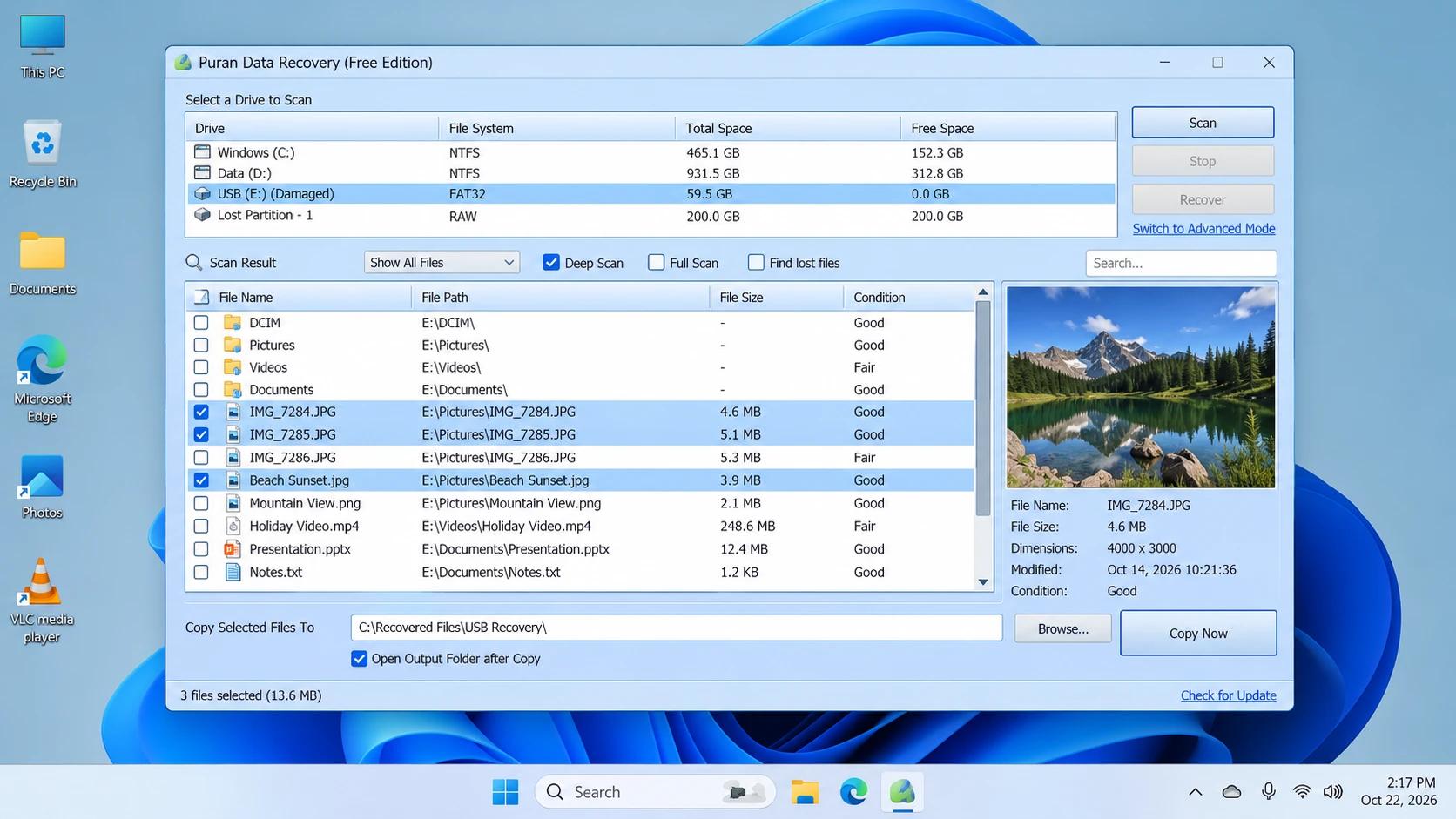
によると、 公式製品ページ, Puran データ復旧 is a free utility for copying accessible files from damaged media, including scratched CDs, DVDs, Blu-ray discs, USB drives, and memory cards.
Its defining behavior is simple: when it encounters an unreadable sector, it attempts to skip that area and continue copying the remaining data. This may preserve readable portions of a file, but it cannot reconstruct missing bytes from a sector that the device cannot read.
Main strengths
- Error-tolerant copying: Attempts to continue past unreadable sectors.
- Flexible selection: Copies entire drives or individual files and folders.
- Adjustable speed levels: Provides settings to balance copying speed and recovery effort.
制限事項
- Not a deleted-file scanner: It is not intended primarily to locate permanently deleted directory entries.
- Old documented release: Version 1.2 was released on September 7, 2013.
- Windows 11 support is unconfirmed: The official compatibility list ends at Windows 10.
- Incomplete copies remain possible: Skipping unreadable sectors cannot restore missing content.
最高だ: Copying visible files from damaged media when normal Windows copying encounters read errors.
以下の場合は適していません: Searching primarily for deleted files, recovering overwritten content, or repairing physical hardware damage.
Five-step workflow
- Download: Get the utility from the 公式ダウンロードページ.
- Connect: Attach the source device. Stop if it repeatedly disconnects or shows signs of serious physical failure.
- 選択: Choose the accessible files, folders, or drive that you need to copy.
- Copy: Select an appropriate speed level and save the output to a healthy, separate destination.
- 検証する: Open representative files and check their contents. Keep the original media unchanged until you confirm the copies are usable.
Puran File Recovery: Deleted Files and Lost Partitions
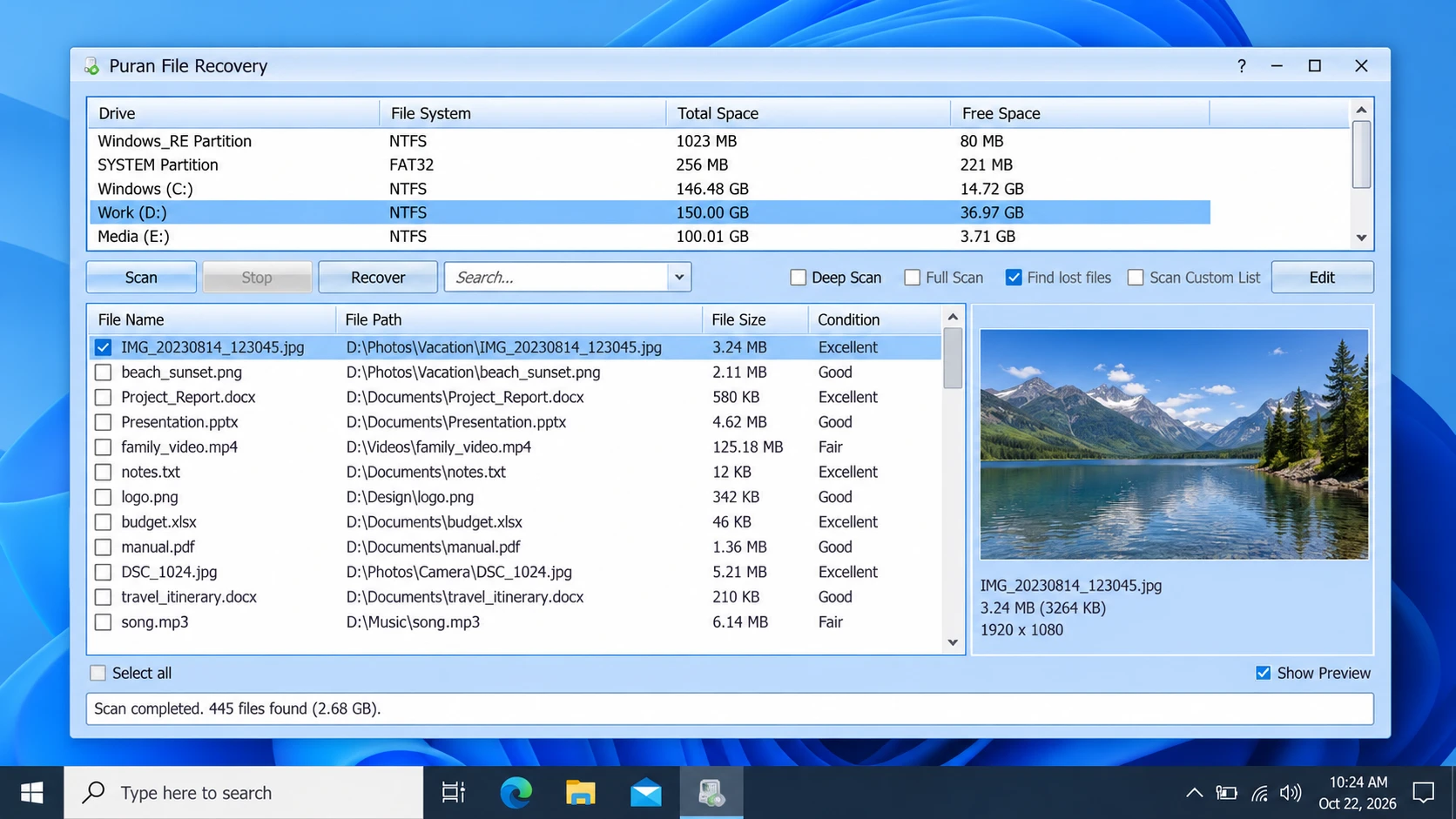
Puran File Recovery is a separate application for recovering deleted or lost files. The 公式製品ページ also describes support for formatted drives and lost partitions.
It provides three scan modes:
- クイック・スキャン Searches available file-system information for deleted files. The publisher identifies support for FAT12, FAT16, FAT32, and NTFS.
- ディープ・スキャン Searches byte by byte for additional files using data patterns.
- Full Scan: Searches for lost partitions and files on formatted or RAW drives.
The program also includes file search, preview, and an option to preserve folder structures when the necessary information remains available.
Main strengths
- Covers deleted files, formatted drives, and lost partitions.
- Offers multiple scan modes for different scenarios.
- Provides search and preview functions.
- Includes a portable version.
制限事項
- A listed file may not be completely recoverable.
- Deep scans can take time depending on the device and scan scope.
- A recovered file may be corrupted.
- Commercial-use conditions should be verified if relevant to your deployment.
The official version history lists version 2.0.1 on January 21, 2026, and explicitly includes Windows 11 compatibility. These details apply to Puran File Recovery, not to Puran Data Recovery.
最高だ: Users who need a free utility to search for deleted files, formatted volumes, or lost partitions.
以下の場合は適していません: Copying visible files from damaged media when the main problem is unreadable sectors.
Five-step workflow
- Download: をご覧ください。 official Puran File Recovery page.
- 選択: Choose the original drive or partition containing the missing files.
- スキャンする: Use Quick Scan for a first search, Deep Scan for additional file-pattern searching, or Full Scan for lost partitions and formatted volumes.
- Review: Search the results and preview supported files where possible.
- 回復する: Save the selected files to a different physical drive, then verify their contents.
Magic Data Recovery: An Alternative for Logical Data Loss
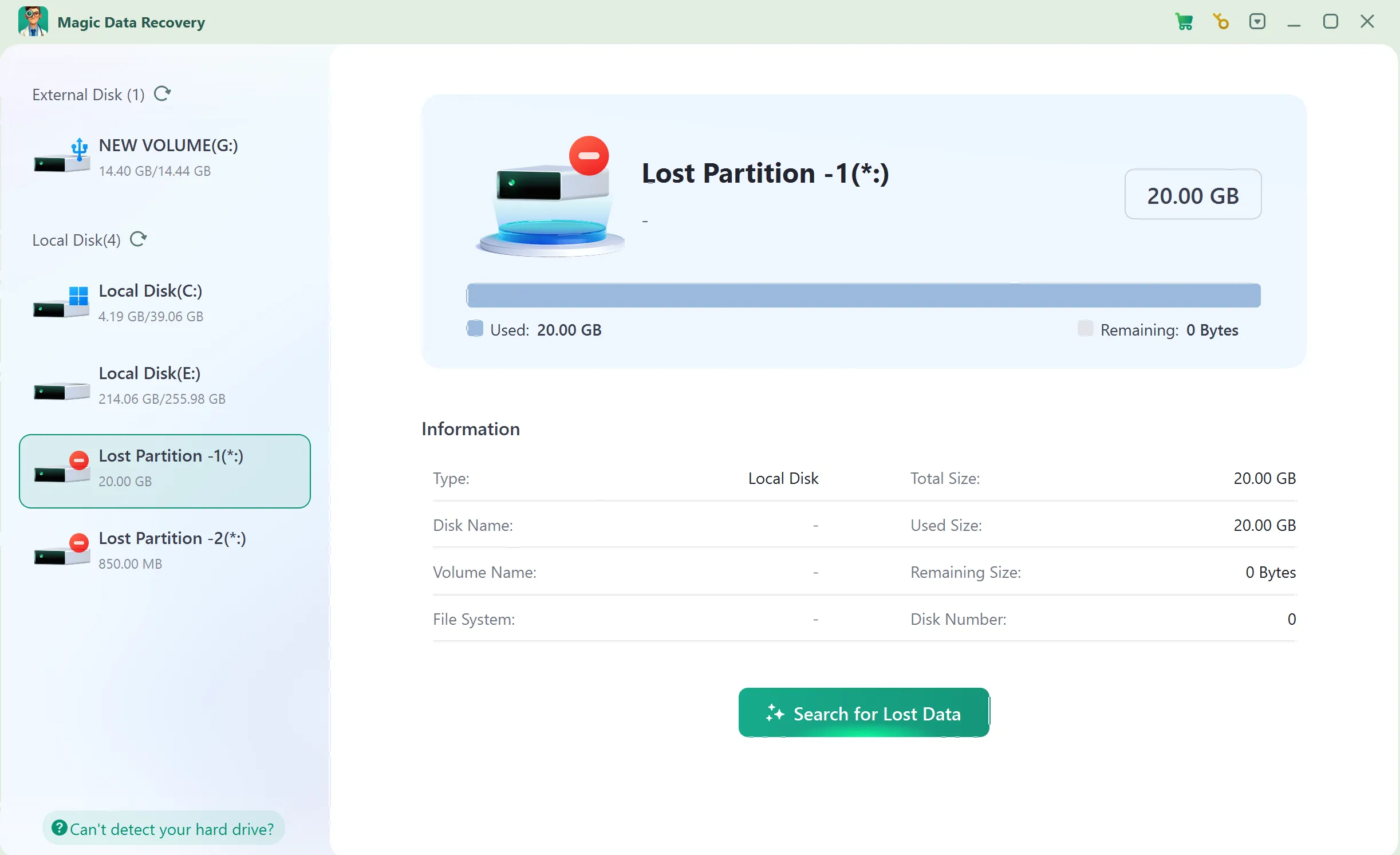
Magic Data Recovery provides a guided workflow for supported deleted-file and logical data-loss scenarios. Users select a storage device, scan for lost data, inspect results, preview supported files, and recover selected items.
It is included as an alternative, not as a performance winner. The published USB study did not test Magic Data Recovery, and our additional comparative tests remain pending.
Main strengths
- Guided workflow: Supports drive selection, scanning, browsing, and recovery.
- File filtering: Helps narrow down scan results.
- プレビュー機能のサポート: Helps identify supported files before recovery, although not every file can necessarily be previewed.
- Trial availability: The official product page states that users can recover up to 500 MB for evaluation.
制限事項
- It cannot repair physical hardware damage.
- Overwriting and SSD TRIM can reduce recovery prospects.
- A scan result does not guarantee an intact file.
- Recovery beyond the trial allowance requires an appropriate paid license.
最高だ: Users who need a guided workflow for supported deleted-file or logical data-loss scenarios.
以下の場合は適していません: Repairing a physically damaged device or reconstructing data from unreadable hardware.
Five-step workflow
ステップ1: Magic Data Recoveryのダウンロードとインストール
Install the program on a different drive or partition from the one that lost data. This reduces the risk of overwriting recoverable content.
Windows 7/8/10/11およびWindows Serverをサポート
Step 2: Select the Drive Where the Files Were Stored
Launch the program, select the original drive or partition, and start the scan.
ステップ3:紛失または削除されたファイルをスキャンする
Allow the scan to run and review the files that appear.
ステップ4:リカバリーの前にファイルをプレビューする
Use Preview for supported file types to help identify the intended files. A preview does not guarantee that the complete file is intact.
ステップ5:ファイルを安全な場所に復元する
Save selected files to a different physical drive. Do not write them back to the source location where data was lost.
Pricing and License Comparison
The three tools differ in pricing and available licensing information.
製品 | 価格 | License information |
Puran データ復旧 | 無料ユーティリティ | Confirm current terms before business deployment |
Puran ファイル復元 | Officially described as free to use | A third-party review describes possible commercial-use restrictions; verify with the publisher |
Magic Data Recovery | Trial up to 500 MB; paid plans available | One-computer PRO licenses and Technician plans are listed |
について Magic Data Recoveryの価格ページ displayed the following promotional prices when checked on October 22, 2026:
計画 | 表示価格 | License terms |
無料 | $0 | 500MB無料 |
PRO — 1 year | $49.95 | 1台のパソコン、1年間のアップグレード |
PRO — perpetual | $69.95 | 1台のパソコンで、生涯にわたるアップグレードが可能 |
The pricing page also displays reference prices and a 30-day money-back guarantee. Prices and terms can change, so check the current offer before purchasing.
The comparison does not assume that paid software is better than free software. Instead, the choice depends on the task, supported platform, license terms, and whether the recovered files are intact.
どのツールを選ぶべきか?
あなたの状況 | 次の推奨手順 | 理由 |
Files remain visible on a scratched disc but copying fails | Puran データ復旧 | Designed to continue copying readable content |
ファイルが誤って削除された | Check Recycle Bin and backups, then consider Puran File Recovery | Designed for deleted-file recovery |
A drive was formatted or a partition disappeared | Consider Puran File Recovery | Provides Full Scan for lost partitions and formatted volumes |
You prefer a guided logical-recovery workflow | Evaluate Magic Data Recovery’s trial | Allows you to inspect actual results before purchasing |
A drive clicks, repeatedly disconnects, or shows physical damage | Stop DIY scans and seek professional diagnosis | Software cannot repair serious hardware damage |
信頼できるバックアップが存在する | まずバックアップから復元してください | Avoids unnecessary scanning and further writes |
Before recovery, stop writing new data to the affected device. Do not install recovery software on the source partition, and save recovered files elsewhere. On SSDs, TRIM may make deleted content unrecoverable even when a scanner detects remnants.
Conclusion: Is Puran Data Recovery Worth Trying?
Puran データ復旧 remains relevant for copying visible files from damaged media when ordinary copying encounters unreadable sectors. However, its documented version is old, and the official compatibility list does not explicitly include Windows 11.
For deleted files, formatted drives, and lost partitions, Puran File Recovery is the more appropriate Puran utility. An external study reported a high file-count recovery rate, but its hash-matching results and reporting inconsistencies show why recovered files must be checked for integrity.
If built-in recovery methods and backups fail, Magic Data Recovery offers an alternative for supported logical data-loss scenarios. It is not a universal replacement for Puran Data Recovery, and this review does not claim a performance winner without directly comparable tests.
Choose according to the cause of data loss, device condition, compatibility, and file integrity. For further device-specific guidance, visit our ハードドライブ回復ソリューション.
Windows 7/8/10/11およびWindows Serverをサポート
よくある質問
Puran Data Recovery はどのような用途に使われますか?
「Puran Data Recovery」と「Puran File Recovery」の違いは何ですか?
Puran Data Recoveryは無料ですか?
Puran Data RecoveryはWindows 11でも動作しますか?
「Puran File Recovery」は、完全に削除されたファイルを復元できますか?
公表されている88.89%という復旧率は、「Puran File Recovery」の信頼性を証明しているのでしょうか?
「Puran File Recovery」と「Magic Data Recovery」、どちらを選べばいいでしょうか?

バシリイは、この分野で約10年の実務経験を持つデータ復元のスペシャリストです。そのキャリアを通じて、彼は削除されたファイル、フォーマットされたドライブ、失われたパーティション、RAWファイルシステムを含む何千もの複雑なケースの解決に成功してきました。彼の専門知識は、16進エディタなどの専門ツールを使用した手動復元方法と、復元ソフトウェアを使用した高度な自動化ソリューションの両方をカバーしています。バシリの使命は、信頼できるデータ復元知識をITプロフェッショナルと一般ユーザーの双方が利用できるようにし、貴重なデジタル資産を保護できるようにすることです。.