
Solid State Drive Flash Memory: How It Works & Data Recovery
Solid state drive flash memory is non-volatile NAND storage technology that most modern SSDs use to retain digital data without power. Unlike traditional hard disk drives (HDDs), which store data magnetically on spinning platters, SSDs use electronic memory cells to provide fast access without mechanical movement.
This technology improves storage performance, but it also introduces important differences in endurance, file deletion, and data recovery. Understanding these differences can help you choose an SSD and protect valuable files.
This guide explains how NAND flash works, what SSD controllers do, and why TRIM affects deleted files. For device-specific information, explore our SSD solutions and recovery guides.
Table of Contents
Solid State Drive Flash Memory: Quick Facts
Property | Explanation |
Technology | Non-volatile NAND flash memory |
Main purpose | Store digital information without continuous power |
Common devices | SATA SSDs, NVMe SSDs, portable SSDs |
Storage structure | Cells, pages, and blocks |
Main components | NAND chips, controller, firmware |
NAND types | SLC, MLC, TLC, QLC |
Related technologies | FTL, wear leveling, garbage collection, TRIM |
Primary limitation | Finite write endurance and controller-dependent access |
Key distinction: Flash memory is the storage medium, while an SSD is the complete device that manages and exposes that storage to a computer.
Understanding SSD Flash Memory in Simple Terms
Think of an SSD as a storage system with two main responsibilities.
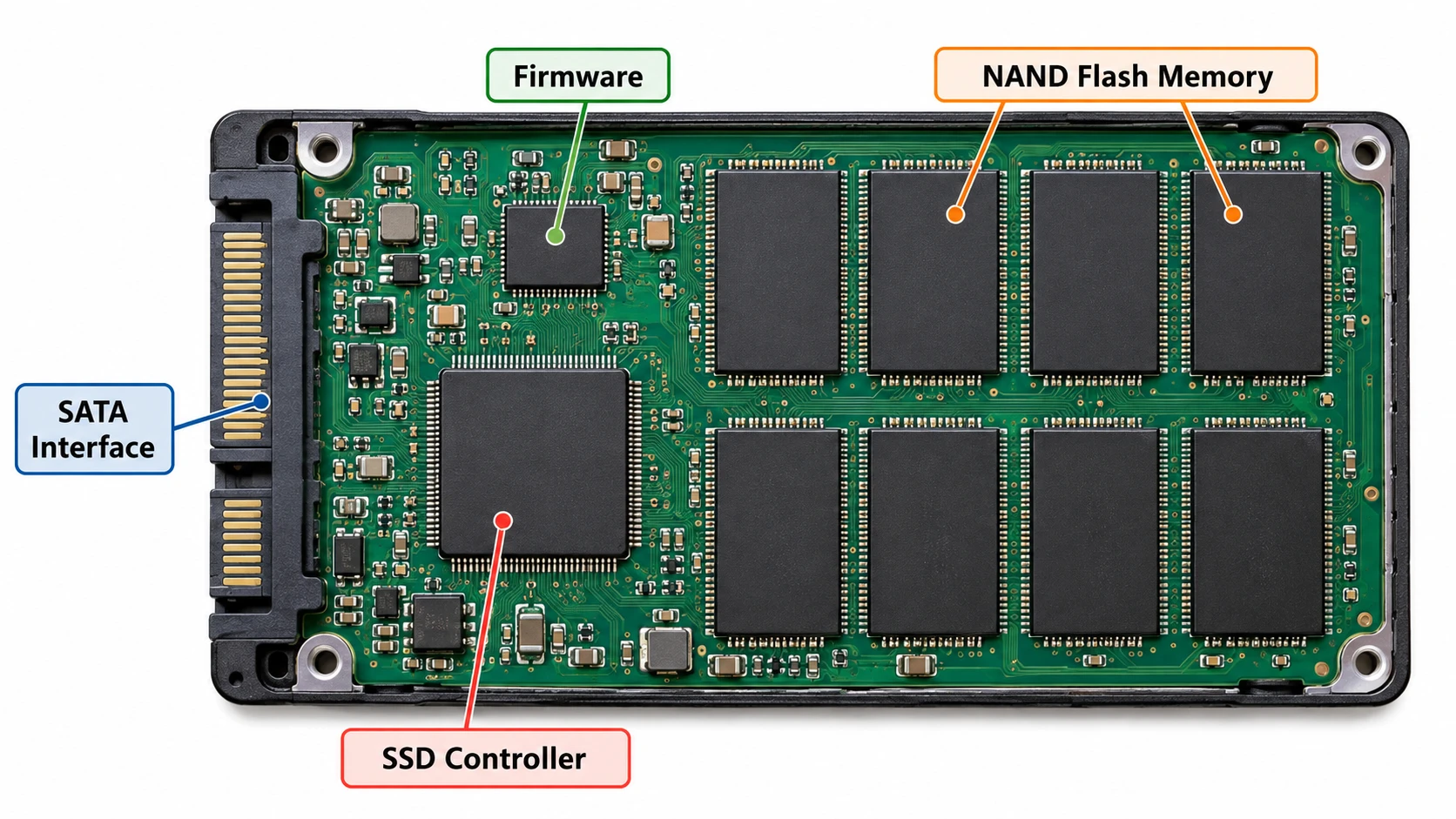
The NAND flash chips hold the information. Meanwhile, the SSD controller decides where to place it and how to retrieve it efficiently.
For example, when you save a document, Windows sends data to the SSD through its storage interface. The controller selects suitable flash locations and records where the information resides.
Later, when you open the document, the controller uses its mapping information to locate and return the stored data.
This simplified explanation highlights an important difference: the file address that Windows sees does not necessarily match a fixed physical NAND location.
As a result, SSDs can move data internally without changing the file paths shown in Windows.
How Does Solid State Drive Flash Memory Work?
The solid state drive flash memory system combines electronic storage with controller-managed data placement.
NAND Cells Store Information
NAND flash cells represent information through different electrical charge states. The SSD reads those states to distinguish stored values.
Manufacturers organize cells into larger structures:
- Cell: Stores one or more bits.
- Page: Groups cells into a unit for reading and programming.
- Block: Contains multiple pages and serves as an erase unit.
Importantly, NAND generally programs data at the page level but erases it at the block level.
Therefore, updating an existing file does not necessarily overwrite its previous physical location immediately.
The Controller Maps Logical and Physical Addresses
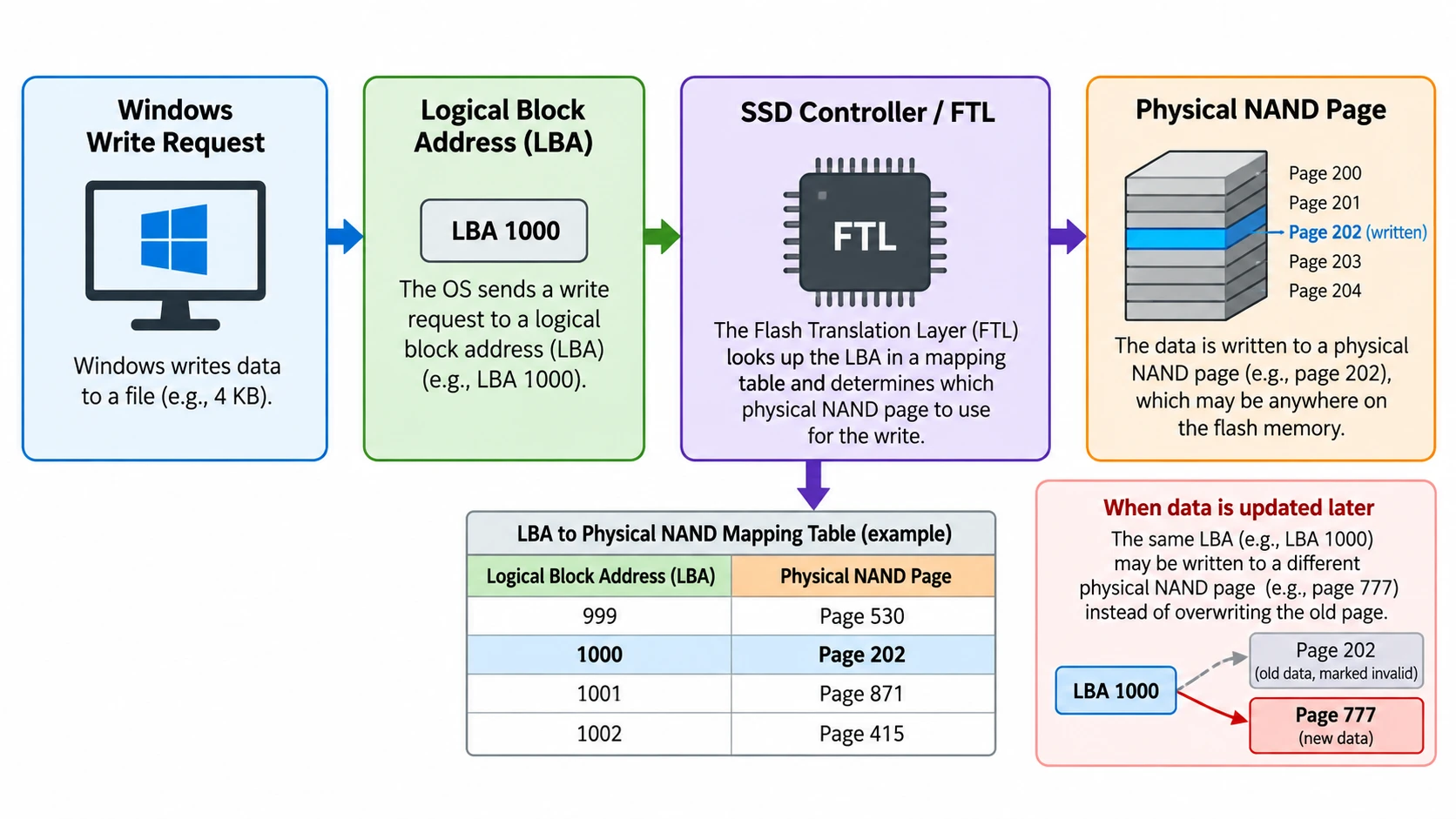
The Flash Translation Layer (FTL) connects logical block addresses with physical NAND locations.
A typical write follows this sequence:
- Windows sends a write request to the SSD.
- The controller receives the logical address and data.
- The FTL selects an appropriate physical location.
- NAND cells store the information.
- The controller updates its mapping records.
When Windows requests the data later, the controller uses those records to identify the correct location.
This process helps the SSD manage its physical storage independently of the operating system.
Wear Leveling and Garbage Collection Manage Space
Because NAND cells support a finite number of program/erase cycles, controllers distribute writes across flash blocks through wear leveling.
Additionally, garbage collection consolidates valid information and reclaims blocks containing obsolete pages.
Both mechanisms support long-term performance and endurance.
However, they also explain why deleted data may become inaccessible even without new user files directly overwriting its former logical addresses.
TRIM Identifies Unneeded Data
When Windows deletes a file, it may send a TRIM notification identifying logical blocks that the file system no longer needs.
The SSD can then invalidate those mappings and prepare the underlying space for reuse.
Consequently, TRIM can substantially reduce the possibility of recovering deleted files.
For a deeper technical explanation, read our SSD NAND flash memory guide and What Is TRIM?.
Kingston also describes NAND and SSD operation in its NAND Flash Technology guide.
Components and Types of Solid State Drive Flash Memory
An SSD combines several components, but NAND type strongly influences storage density and endurance.
Main SSD Components
The three essential elements perform different roles:
- NAND flash: Retains user data.
- Controller: Handles logical mapping, error correction, and storage management.
- Firmware: Implements the rules that coordinate device operation.
Although NAND provides the storage capacity, the controller and firmware determine how the drive uses that capacity.
SLC, MLC, TLC, and QLC NAND
NAND type | Bits per cell | General trade-off |
SLC | 1 | Higher endurance, lower density |
MLC | 2 | Balance of density and endurance |
TLC | 3 | Good balance for mainstream SSDs |
QLC | 4 | Higher density, lower cell-level endurance |
For instance, a TLC SSD often suits everyday operating-system workloads. In contrast, a QLC drive may offer attractive capacity for read-heavy storage.
Modern 3D NAND stacks memory cells vertically. It describes their physical arrangement, not how many bits each cell stores. Therefore, a 3D NAND SSD can use TLC or QLC technology.
Why Solid State Drive Flash Memory Matters
The practical value of solid state drive flash memory extends beyond storage capacity.
Performance: Electronic access eliminates mechanical seek delays. As a result, SSDs generally offer faster random access than HDDs.
Endurance: NAND cells wear gradually through program/erase operations. Manufacturers use TBW (Terabytes Written) and DWPD (Drive Writes Per Day) ratings to describe endurance expectations.
Data recovery: TRIM and internal address mapping can prevent traditional undelete methods from accessing old information.
Reliability: SSDs resist mechanical shocks better than HDDs, but controllers, firmware, and electronic components can still fail.
For example, a laptop SSD may operate normally for years but suddenly become inaccessible because of a controller problem rather than exhausted NAND cells.
Therefore, endurance ratings cannot predict every possible failure. Regular backups remain essential regardless of the drive’s reported health.
Flash Memory vs SSD vs HDD: What's the Difference?
These terms describe different technical layers, so they should not be treated as interchangeable.
Feature | Flash memory | SSD | HDD |
Category | Storage medium | Complete storage device | Complete storage device |
Data storage | Electronic charge states | Usually NAND flash | Magnetic platters |
Controller | Requires external management | Integrated | Integrated |
Moving parts | None | None | Yes |
Common example | NAND chip | SATA or NVMe SSD | Desktop hard drive |
An SSD typically contains NAND flash memory, but not every flash-based device qualifies as an SSD.
For example, USB flash drives and SD cards also use NAND storage. However, their controllers, interfaces, and workloads can differ considerably.
Likewise, NVMe describes a storage communication protocol rather than a NAND type. Both SATA and NVMe SSDs may use similar flash technologies.
For a focused comparison, see Flash Memory vs SSD.
Where Can You See SSD Flash Memory in Windows?
Windows does not normally expose an SSD’s internal NAND pages, physical blocks, or FTL mappings.
However, Windows 10 and Windows 11 provide several ways to inspect the storage device and relevant settings.
Disk Management
Press Win + X and select Disk Management.
You can inspect the drive’s capacity, partitions, and file system status.
For example, an SSD might show a healthy NTFS partition, an unallocated region, or a RAW volume.
These indicators describe Windows’ logical view of the device. They do not directly reveal the health of individual NAND cells.
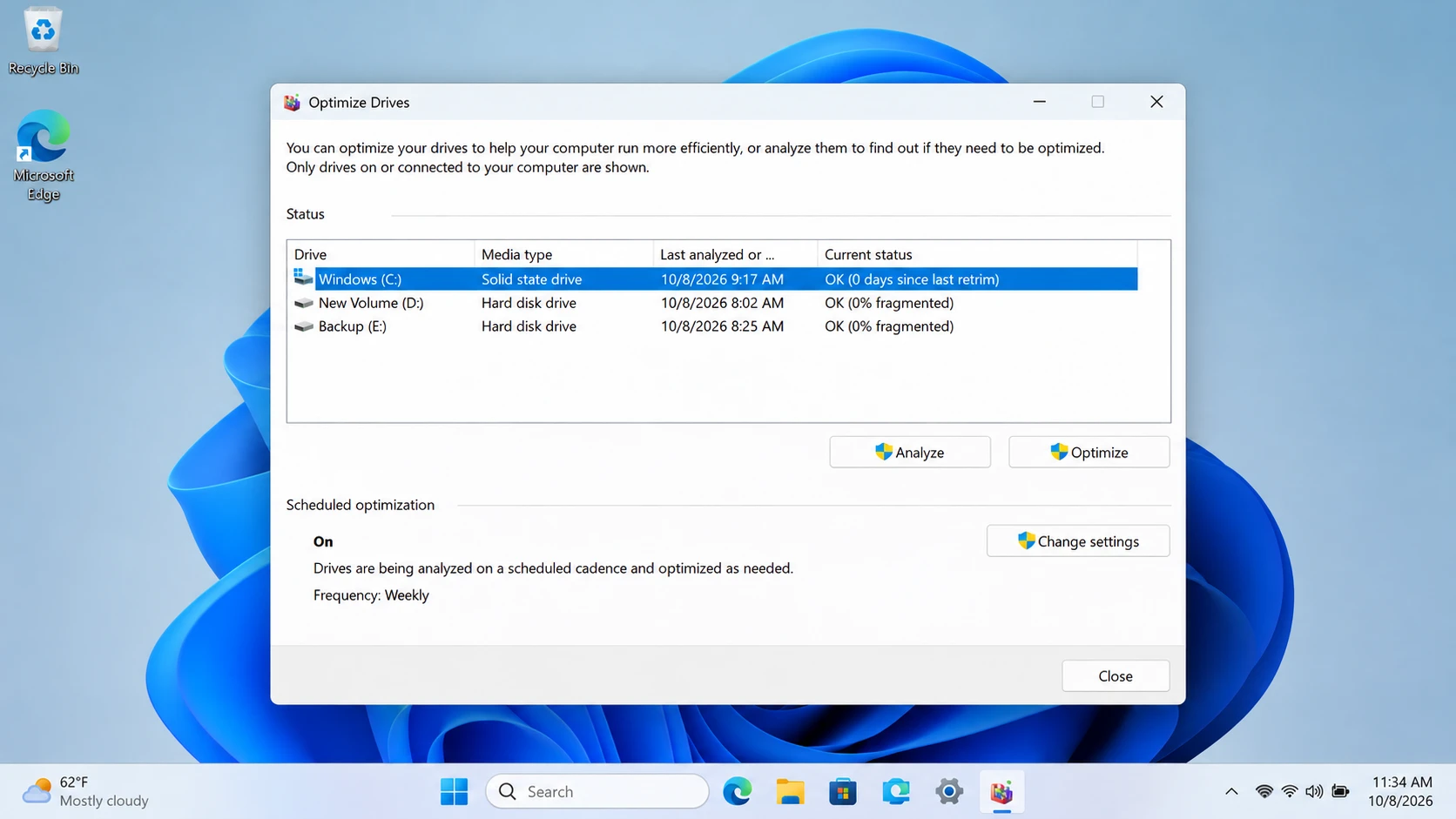
Optimize Drives
Search Windows for Defragment and Optimize Drives.
This utility identifies recognized media types and manages appropriate optimization operations.
Microsoft explains that SSD optimization uses TRIM-related operations rather than relying solely on traditional HDD-style defragmentation.
See Microsoft’s Optimize Drives documentation.
Check the Windows TRIM Setting
Open Command Prompt as Administrator and run:
fsutil behavior query DisableDeleteNotify
For NTFS, a value of 0 means Windows has enabled delete notifications, while 1 means it has disabled them.
However, this setting does not confirm whether a particular deleted file remains recoverable.
Microsoft documents the command in its fsutil behavior reference.
Common Misconceptions About SSD Flash Memory
Several misunderstandings can lead to incorrect troubleshooting decisions.
Does TRIM Immediately Physically Erase Every Deleted File?
Not necessarily. The SSD may invalidate logical access before physically erasing NAND blocks.
Nevertheless, once the drive stops exposing the original information, ordinary recovery software cannot reconstruct it simply by scanning.
Does the FTL Guarantee Deleted-File Recovery?
No. The FTL maps logical addresses to physical locations, but it does not maintain a user-accessible backup of every file.
Furthermore, standard recovery software generally cannot inspect or rebuild inaccessible internal FTL mappings.
Does Higher SSD Endurance Mean Data Is Always Safe?
No. Higher endurance ratings relate primarily to sustained write workloads.
Controller failures, firmware errors, electrical damage, and accidental deletion can still cause data loss.
Similarly, a healthy SMART status does not guarantee that an SSD will never fail unexpectedly.
Safety: What Should You Avoid Changing?
Solid state drive flash memory depends on several internal management mechanisms that users should not modify casually.
Disabling TRIM globally can affect normal SSD maintenance. Additionally, manual firmware changes, secure erase commands, and unnecessary formatting may introduce irreversible data loss.
If important files disappear, avoid writing new data, initializing the SSD, or running repair operations before protecting recoverable information.
For an inaccessible drive, preserve its current state and identify whether the problem involves logical structures or hardware.
Remember that a repair operation can restore file system usability without restoring missing files.
Practical Relevance: When Should You Take Action?
Most users do not need to change how solid state drive flash memory operates. Windows and the SSD controller handle routine storage management automatically.
However, certain situations require different next steps:
- Normal SSD operation: Continue regular backups and manufacturer-recommended maintenance.
- Deleted or missing files: Check Recycle Bin, File History, and cloud backups before attempting recovery.
- RAW or missing partition: Avoid formatting and assess whether the SSD remains readable.
- SSD absent from BIOS/UEFI: Investigate connections and potential hardware failure before attempting software recovery.
For device recognition problems, consult our SSD not recognized guide.
If Windows still recognizes the SSD and accessible data may remain, our SSD data recovery guide explains the recovery process.
For supported logical data-loss scenarios, Magic Data Recovery offers a Windows scan-and-preview workflow that can help identify accessible files before attempting repairs. However, it cannot reverse completed TRIM or repair a failed SSD controller.

Conclusion
Solid state drive flash memory uses NAND cells, controller-managed address mapping, and background maintenance mechanisms to provide fast, non-volatile storage. These technologies improve performance but also influence endurance, data accessibility, and recovery limitations.
Understanding how NAND, FTL, garbage collection, and TRIM interact helps users make informed storage decisions.
For additional device guidance, explore our SSD solutions. When logical file loss occurs on a readable SSD, Magic Data Recovery is worth considering because its scan-and-preview workflow helps users examine accessible files without first modifying the file system.
Supports Windows 7/8/10/11 and Windows Server
FAQ
Is 3D NAND the Same as TLC Flash Memory?
Does NVMe Use Different Flash Memory Than SATA SSDs?
Can NAND Flash Memory Store Data Without Electricity?
Can Disabling TRIM Help Recover Previously Deleted SSD Files?
What Do TBW and DWPD Tell You About SSD Lifespan?
Why Can an SSD Show Healthy Status but Still Lose Data?
Can Software Recover Data When an SSD Is Not Detected in BIOS?

Jason is a data recovery and technical support specialist with over 15 years of hands-on experience. He has worked extensively with frontline users, troubleshooting difficult data loss cases and providing practical recovery solutions for accidental deletion, formatted drives, damaged file systems, lost partitions, system failures, and other recovery emergencies. His expertise also includes backup and restoration, file repair, and disaster recovery, with a strong emphasis on safe, reliable, and technically accurate guidance.