
Fix Seagate External Hard Drive Not Recognized Issue
When a Seagate external hard drive is not recognized, it typically means the operating system cannot properly detect or access the device. The drive may not appear in File Explorer, Disk Management, or Device Manager, even though it is physically connected.
This situation is understandably stressful. However, don’t panic. In most cases, data recovery from external drives is still possible. The issue usually stems from connection problems, driver conflicts, file system corruption, or power-related failures rather than immediate physical damage.
Understanding the cause is the first step toward a safe and effective solution.
Table of Contents
Common Reasons why a Seagate External Hard Drive Is Not Recognized
A Seagate hard disk may fail to appear for several technical reasons:
1. USB Connection or Power Issues
Faulty USB cables, damaged ports, or insufficient power supply can prevent the drive from initializing properly. This is especially common with older USB hubs or front-panel ports.
2. Driver or Firmware Problems
Outdated or corrupted USB or disk drivers may stop Windows from recognizing the device. In some cases, the drive appears in Device Manager with a warning symbol.
3. File System Corruption
Unexpected power loss, unsafe removal, or system crashes can corrupt the file system, causing the drive to show as RAW or remain inaccessible.
4. Partition or Logical issues
The partition may be missing, unallocated, or incorrectly formatted, making the drive invisible in File Explorer.
5. Hardware Degradation
External hard drives are mechanical devices. Over time, internal components may degrade, leading to clicking sounds, beeping, or detection failures.
How to Fix a Not Recognized Seagate External Hard Drive
Follow these steps in order. Stop immediately if the drive begins making abnormal noises, as continued use could worsen physical damage.
Step 1: Check the Physical Connection
- Try a different USB cable
- Plug the drive into another USB port
- Avoid USB hubs; connect directly to the motherboard
- Test the drive on another computer
If the drive works elsewhere, the issue is likely system-related.
Step 2: Check Disk Management
1. Press Win + X and select Disk Management
2. Look for the Seagate drive
3. If it appears as Unallocated or RAW, do not format it yet
Note:Formatting may overwrite recoverable data.
Step 3: Update or Reinstall Drivers
1. Open Device Manager
2. Expand Disk Drives and Universal Serial Bus controllers
3. Right-click the Seagate drive and select Update driver
4. If necessary, uninstall the device and restart Windows
Windows will reinstall the correct drivers automatically.
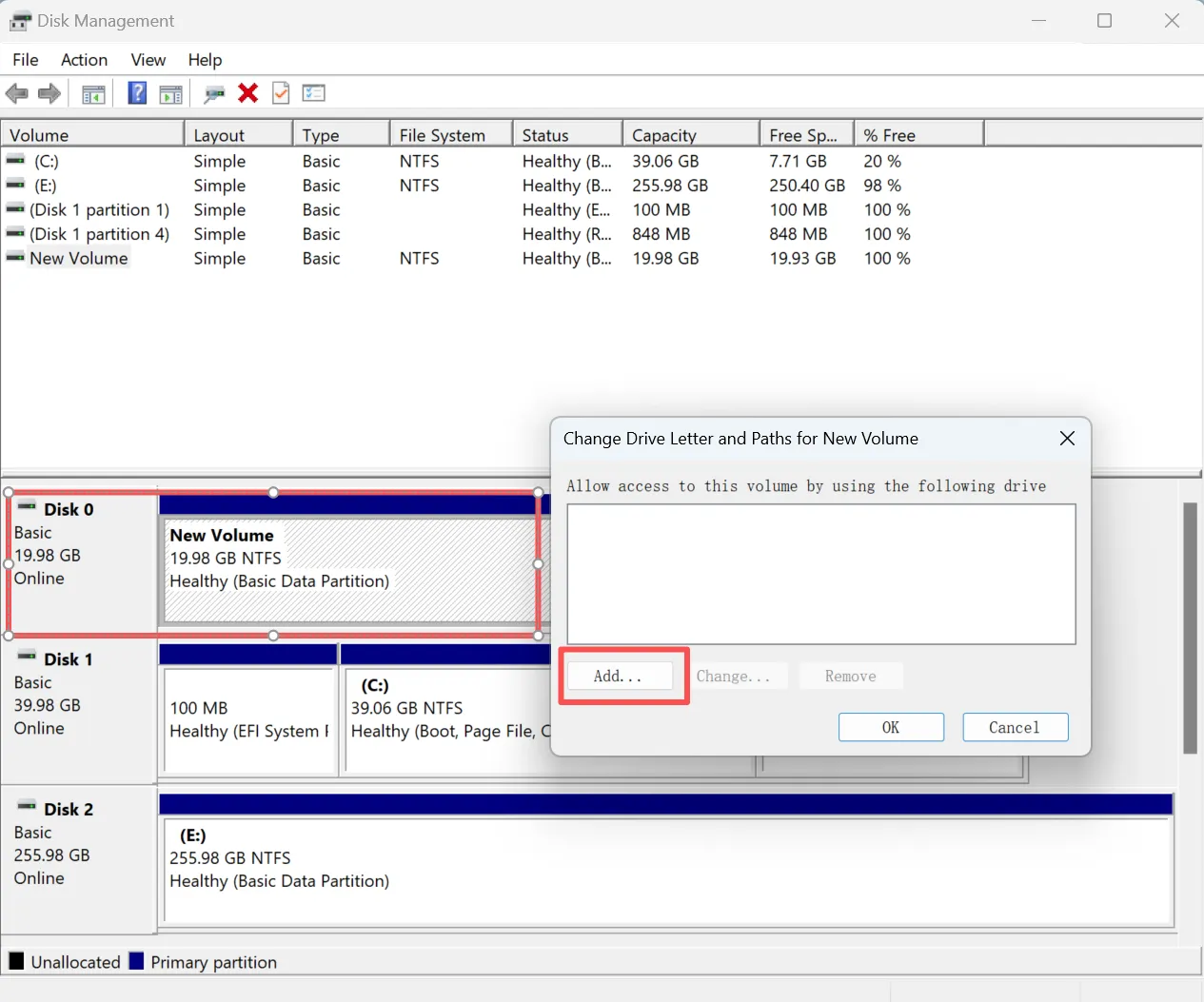
Step 4: Assign or Change Drive Letter
If the drive is detected but lacks a letter:
- Right-click the partition in Disk Management
- Choose Change Drive Letter and Paths
- Assign an unused drive letter
How to Recover Data from a Not Recognized Seagate External Hard Drive
If your Seagate external hard drive is not recognized or shows as RAW, data recovery should be performed before attempting repairs. Professional-grade recovery software such as Magic Data Recovery is designed to access drives at a read-only level, minimizing further risk.
The software analyzes file structures rather than relying solely on partition tables, which is critical when logical damage is present.
Can a Not Recognized Seagate Hard Drive Be Repaired?
Yes, logical issues such as corrupted file systems or partition errors can often be repaired after data recovery. However, physical damage—indicated by clicking, grinding, or repeated beeping—requires professional repair and should not be handled through software. Always prioritize data recovery before attempting repairs.
Preventing Future Detection Issues
- Safely eject the drive before unplugging
- Avoid sudden power loss
- Use high-quality USB cables
- Keep backups of important data
- Periodically check disk health
External hard drives are not designed for permanent storage without redundancy.
Conclusion
If your Seagate external hard drive is not recognized, remain calm and avoid formatting or repeated reconnect attempts. In most cases, the data is still recoverable from the external drive. Using a professional, read-only recovery solution like Magic Data Recovery allows you to restore files safely before making repair decisions. Take control of the situation and recover your data with confidence.
Supports Windows 7/8/10/11 and Windows Server
Seagate External Hard Drive Not Recognized – FAQ
How to reset Seagate external hard drive?
Why is my Seagate hard drive beeping and not recognized?
Can a Seagate hard drive be repaired?
What is the lifespan of an external hard drive?
How to recover an undetected hard drive?
How to repair Seagate hard disk not detected?
How often should I defrag a Seagate HDD?

Vasilii is a data recovery specialist with around 10 years of hands-on experience in the field. Throughout his career, he has successfully solved thousands of complex cases involving deleted files, formatted drives, lost partitions, and RAW file systems. His expertise covers both manual recovery methods using professional tools like hex editors and advanced automated solutions with recovery software. Vasilii's mission is to make reliable data recovery knowledge accessible to both IT professionals and everyday users, helping them safeguard their valuable digital assets.