
How to Recover HDD Data Safely Without Exposing Private Files

Losing important files from your HDD can be stressful, but you can perform safe data recovery at home without risking your private information. This guide explains step-by-step methods, precautions, and tools for recovering lost files safely and effectively.
At the same time, another concern becomes even more important: Data recovery contents can be viewed during certain processes. Because of this, users want safer HDD recovery solutions. Fortunately, you can recover files while keeping everything private.
Supports Windows 7/8/10/11 and Windows Server
Table of Contents
Why Safe Data Recovery Matters
First, modern devices store highly personal information. As a result, losing data does not only mean inconvenience—it also creates emotional stress. Therefore, Data recovery is embarrassing for many people.
Moreover, users often imagine that others might see their files. For instance, personal images or confidential documents may feel too sensitive to expose. Because of this, hesitation increases. However, understanding the recovery process helps reduce this fear.
Can Data Recovery Contents Be Viewed During Recovery?
In some cases, yes, Data recovery contents can be viewed during recovery. For example, technicians may preview files to confirm successful restoration. Then, they check file integrity to ensure usability. Therefore, readable files might be opened during this process.
However, this situation changes when you use local tools. In that case, you remain in control. As a result, Data recovery contents can be viewed only by you.
Data Recovery Is Embarrassing Because of Privacy Risks
Although recovery is necessary, several risks explain why safe data recovery is important:
Third-Party Access
When you send a device to a service center, other people handle your data. Therefore, sensitive files may become accessible.
Manual File Verification
Technicians sometimes open files to confirm results. Consequently, Data recovery contents can be viewed during verification.
Cloud-Based Processing
Some tools upload data online. As a result, files leave your device, which increases exposure risk.
How to Recover Data with Safe Data Recovery
Fortunately, you can reduce these risks by choosing the right approach.
Use Offline Recovery Software
First, select tools that run locally. This ensures that Data recovery contents can be viewed only on your own device.
Avoid External Handling
Next, avoid sending your storage device to third parties unless necessary. Therefore, you keep full control.
Stop Using the Drive Immediately
Finally, stop writing new data. As a result, recovery success improves while privacy remains protected.
Best Choice When Data Recovery Is Embarrassing
For most users, local recovery software offers the safest option. One effective solution is Magic Data Recovery. It scans storage directly without uploading data. Therefore, Data recovery is embarrassing no longer becomes a barrier, because your files never leave your device.
In addition, it supports RAW drives and damaged file systems. As a result, recovery remains possible even in complex scenarios.
Magic Data Recovery is a local recovery tool that enables you to recover your data without anyone seeing it.
Features:
- Local recovery environment
No need to upload data to the cloud. No worries about others seeing your files.
- Supports recovery from deleted, formatted, or inaccessible drives
Supports multiple storage devices such as USB drives, SD cards, and external HDDs.
- Compatible with Windows
Works on Windows 11 / 10 / 8 / 7 / Vista / XP and is easy to operate without specialized knowledge.
- Free recovery of up to 500MB
You can check if your data is recoverable for free, giving you peace of mind.
- Much more affordable than hiring a local specialist.
How to Use Magic Data Recovery
1.Download and install Magic Data Recovery
Install it on a drive different from the one that has the data you want to recover. To avoid overwriting the deleted data, stop any new writes to that drive immediately.
Supports Windows 7/8/10/11 and Windows Server
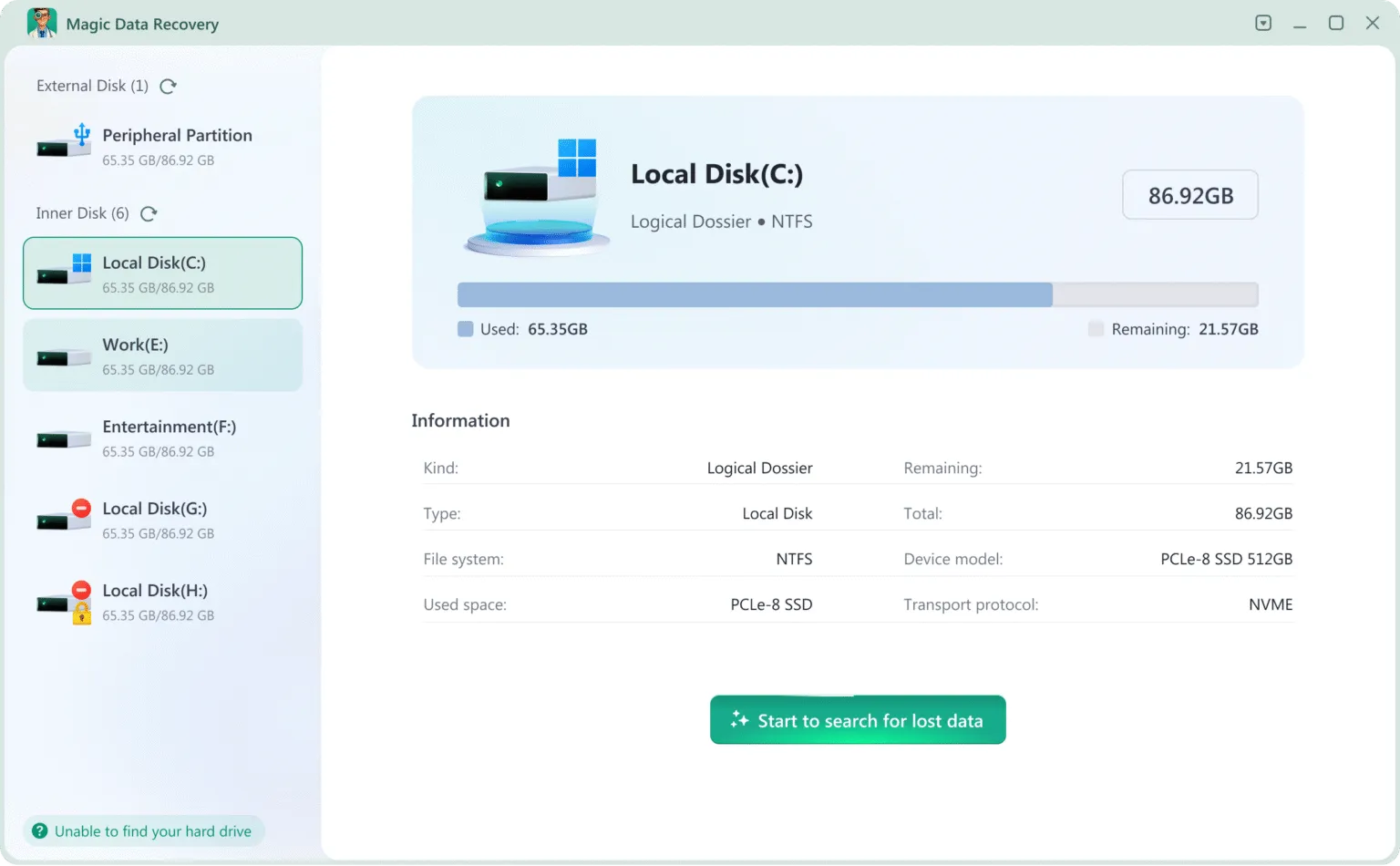
2.Select the drive you want to recover and start the scan
3.Wait for the scan to complete
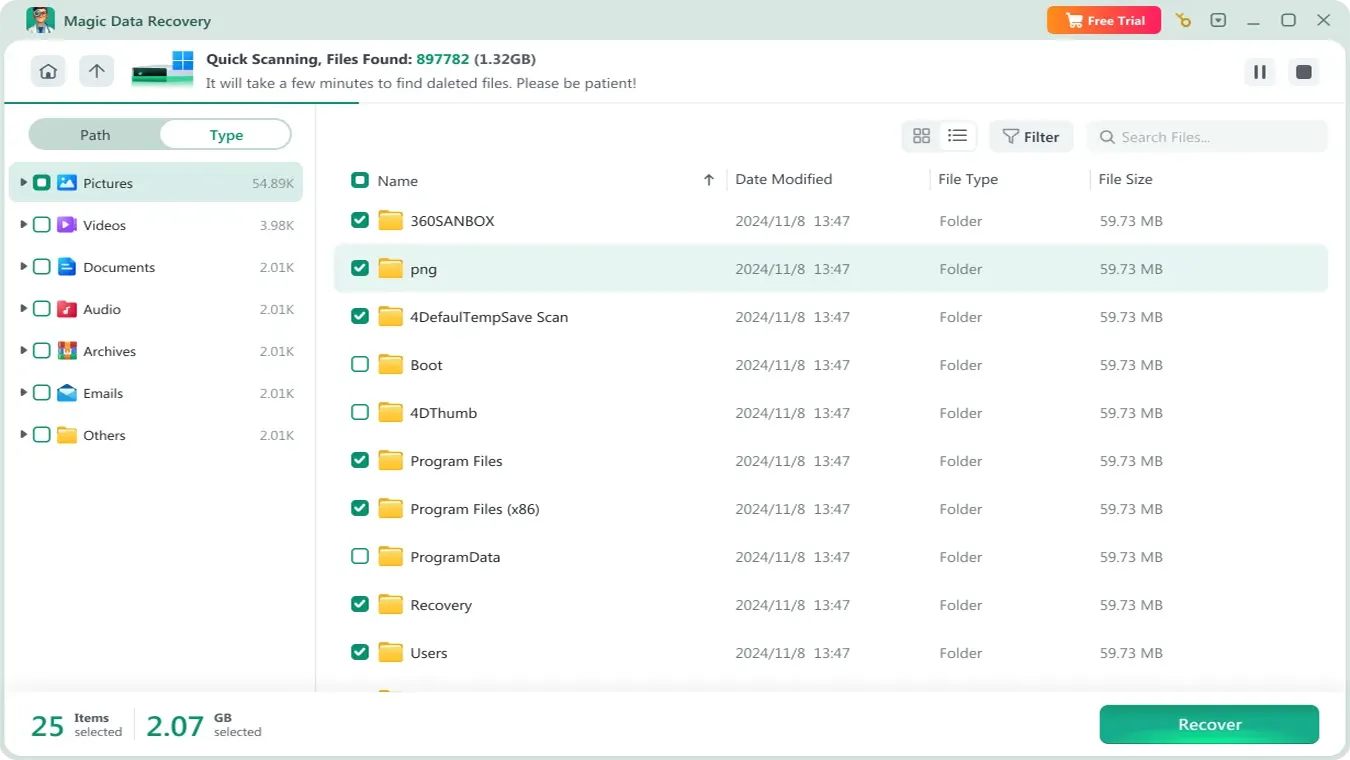
Magic Data Recovery automatically performs a quick scan and an advanced scan to find deleted files, even from formatted or corrupted drives.
4.Preview the files and confirm the ones you need
You can see a list of recoverable files. Use the preview feature to verify if they are the files you need.

5.Recover the files
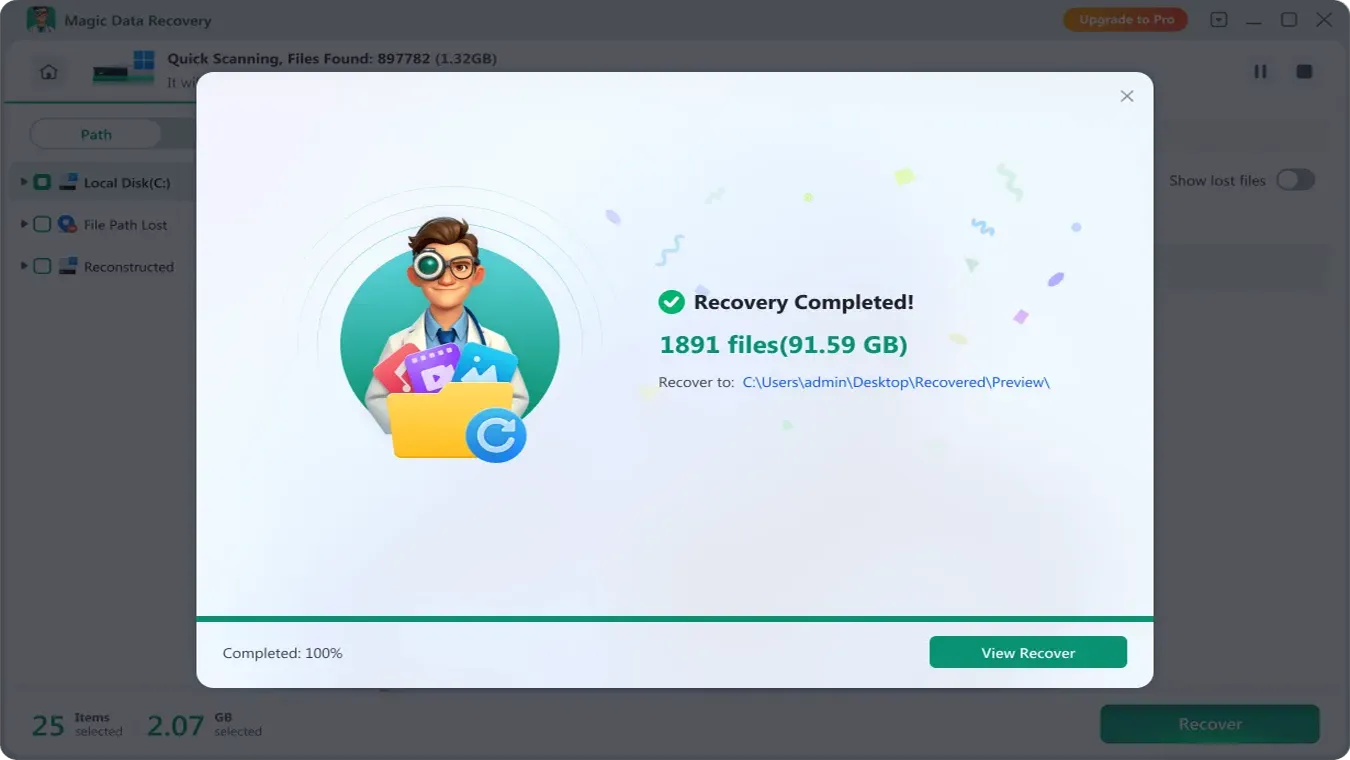
Select the files you want to recover and specify a safe location for recovery. That’s it! You’ve successfully recovered your private data without anyone seeing it.
Data Recovery Is Embarrassing: Software vs Service Comparison
Factor | Recovery Service | Recovery Software |
Privacy | Limited | High |
File Access | Possible | User Only |
Risk | Higher | Lower |
Control | Low | Full |
Therefore, when Data recovery is embarrassing, software provides a more secure and private solution.
Conclusion
In many situations, Data recovery is embarrassing, but delaying recovery often leads to permanent data loss. Therefore, acting early is essential.
Performing safe data recovery ensures that you can recover your lost HDD files at home while protecting your privacy. By following the step-by-step methods outlined in this guide and using trusted recovery tools, you can restore important files effectively, minimize data loss, and avoid exposing sensitive information. Whether you choose DIY recovery or professional assistance, prioritizing safety and privacy is key to a successful data recovery process.
At the same time, privacy should remain a priority. Because Data recovery contents can be viewed in some HDD recovery methods, choosing offline tools offers better protection. Ultimately, the safest approach combines quick action with full control over your data.
Supports Windows 7/8/10/11 and Windows Server
FAQ
How can I perform safe data recovery at home?
What tools are recommended for safe HDD data recovery?
Can I recover lost files without risking privacy?
What steps ensure safe data recovery from a damaged hard drive?
How to avoid common mistakes during safe data recovery?
Is DIY safe data recovery as reliable as professional services?
How to recover files safely if the drive is not recognized by Windows?
What precautions should I take to protect private data during recovery?

Vasilii is a data recovery specialist with around 10 years of hands-on experience in the field. Throughout his career, he has successfully solved thousands of complex cases involving deleted files, formatted drives, lost partitions, and RAW file systems. His expertise covers both manual recovery methods using professional tools like hex editors and advanced automated solutions with recovery software. Vasilii's mission is to make reliable data recovery knowledge accessible to both IT professionals and everyday users, helping them safeguard their valuable digital assets.