
How to Remove BitLocker Encryption & Recover Data

If you need to know how to remove BitLocker encryption without losing data, start by checking whether Windows can unlock your drive. For a healthy, accessible volume, you can turn off BitLocker through Control Panel, Command Prompt, or PowerShell. However, a missing recovery key, damaged file system, or failing drive requires a different approach.
This guide explains how to safely disable BitLocker on Windows 10 and 11, locate missing recovery keys, and protect important files before attempting repairs. For additional troubleshooting resources, explore our BitLocker Recovery Hub.
Table of Contents
Quick Answer: How to Remove BitLocker Encryption
The safest way to remove BitLocker encryption is to unlock the drive and let Windows decrypt it.
- Unlocked drive: Select Turn off BitLocker in Control Panel.
- Windows Home with Device Encryption: Turn off Device encryption in Settings.
- Command-line users: Run
manage-bde -off C:as an administrator. - Locked drive: Locate the correct password or 48-digit recovery key first.
- Damaged or failing drive: Protect recoverable data before attempting repairs.
Do not format, initialize, or repartition a BitLocker drive when it still contains important files. These operations do not safely decrypt the existing data.
Identify Your BitLocker Situation Before Taking Action
Not every BitLocker problem requires a remover. First, determine whether the drive is locked, damaged, or simply encrypted.
Drive condition | Recommended action | Expected outcome |
Unlocks normally, files visible | Back up files, then turn off BitLocker | Decrypted volume |
Windows Home Device Encryption enabled | Turn off Device encryption | Decrypted system drive |
Password forgotten, recovery key available | Unlock with recovery key | Access restored |
Recovery key missing | Search saved keys and organizational records | Possible credential retrieval |
Unlocks, but files are missing | Scan using suitable recovery software | Potential file recovery |
RAW or corrupted, valid key available | Protect data; consider specialized recovery | Depends on damage |
Drive disconnects or has physical faults | Stop DIY operations | Professional assessment |
For example, an external HDD asking for a password is not necessarily damaged. In contrast, a drive that repeatedly disconnects may have hardware problems even when the correct recovery key exists.
The rule is simple: unlock first, recover important files when necessary, and decrypt only when the drive is sufficiently healthy.
What Happens When You Remove BitLocker Encryption?
BitLocker protects data using volume-level encryption. Modern Windows installations commonly use XTS-AES encryption, while the Trusted Platform Module (TPM) may help protect the keys used during startup.
Understanding the difference between four operations prevents common mistakes:
Operation | What happens to encryption? |
Turn off BitLocker | Windows decrypts the volume |
Suspend protection | Data stays encrypted; key protection is temporarily suspended |
Unlock the drive | You gain access, but encryption remains |
Format the drive | The existing volume structure is replaced, risking data loss |
For example, suspending protection before certain firmware updates does not remove BitLocker encryption. Instead, Windows temporarily changes how it protects access to the encryption keys.
Microsoft explains these differences in its BitLocker operations guide.
If you want to understand how TPM-based protection works, see our BitLocker and TPM guide.
Before Removing BitLocker: Essential Safety Checks
Before starting decryption, complete these precautions:
- Back up important files. Save them to another physical drive or a secure cloud location.
- Verify your recovery key. Keep a separate copy in case Windows requests it later.
- Check disk health. Repeated I/O errors, disconnections, or abnormal HDD noises require investigation.
- Use reliable power. Connect your laptop to its charger.
- Confirm the target drive. Check its letter and capacity before running commands.
If the drive is healthy, decryption normally preserves existing files. Nevertheless, a backup provides an additional safeguard against unexpected failures.
How to Remove BitLocker Encryption on Windows 10 and 11
Windows provides several built-in decryption methods. Therefore, you usually do not need third-party software to disable encryption on an accessible drive.
Method 1: Turn Off BitLocker Through Control Panel
Best for: Windows 10/11 Pro, Enterprise, or Education users with an accessible BitLocker drive.
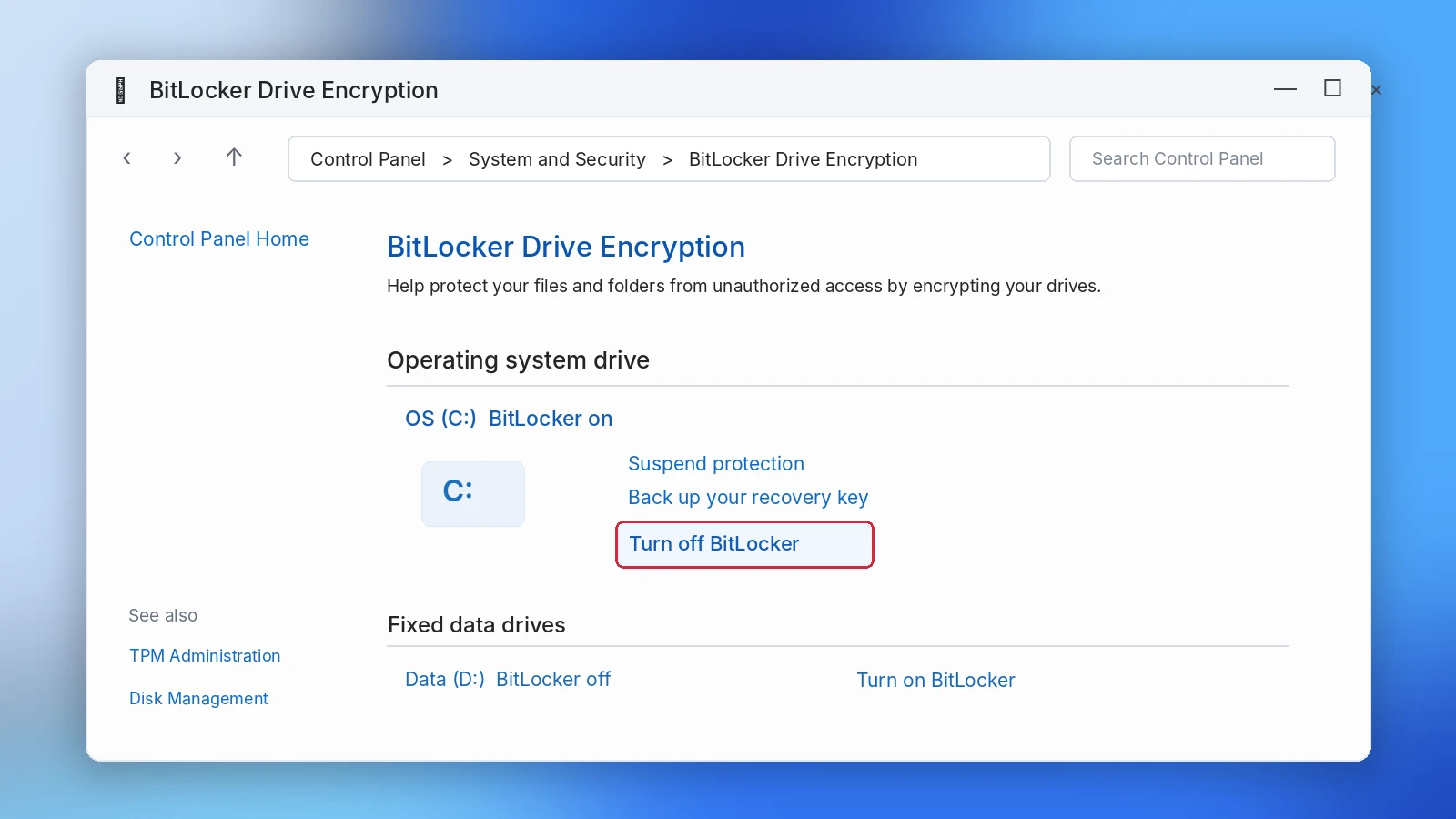
- Press Windows + S and search for Manage BitLocker.
- Open the BitLocker Drive Encryption control panel.
- Locate the encrypted drive.
- Click Turn off BitLocker.
- Confirm that you want to decrypt the volume.
- Wait until Windows completes decryption.
Expected result: Windows removes encryption while preserving your existing files under normal conditions.
Limitation: This method requires access to the volume and appropriate permissions. It cannot bypass a recovery-key prompt.
Method 2: Disable Device Encryption on Windows 11 Home
Some Windows Home computers use Device Encryption instead of the full BitLocker management interface.
To turn it off:
- Open Settings.
- Go to Privacy & security > Device encryption.
- Change Device encryption to Off.
- Confirm the action and wait for decryption.
On Windows 10, the setting may appear under Settings > Update & Security > Device encryption.
Expected result: Windows decrypts the device’s protected volumes.
Limitation: The setting appears only on supported devices and configurations. If you cannot access Windows, you must resolve the startup or recovery issue first.
Method 3: Remove BitLocker Encryption Using Command Prompt
Best for: Users who prefer command-line control or cannot access the normal management window.
Open Command Prompt as an administrator.
First, inspect the drive:
manage-bde -status
Next, initiate decryption:
manage-bde -off C:
Replace C: with the correct drive letter.
You can monitor the process with:
manage-bde -status C:
Expected result: The encrypted percentage decreases as Windows decrypts the volume.
Limitation: This command cannot unlock a drive when valid authentication is unavailable.
For additional management commands, read our BitLocker CMD guide. Microsoft also documents manage-bde -off.
Method 4: Disable BitLocker with PowerShell
Best for: Administrators and users who prefer PowerShell.
Open PowerShell as an administrator and run:
Disable-BitLocker -MountPoint "C:"
Then check the result:
Get-BitLockerVolume -MountPoint "C:"
PowerShell displays the volume’s encryption status and percentage, helping you determine whether decryption has finished.
Expected result: Windows decrypts the specified accessible volume.
Limitation: PowerShell does not remove the need for valid unlocking credentials or override organizational restrictions.
Removing BitLocker from an External Hard Drive or USB
For BitLocker To Go devices, connect the drive to Windows and unlock it using the password or recovery key.
Then open Manage BitLocker, select the removable drive, and choose Turn off BitLocker.
If you moved the drive from another computer, follow our guide to unlocking a BitLocker drive on another PC.
Avoid disconnecting the drive during decryption.
How to Remove BitLocker Without a Password or Recovery Key
Many users search for a BitLocker remover after forgetting their password. However, the safest solution depends on whether a valid recovery credential still exists.
First, Find Your BitLocker Recovery Key
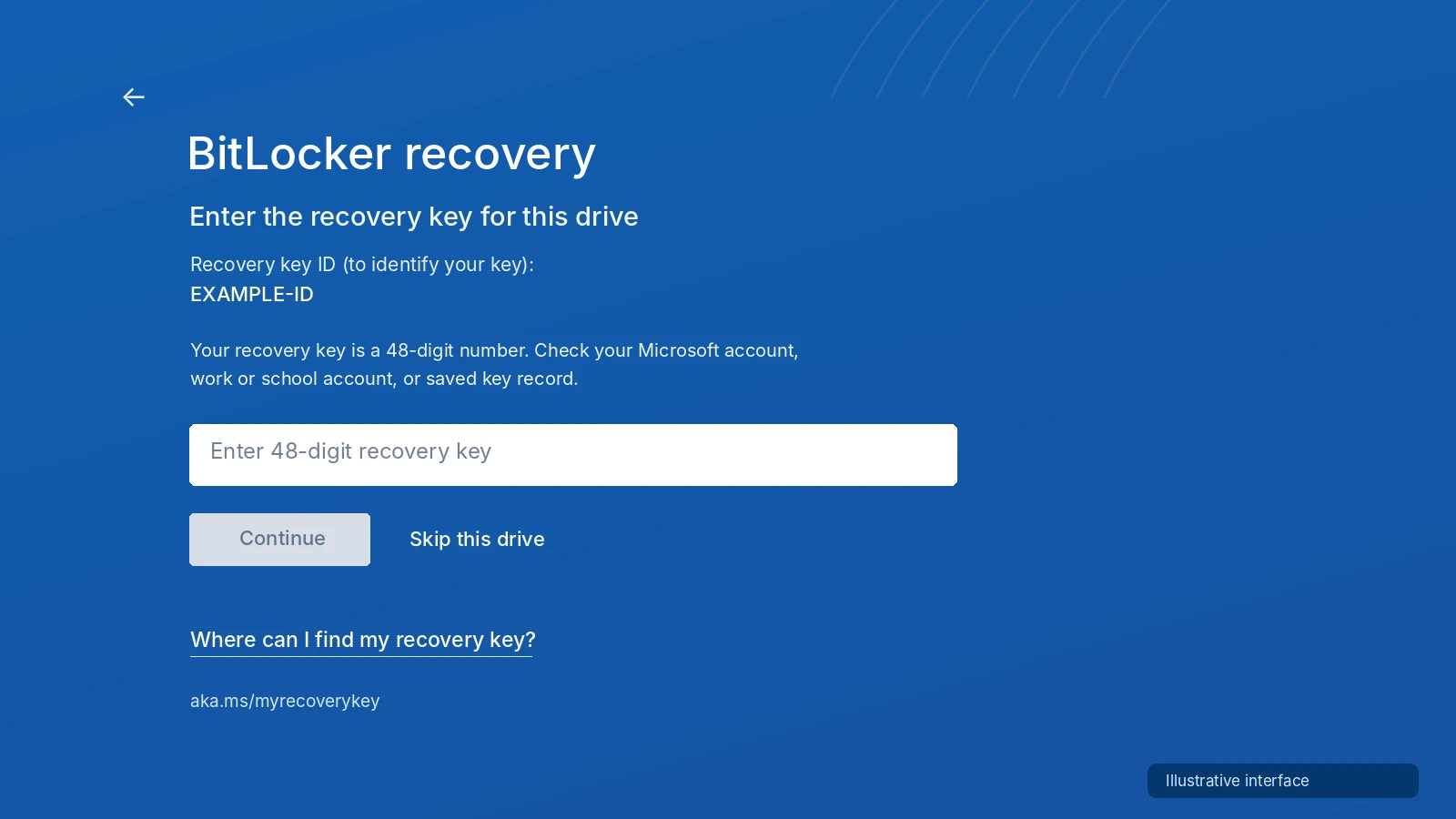
Check these locations before attempting other operations:
- Microsoft account: Visit aka.ms/myrecoverykey.
- Work or school account: Contact your IT administrator.
- USB drive: Look for exported recovery-key files.
- Printed or saved records: Check documents created during BitLocker setup.
- Other accessible systems: Search existing backups.
Compare the recovery key ID displayed by Windows with the saved record.
Microsoft provides an official BitLocker recovery-key lookup guide.
For more troubleshooting options, see BitLocker Recovery Key Lost.
When Magic Recovery Key May Help
If the standard locations do not contain your key, Magic Recovery Key may help locate previously stored BitLocker recovery information on an accessible Windows system.
Unlike manual searches through local records, its dedicated BitLocker feature provides a guided key-search process.
- Install and open Magic Recovery Key.
- Select its BitLocker Recovery Key feature.
- Choose the relevant drive and start searching.
- Review any discovered key IDs and corresponding recovery keys.
- Save the matching key securely.
For example, this approach can be useful when the original Windows installation remains accessible but you cannot locate your earlier recovery-key backup.
Limitation: Magic Recovery Key cannot reconstruct a cryptographic key that is no longer available through supported sources. Finding an existing key and bypassing encryption are entirely different operations.

Can You Remove BitLocker Without Any Valid Key?
If a drive is locked and no valid password, recovery key, or other authorized unlocking method remains, ordinary software cannot decrypt its contents.
A tool claiming guaranteed unlocking without credentials should raise concerns.
You can erase a drive for reuse when you no longer need its data. However, formatting is destructive and does not recover or preserve the encrypted files.
What If BitLocker Cannot Be Turned Off?
Sometimes you have the correct credentials but Windows still reports errors.
The Recovery Key Does Not Work
First, compare the recovery key ID with your saved records. A key belonging to another drive will not unlock the current volume.
Next, check whether Windows displays a specific error message. Damaged BitLocker metadata or storage problems may also prevent access. Our BitLocker Recovery Key Does Not Work guide covers additional checks.
The Encrypted Drive Appears RAW
A RAW status can indicate damaged file-system structures or an inaccessible volume.
However, it does not prove that BitLocker encryption has disappeared.
If the drive contains important data:
- Do not initialize or format it.
- Avoid CHKDSK until you understand the underlying problem and have protected recoverable data.
- Preserve valid recovery credentials.
- Consider a drive image or professional recovery when corruption is severe.
Microsoft offers the advanced repair-bde utility for certain damaged BitLocker volumes.
However, repair-bde requires valid recovery material. Some metadata-damage scenarios also need a matching key package, and the destination volume can be completely overwritten.
Therefore, it is not a general-purpose password remover or a safe first step for every RAW drive.
The Drive Has Physical Problems
If an HDD produces unusual mechanical noises, frequently disconnects, or repeatedly fails to initialize, stop unnecessary operations.
Software cannot repair mechanical damage. Repeated scanning or decryption attempts may worsen the situation.
For valuable data, consult a professional recovery service before attempting further DIY repairs.
How to Recover Data from a BitLocker Drive Safely
When files disappear from a BitLocker-protected drive, you may need data recovery rather than immediate decryption.
First, determine whether the files are simply hidden, deleted, or inaccessible because of file-system damage. Check backups and accessible folders before running a recovery scan.
For example, a user may successfully unlock an external HDD but discover that an important folder has disappeared. In this situation, file recovery may help if the data has not been overwritten.
Recover Missing Files with Magic Data Recovery
Magic Data Recovery addresses file-loss scenarios involving deletion, formatting-related problems, and certain logical storage errors.
Its BitLocker-aware workflow can recognize supported encrypted volumes and request valid credentials when necessary. Therefore, users may not need to decrypt the entire drive before scanning, provided the software can access and interpret its protected data. This is different from recovering a lost encryption key.
Step 1: Download and Install Magic Data Recovery
Install the software on a healthy drive, separate from the source containing your missing data.
Step 2: Select the Drive
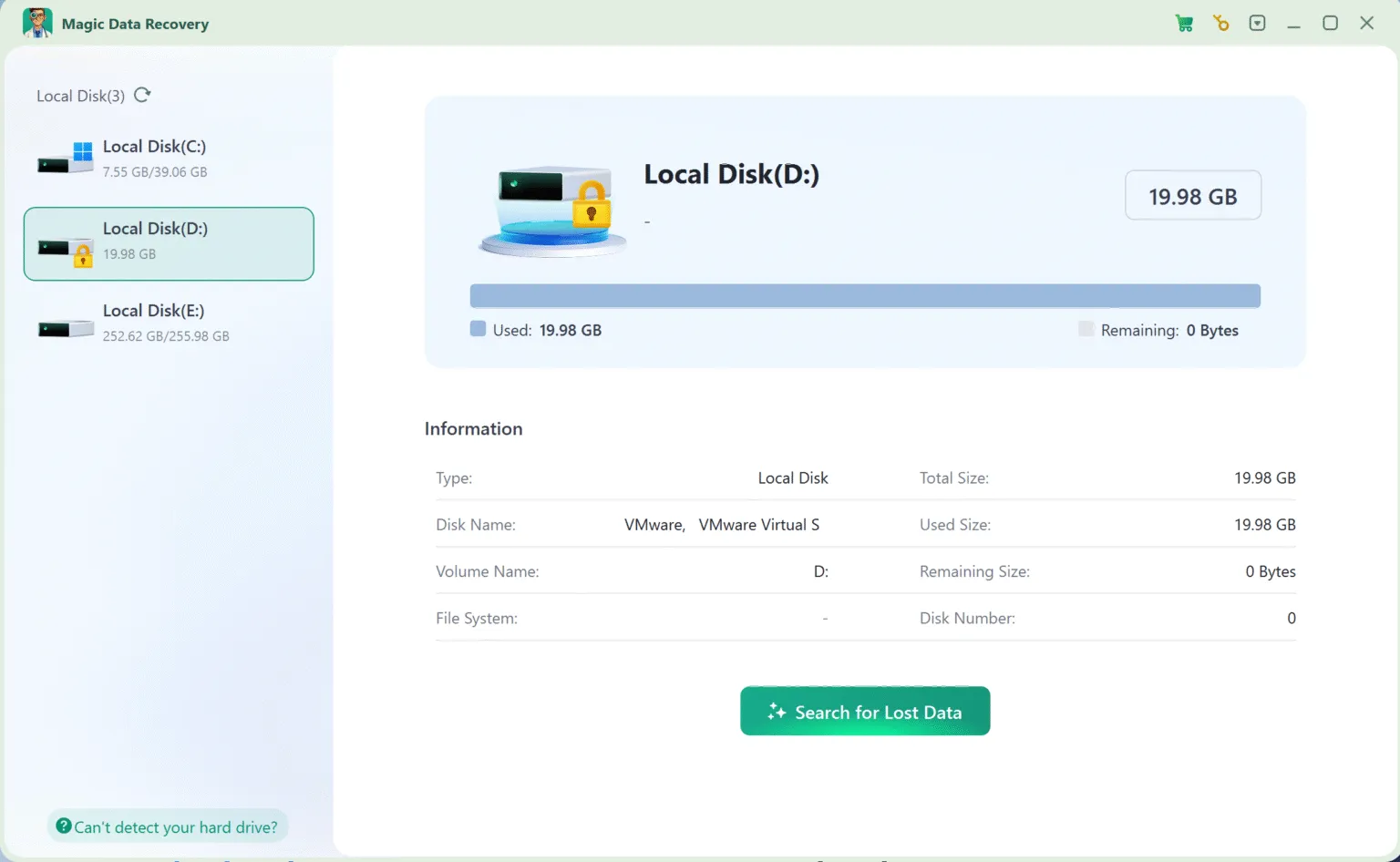
Launch the program and locate the affected volume. Verify the drive’s size and details before selecting it.
If the software requests a BitLocker password or recovery key, enter the correct credentials.
Step 3: Scan for Lost Files
Start the scan and allow the software to examine available file-system records and file content.
Step 4: Preview the Results
Browse the detected files and preview important documents, images, or other supported formats.
Step 5: Recover to Another Drive
Select the files you need and save them to a different physical storage device. Finally, open the recovered files to confirm that their contents are readable.
Recovery limitations: Magic Data Recovery cannot bypass BitLocker authentication, restore overwritten content, or repair physical hardware damage. SSD TRIM and garbage collection may also make deleted data unrecoverable, even when the encrypted volume remains accessible.
When Is File Recovery Worth Trying?
A scan is most useful when valid BitLocker credentials are available, the storage remains readable, and the missing file content may still exist.
A quick format does not always destroy every file immediately. However, a full overwrite, secure erase, extensive reuse, or loss of essential encryption metadata can make recovery impractical.
If a drive shows serious physical problems, professional imaging and recovery should take priority over software scanning.
How to Verify BitLocker Removal and File Recovery
Successful decryption and successful data recovery require different checks.
Verify That Encryption Has Been Removed
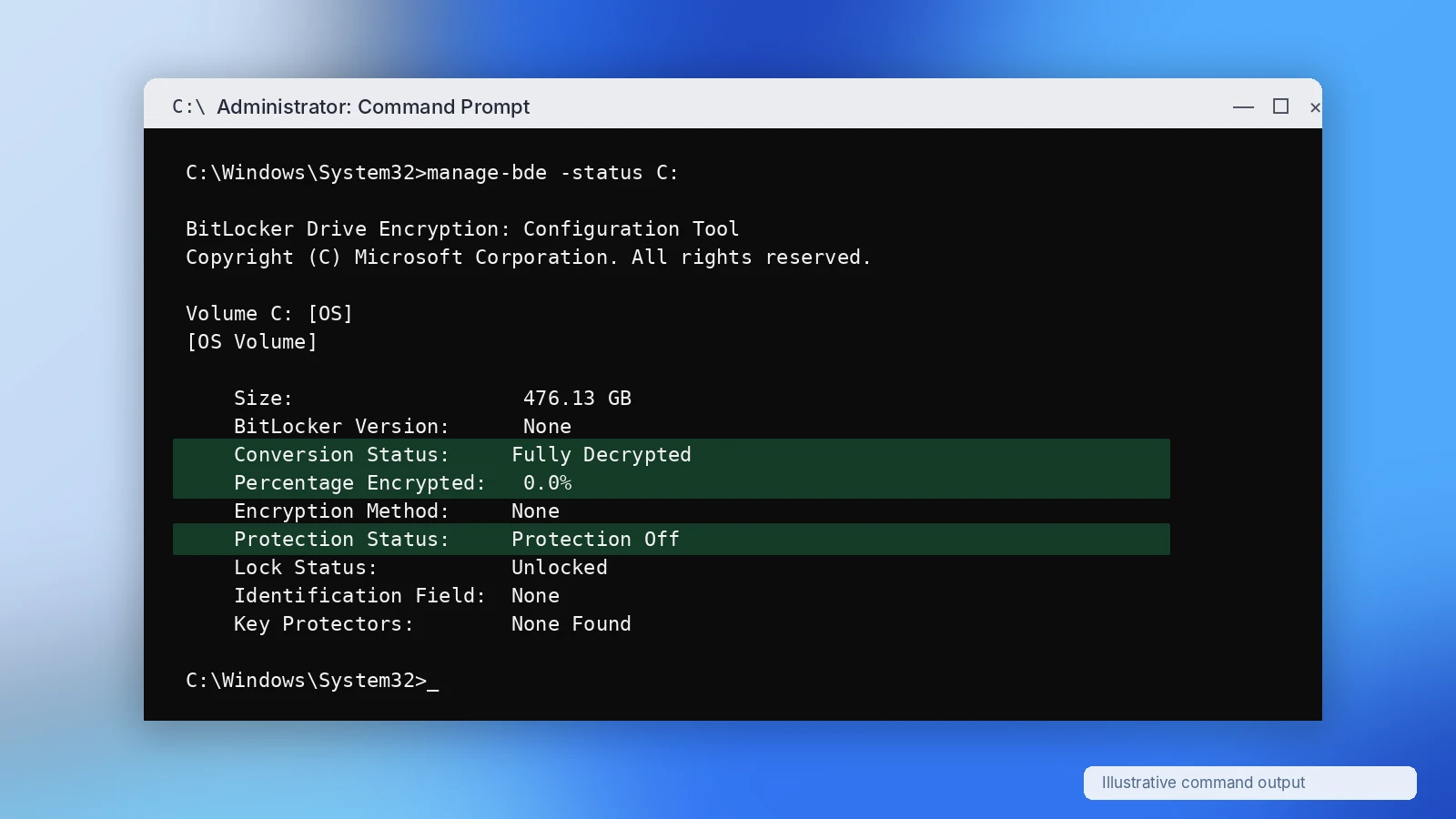
After Windows finishes decrypting the drive, run:
manage-bde -status C:
Check that:
- Conversion Status shows Fully Decrypted.
- Percentage Encrypted reads 0.0%.
- Windows allows you to open the expected files.
If Windows still reports decryption in progress, wait for the process to complete.
Verify That Recovered Files Work
A file appearing in scan results does not guarantee successful recovery.
To verify the result:
- Preview important files before saving them.
- Recover them to another physical drive.
- Open several files using their normal applications.
- Check their contents, not just their names and extensions.
- Confirm that essential folders and documents are present.
For example, a recovered Excel file should open and display its expected worksheets. Simply seeing its filename in the recovery list is not enough.
Common Mistakes to Avoid
These actions can increase the risk of permanent data loss:
- Formatting or initializing a locked BitLocker drive before finding its key.
- Confusing suspended protection with full decryption.
- Running CHKDSK or partition repairs before securing important files.
- Installing recovery software on the source drive.
- Recovering files back to their original storage location.
- Repeatedly scanning a physically failing disk.
- Assuming a BitLocker remover can bypass encryption without valid credentials.
When data matters, recover first, repair second. Once you have verified your files, you can proceed with decryption or other maintenance.
Conclusion
Learning how to remove BitLocker encryption safely means identifying the drive’s condition before choosing a method. For a healthy and accessible volume, Windows Control Panel, Command Prompt, and PowerShell provide reliable ways to disable encryption without intentionally deleting files.
If you cannot locate an existing recovery key, Magic Recovery Key offers an additional key-search option. When files are missing but valid BitLocker access remains available, Magic Data Recovery provides a guided scanning, preview, and recovery workflow.
We recommend these tools for their separate roles: one searches for existing credentials, while the other helps retrieve lost files. Neither can bypass BitLocker security. For more detailed guidance, visit our BitLocker Recovery Hub.
Supports Windows 7/8/10/11 and Windows Server
FAQs About Removing BitLocker Encryption
Can I remove BitLocker encryption without losing data?
How do I remove BitLocker from an external hard drive?
Can I remove BitLocker without a recovery key?
How long does it take to decrypt a BitLocker drive?
manage-bde -status, maintain reliable power, and wait until Windows confirms that the volume is fully decrypted.Can a BitLocker remover unlock a drive without the password?
Can I recover data from a BitLocker-encrypted drive?
Should I suspend or turn off BitLocker before updating Windows?

Vasilii is a data recovery specialist with around 10 years of hands-on experience in the field. Throughout his career, he has successfully solved thousands of complex cases involving deleted files, formatted drives, lost partitions, and RAW file systems. His expertise covers both manual recovery methods using professional tools like hex editors and advanced automated solutions with recovery software. Vasilii's mission is to make reliable data recovery knowledge accessible to both IT professionals and everyday users, helping them safeguard their valuable digital assets.