
How to Unlock BitLocker Drive on Another Computer
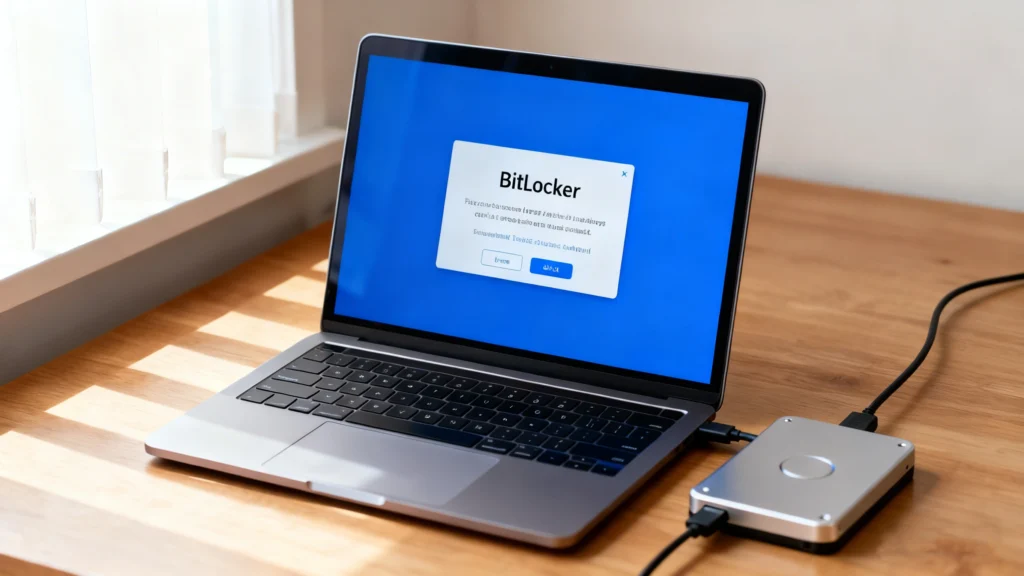
Losing access to a BitLocker-encrypted drive on a different computer can be frustrating. Many users face this challenge when migrating drives, replacing computers, or troubleshooting encrypted storage. Without the BitLocker recovery key, data access becomes nearly impossible. This guide will show you how to unlock BitLocker drive on another computer safely and efficiently.
You’ll also learn how Magic Recovery Key can automatically locate your BitLocker recovery key, helping you regain access without stress.
Supports Windows 7/8/10/11 and Windows Server
Table of Contents
Understanding BitLocker and Recovery Keys
What is BitLocker?
BitLocker is a built-in encryption tool for Windows that protects your data by encrypting entire drives. It relies on a password, TPM (Trusted Platform Module), or a recovery key to unlock encrypted drives.
Why Recovery Keys Are Essential
When accessing a BitLocker drive on another computer, Windows may require the 48-digit recovery key if it detects a new system environment. Recovery keys serve as a safety net when passwords fail or TPM validation is unavailable.
Common Recovery Key Storage Locations
- Microsoft account (online backup)
- USB flash drive
- Local file on another device
- Printed copy
By understanding where your recovery key may be stored, you increase your chances of unlocking your drive efficiently.
How to Unlock BitLocker Drive on Another Computer
Unlock With Password or Recovery Key
If you know your password or have the recovery key, follow these steps:
- Connect the encrypted drive to the new computer.
- Open File Explorer and locate the BitLocker-encrypted drive.
- Right-click the drive and select Unlock Drive.
- Enter your password or 48-digit recovery key when prompted.
- Access your data once the drive is successfully unlocked.
For advanced users, you can also use Command Prompt:
manage-bde -unlock D: -RecoveryPassword YOUR-48-DIGIT-KEY
This method provides a reliable alternative if GUI options fail.
If You Forgot the Recovery Key
Sometimes, the recovery key is misplaced or inaccessible. You can try:
- Checking your Microsoft account for backup keys.
- Searching external devices or printed records.
- Using organizational Active Directory (AD/AAD) if your PC is managed by a company.
However, these methods are time-consuming and may not always succeed.
Magic Recovery Key: Find Your BitLocker Recovery Key Easily
Magic Recovery Key is a practical solution designed to automatically locate BitLocker recovery keys stored locally or in Microsoft accounts.
Core Pain Points Solved:
- Instantly identifies recovery keys without manual search
- Works even if you forgot the exact storage location
- Supports multiple drives and different Windows versions
Advantages Over Manual Methods:
- Scans both local and Microsoft account storage in one process
- Reduces errors caused by manual lookup
- Provides a clear list of available recovery keys
Example Use Case:
Imagine moving your BitLocker-encrypted drive to a new laptop. You don’t remember where the recovery key is saved. With Magic Recovery Key, you can scan your PC and retrieve the key in minutes, avoiding data loss or unnecessary frustration.
If you are looking for a more efficient solution, Magic Recovery Key is a reliable option to simplify BitLocker management.
How to use Magic Recovery Key:
1. Download Magic Recovery Key: Start by downloading and installing Magic Recovery Key on your device.
Supports Windows 7/8/10/11 and Windows Server

3. Scan for the Recovery Key: Let the tool scan your system for BitLocker recovery keys.
4. Retrieve Your Key: Once the scan is complete, the tool will display your BitLocker recovery key.

Conclusion
Unlocking a BitLocker drive on another computer can be straightforward if you have the correct password or recovery key. For situations where the key is missing or hard to locate, Magic Recovery Key offers a reliable, efficient, and safe solution. Its ability to automatically detect recovery keys makes it superior to manual searches, reducing stress and safeguarding your data.
If you want to regain access to your BitLocker-encrypted drives without hassle, consider trying Magic Recovery Key today.
Supports Windows 7/8/10/11 and Windows Server
FAQs
Can I unlock a BitLocker drive on a different PC?
How do I find my BitLocker recovery key?
What if I cannot find the recovery key?
Is Magic Recovery Key safe to use?
Does BitLocker require a password every time on another PC?
Can I unlock multiple drives at once?
Can I use Magic Recovery Key for corporate PCs?
What happens if I enter the wrong recovery key?

Erin Smith is recognized as one of the most professional writers at Amagicsoft. She has continually honed her writing skills over the past 10 years and helped millions of readers solve their tech problems.