
How to Fix Bad Sectors on a Hard Drive Safely

A file copy that stalls at the same point, a CRC error, or a disk check reporting bad clusters can raise the same question: how can you fix bad sectors on a hard drive without losing important files? The answer depends on whether the problem is a connection fault, file system corruption, or failing storage hardware.
Windows can repair some file system errors and exclude unusable clusters. It cannot rebuild a physically damaged recording surface. Before running a repair, check the drive’s condition and protect the files that still matter.
This guide explains the repair options for Windows 10 and 11, with separate notes for external drives and macOS. For broader file-loss scenarios, see our hard drive recovery guide. If files are already missing on a drive that remains stable and readable, Magic Data Recovery offers a recovery path before repairs change the file system.
Before starting: Copy accessible important files to another physical drive. If the HDD clicks repeatedly, disappears during access, or becomes progressively harder to read, stop software scans and repair attempts. A professional recovery assessment is the better next step for valuable unbacked-up data.
Table of Contents
Can Bad Sectors Be Repaired?
A bad sector is an area the drive cannot access reliably. However, the phrase “logical bad sectors” is often used loosely online. File system corruption and an unreadable physical sector are different problems, even when both cause copying errors.
Problem | What repair can do | What it cannot do |
File system or allocation errors | Restore some damaged metadata and file system consistency | Guarantee that affected files remain intact |
Clusters recorded as unusable by the file system | Prevent the volume from allocating those clusters | Restore the underlying hardware |
A drive sector that firmware can reallocate | Substitute a spare sector under supported conditions | Guarantee recovery of the original unreadable bytes |
Physical platter, head, or other hardware damage | Software may identify symptoms | Repair the damaged mechanism or recording surface |
Two mechanisms deserve particular attention. Marking bad clusters is a file system action. Sector reallocation is handled by drive firmware. Neither means a physically damaged sector has healed.
Seagate’s explanation of bad-sector handling describes how spare sectors can replace problem locations. Its repair options may overwrite a problem sector, so they belong after data protection, not before it.
Quick Checks Before Any Bad Sector Repair
These checks help rule out simple faults without changing the partition or file system. Skip them if the drive already shows the physical warning signs described above.
1. Record the exact error. Note whether the problem occurs with one file, one application, or every attempt to access the drive. A CRC error alone does not prove media damage.
2. Check the connection. For an external HDD, safely disconnect it and try a known-good cable and a direct USB port. Avoid an unreliable hub. Use the correct manufacturer-approved power supply if required.
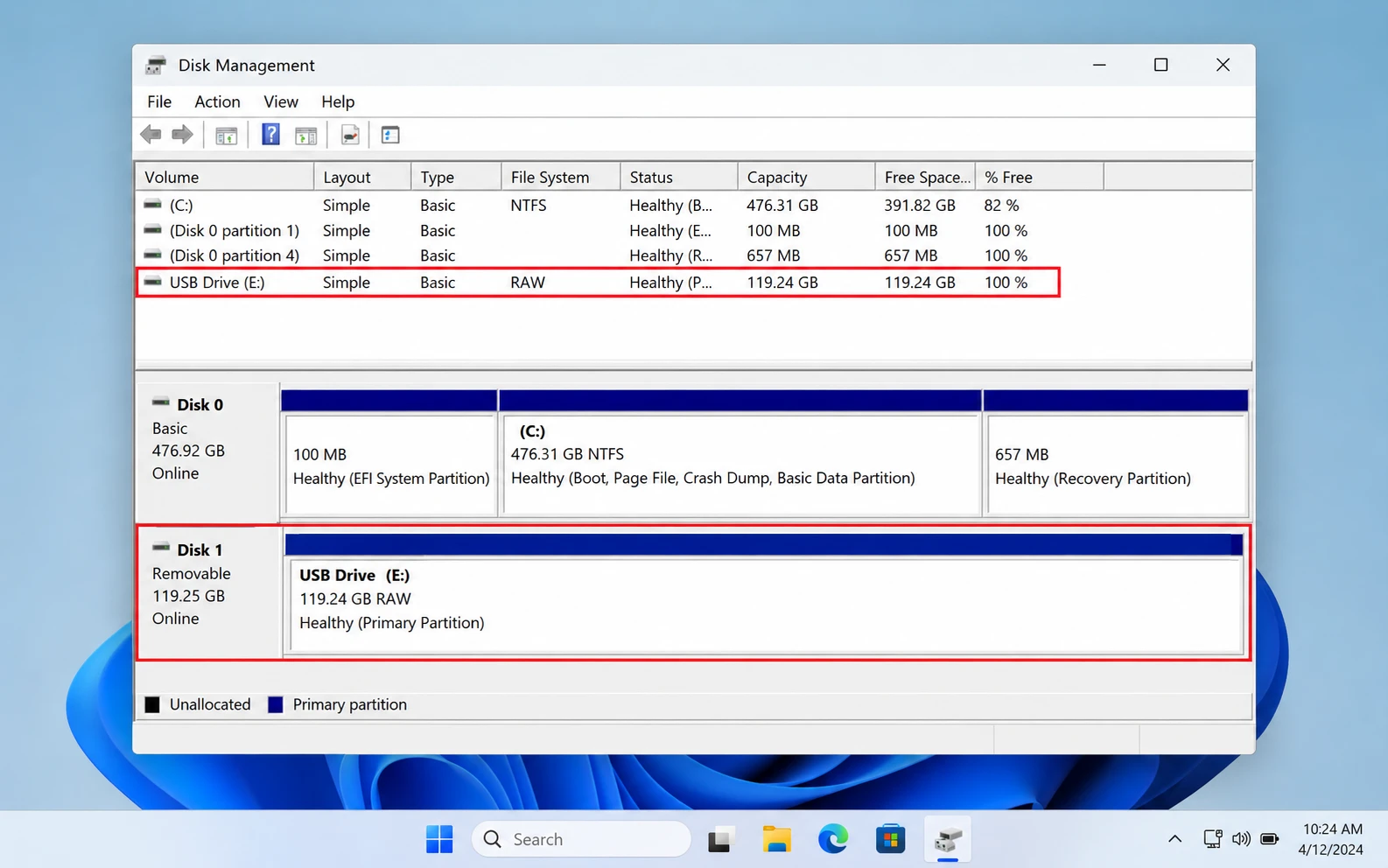
3. Confirm the drive identity. In Windows, open Disk Management and record its capacity, drive letter, and file system. Cancel requests to initialize or format a disk that contains needed files.
4. Check the available backup. Open representative files from the backup on another drive. A backup that has never been checked may be incomplete.
Verify the result: If a connection change restores stable access, copy important files first. After backup, repeat one small operation that previously failed. If it still fails, use the decision table below rather than repeatedly reconnecting the device.
Choose the Right Repair Path
Observable condition | How to verify it | Recommended next step |
Errors started after an interrupted shutdown; drive access is stable | Confirm NTFS/exFAT/FAT32 recognition and review a file system status check | Protect files, then consider CHKDSK |
Only the USB connection appears unreliable | Compare one known-good cable and direct port | Resolve connection issues before filesystem repair |
The volume is RAW or Windows asks to format it | Check the volume’s file system in Disk Management | Recover needed data first; do not run a formatting command |
Vendor diagnostics report media errors or failure | Save the diagnostic result and drive serial number | Protect data and plan replacement |
Clicking, repeated dropouts, or worsening read access | Observe existing behavior; do not provoke more tests | Stop DIY and consider professional recovery |
No evidence of bad sectors yet | Symptoms alone remain inconclusive | Follow the separate diagnostic guide before choosing a repair |
For the detailed testing workflow, use how to check a hard drive for bad sectors. This page focuses on what to do with the result.
Protect or Recover Data Before Repairing the Drive
CHKDSK repair, vendor sector repair, and formatting can change the source disk. Pause before using them if the drive holds the only copy of important files.
If the Files Still Open Normally
Copy the most valuable folders to a different physical drive first. Do not move files or save the backup to another partition on the suspect HDD. Open a sample of the copied documents, photos, and archives to check that they are usable.
If copying repeatedly stalls or access deteriorates, stop forcing the same operation. A technician may recommend controlled imaging that prioritizes readable areas. An ordinary clone is not automatically suitable for a failing drive.
If Files Are Missing but the Drive Remains Stable

Magic Data Recovery can scan supported storage for recoverable files lost through deletion, formatting, or file system errors. Use it for the file-loss branch of this process; it does not repair the HDD’s hardware or remove physical defects.
- Install the software on a healthy drive or another Windows computer.
- Prepare a separate healthy destination with enough free space.
- Select the affected drive and start the recovery scan, provided access remains stable.
- Review the results and preview supported file types where available.
- Recover selected files to the healthy destination, then open them to verify their contents.
Unreadable sectors may leave recovered files incomplete. A preview is useful evidence, but it cannot guarantee every file is intact. If scanning brings repeated disconnections, abnormal mechanical sounds, or worsening stalls, stop using the source and seek specialist help. Do not treat recovery software as a way to keep a deteriorating HDD running.
Supports Windows 7/8/10/11 and Windows Server
How to Fix Bad Sectors on a Hard Drive in Windows
Use the following methods only after the appropriate data-protection step. Choose the method that matches the diagnosis; there is no need to run every tool in order.
Method 1: Repair File System Errors with CHKDSK /f
Best for: A stable, recognized volume with file system errors, after needed files are backed up or recovered.

Open Command Prompt as administrator. First request a status report, replacing X: with the verified drive letter:
- chkdsk X:
This command reports status without requesting repairs. On an active volume, changing files can affect the report. It is not a full surface test or a guarantee of drive health.
If the findings support file system repair and the data is secure, close applications using the volume and run:
- chkdsk X: /f
The /f switch repairs file system errors and writes changes. These changes are not a reversible file-recovery operation. If the volume cannot be locked, Windows may offer a check at restart; system-drive repairs commonly require that schedule. Confirm the backup before accepting.
Verify: Read the final report, open backed-up representative files from the repaired volume, and repeat the original failed operation once. If errors return or unreadable areas are reported, reassess the hardware instead of repeatedly running /f.
Method 2: Use CHKDSK /r Only When a Sector-Level Check Is Justified
Best for: A backed-up HDD that remains stable, where unreadable sectors require investigation and the drive is not showing hardware stop signs.
- chkdsk X: /r
The /r switch locates bad sectors and attempts to recover readable information. It includes /f, so this is a repair operation rather than a read-only test. It cannot restore physical damage. See Microsoft’s CHKDSK documentation for parameter definitions.
A sector-level check involves substantial disk activity. Do not use it as the first response to missing files, RAW status, repeated dropouts, or mechanical noise. Keep the computer on stable power and leave a healthy, progressing check to complete. Avoid starting another disk tool alongside it.
Verify: Save the report and note any bad-cluster findings. A completed check means the operation finished; it does not certify the HDD as reliable. If access is still unstable or the original error returns, move toward replacement or professional assessment rather than another full scan.
Method 3: Use the Drive Manufacturer’s Supported Tools
Best for: Confirming a hardware concern on a stable drive after backup, or following a vendor’s documented repair procedure.
- Identify the HDD’s manufacturer, model, and serial number.
- Download the currently supported diagnostic utility from that manufacturer’s website.
- Select the correct physical drive and review the test descriptions.
- Start with health information or an appropriate short diagnostic.
- Save the result before deciding whether a longer test is necessary.
Seagate SeaTools is one example. Its bootable manual separates diagnostics from “Fix All” and erase features. Do not assume every option preserves existing data, or that repair options apply to every drive brand.
Only consider a sector repair if the vendor supports it for the exact drive and needed files are already safe. A failed diagnostic supports replacement; an aborted or unavailable test is inconclusive. A passed test should also be weighed against recurring symptoms.
How to Fix Bad Sectors on an External Hard Drive
External HDDs need a connection check before software repair. A cable, USB bridge, port, or power problem can produce symptoms that resemble a damaged disk.
After protecting accessible data, test a suitable replacement cable and a direct USB connection. For desktop external drives, check the correct power adapter. If the drive remains stable, testing on another computer can help distinguish a host problem from a device problem.
If the connection change resolves the error: Verify the backup and repeat the failed operation once. Continue to watch for recurrence rather than immediately formatting the disk.
If the same error persists with a stable connection: Use the Windows repair branch only if the volume is recognized and the backup is complete. If diagnostics indicate media damage, replace the device after protecting the data.
If it disconnects repeatedly or clicks: Stop. Repeatedly switching computers and scanning is not a useful repair strategy. Avoid dismantling the enclosure casually; some external devices depend on bridge electronics or encryption that affects access.
Can Formatting Remove Bad Sectors Permanently?
No. Formatting cannot restore physically damaged sectors. It rebuilds the file system, and a full format can involve much more disk activity than a quick format.
Microsoft’s format documentation states that quick formatting skips a sector-by-sector scan for bad areas. Treat a full Windows format as destructive: it can overwrite data and eliminate recovery opportunities. Neither mode is a method for preserving existing files.
Formatting is reasonable only when needed data is safe, hardware checks do not indicate failure, and the goal is to recreate an unusable file system on otherwise stable storage.
For an eligible secondary data volume:
- Verify the backup and confirm the volume by its letter and capacity.
- Open File Explorer, right-click the intended volume, and select Format.
- Choose an appropriate file system: NTFS for Windows-focused use, or exFAT when cross-platform compatibility is needed.
- Review the format mode. Clearing Quick Format chooses the longer, destructive full-format operation.
- Proceed only when erasing the selected volume is acceptable.
There is no dependable undo. Afterward, check access using expendable test files before restoring data. If errors persist, stop reformatting and replace the drive. A successful format does not outweigh evidence of hardware failure.
What About Bad Sector Repair on macOS?
On a Mac, Disk Utility First Aid addresses formatting and directory errors. It does not repair damaged platters.
After backup, open Disk Utility, choose View > Show All Devices, and run First Aid on the affected volumes. Work upward through the volume group and container, where present, then the device. For startup-disk repairs, use macOS Recovery as directed by Apple’s repair guide.
Verify: Read the result and retry the affected operation. If the device still cannot be seen reliably or shows physical warning signs, stop software repair. Magic Data Recovery’s Windows workflow is separate from this Mac procedure; do not assume it runs natively on macOS.
When to Replace the HDD or Stop DIY
Replacing the disk and recovering its files are separate decisions. A warranty replacement does not retrieve data from the old drive.
Stop DIY when there is persistent clicking, repeated disappearance, progressively worsening reads, or valuable data that cannot be copied reliably. Do not open the HDD casing or try impact, freezing, or repeated power cycling as repair methods.
Plan replacement when supported diagnostics fail, media errors recur after repair, or drive-health reports show worsening sector-related problems. Do not use a clean file system report alone to judge hardware condition.
If the drive remains readable, transfer verified files to healthy storage. If it does not, consider professional recovery before returning, erasing, or discarding it. Keep a separate backup of the replacement drive so another hardware fault does not leave only one copy.
Conclusion
To fix bad sectors on a hard drive safely, start with the condition of the disk and the value of its files. Stable storage with file system corruption may benefit from a targeted repair after backup. Recurring media errors or hardware symptoms call for replacement, with recovery considered first when necessary.
For missing files on a stable, detectable Windows drive, Magic Data Recovery can help explore recoverable data before repairs. For other HDD file-loss situations, follow our hard drive recovery guide. The next step should match the diagnosis, not the number of repair methods left to try.
Supports Windows 7/8/10/11 and Windows Server
FAQs About Hard Drive Bad Sector Repair
Can I Remove Bad Sectors from a Hard Disk Permanently?
Does CHKDSK Fix Bad Sectors or Only Mark Them?
/r, locate bad sectors and attempt to recover readable information. Unusable clusters can be excluded from allocation. This does not heal the drive's physical surface. Use the result alongside hardware diagnostics and actual read behavior when deciding whether the disk can remain in service.Will Repairing Bad Sectors Delete My Files?
How Long Does CHKDSK /r Take on a Large HDD?
Can I Repair Bad Sectors Without Formatting?
Why Do Bad Sectors Come Back After a Repair?
Can I Recover Data from an HDD with Bad Sectors?
Do the Same Bad Sector Fixes Work on SSDs?

Vasilii is a data recovery specialist with around 10 years of hands-on experience in the field. Throughout his career, he has successfully solved thousands of complex cases involving deleted files, formatted drives, lost partitions, and RAW file systems. His expertise covers both manual recovery methods using professional tools like hex editors and advanced automated solutions with recovery software. Vasilii's mission is to make reliable data recovery knowledge accessible to both IT professionals and everyday users, helping them safeguard their valuable digital assets.