
Disk Read Error: Step-by-Step Fixes for Windows PCs
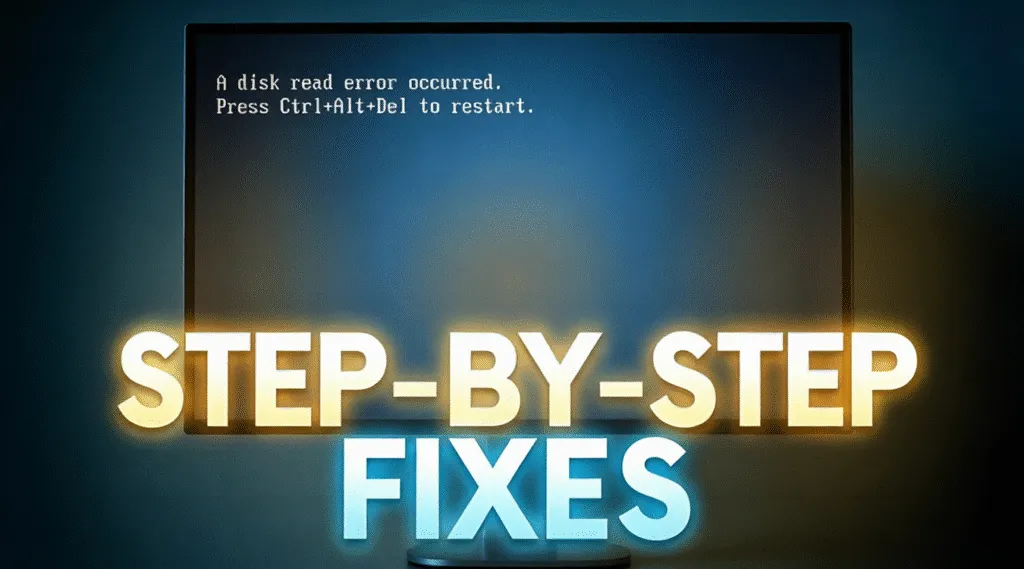
A disk read error is a startup failure that occurs when the computer cannot correctly read data from the system disk. This error often appears during boot with messages such as “Disk read error occurred” or “Press Ctrl+Alt+Del to restart.” When this happens, Windows cannot access critical boot information, and the system stops loading.
If you see this message, don’t panic. The good news is that a disk read error does not automatically mean your data is lost. In many cases, the issue is related to file system inconsistencies, corrupted boot records, loose connections, or aging storage hardware.
Table of Contents
Common Causes of a Disk Read Error
Understanding the cause is the first step toward a safe and effective repair. A disk read error usually results from one or more of the following conditions:
- Corrupted boot sector or Master Boot Record (MBR)
MBR corruption or damage to the boot structure prevents Windows from locating startup files.
- File system errors or bad sectors
Logical errors in NTFS or FAT file systems can block data access. Physical problem like bad sectors may also make the drive unreadable.
- Loose or damaged SATA/USB cables
An unstable connection can interrupt disk communication during boot.
- Failing hard drive or SSD
Mechanical wear or flash memory degradation may cause read failures.
- Incorrect BIOS or boot order settings
The system may attempt to boot from the wrong device.
According to Microsoft documentation, disk read errors often occur when Windows cannot verify the integrity of disk structures required for startup.
What Does “Press Ctrl+Alt+Del to Restart” Mean?
This message is not a solution—it is simply a restart instruction. Pressing Ctrl + Alt + Del forces the system to reboot, but if the underlying disk issue remains, the same error will reappear.
Repeated restarts do not repair disk damage and may increase the risk of data loss if the drive is failing. A structured repair approach is recommended instead.
How to Fix a Disk Read Error Safely (Step-by-Step)
Step 1: Check Physical Connections
Before attempting software repairs, power off the computer and verify that:
- The hard drive or SSD is firmly connected
- SATA or power cables are not loose or damaged
For laptops, this step may require professional assistance.
Step 2: Verify BIOS Boot Settings
1. Restart the computer and enter BIOS/UEFI (usually by pressing Del, F2, or F12)
2. Confirm that the system disk is detected
3. Ensure the correct disk is set as the primary boot device
4. Save changes and restart
Step 3: Run a CHKDSK Repair
CHKDSK is a built-in Windows utility designed to detect and fix disk errors, which may help you fix the disk read error.
How to run CHKDSK:
1. Boot from a Windows installation USB or recovery environment
2. Select Repair your computer → Troubleshoot → Command Prompt
3. Enter the command:
chkdsk C: /f /r
4. Press Enter and allow the scan to complete
This process checks file system integrity and attempts to repair bad sectors.

Step 4: Repair the Boot Record
If CHKDSK does not resolve the issue, the boot record may be corrupted.
From Command Prompt, run:
bootrec /fixmbr
bootrec /fixboot
bootrec /rebuildbcd
These commands rebuild essential startup structures without modifying personal files.
Is Data Recovery Possible After a Disk Read Error?
Yes. In many cases, data recovery is possible even if Windows cannot start. A disk read error usually affects how data is accessed—not whether it exists.
Professional, read-only recovery tools such as Magic Data Recovery are designed to scan inaccessible disks without writing new data. This approach minimizes risk and allows users to recover documents, photos, and other files before attempting deeper repairs or disk replacement.
When You Should Stop DIY Repairs
It is generally safe to attempt basic fixes like CHKDSK or boot repair. However, you should stop and switch to data recovery if:
- The disk makes unusual clicking or grinding noises
- Errors persist after multiple repair attempts
- The drive disappears intermittently from BIOS
Continuing repairs on a failing drive can worsen physical damage.
Conclusion
A disk read error is a serious but often recoverable problem. By staying calm and following a logical repair process—checking hardware, verifying BIOS settings, and running disk repairs—you can often restore system functionality without losing data.
When Windows remains unbootable, using a professional data recovery solution such as Magic Data Recovery allows you to regain access to important files safely and efficiently before making permanent system changes.
Supports Windows 7/8/10/11 and Windows Server
Disk Read Error-FAQs
How do I fix a disk read error?
How to fix disc error?
Is data recovery possible after a disk read error?
How to fix ctrl alt delete error?
How to run a Chkdsk repair?
How to press Ctrl+Alt+Del to restart?
Why does it say disc read error?
Is it safe to repair disk errors myself?

Vasilii is a data recovery specialist with around 10 years of hands-on experience in the field. Throughout his career, he has successfully solved thousands of complex cases involving deleted files, formatted drives, lost partitions, and RAW file systems. His expertise covers both manual recovery methods using professional tools like hex editors and advanced automated solutions with recovery software. Vasilii's mission is to make reliable data recovery knowledge accessible to both IT professionals and everyday users, helping them safeguard their valuable digital assets.