

Magic Data Recovery
Document Recovery
Document recovery enables users to retrieve files such as Word documents, Excel spreadsheets, PDFs, and other important records that were deleted or lost. Even when documents appear permanently removed, the file data often remains on the storage device until new information overwrites it. With professional recovery solution like Magic Data Recovery, you can scan your drive, locate recoverable documents, and restore them safely before the loss becomes irreversible.
When business contracts, academic papers, or financial reports suddenly disappear, the situation can be urgent and stressful. Magic Data Recovery from Amagicsoft provides a dependable and user-friendly solution to recover deleted documents and regain access to essential files quickly and securely.
What Is Document Recovery?
When a document is deleted on Windows, the system typically removes its reference in the file table rather than instantly erasing the content. By using advanced document recovery tools, users can scan for lost file entries, preview recoverable documents, and restore them without modifying the original disk structure.
Common Scenarios That Cause Document Loss
- Accidentally deleting important work files
- Emptying the Recycle Bin without backup
- Using Shift + Delete on critical folders
- Formatting a drive containing documents
- Sudden system crashes while editing files
- Virus or ransomware attacks
- Partition corruption or disk errors

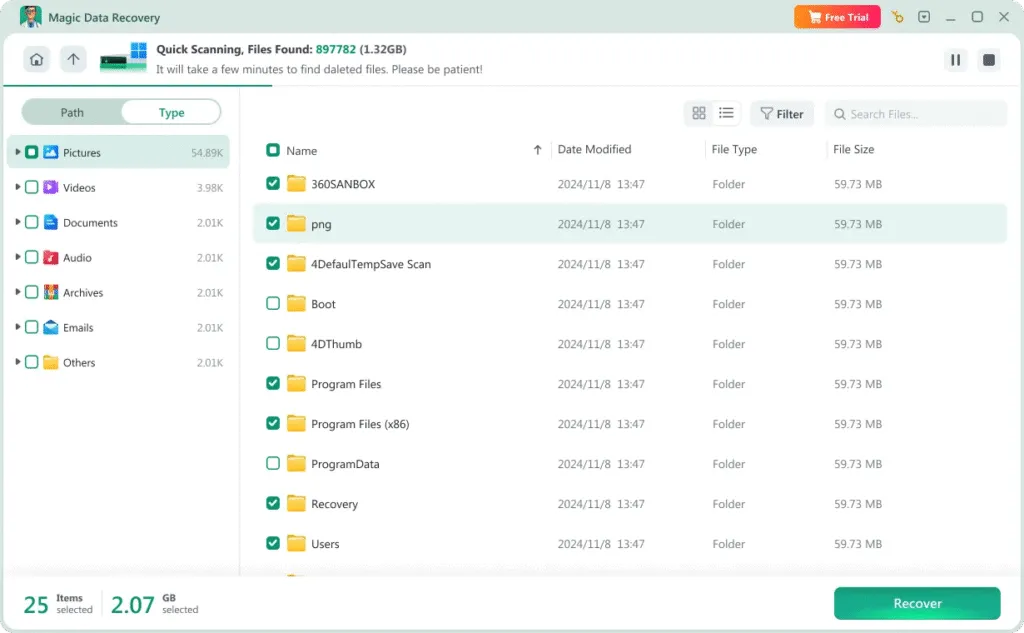
Why Magic Data Recovery Is the Right Choice
Magic Data Recovery is designed to simplify document recovery while maintaining data safety and efficiency for users of all experience levels.
- Advanced scanning technology to locate deleted documents
- Recovers files even after permanent deletion or formatting
- Preview feature to verify document content before recovery
- Read-only recovery process to prevent further disk damage
Steps to Recover Deleted Documents
Recovering lost documents does not need to be complicated. Magic Data Recovery makes the process clear and straightforward:
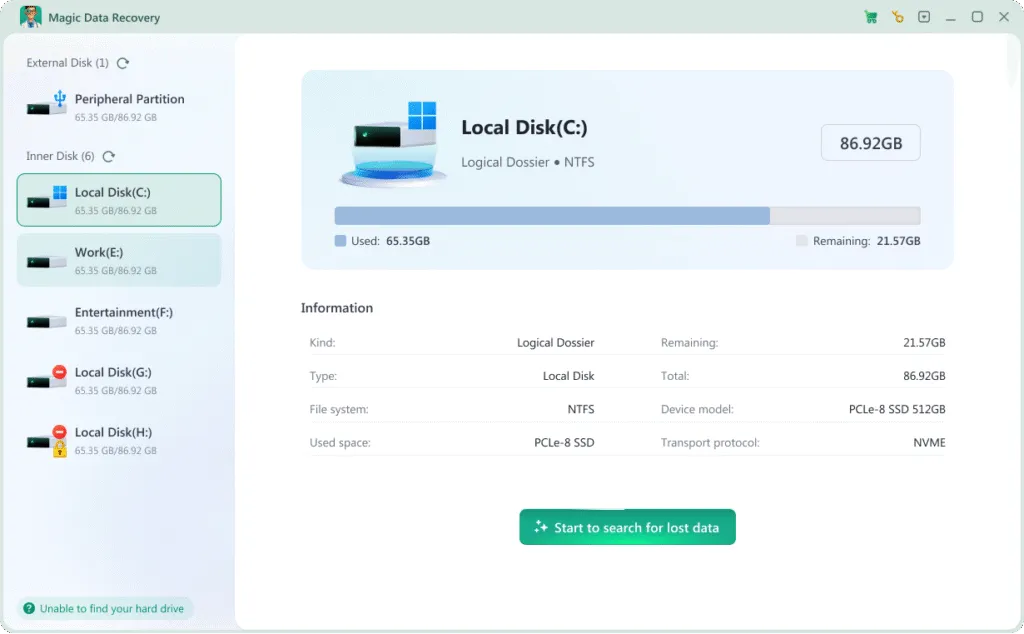
Step 1: Download and Install Magic Data Recovery
Download the software from the official website and install it on a healthy drive. Avoid installing it on the same disk where your documents were originally stored.
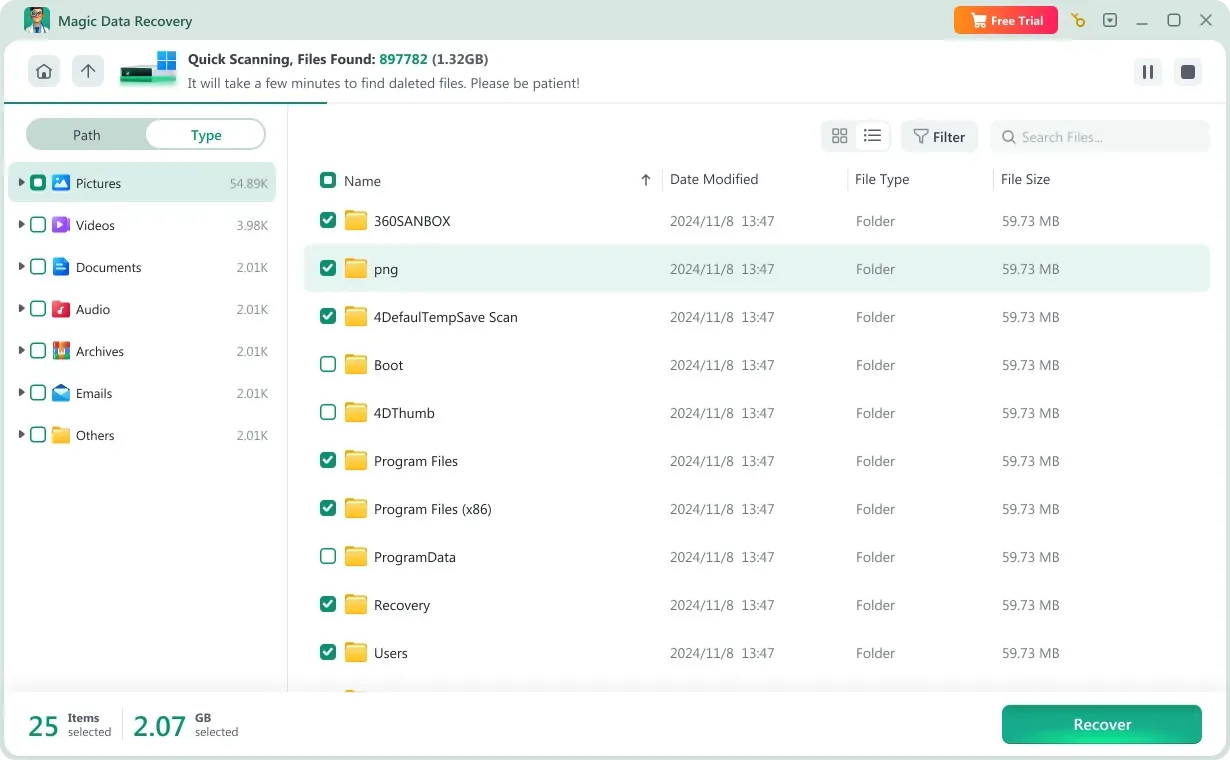
Step 2: Select the Target Drive
Open the program and choose the drive or partition where the documents were deleted. Start scanning to allow the software to search for recoverable files.

Step 3: Preview Recoverable Documents
Once scanning is complete, browse the results and preview documents such as Word, Excel, or PDF files to confirm their integrity before restoring them.
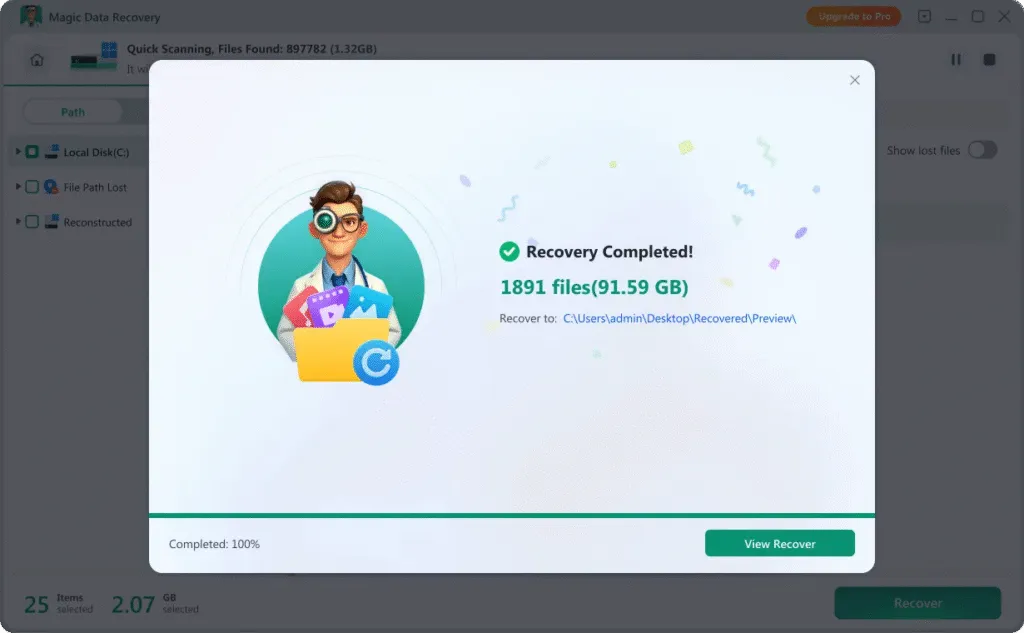
Step 4: Save Files to a Secure Location
Select the documents you want to recover and save them to a different drive or external device to avoid overwriting existing data.
Recover Documents from Different Storage Devices
Document loss can occur on various storage media. Magic Data Recovery supports document recovery from:
- Windows desktops and laptops
- Internal and external hard drives
- SSDs and HDDs
- USB flash drives
- SD cards and memory cards
- Other removable storage devices

Tips to Maximize Document Recovery Success
To increase your chances of successfully restoring deleted documents, follow these important recommendations:

Stop Using the Affected Drive
Immediately avoid saving new data to the drive where documents were lost. Continued usage may overwrite recoverable files.

Do Not Reinstall the Operating System
Reinstalling Windows or performing major system changes can reduce recovery success by replacing lost file data.

Use Professional Recovery Software
Dedicated document recovery tools provide deep scanning capabilities and safer restoration methods, reducing the risk of permanent data loss.
Frequently Asked Questions About Document Recovery
Document recovery may raise many concerns. The following frequently asked questions provide clear explanations to help you proceed confidently.
Magic Data Recovery
Start Document Recovery Now
Losing critical documents does not necessarily mean they are gone forever. With Magic Data Recovery, you gain a powerful and easy-to-use document recovery solution that helps you restore deleted files safely and efficiently.
Download Magic Data Recovery today and recover your important documents with confidence.
Related Guides
Explore more document recovery guides to recover deleted or lost document files on different devices, and discover useful tips and methods to restore your important documents safely and efficiently.
Learn how to recover unsaved Word document on Windows using AutoRecover or Magic Data Recovery …
Need reliable deleted documents recovery software? Learn how to restore lost Word, Excel, and PDF files …
Learn how do I recover a deleted Excel file using proven methods, backups and tools. A practical guide to …
Learn how to recover deleted PDF files using Magic Data Recovery. This guide provides the best methods …
Learn how to recover AutoCAD file that were lost, deleted, corrupted, or unsaved. Includes Magic Data Recovery …