
6 Proven Methods to Recover AutoCAD File
If you need to recover AutoCAD file data after AutoCAD crashes, a DWG suddenly disappears, or your latest edits are missing, there may still be a usable copy available. Depending on what happened, AutoCAD may have saved your work as a recovery drawing, an .sv$ AutoSave file, or a .bak backup, while Windows or cloud storage may still contain another version of the original DWG.
The important thing is that a drawing missing from AutoCAD does not always mean the file itself has been permanently deleted. Sometimes the original DWG is still on the drive but no longer appears in Recent Documents; in other cases, AutoCAD has preserved an earlier or automatically saved version after a crash. Even when the file was actually deleted, recovery may still be possible depending on the storage device and what happened afterward.
This guide starts with the quickest and least disruptive recovery options first. You will check AutoCAD’s own recovery files, AutoSave and BAK copies, the original storage location, and available Windows or cloud backups. If none of those contains the drawing and the DWG has genuinely disappeared from storage, the guide then moves to deleted-file recovery.
For other Word, Excel, PDF, CAD, and work-file loss scenarios, see our Document Recovery Guide.
Important: If you already know that the DWG was permanently deleted, the Recycle Bin was emptied, or the drive was formatted, try to limit new writes to that storage device. Avoid installing software or saving new files there until you have checked your recovery options.
Table of Contents
Before Recovery: Protect the AutoCAD Files You Still Have
Before trying to recover AutoCAD file data, avoid actions that may remove useful recovery versions.
If AutoCAD just crashed, do not immediately clear Temp, AutoSave, or recovery folders. An .sv$ file or recovery copy may still contain changes that never reached the main DWG.
If you accidentally saved another drawing over the correct DWG, stop saving the file again. A corresponding BAK may still contain the original drawing state, but another save can replace that backup.
If the DWG was deleted or the drive was formatted, reduce writes to the affected storage. Installing software, copying large files, or continuing normal work on the same volume may overwrite recoverable data.
Finally, if the HDD clicks, repeatedly disconnects, or becomes less stable during access, stop DIY scanning. That is no longer a normal logical file-loss case.
Quick Diagnosis: What Actually Happened to Your AutoCAD File?
Start with the symptom you can actually see.
What you see | More likely problem | Try first |
AutoCAD or Windows crashed while the drawing was open | Crash recovery | Drawing Recovery Manager |
Recent edits were never manually saved | AutoSave state |
|
You need the version before your latest manual save | Previous save state |
|
Drawing disappeared from AutoCAD Recent, but Explorer can still find it | Recent/path issue | Open the existing DWG directly |
DWG was normally deleted | Deleted file | Recycle Bin |
File is missing locally but the folder uses OneDrive/Dropbox/company backup | Another copy may exist | Version History / backup |
Shift+Delete or Recycle Bin was emptied | Actual deletion may have occurred | Backup, then data recovery |
Drive was formatted | Actual file loss | Stop writing and recover data |
DWG exists but AutoCAD cannot open it | File damage |
|
Drive clicks or repeatedly disconnects | Possible hardware failure | Stop DIY recovery |
The distinction is important:
File still exists → Open or repair it.
Another intact copy exists → Restore it.
File no longer exists → Recover it from storage.
Do not use all recovery methods indiscriminately.
What Are AutoCAD Recovery Files?
Before you recover AutoCAD file data, understand what the main AutoCAD recovery files actually represent.
- DWG: the normal AutoCAD drawing.
- Recovery DWG: a recovery candidate AutoCAD may provide after an abnormal shutdown.
- SV$: an AutoCAD AutoSave file created at the configured AutoSave interval.
- BAK: the drawing state immediately before the latest manual save when backup creation is enabled.
- AC$: a temporary working file. It is not a normal drawing backup.
These files represent different points in your editing timeline.
For example, a BAK can be older than the current DWG, while an SV$ may contain newer unsaved work created after the last manual save.
AutoCAD also does not maintain unlimited BAK history. A later save can replace the previous backup. Likewise, a successful SAVE, QSAVE, or SAVEAS removes the current SV$ and starts a new AutoSave cycle after further edits.
Autodesk’s documentation also distinguishes BAK and SV$ this way: BAK normally preserves the drawing state before the latest save, while SV$ represents an automatic-save state created during editing.
That is why you should compare the actual drawing contents instead of automatically choosing the newest-looking filename.
Method 1: Recover AutoCAD File with Drawing Recovery Manager
Best for: AutoCAD or Windows crashed while the drawing was open.
What it can recover: Available drawing, backup, and AutoSave versions associated with the interrupted session.
Limitation: Drawing Recovery Manager does not restore a DWG that you permanently deleted afterward.
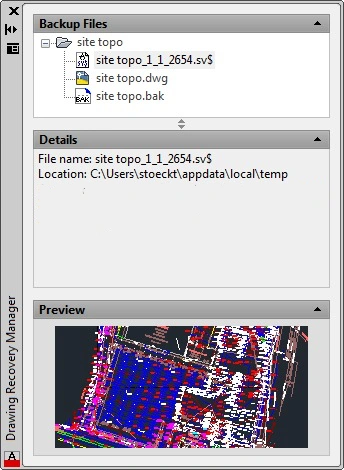
After an abnormal shutdown, AutoCAD’s Drawing Recovery Manager can collect available recovery candidates for drawings that were open during the interrupted session.
To use it:
- Restart AutoCAD.
- Open Drawing Recovery Manager if it does not appear automatically.
- Expand the affected drawing.
- Review the available DWG, BAK, SV$, and recovery files.
- Open the most promising candidate.
- Check whether the expected layouts, layers, objects, and recent changes are present.
- Save the usable version under a new filename.
According to Autodesk, Drawing Recovery Manager is intended for drawings that were active during a program or system failure and may list the original DWG, recovered drawing, SV$, and BAK versions.
This should normally be your first attempt to recover AutoCAD file work after a crash because it uses recovery information AutoCAD already created.
Recovery Lab: What Does an AutoCAD Crash Actually Preserve?
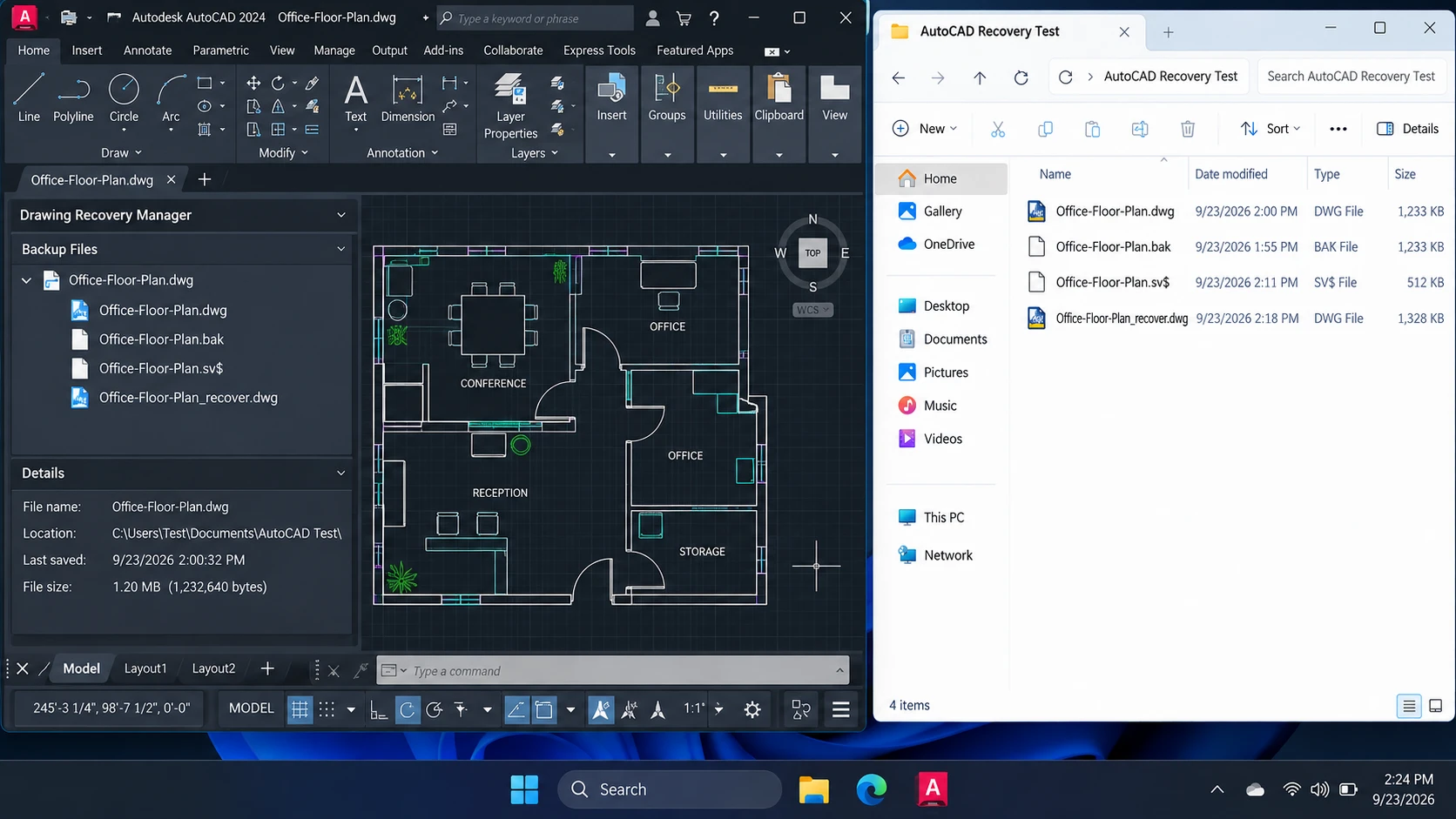
Consider a controlled AutoCAD session using a 10-minute AutoSave interval:
- 1:55 PM: An earlier version is saved.
- 2:00 PM: New changes are manually saved.
- 2:01 PM: Another object is added.
- About 2:11 PM: AutoSave runs.
- 2:14 PM: Another unsaved change is made.
- 2:18 PM: AutoCAD closes unexpectedly.
The available recovery candidates represent different points in that timeline:
Recovery Candidate | Result | Drawing State |
Original DWG opens | Yes | Manual-save state from 2:00 PM |
BAK opens after renaming to DWG | Yes | State before the 2:00 PM save |
SV$ opens after renaming to DWG | Yes | State captured by the 2:11 PM AutoSave |
Recovery Manager lists session files | Yes | Allows comparison of available crash-recovery candidates |
The important finding is that the newest-looking filename is not automatically the version you need.
Open the candidates and inspect the drawing itself.
If Recovery Manager does not contain the changes you need, check the AutoSave folder next.
Method 2: Recover AutoCAD File from an SV$ AutoSave File
Best for: AutoCAD crashed after you made changes that were not included in the most recent manually saved DWG.
What it can recover: The drawing state recorded by the latest completed AutoSave.
Limitation: Changes made after that AutoSave may still be missing.
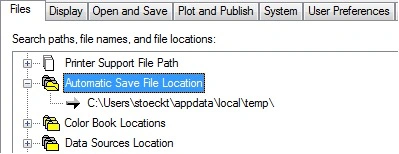
Open:
Options > Files > Automatic Save File Location
Then locate recent .sv$ files.
- Sort the AutoSave folder by modification time.
- Find the SV$ that corresponds to the lost session.
- Copy it to another folder first.
- Enable File name extensions in Windows.
- Replace the actual
.sv$extension with.dwg. - Open the renamed file in AutoCAD.
- Check the drawing content.
- Save the usable drawing as a new file.
Suppose AutoSave ran at 2:11 PM and AutoCAD crashed at 2:18 PM. The SV$ may include everything saved automatically by 2:11 PM but not edits made afterward.
Therefore, check the actual content rather than relying only on the timestamp.
Look at:
- Important objects
- Layers
- Layouts
- Blocks
- Recently edited areas
- File size
Common mistake: If Windows hides known file extensions, typing.dwgafter the existing name may create something likedrawing.sv$.dwg. Enable file-name extensions first and replace the actual.sv$extension.
Also, do not assume an .ac$ file is another AutoSave drawing. Simply renaming AC$ to DWG does not turn it into a normal recovery file.
If no usable SV$ exists, check the BAK copy.
Method 3: Recover AutoCAD File from a BAK Backup
Best for: You need the drawing state immediately before the latest manual save.
What it can recover: One previous save state.
Limitation: BAK is not unlimited version history. Another save can replace it.
To recover AutoCAD file data from BAK:
- Open the folder containing the original DWG.
- Find the corresponding
.bakfile. - Copy the BAK somewhere safe.
- Make sure Windows displays file extensions.
- Rename the copied file from
.bakto.dwg. - Open it in AutoCAD.
- Verify the contents.
- Save the usable version under a new filename.
When Create backup copy with each save is enabled, the normal AutoCAD backup file location is the same folder as the related DWG.
Recovery Lab: What Happens If You Overwrite the Wrong DWG?
An accidental Save As behaves differently from a crash.
Suppose Project-A.dwg contains the drawing you need while Project-B.dwg contains different content. You accidentally save Project B over Project-A.dwg.
With backup creation enabled:
Action |
|
| Can BAK Restore Original A? |
Before overwrite | Original Project A | Earlier A version, if available | Depends on previous save |
Save B over | Project B content | Original Project A | Yes |
Save the overwritten drawing again | Current B-based content | Previous B-based state | No |
Save it again | Latest state | Immediately previous state | No |
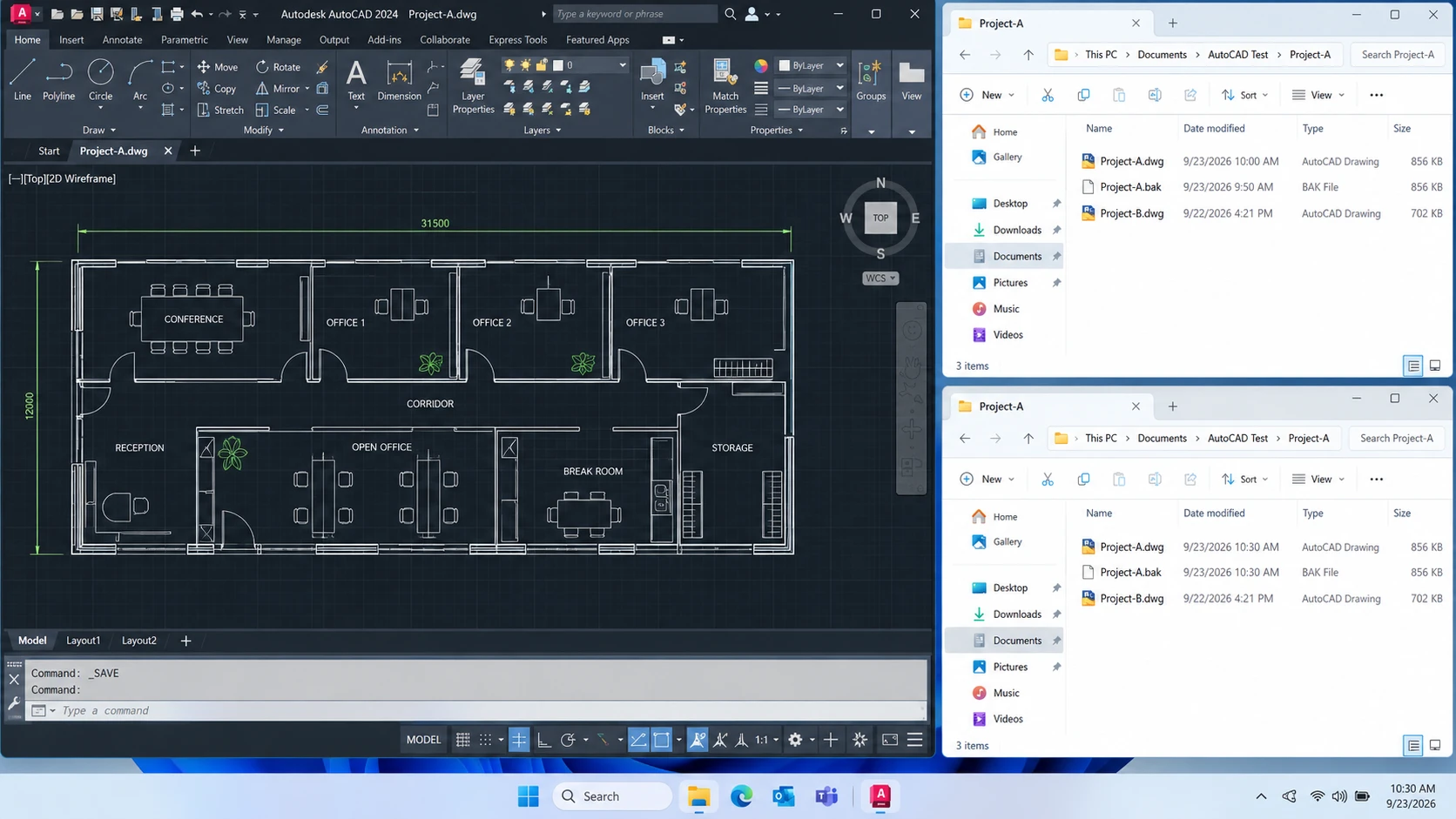
The result is important:
BAK protects one previous save state, not a complete revision history.
If you realize that the wrong DWG was overwritten, stop saving immediately and copy the BAK elsewhere.
That short window can determine whether you can recover AutoCAD file content from the original drawing or only retrieve a later overwritten version.
Method 4: Search for the Existing DWG Before Assuming It Was Deleted
If AutoCAD no longer shows the drawing but you do not know that it was deleted, search the actual storage first.
A missing Recent entry is not proof of file deletion.
Start with the information you already know:
- Original drawing name
.dwgextension- Project folder
- Approximate last-modified date
- External HDD or SSD previously used for the project
- Network or NAS location
- OneDrive, Dropbox, or other synchronized folder
Search File Explorer for the filename or relevant DWG files and sort results by modification date.
Also check the folders where the project was previously saved.
If you find the DWG, do not run data recovery simply because AutoCAD no longer lists it. Open the existing copy directly and save it to a stable location if necessary.
If the drawing depends on externally referenced files, finding the DWG also does not guarantee that every project dependency is present. Missing referenced resources should be located or restored separately.
Method 5: Recover AutoCAD File from Recycle Bin, Previous Versions, or Backups
Best for: The original DWG is absent from its normal location, but another intact copy may still exist.
Before scanning the storage device, check sources that may already contain a complete copy.
Check the Recycle Bin
If you deleted the file normally:
- Open the Windows Recycle Bin.
- Search for the drawing name or
.dwg. - Sort by deletion date if necessary.
- Restore the required file.
Check Windows Previous Versions
- Open File Explorer.
- Find the folder that originally contained the DWG.
- Right-click it and choose Properties.
- Open Previous Versions.
- Look for a version from before the drawing disappeared.
- Open or copy the required file to a safe location.
Check Cloud and Project Backups
Also inspect:
- OneDrive version history
- Dropbox version history
- NAS backups
- Company backup systems
- Scheduled Windows backups
- Manual project copies
- Archived project folders
These sources come before storage-level recovery because they may already contain a complete, intact version.
If a usable DWG is found here, restore it and return to AutoCAD.
If none of these locations contains the file, you can now determine whether actual data recovery is appropriate.
Deletion Checkpoint: Do You Really Need Data Recovery?
Do not use recovery software simply because AutoCAD cannot find the drawing.
Run through this checkpoint first:
Check | If Yes | If No |
Can File Explorer find the original DWG? | Open the existing file | Continue |
Does Drawing Recovery Manager have a usable copy? | Restore it | Continue |
Is there a usable SV$ or BAK? | Restore and verify it | Continue |
Does Recycle Bin contain the DWG? | Restore it | Continue |
Does Previous Versions, cloud history, or another backup contain it? | Restore that copy | Continue |
Is the original storage device stable and readable? | Storage scanning may be reasonable | Stop DIY if physically unstable |
Was the file permanently deleted, lost after formatting, or otherwise removed from accessible storage? | Data recovery is now appropriate | Recheck the file location before scanning |
Only after these checks fail does storage-level recovery become the logical next step.
This separation matters because data recovery software cannot fix an AutoCAD Recent list, recreate an AutoSave that never existed, or repair a broken project path.
It is specifically for recovering files that are no longer accessible through the normal file system.
Method 6: Recover Deleted AutoCAD File After Permanent Deletion
Best for: Shift+Delete, emptied Recycle Bin, lost project folders, or files missing from a readable formatted drive.
Limitation: Recovery software cannot reconstruct data that has already been overwritten. SSD TRIM may also significantly reduce recovery possibilities.
At this stage, AutoCAD Recovery Manager, SV$, BAK, Recycle Bin, Previous Versions, cloud history, and available backups have already been checked.
That is when a storage-level tool becomes relevant.
Magic Data Recovery scans the original storage device for deleted or missing data rather than relying on AutoCAD’s recovery records. Therefore, it can be used when you need to recover AutoCAD file data that Windows no longer presents as a normal accessible file.
How to Recover Lost AutoCAD File with Magic Data Recovery
Step 1: Install It Away from the Source Drive
Do not install recovery software on the same drive that contained the lost DWG. For example, if the drawing disappeared from D:, install the software on C: or another storage device.
This reduces unnecessary writes to the source.
Supports Windows 7/8/10/11 and Windows Server
Step 2: Select the Original Storage Location
Launch Magic Data Recovery and select the HDD, SSD, USB drive, memory card, or partition where the AutoCAD drawing originally existed. Then start the scan.

Step 3: Find the Missing DWG
Use available information such as:
- Filename
- Original location
- File type
- File size
- Modification time
Also check related DWG, DXF, and BAK files if several project files disappeared together.

Step 4: Recover the File to Another Drive
Select the required files and restore them to storage other than the original source.
Do not save recovered drawings back to the affected volume while you are still looking for additional lost data.
Finding the filename, however, is not enough. The recovered DWG still needs to be validated in AutoCAD.

Recovery Lab: What Does a Successful Deleted DWG Recovery Look Like?
For a controlled healthy-drive recovery case, the validation chain should reach every stage below:
Validation Check | Result |
Deleted DWG appears in scan results | Yes |
Original filename is available in the recoverable record | Yes |
Original folder information is available | Yes |
DWG can be restored to another drive | Yes |
Recovered DWG opens in AutoCAD | Yes |
Expected layouts, layers, and objects are present | Yes |
This is the standard that matters.
Finding a filename is not the same as successfully recovering an AutoCAD drawing.
File-system metadata may not survive every deletion or formatting scenario. In another case, the original filename or directory information may be gone even when recoverable file content remains.
Likewise, overwritten data may leave a DWG entry that appears in scan results but does not contain enough intact information to open correctly.
Therefore, always validate the recovered file.
After Recovery: Return the DWG to the AutoCAD Workflow
Recovering the file from storage is only the first half of the job.
To confirm that you really recover AutoCAD file content successfully:
- Check that the recovered file has a plausible size and is not 0 KB.
- Make a copy before testing it.
- Open the copy in AutoCAD.
- Check important layouts and layers.
- Inspect expected blocks and objects.
- Review recently edited areas.
- Save the verified drawing under a new filename.
If the DWG opens but externally referenced resources are still missing, recover or reconnect those dependencies separately. Restoring the main drawing does not automatically recreate every linked file or external resource used by the project.
Keep the original recovered version untouched until you have confirmed that the new working copy behaves normally.
If AutoCAD still cannot open the recovered DWG, the problem has changed from missing file recovery to drawing repair.
Repair a DWG That Exists but Will Not Open
Best for: The DWG exists on the storage device or has already been recovered, but AutoCAD reports an error or refuses to open it.
RECOVER and AUDIT cannot recover AutoCAD file data that no longer exists. They operate on an existing drawing.
Start AutoCAD with a blank drawing. Then run:
RECOVER
Select the affected DWG.
If AutoCAD successfully opens it, save a new copy. Afterward, run:
AUDIT
to inspect the drawing database for additional problems.
The preferred sequence is:
Recover → Verify → Repair
If the original file is missing, do not reverse that order.
First restore the DWG to a safe location. Preserve the recovered original. Then perform repair operations on a duplicate.
Online DWG repair services may also be available, but architectural, engineering, and client drawings can contain confidential information. Review the service’s privacy practices before uploading sensitive project files.
What If AutoCAD File Recovery Fails?
Failure at different stages means different things.
The scan does not find the DWG
Confirm that you selected the storage device or partition where the file actually existed.
For example, scanning C: will not help if the project was stored on an external SSD or another partition.
The DWG appears in results but will not open
A directory entry or filename may survive even when part of the underlying file content has been overwritten.
Finding the entry therefore does not prove that the full drawing survived.
The deleted file was on an SSD
SSD TRIM can reduce recovery possibilities after permanent deletion because deleted blocks may become unavailable for later recovery.
In that situation, trying progressively more scanning tools does not guarantee a better result.
AutoCAD recovered only an older version
Recovery Manager, SV$, and BAK represent specific save points. If the latest changes were never written to any recovery file, those changes may not exist in a recoverable version.
The storage device becomes unstable
Stop repeated scanning if the device disconnects, produces unusual noises, or becomes progressively harder to read.
That indicates a different level of risk.
When You Should Stop DIY AutoCAD Recovery
Software recovery is appropriate only when the original storage device remains stable enough to read.
Stop DIY attempts if:
- An HDD repeatedly clicks or grinds.
- The drive frequently disconnects.
- Windows detects it only intermittently.
- Each scan makes the device less stable.
- The storage device suffered water, fire, impact, or electrical damage.
- The missing DWG is the only copy of high-value project data and another unsuccessful attempt would create unacceptable risk.
In these situations, repeated scanning may place additional stress on failing hardware.
A professional data recovery service may provide a safer recovery path.
Also avoid formatting, initializing, or running aggressive file-system repair merely to make an inaccessible drive appear usable while important drawings remain unrecovered.
How to Avoid Needing to Recover AutoCAD File Again
After recovery, improve the AutoCAD workflow rather than relying on one recovery feature.
Keep AutoSave Enabled
Choose an AutoSave interval appropriate for your workload.
However, AutoSave should supplement normal saves, not replace Ctrl+S.
Keep BAK Creation Enabled
Create backup copy with each save provides one useful previous drawing state if an unwanted edit or overwrite reaches the main DWG.
Remember that it is not a complete revision system.
Know Your AutoSave Location
Knowing the configured AutoSave folder before a crash makes future recovery much faster.
Use Versioned Project Backups
For important projects, use Windows backup, NAS snapshots, cloud version history, or another system that preserves older copies.
Simple synchronization should not be your only backup because unwanted deletions and overwrites can also synchronize.
Keep Project Files in Stable Locations
Avoid repeatedly moving or renaming active project folders, external storage locations, and linked resources.
Stable storage makes both normal AutoCAD access and future recovery easier.
Maintain an Independent Copy
Keep at least one copy outside the active working drive.
For valuable professional projects, another independent version can turn a difficult recovery operation into a straightforward restore.
Conclusion: The Safest Way to Recover AutoCAD File Data
The safest way to recover AutoCAD file data depends on what is actually missing.
If the DWG still exists, open it directly or repair it if necessary.
If AutoCAD crashed or recent edits disappeared, start with Drawing Recovery Manager and SV$ AutoSave files. If you need the version immediately before the latest manual save, check BAK.
If the drawing has disappeared from its normal folder, search the actual storage and check Recycle Bin, Previous Versions, cloud history, and other project backups before scanning the drive.
Only when the DWG is genuinely missing after permanent deletion, formatting, or another storage-level loss should you move to data recovery.
In that situation, minimize new writes to the source and use a tool such as Magic Data Recovery to restore the file to another drive. Then verify that the recovered DWG opens, contains the expected layers, layouts, and objects, and can be saved normally.
If the recovered drawing is damaged, preserve the recovered original before using AutoCAD repair tools.
The decision can be summarized simply:
File exists → Open / Repair
AutoCAD or backup copy exists → Restore
File is genuinely deleted → Recover
Drive is physically unstable → Stop DIY
For other lost work-file scenarios, visit our Document Recovery Guide.
Supports Windows 7/8/10/11 and Windows Server
FAQs
Where is the AutoCAD backup file location?
.bak file in the same folder as the related DWG when backup creation is enabled. First check the project folder and look for a file with the same base name. Copy the BAK somewhere safe, replace .bak with .dwg, and open the copied file in AutoCAD to verify the drawing before saving it again.Where are AutoCAD AutoSave files stored?
.sv$ files. Copy the likely candidate elsewhere, replace .sv$ with .dwg, and open it to determine whether it contains the missing changes.Why does Drawing Recovery Manager not show my file?
What is the difference between SV$ and BAK files?
Can I recover an AutoCAD file after Shift+Delete?
Can I recover an AutoCAD file from an SSD?
Should I repair or recover an AutoCAD file first?
RECOVER and AUDIT commands require an existing drawing. After restoring the file, preserve the recovered original and work on a duplicate. Then use repair commands only if AutoCAD cannot open or process that copy normally.
Erin Smith is recognized as one of the most professional writers at Amagicsoft. She has continually honed her writing skills over the past 10 years and helped millions of readers solve their tech problems.