
How to Recover Deleted Excel Files on Windows
An Excel workbook disappears from its folder, and the shortcut in Recent now leads nowhere. Whether it was a budget, an invoice, or a weekly report, it may still be possible to recover deleted Excel files. A missing workbook can still have a copy in the Recycle Bin, cloud storage, or a backup.
Recovery after Shift+Delete or an emptied Recycle Bin depends on what happened to the original data. New writes can overwrite it, and SSD TRIM can make deleted content unavailable even before you deliberately save anything else. Stop saving to the affected drive while you check your recovery options.
If no usable backup remains and the original drive is still readable, Magic Data Recovery offers a way to scan for deleted Excel workbooks. Its search and filtering tools help locate spreadsheet candidates, which you can recover to a separate drive and verify in Excel. Recovery depends on the remaining data; software cannot restore content that has been overwritten or purged.
This Windows-focused guide explains how to identify the loss, try built-in recovery options first, and check that the recovered workbook actually works. For other file types, see our deleted file recovery guide.
Supports Windows 7/8/10/11 and Windows Server
Table of Contents
Before You Try Deleted Excel File Recovery
Protect the original storage first. Do not download recovery tools, install software, or save recovered files onto the affected drive. Use a separate physical device for recovered output. If the workbook was on your system drive, minimize PC use and consider having the drive examined from another computer. Do not format, initialize, or run CHKDSK as an undelete step. If a drive clicks, repeatedly disconnects, or becomes unreadable, stop DIY scans and seek professional advice.
Quick Answer: Which Recovery Method Should You Use?
To recover a deleted Excel file, first check for an existing copy. Use storage recovery only when the file is genuinely deleted and no usable copy remains.
What happened? | What it suggests | Start here |
You deleted a saved workbook normally | It may still be in the Windows Recycle Bin | Method 1 |
The file was in OneDrive, SharePoint, or Teams | The service may retain a deleted copy | Method 2 |
You have File History or another backup | A copy from before deletion may exist | Method 3 |
You used Shift+Delete or emptied the bin | The workbook may require a local storage scan | Method 4 or 5, after checking backups |
A USB drive or external disk was quick-formatted | File-system records changed; original content may remain | Method 5, if the device is stable |
A mapped drive such as | The actual data may be on a server or NAS | Ask the administrator about snapshots and backups |
Excel closed before you saved | Unsaved work is the issue | The unsaved-workbook section below |
The workbook opens, but a worksheet tab is missing | The deletion happened inside the workbook | Worksheet recovery or version history |
The drive clicks or keeps disconnecting | Hardware failure may be involved | Stop scanning and consult a recovery service |
Check Whether the Excel File Is Really Deleted
A broken shortcut alone does not prove deletion. Before scanning storage, make these low-risk checks:
- Check the original path. Excel’s Recent list can point to an old folder, a disconnected external disk, or an unavailable shared location. Reconnect a healthy device or confirm the network location first.
- Search the expected folder. Search for part of the filename, then try
*.xlsxor*.xls. Check a different Windows profile or OneDrive account if you recently changed accounts. - Check cloud storage in a browser. If the workbook exists online, download a copy to a safe device. Local sync trouble does not necessarily mean the cloud file was deleted.
- Distinguish a file from a sheet. If the workbook still opens, do not scan the entire disk just because one worksheet tab is missing. Look for a hidden sheet, Undo while the current session permits it, or an earlier workbook version.
Once deletion is confirmed, the storage type matters. On many hard drives, deleting a file frees its space for reuse without immediately replacing all its contents. That is why an undelete scan may work—and why continued use can make it fail.
SSDs need more caution. Microsoft explains that TRIM hints tell storage that certain sectors are no longer needed and may be purged. The practical implication is that stopping writes helps protect remaining data, but does not guarantee SSD recovery.
Start with copies that already exist, then consider a scan of healthy local storage. There is no benefit in scanning a drive when a complete backup already contains the workbook.
Method 1: Restore a Deleted Excel File from the Recycle Bin
Best for: A saved workbook deleted normally from local storage.
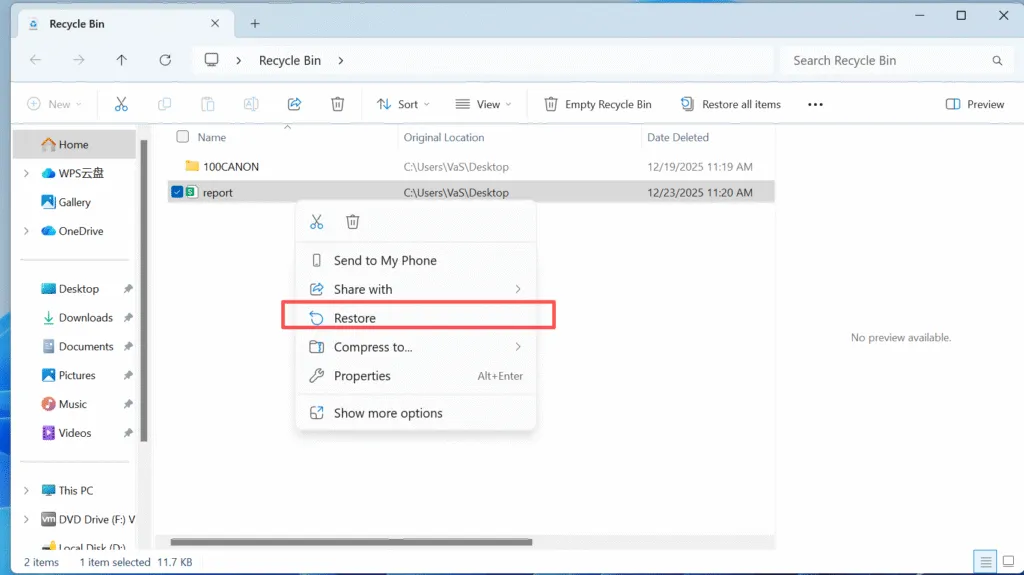
This is the quickest route when the file remains in the bin. Shift+Delete bypasses it, and deletion from a network share or some removable devices may not use your PC’s Recycle Bin.
- Open Recycle Bin on the Windows desktop.
- Search for the workbook name,
.xlsx, or.xls. - Check Original Location and the deletion date to identify the correct file.
- Right-click the workbook and choose Restore.
- Open it from its original folder and verify the contents.
Expected result: The workbook returns to its previous location. If several important files are still missing from that drive, copy the restored workbook to another device before continuing recovery work.
If it is missing: Check the cloud recycle bin and backups next. An empty Windows bin does not rule out those copies.
Method 2: Recover Deleted Excel Files from OneDrive or SharePoint
Best for: Workbooks stored in a synced cloud folder or a Microsoft 365 document library.
Use the cloud service before scanning a PC, especially for online-only files that may never have had a complete local copy.
- Sign in to the correct OneDrive website.
- Open Recycle bin.
- Select the workbook and choose Restore.
- Open the restored file and confirm its contents.
For a SharePoint or Teams workbook, check the relevant SharePoint site’s recycle bin or contact its administrator. Microsoft states that OneDrive personal accounts normally retain deleted items for 30 days; work or school accounts normally use 93 days, subject to administrator settings. See Microsoft’s deleted OneDrive file guidance.
Expected result: The deleted workbook reappears in its cloud location. If it exists but contains unwanted changes, use Version history instead; Microsoft documents restoring an earlier OneDrive version.
If unavailable: Ask the owner or administrator about remaining recovery options, then check independent backups. A desktop scanner cannot scan the cloud service itself.
Method 3: Retrieve a Deleted Excel File from a Backup
Best for: A workbook covered by File History or another backup created before deletion.
A backup can provide a complete saved copy without reconstructing deleted data. Enabling File History after the loss cannot create an earlier backup.
Restore a Previous Version with File History
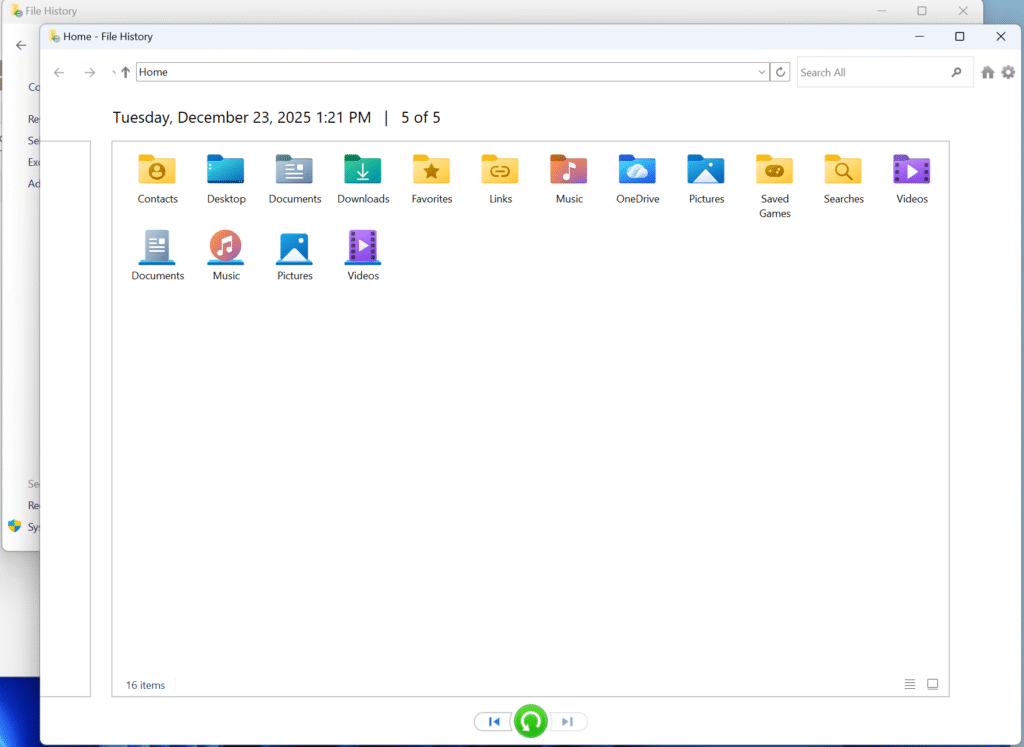
- Connect the drive containing your File History backup.
- In File Explorer, locate the folder that previously contained the workbook.
- Right-click that folder and select Restore previous versions. Windows 11 may place this under Show more options.
- Choose a version dated before deletion.
- Open that version to locate the workbook, or use Restore to to restore to another location.
- Check the recovered copy in Excel.
Microsoft’s File History restoration instructions explain how to inspect a previous folder version and restore elsewhere to avoid replacing current content.
Expected result: A saved workbook from the selected backup date. Compare its timestamp with the version you need.
If no version appears: Check your other backup application, external backup disk, or administrator-managed copies. Without a suitable backup, move to local recovery only if the source device is healthy.
How to Recover a Deleted Excel File from a Shared Drive
For a network path such as \\server\finance or a mapped Z: drive, contact IT with the full path, filename, and approximate deletion time. Ask about server snapshots, NAS recycle bins, and backup copies. The administrator may be able to restore a separate copy for review.
Scanning your laptop’s C: drive does not scan a remote server’s storage. Avoid installing recovery tools on the server or changing its disks yourself. If the network copy is gone, also check for an emailed attachment or an independently saved local copy, then verify how current it is.
Method 4: Try Windows File Recovery for Local Storage
Best for: Windows 10/11 users comfortable with a command-line tool when copies and backups are unavailable.
Windows File Recovery is Microsoft’s free option for supported local storage; it does not recover directly from cloud storage or network shares.
For a healthy NTFS source drive D: and a separate destination device E:, an Excel-focused example is:
- winfr D: E: /regular /n *.xlsx /n *.xls
Replace the letters with your actual devices. Open Windows File Recovery, enter the command, and confirm the operation. If Regular mode fails, or the supported recovery scenario calls for Extensive mode, use:
- winfr D: E: /extensive /n *.xlsx /n *.xls
Expected result: Recovered candidates appear in the destination recovery folder. Open them in Excel to verify usability.
If unsuccessful: A graphical tool may make review easier, but changing tools cannot recreate overwritten or purged content. Stop if the device becomes unstable.
Method 5: Recover Permanently Deleted Excel Files with Magic Data Recovery
Best for: A saved workbook lost from a stable, locally accessible drive after Shift+Delete, an emptied bin, or a quick format, with no usable backup.
At this stage, Excel’s recent-file list cannot restore the missing storage data. A graphical recovery workflow can help you inspect the source, identify spreadsheet candidates, and save them elsewhere. Magic Data Recovery provides drive scanning, result filtering, and preview features; use them to assess candidates rather than treating every listed filename as a successful recovery.
For example, if an invoice workbook was deleted from an external disk, scan that external disk—not the computer merely used to open it. If it lived on a partition that was formatted, select the affected storage carefully. A scan of the wrong location can finish normally while finding none of the files you need.
Select the Correct Source and Find Excel Files
1. Prepare a separate physical device with space for recovered files.
2. Download and install Magic Data Recovery somewhere other than the affected drive. For system-drive loss, use another suitable Windows computer to examine the source where practical; get help if removing it is unfamiliar.
Supports Windows 7/8/10/11 and Windows Server
3. Launch the application and select the drive or partition that held the workbook. Match its capacity and label before scanning.

4. Start the search for lost data and allow it to examine the selected source.

5. Narrow the results to Excel candidates such as .xlsx and .xls, and search for part of the filename when available.
6. Compare folder paths, file sizes, and dates. Deleted files may appear with changed names or without their original folder structure.
7. Use preview where supported. A readable preview provides useful evidence, but check the saved workbook afterward as well.
8. Recover selected candidates to the separate destination device.

Judge the Results Before Continuing
Preserve more than one plausible candidate when dates or names are uncertain. An older complete workbook may be more useful than a newer damaged one. If a candidate has an unexpected size or cannot be previewed, that does not by itself settle the result; the recovered copy still needs inspection in Excel.
If the recovered workbook asks for its original opening password, use the password you normally used for that file. Recovering a password-protected workbook does not remove its encryption. Similarly, a locked encrypted source volume needs an appropriate unlock method before its contents can be examined; do not format it to remove the prompt.
When original names are missing, save plausible spreadsheet candidates to the destination and identify them by their contents. Check the reporting period, worksheet labels, and recognizable entries before renaming a working copy. Keep the original recovery output so that this identification work does not replace your only candidate.
Expected result: Usable workbook copies on the destination device. Use the verification checklist below before deleting duplicates or reusing the source.
Limitations: Magic Data Recovery cannot repair physical hardware, recover content that has been overwritten, or guarantee recovery from an SSD after TRIM. It also cannot retrieve an online-only workbook by scanning a computer that never stored its contents. A file’s name and extension can survive even when its spreadsheet data does not.
If this matches your situation, check Magic Data Recovery’s available scanning and recovery options.
If the Workbook Was Unsaved or Damaged Instead
These situations need a different route from deleted Excel file recovery. Keep them separate so that you do not spend time scanning storage for a file that was never saved.
Recover an Unsaved Excel Workbook
In desktop Excel for Windows, check File > Info > Manage Workbook > Recover Unsaved Workbooks; labels vary by version. Open an available candidate and use Save As to preserve it. After a crash, also inspect the Document Recovery pane if it appears.
Availability depends on whether Excel created and retained a recovery copy. AutoRecover is not a backup of every workbook ever deleted. Microsoft’s earlier Office file recovery instructions explain the distinction between saved and unsaved versions.
Open a Recovered Workbook That Reports an Error
Keep the recovered original and work on a duplicate. In Excel, select File > Open > Browse, select the duplicate, and use the arrow beside Open > Open and Repair. Try Repair first; Extract Data may salvage values or formulas if repair fails. See Microsoft’s workbook repair guidance.
Repair is a separate attempt to salvage a file that exists. It cannot restore missing bytes that recovery never retrieved.
Verify That the Recovered Excel File Is Usable
Finding Budget.xlsx in a result list is only a starting point. Before treating recovery as complete:
- Check the size. A zero-byte file is not a usable workbook. An unexpected size warrants closer inspection.
- Open a copy in Excel. Record any repair warning rather than repeatedly saving over the original recovery output.
- Inspect every important worksheet. Check sheet names, populated ranges, formulas, totals, charts, and recent entries.
- Check dependencies. External links and data connections may reference files that were not recovered. Do not refresh them before reviewing the existing values.
- Keep macros disabled during inspection. For macro-enabled files, verify the source and content before enabling code.
- Confirm the version. Compare reporting dates and known figures with a trusted reference. A workbook can open correctly and still be the wrong revision.
Keep the recovered output unchanged until you have verified a working copy and made an independent backup.
When to Stop DIY Recovery
Stop if the source drive develops clicking or grinding sounds, repeatedly disconnects, reports read errors, or becomes less responsive during scans. A device damaged by water, impact, or an electrical event also needs assessment before further use.
For the only copy of a high-value workbook, professional advice may be appropriate before any scan. A specialist can assess hardware faults, but cannot promise to undo overwritten data, secure erasure, or content already purged by the device.
Do not format, initialize, or run file-system repairs merely to make a recovery tool recognize the drive. Protect the data first; consider repairs or reuse only after important recovered files have been checked and backed up.
Reduce the Risk of Losing Excel Workbooks Again
After recovery, put protection in place for the next revision:
- Keep an independent backup. Use File History or another versioned backup on a separate device. Verify that the folders containing your workbooks are included. A backup that covers Documents will not necessarily protect a separate project folder you never added.
- Use cloud history alongside backups. OneDrive or SharePoint can preserve earlier workbook versions and deleted items within their retention rules. Sync alone is insufficient because deletion can spread to other devices.
- Check AutoRecover settings. In Excel’s Save options, review the recovery interval and location. AutoRecover helps with interrupted editing sessions; continue saving deliberate versions of important work.
- Test a restore. Open an occasional backup copy and check recent entries. Confirming that a backup exists is less useful than confirming that it contains a workbook you can use.
- Keep recovery output separate. Do not immediately return your only recovered copy to a questionable drive. Maintain a second copy before cleanup, repairs, or replacement.
Conclusion
To recover deleted Excel files, begin with the location that already holds a copy: the Windows Recycle Bin, the cloud recycle bin, or a backup. If the workbook was on a shared drive, ask the administrator to check server-side recovery options before trying desktop scanners.
For permanent deletion from healthy local storage without a backup, Windows File Recovery or a graphical tool can attempt to retrieve remaining data. Magic Data Recovery is an option when you need a visual scanning and review workflow. Save recovered candidates to a separate physical device, then check their worksheets, formulas, and version dates in Excel.
If the drive is failing, stop scanning. If data has been overwritten or purged, concentrate on other copies rather than repeated software attempts. For help with other deleted documents, use our deleted file recovery guide.
Supports Windows 7/8/10/11 and Windows Server
FAQs
Can I Recover a Deleted Excel File After Several Months?
Can I Restore Deleted Excel Files Without Paying for Software?
Why Did the Deleted Excel File Not Appear in the Recycle Bin?
Can I Recover Deleted Excel Files from an SSD After TRIM?
How Do I Recover Deleted Excel Files on a Mac?
Is Recovering a Deleted Excel Sheet the Same as Recovering a File?
Why Does a Recovered XLSX File Exist but Fail to Open?
Does Quick Formatting Mean My Excel Files Are Gone Forever?

Vasilii is a data recovery specialist with around 10 years of hands-on experience in the field. Throughout his career, he has successfully solved thousands of complex cases involving deleted files, formatted drives, lost partitions, and RAW file systems. His expertise covers both manual recovery methods using professional tools like hex editors and advanced automated solutions with recovery software. Vasilii's mission is to make reliable data recovery knowledge accessible to both IT professionals and everyday users, helping them safeguard their valuable digital assets.